Bridge to ZBrush
Send a model from the Meshy web app to ZBrush and import it as a tool to sculpt, without downloading and importing the file by hand.
Before you begin
-
You need a Pro plan or higher. On the Free and Starter plans, clicking Send to ZBrush opens the upgrade options.
-
Install the Meshy plugin in ZBrush 2025.1 or later. For the steps, see Meshy for ZBrush.
Start the bridge
To start the bridge in ZBrush, follow these steps:
-
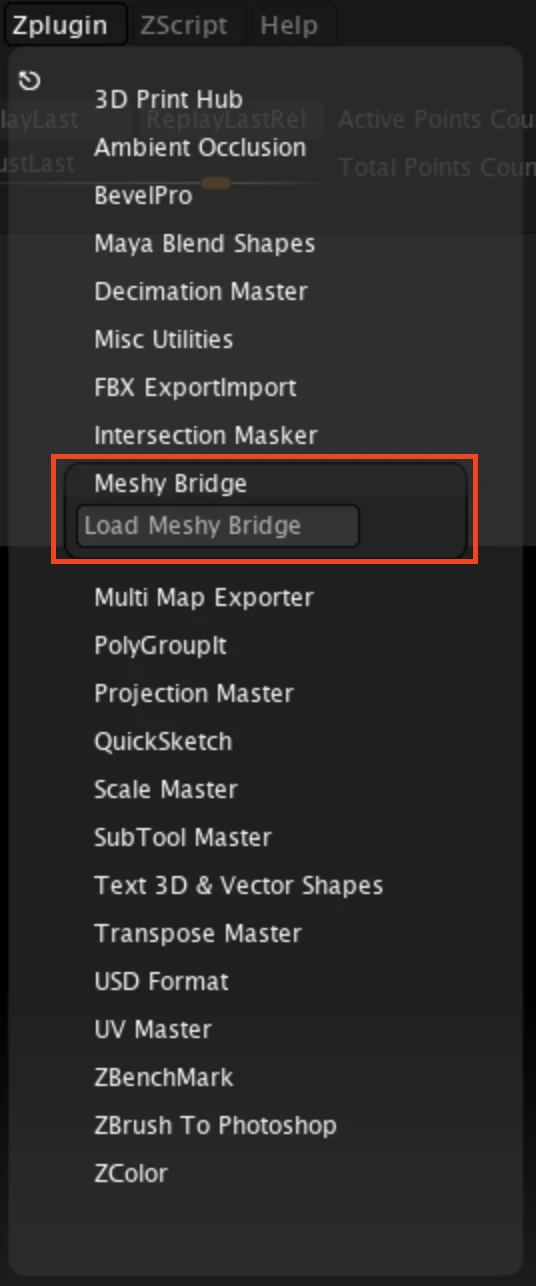
In ZBrush, click Zplugin > Meshy Bridge > Load Meshy Bridge.
-
In the Meshy menu, check that Run Bridge is orange. Orange means the bridge is on and waiting for models from Meshy.
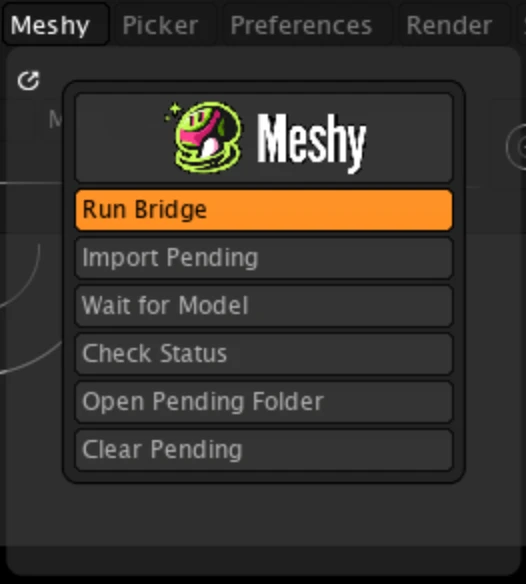
The plugin starts the bridge when it loads. ZBrush's Python can't run a server, so the bridge runs as a separate background process, and it stops when you quit ZBrush. To turn the bridge off or on, click Run Bridge.
Send a model
To send a model to ZBrush, follow these steps:
-
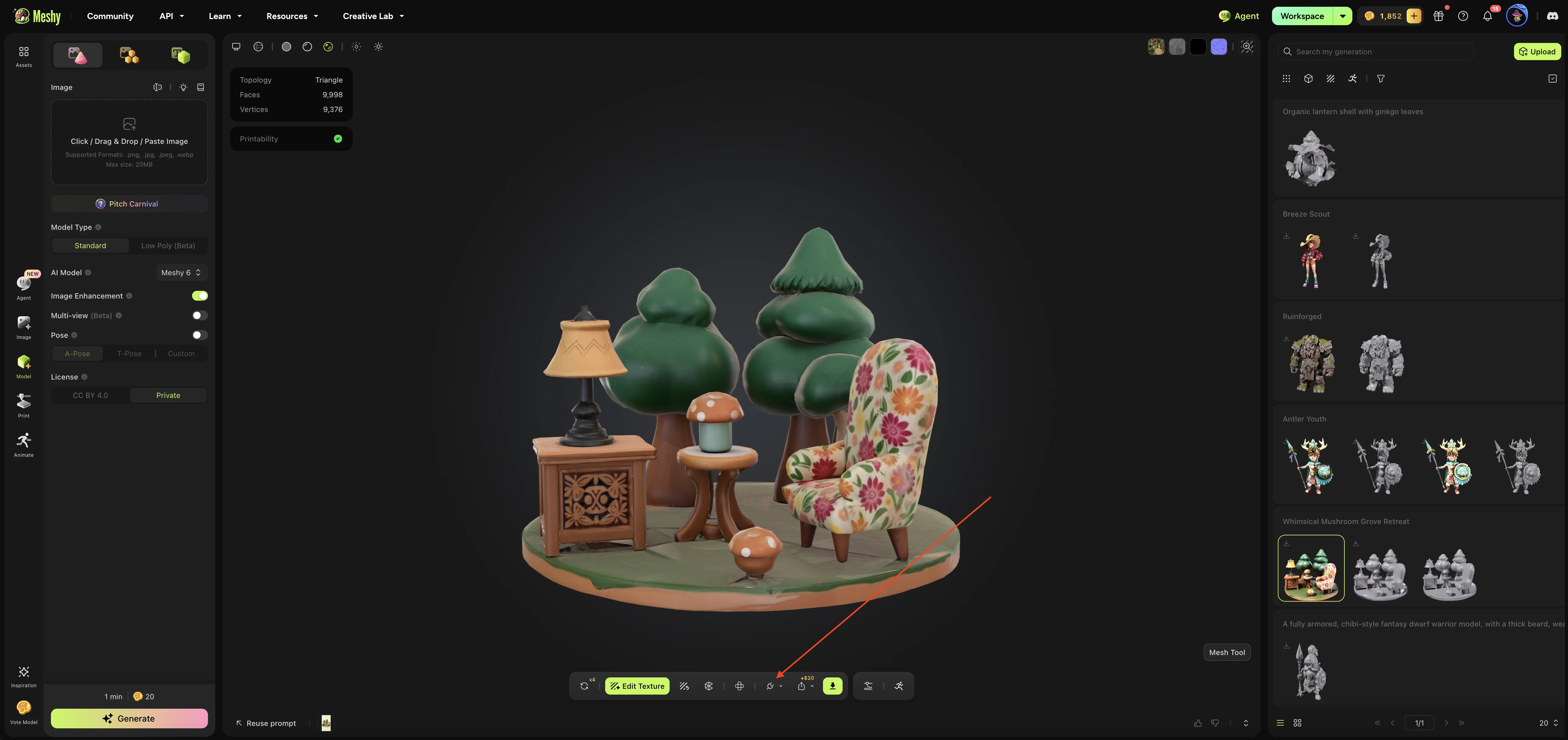
In the Meshy web app on a computer, open the model in the viewer. DCC Bridge isn't available on mobile.
-
In the viewer toolbar, click DCC Bridge (the plug icon).
-
Click Send to ZBrush.
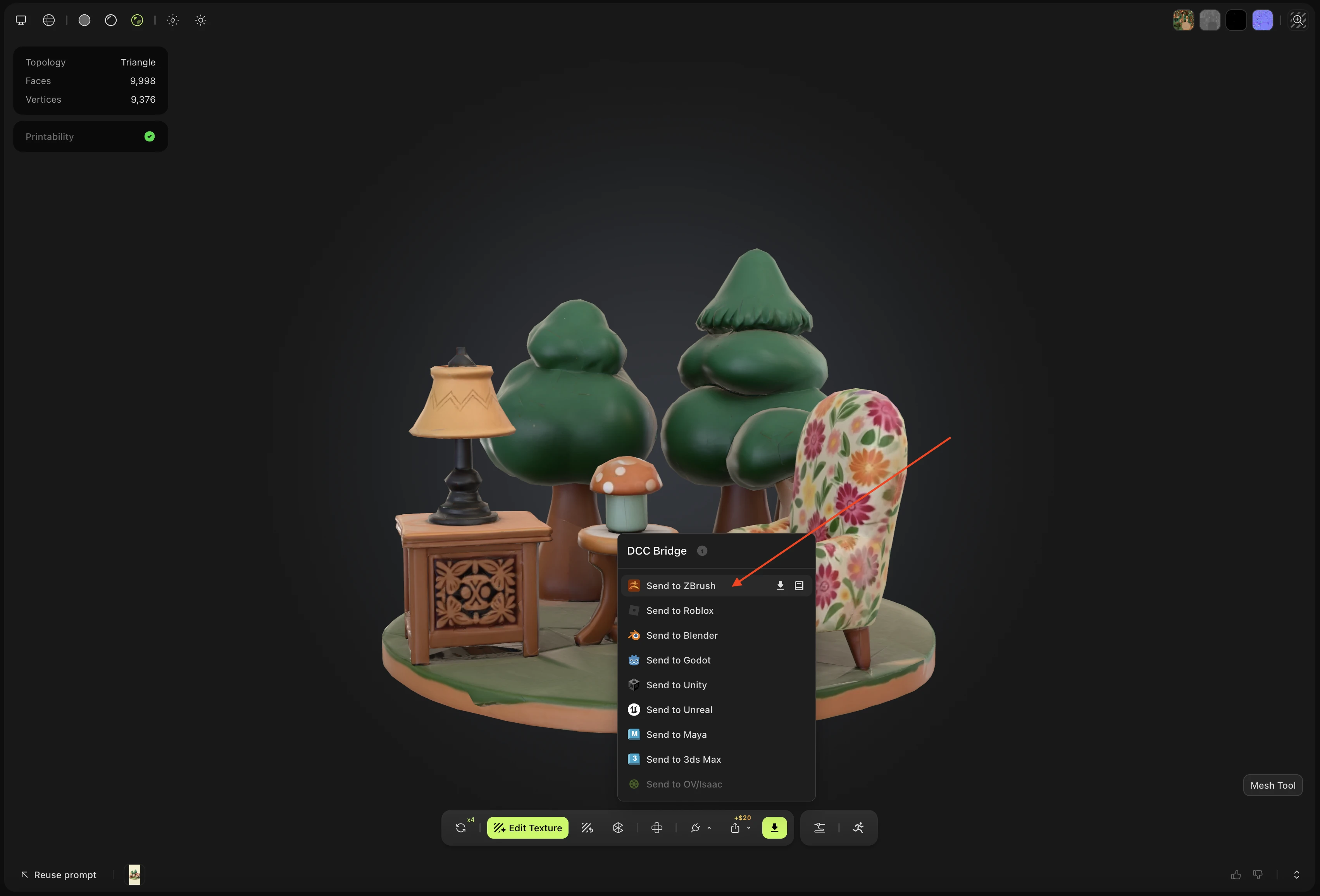
Meshy sends the model as an OBJ file. The plugin downloads it in the background and keeps it as a pending model until you import it.
You can't send an animated model to ZBrush. For an animated model, Send to ZBrush is unavailable. Download the model and import it by hand instead.
Import pending models
Because of a ZBrush plugin limitation, the plugin doesn't import a model as soon as it arrives. You import it yourself.
To import the models that Meshy sent, follow these steps:
-
In the Meshy menu, click Import Pending.
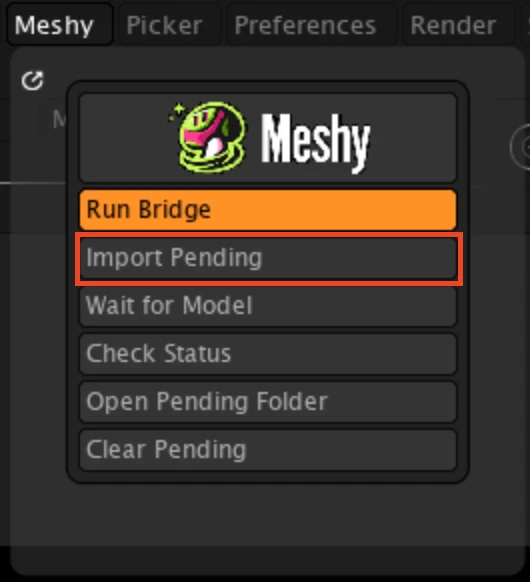
The plugin imports each pending model as a new tool in the Tool palette. The model is white, with BasicMaterial applied. The plugin also saves the tool in the
ZTools/Meshyfolder of your ZBrush installation, or inLightbox/Tools/Meshyif there's noZToolsfolder, so you can reuse it.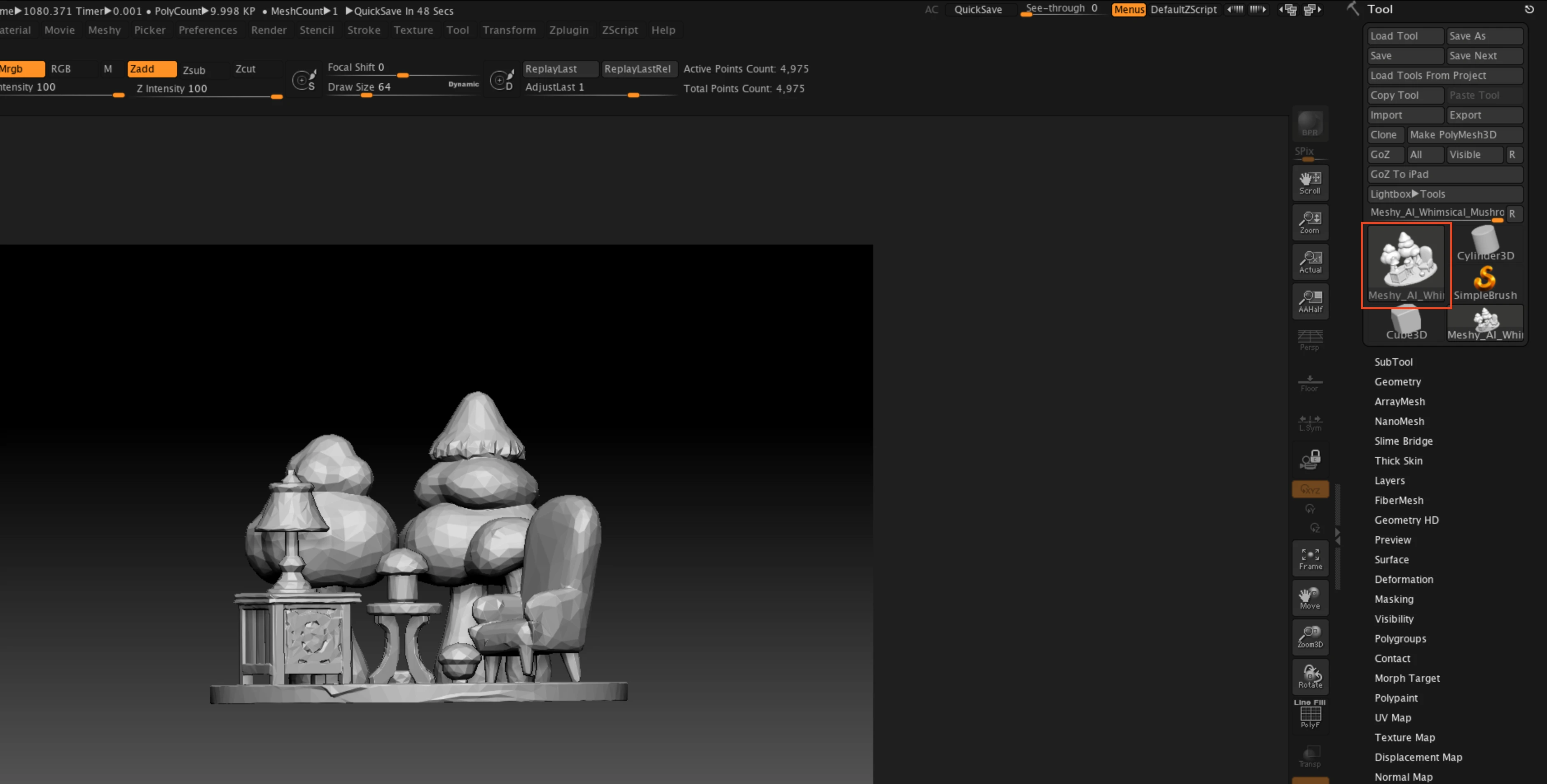
-
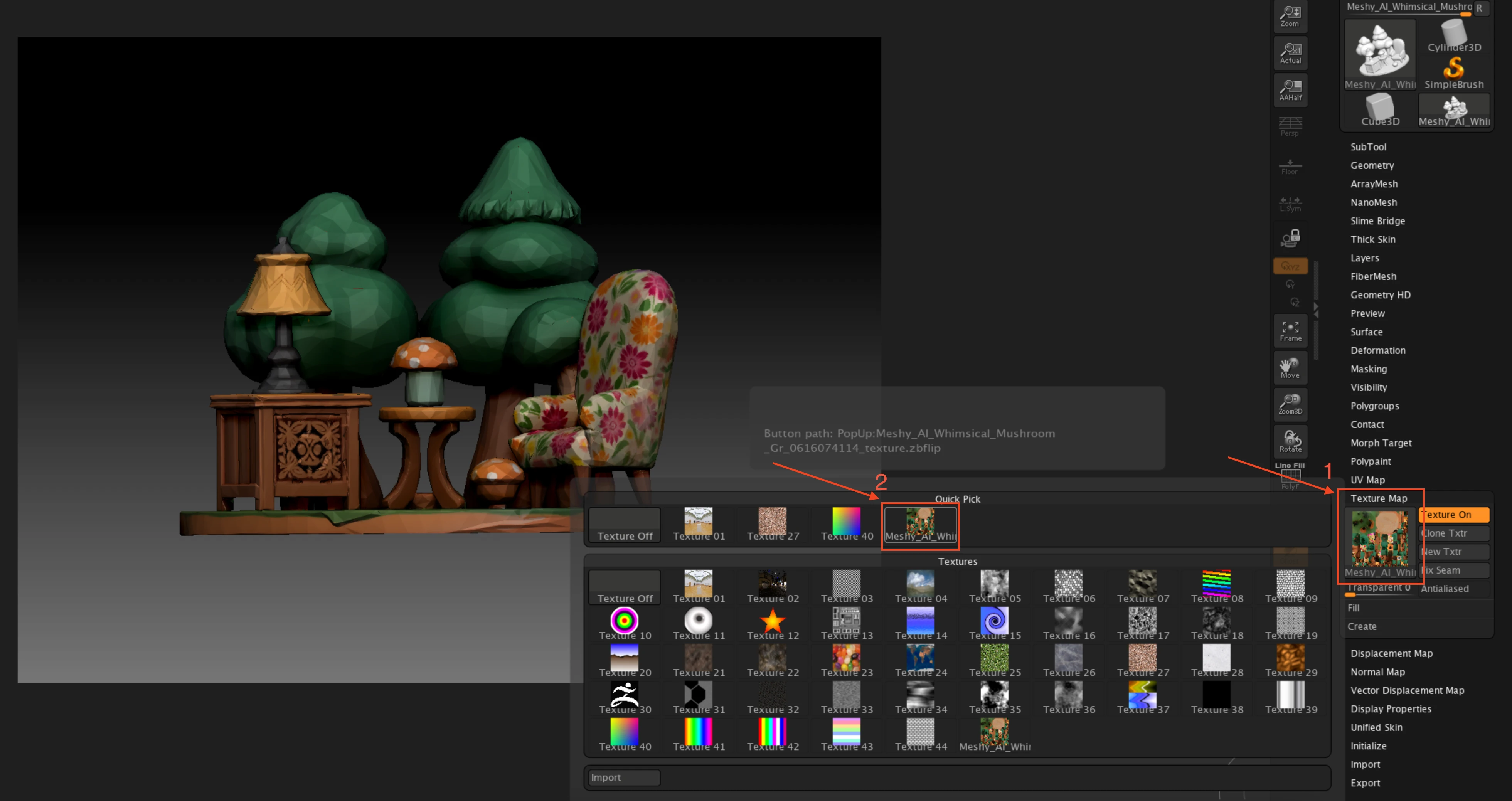
Optional: To show the model's base color, click Tool > Texture Map, and then select the texture whose name matches your model. The plugin already loaded the texture and flipped it vertically for ZBrush, so you don't need to set it up.
To have the plugin import the next model for you, click Wait for Model before you send it. For the next 90 seconds, ZBrush waits for a model from Meshy and imports it when it arrives. ZBrush doesn't respond to other actions until a model arrives or the 90 seconds end.

Other ways to send
You can send any model in your generations that isn't animated, whichever tool made it, except a Smart Rig result or an Ultra 4K model.
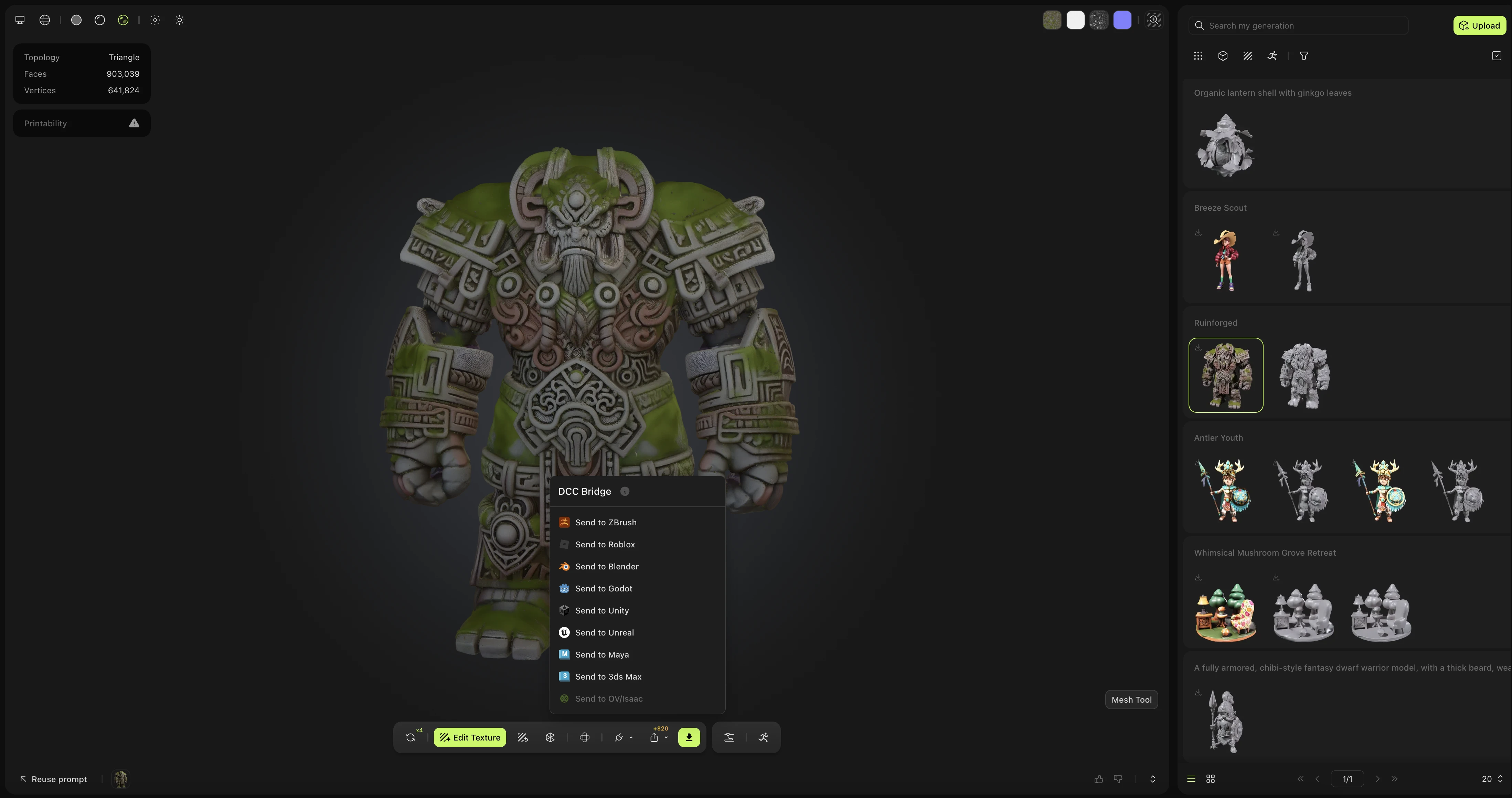
From the list of your generations, click Actions (the three-dot icon) on a model's card, and then click DCC Bridge > Send to ZBrush.
You can also send a model that another user shared in Community. Open the model, click DCC Bridge, and then click Send to ZBrush.
Troubleshooting
The following table lists common problems, their causes, and how to fix them.
| Problem | Cause | Fix |
|---|---|---|
| Meshy shows "Failed to send model to zbrush" | ZBrush isn't open, the plugin isn't loaded, or the bridge is off. | In ZBrush, click Zplugin > Meshy Bridge > Load Meshy Bridge, check that Run Bridge is orange, and then send the model again. |
| Run Bridge is orange, but Meshy shows "Failed to send model to zbrush" | Another app uses port 5332. The plugin can't tell that app from its own bridge, so Run Bridge still turns orange. | Close the other app, and then click Run Bridge twice to turn the bridge off and on. |
| Import Pending shows "No pending models." | The send hasn't finished, or it failed. | Wait until Meshy shows "Model sent to zbrush", and then click Import Pending again. To see whether the bridge is running and how many models are waiting, click Check Status. |
Next steps
- To lower the face count of a model before you send it, see Remesh.