Connectors
Install a connector to let your agent work inside one app. Some connectors install once per computer, like Blender. Others install once per project, like Unity, Godot, and Unreal Engine.
Overview
Install connectors from the Connectors page of the Meshy DCC Core window (meshy-dcc ui), or ask your agent to install one. Meshy DCC Core checks every download against its SHA-256 checksum before it installs anything.
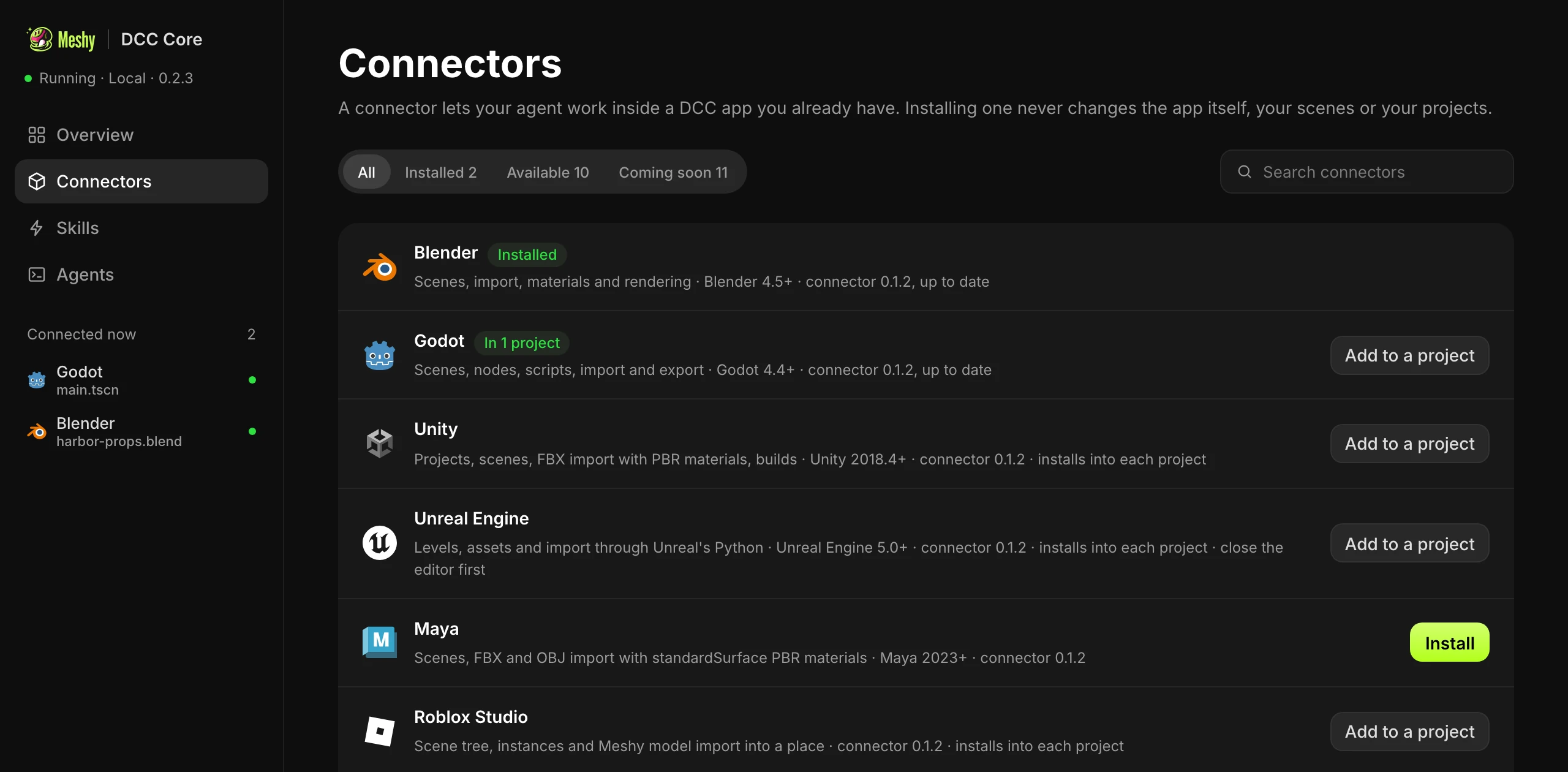
The following table shows where each connector installs and which versions of its app it supports.
| App | Installs into | Versions |
|---|---|---|
| Blender | Blender, once per computer | 4.5 to 5.2 |
| Unity | Each project | 2018.4 to 6000.5 |
| Godot | Each project | 4.4 to 4.7 |
| Unreal Engine | Each project | 5.0 to 5.8 |
| Maya | Maya, once per computer | 2023 to 2027 |
| 3ds Max | 3ds Max, once per version | 2023 to 2027 |
| Houdini | Houdini, once per version | 20.5 to 22.0 |
| Substance 3D Painter | Painter, once per computer | 10.0 to 12.1 |
| ZBrush | Each project folder | 2026.1 to 2026.2 |
| Roblox Studio | Each place | Current release |
| FreeCAD | Each project folder | 1.0 to 1.1 |
| OpenSCAD | Each project folder | 2021.01, and the 2026.09 to 2026.10 snapshots |
| Material Maker | Each material folder | 1.7 |
Every connector runs on macOS (Apple Silicon) and Windows x64, except 3ds Max, which runs on Windows only.
Blender
To install the Blender connector, follow these steps:
- In Connectors, click Install next to Blender.
- Restart Blender if it's open, or start it as usual.
Meshy DCC Core finds Blender in its usual places: /Applications/Blender.app on macOS and C:\Program Files\Blender Foundation on Windows. If Blender is somewhere else, or you have more than one copy, the window asks where it is. Enter the full path of the app you want to use, for example /Applications/Blender 4.5.app.
The connector is a Blender extension named Meshy DCC. It starts with Blender, so every Blender you open appears under Connected now.
To install it from a terminal, run:
meshy-dcc install --dcc-type blender --execute
When Blender isn't in its usual place, add --dcc-path <path to Blender>.
Unity
To install the Unity connector in a project, follow these steps:
- Close the project in Unity.
- In Connectors, click Add to a project next to Unity, enter the project folder's full path, and click Install.
- Open the project in Unity as usual.
The connector adds the Meshy DCC Unity package and a .meshy-dcc folder to the project. It uses the Unity Editor version that the project's ProjectSettings/ProjectVersion.txt names, so that version must be installed in Unity Hub.
meshy-dcc install --dcc-type unity --project /path/to/project --execute
Godot
To install the Godot connector in a project, follow these steps:
- Close the project in Godot.
- In Connectors, click Add to a project next to Godot, enter the project folder's full path, and click Install.
- Open the project in Godot as usual.
The connector adds the addons/meshy_dcc_godot add-on, turns it on, and adds a .meshy-dcc folder. It finds Godot on your PATH or as Godot.app in /Applications. For another location, and always on Windows, set the MESHY_DCC_GODOT_EXECUTABLE environment variable to the Godot editor.
meshy-dcc install --dcc-type godot --project /path/to/project --execute
Unreal Engine
To install the Unreal Engine connector in a project, follow these steps:
- Close the project in Unreal Engine.
- In Connectors, click Add to a project next to Unreal Engine, enter the folder that holds the
.uprojectfile, and click Install. - Open the project as usual.
The connector copies a plugin into the project's Plugins/MeshyDccUnreal folder and builds it with your engine, which takes from a few seconds to a few minutes. To build it, you need:
- macOS: Xcode, in a version your engine accepts. Unreal Engine 5.7 accepts Xcode up to 26.
- Windows: Visual Studio 2022 with the Game development with C++ workload.
On Windows, keep the project in a folder whose path has only English letters, digits, and punctuation. Unreal Engine can't build the plugin under other characters, so the install stops and rolls back.
The connector uses the engine that matches the project's engine version in the Epic Games Launcher. For a source build or another location, set MESHY_DCC_UNREAL_ENGINE to the engine folder. Unreal Engine 4 isn't supported.
meshy-dcc install --dcc-type unreal --project /path/to/project --execute
More apps
These connectors install the same way: from Connectors, or with meshy-dcc install --dcc-type <app> --project <folder> --execute.
- OpenSCAD: the connector works on the
.scadfiles in a project folder and runs OpenSCAD for each export and preview, so no OpenSCAD window opens. It can stand a Meshy model on a print base and export STL or 3MF. On Apple Silicon, it needs an OpenSCAD development snapshot. - Material Maker: the connector builds and edits material graphs in a folder and exports PBR texture sets for Blender, Godot, Unity, or Unreal Engine. Each export briefly brings Material Maker to the front. The connector works on the graph files, not on an open Material Maker window. Close a graph in Material Maker before the agent changes it, and ask the agent to open the result for you when it's done.
- FreeCAD: the connector works on the documents in a project folder and runs FreeCAD in the background for each step. It imports Meshy GLB models as meshes, alongside STEP, IGES, STL, and OBJ.
- Roblox Studio: pick a folder that holds one place file (
.rbxlor.rbxlx). The connector adds a Studio plugin and opens the place. Models from Meshy last for the Studio session only, because Roblox doesn't save them with a place. Running Luau stays off until you click Allow Luau in the Meshy DCC toolbar.
Professional apps
- Houdini: installs once per Houdini version, as a Houdini package in your Houdini preferences. When your
HOMEvariable is set, Houdini picks the preferences folder from it. - Maya: installs once per computer, as a Maya module. Meshy FBX models come in with a Standard Surface material and their texture maps.
- 3ds Max (Windows): installs once per 3ds Max version, as a startup script. Meshy FBX models come in with a Physical material.
- Substance 3D Painter: installs once per computer, as a startup plugin. The agent can start a project from a Meshy model, add PBR layers, and export textures.
- ZBrush: pick a project folder. The agent works in a ZBrush that Meshy DCC Core starts for that folder, not in one you opened yourself. If the first start times out, start it again.
Work in several apps at once
Every open app, and every open copy of an app, is its own instance with its own ID. The agent names the instance it works in. When more than one instance fits your request, the agent asks which one you mean. When you restart an app, it gets a new ID, and the agent finds it again.
Uninstall a connector
The simplest way is to ask your agent. To uninstall a connector yourself, do one of the following:
- Blender: in Edit > Preferences > Get Extensions, find Meshy DCC and uninstall it.
- Unity: remove the Meshy DCC Unity package in the Package Manager, then delete the project's
.meshy-dccfolder. - Godot: delete
addons/meshy_dcc_godotand.meshy-dccfrom the project. - Unreal Engine: delete
Plugins/MeshyDccUnrealand.meshy-dccfrom the project. - Other apps: ask your agent. It knows which files each connector added, and it lists them before it deletes anything.