Custom skills
Turn a routine you repeat into a tool of your own. A custom skill works like a built-in one. Any agent on your computer can find it, load it, and call it in your app.
Overview
Each connector offers its tools in skills, such as scene, import, and materials. You can add your own next to them, for example a scene report, a house rule for imports, or a batch rename. A skill is a folder with three parts:
- A
SKILL.mdthat describes it. - A
tools.yamlthat lists its tools. - The scripts that run inside the app.
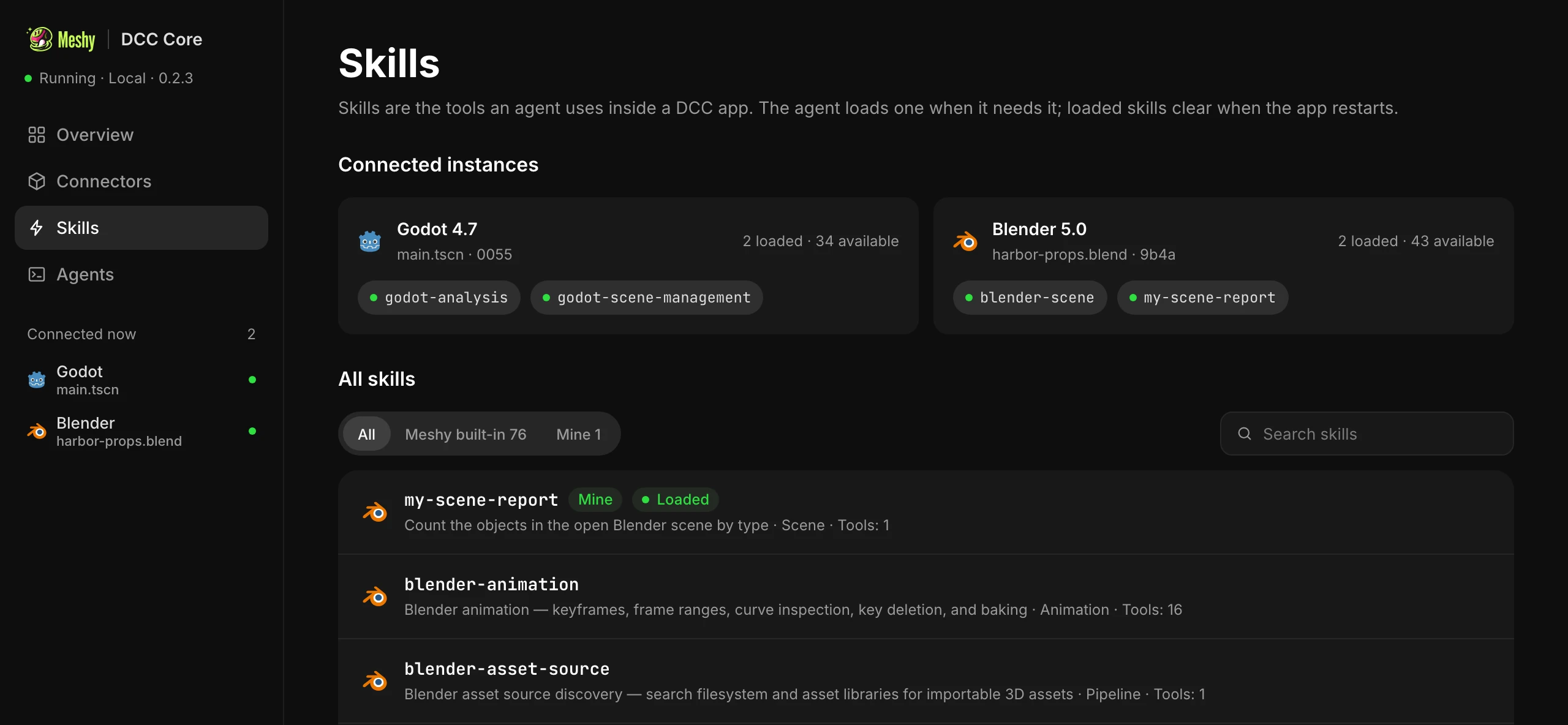
Custom skills work in Blender. The Skills page of the Meshy DCC Core window shows every skill, where it comes from, and which open app has loaded it.
Ask your agent to write one
The Meshy DCC skill includes a guide for writing skills, so your agent can write one for you. Describe the routine, for example:
- Write me a Blender skill that counts the objects in the open scene by type.
- Add a tool to my scene-report skill that lists meshes over 50,000 polygons.
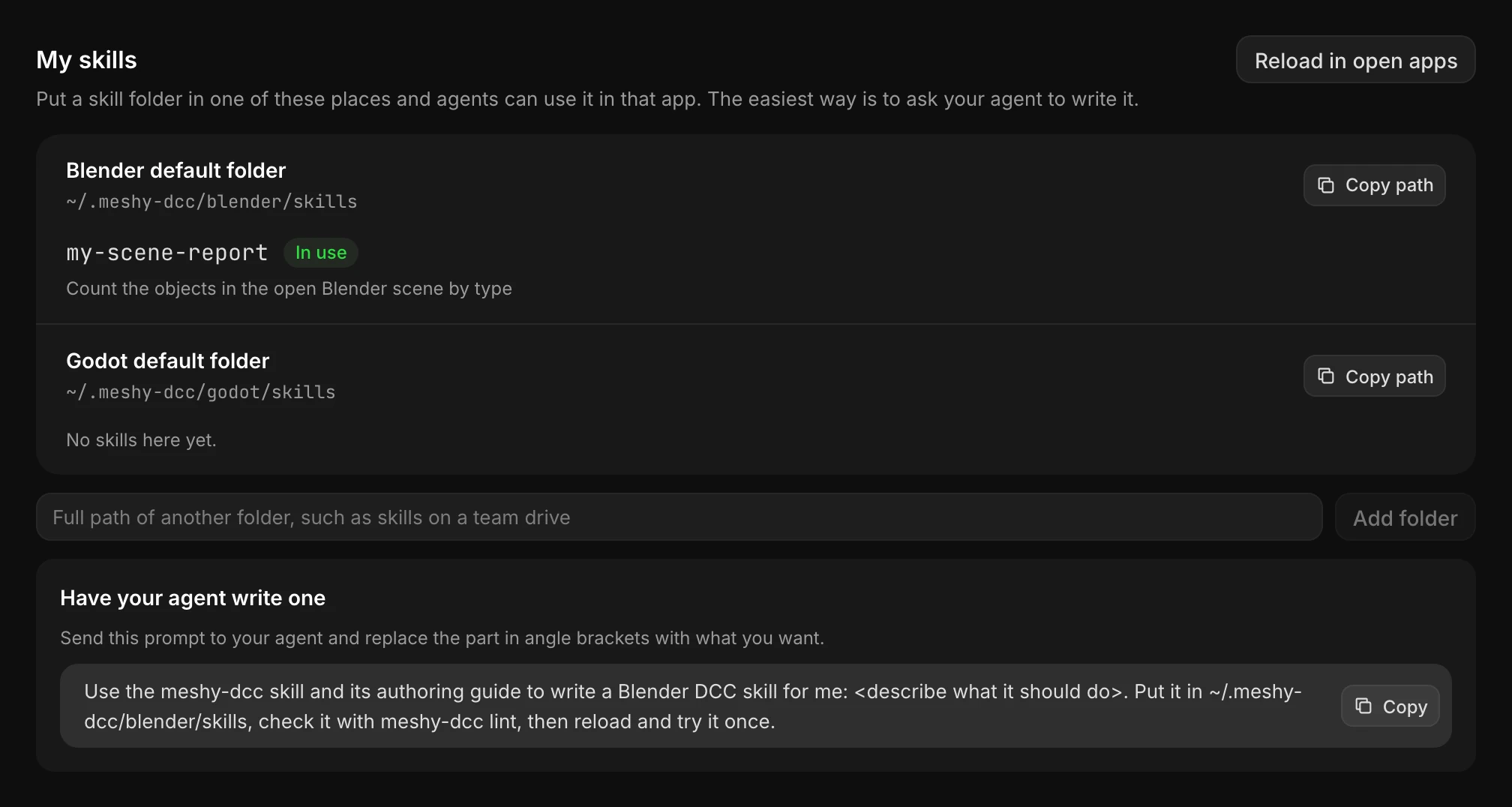
The agent writes the files into your skills folder, checks them, reloads the open apps, and tries the new tool. To copy a ready-made prompt, go to My skills on the Skills page.
Your skills folder
The following table shows the folder each app reads.
| App | Folder |
|---|---|
| Blender | ~/.meshy-dcc/blender/skills/ |
Name each skill folder with lowercase words joined by hyphens, and start it with my- or your studio's prefix, such as my-scene-report. Don't reuse the name of a built-in skill. If you do, Meshy DCC Core uses the built-in skill and ignores your copy.
To check a skill before you load it, run:
meshy-dcc lint ~/.meshy-dcc/blender/skills/my-scene-report
Load a new skill
Open apps pick up new and changed skills when they reload. To reload them, go to the Skills page and click Reload in open apps. Each skill shows one of these states:
- In use: loaded and ready in the open apps.
- Waiting for reload: on disk, not loaded yet. If a skill stays in this state after a reload, it has an error. To see the error, run
meshy-dcc linton its folder. - Same name as a built-in skill; rename it: the built-in skill wins. Give yours another name.
- App not open: the app it belongs to isn't running.
Skills that are already loaded stay loaded across reloads, and a changed skill reloads by itself.
Share skills with your team
To share skills with your team, keep them in a shared folder. On the Skills page, enter the folder's full path and click Add folder. Open apps reload it right away, and its skills appear for every agent on that computer.