Meshy for OrcaSlicer
Install the Meshy plugin in OrcaSlicer so you can generate 3D models, make them print-ready, and add them to your plate without leaving the slicer.
Overview
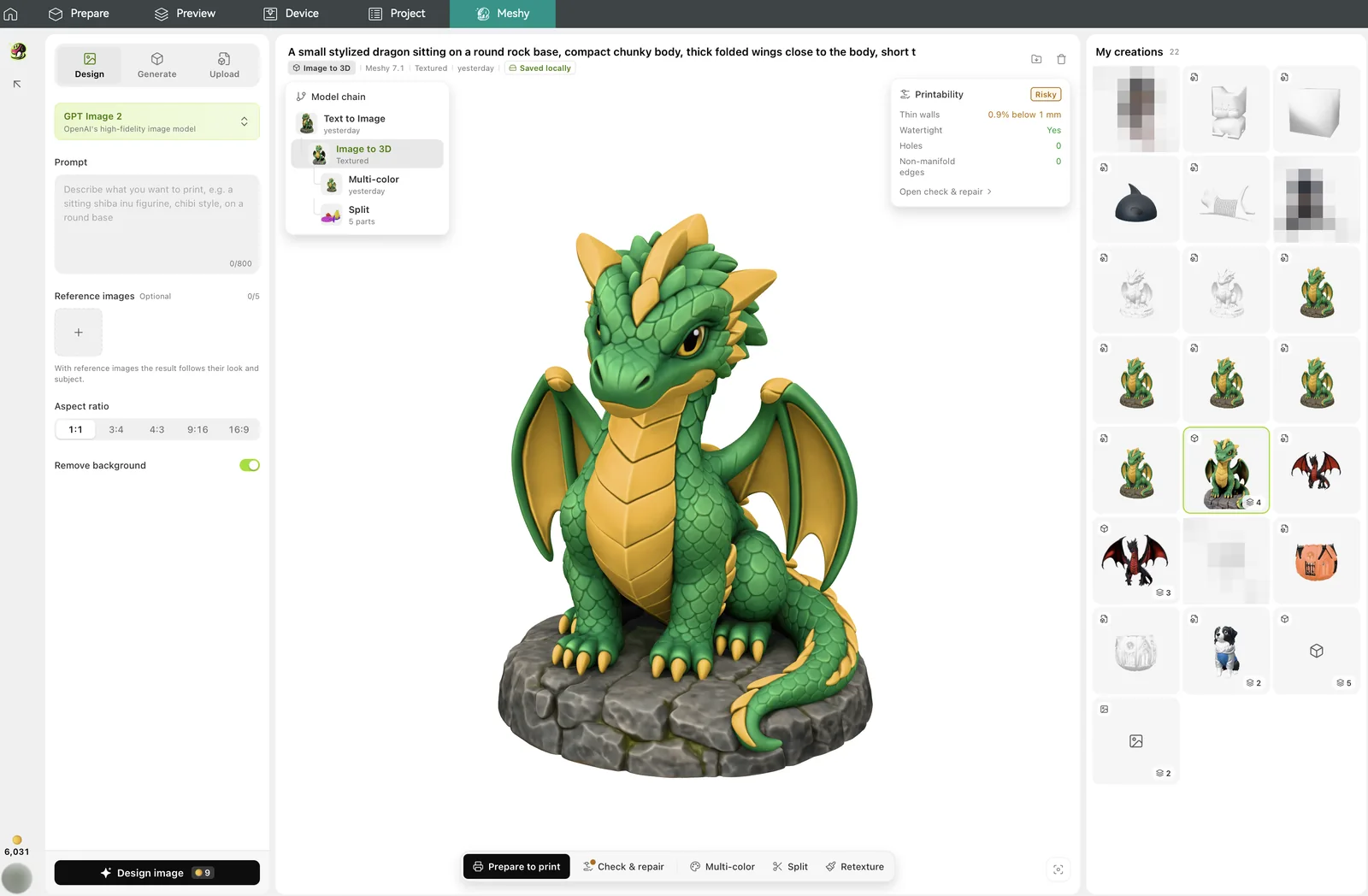
Meshy for OrcaSlicer is a beta plugin for OrcaSlicer 2.5 and later on macOS and Windows. It adds two views to the slicer:
- Meshy tab: the full workbench, in the top bar. You design images, generate and upload models, and run every print tool here.
- Meshy panel: a lighter panel docked beside the plater in Prepare and Preview. It works on one model at a time.
With the plugin, you can do the following:
- Design an image from a description and up to five reference images.
- Generate a 3D model from one image or from up to four views of the same object.
- Upload your own
.glb,.stl,.obj, or.3mffile, or pick an object on the plate. - Check a model's printability, which uses no credits, and repair it in one click.
- Make a multi-color 3MF that matches your printer's filament count.
- Split a model into parts that you print separately and assemble.
- Texture or retexture a model, with Meshy N1 for clean print colors or Meshy 7 for finer detail.
- Add the result to the plate in one click.
Meshy saves each finished result on your computer. The plugin follows the light or dark theme and the interface language of OrcaSlicer.
Before you begin
-
You need OrcaSlicer 2.5.0 or later. OrcaSlicer added plugin support in version 2.5, so earlier versions can't run the plugin. To download OrcaSlicer, go to the OrcaSlicer releases page.
-
You need macOS or Windows.
-
You need a Meshy account on a Pro plan or higher. Every action the plugin runs with Meshy needs it, including print checks. A free account can sign in, but any action shows an upgrade prompt. For plans, see Pricing and credits.
Install the plugin
To install the plugin, follow these steps:
-
Download meshy-orcaslicer.zip, and then unzip it. The folder contains
meshy_orcaslicer.pyand an install guide. -
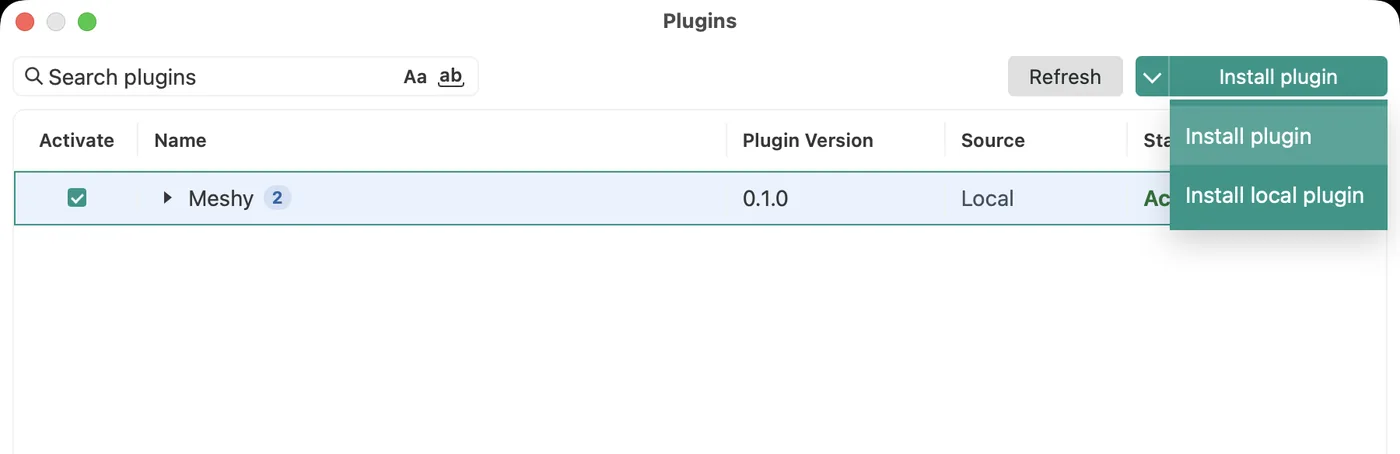
In OrcaSlicer, click File > Plugins.
-
In the Plugins window, click the small arrow next to Install plugin, and then click Install local plugin.
-
Select
meshy_orcaslicer.py. OrcaSlicer accepts only the.pyfile, not the zip. -
When OrcaSlicer asks for the plugin's permissions, approve all of them. The plugin can't work without them. For what each permission is for, see Permissions and privacy.
-
Check that the Meshy tab appears in the top bar. If it doesn't, restart OrcaSlicer.

To update the plugin, download the zip of the version you want, and install its meshy_orcaslicer.py the same way. An update resets the granted permissions, so OrcaSlicer asks for them again. Your saved results and uploads stay.
Sign in
You sign in with your Meshy account in your browser. You don't type a code, and you don't need an API key.
To sign in, follow these steps:
-
In OrcaSlicer, click the Meshy tab.
-
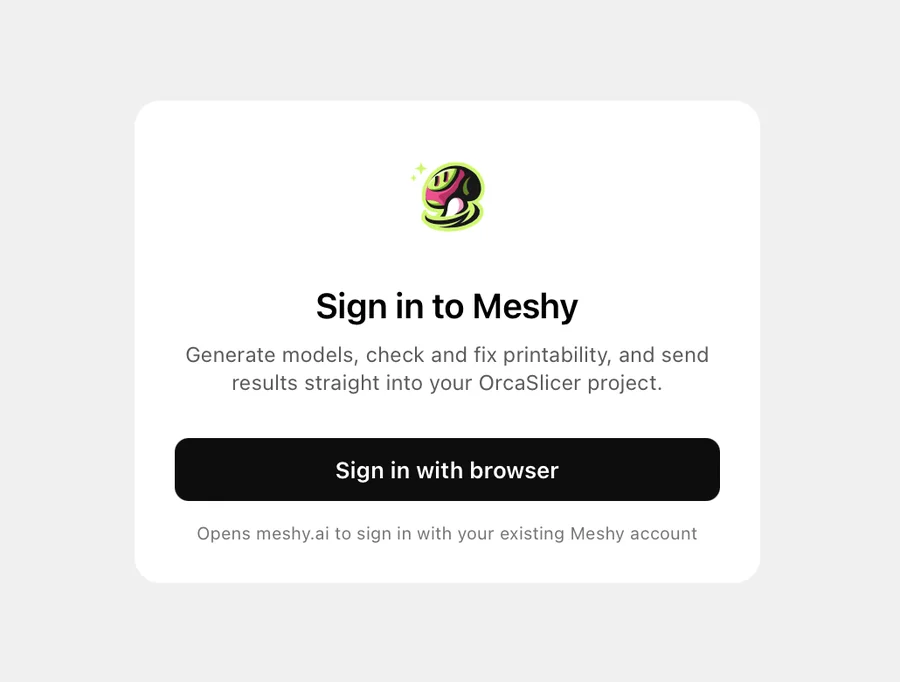
Click Sign in with browser. Your browser opens meshy.ai.
-
If Meshy asks you to sign in, sign in to your Meshy account.
-
On the consent page, check that the app is named Meshy for OrcaSlicer, and then approve the request.
-
Return to OrcaSlicer. The browser shows that you're signed in, and the Meshy tab finishes signing in on its own.
The sign-in link expires after 10 minutes. If the tab still shows Finish signing in in your browser, click Open sign-in page again.
To sign out, click your avatar in the left rail of the Meshy tab, and then click Sign out. The same menu shows your plan, and the Cache that your saved results use and its limit.
Permissions and privacy
When the plugin loads, OrcaSlicer asks for the following permissions.
| Permission | What it is for |
|---|---|
Network access to api.meshy.ai and assets.meshy.ai | Calls Meshy and downloads the images and models you generate. |
Local port 127.0.0.1:53247 | Runs the plugin's own server on your computer. It receives the sign-in callback from your browser, hands models to OrcaSlicer for import, and serves the 3D preview. Only your computer can reach it. |
| Run programs | Opens the sign-in and pricing pages in your browser, and imports a model into the current project. On macOS, the plugin runs /usr/bin/open. On Windows, it runs rundll32.exe url.dll,FileProtocolHandler. It also creates the meshy-for-orcaslicer folder in your Downloads folder (/bin/mkdir on macOS, cmd.exe /d /c mkdir on Windows), and shows that folder or the saved results folder (/usr/bin/open on macOS, explorer.exe on Windows). |
Read and write files in Downloads/meshy-for-orcaslicer | Saves the copies you make with Save to Downloads. |
| Threading | Runs network requests in the background, so the OrcaSlicer window stays responsive. |
An uploaded model stays on your computer. The plugin sends it to Meshy only when you run a check, repair, texture, or multi-color on it. A .glb or .3mf file can be up to 100 MB. An .stl or .obj file can be up to 1 GB, as long as the model the plugin converts it to is 100 MB or smaller.
Troubleshooting
The following table lists problems you might hit while you install the plugin and sign in, with their causes and fixes.
| Problem | Cause | Fix |
|---|---|---|
| The Meshy tab doesn't appear. | OrcaSlicer hasn't loaded the plugin yet, or you installed the zip instead of the .py file. | Restart OrcaSlicer. If the tab is still missing, install meshy_orcaslicer.py again. |
| Sign-in shows Sign-in was denied or expired. | You declined the request on the consent page, or the link expired after 10 minutes. | Click Sign in with browser again, and approve the request on the consent page. |
| The tab shows Your session expired. | The saved sign-in is no longer valid. | Sign in again. |
| An action shows Upgrade to keep creating. | The account is on a plan lower than Pro. | Click View plans, and upgrade to Pro or higher. |
| OrcaSlicer asks for the permissions again. | An update resets the granted permissions. | Approve all of them again. |
If the problem continues, email support@meshy.ai with a screenshot and the plugin's debug.log file. The log has no sign-in credentials. To find it, open the following folder:
- macOS:
~/Library/Application Support/OrcaSlicer/orca_plugins/plugin_data/meshy-orcaslicer/ - Windows:
%APPDATA%\OrcaSlicer\orca_plugins\plugin_data\meshy-orcaslicer\
Next steps
-
To generate, check, and add your first model, see Create and prepare models.
-
To send a model from the Meshy web app to OrcaSlicer without the plugin, see OrcaSlicer.