Meshy DCC Core
Turn your DCC instances into one creation pipeline, powered by Meshy and your agent. Meshy DCC Core gives Claude Code, Codex, Cursor, and other agents one entry point to every open instance of Blender, Unity, Unreal Engine, Maya, and nine more apps, so a model generated with Meshy moves through all of them.
Overview
Meshy DCC Core runs on your computer and does three things:
- One entry point. One install gives your agents the
meshy-dcccommand and the Meshy DCC skill, and one local service reaches every app through its connector. You don't find and configure an MCP server for each app. Agents that use MCP can connect to that one service instead, as Connect over MCP describes. - Exact routing. Every open app, and every open copy of an app, is its own instance. Each request goes to the instance your agent names, never to whichever comes first. When the agent can't tell which instance you mean, it asks you.
- Skills on demand. Each connector groups its tools into skills, such as scene, import, and materials. Your agent loads only the skill a task needs, and you can add custom skills of your own.
Together they let one agent carry the work across your apps. It can generate a model with Meshy, tidy it in a Blender scene, then place it in a Unity, Godot, or Unreal Engine project, and read each scene back as it goes.
A connector is a small add-on for one app, and it never changes the app itself. You manage connectors, skills, and agents in the Meshy DCC Core window. To open the window in your browser, run meshy-dcc ui.
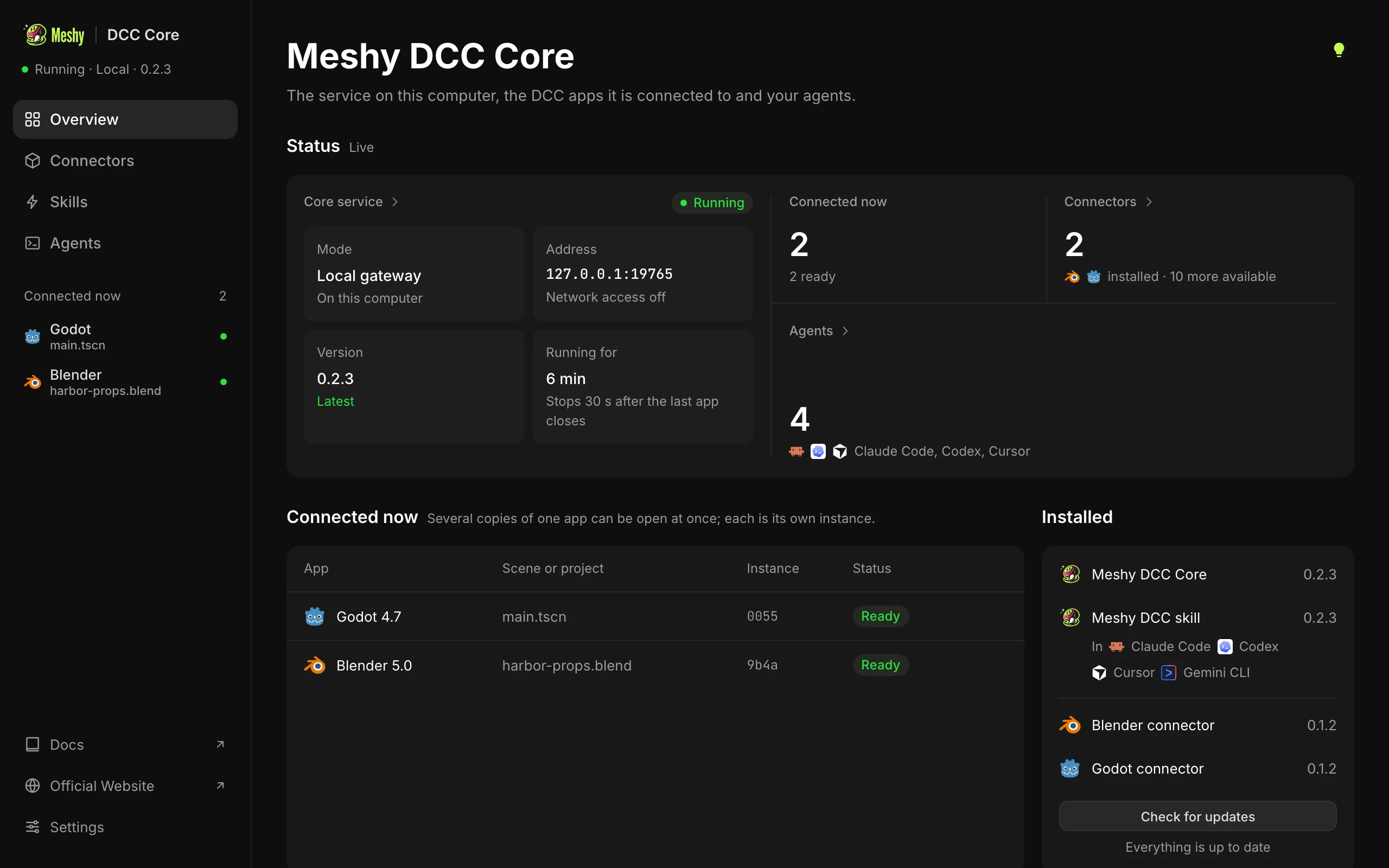
Before you begin
- A computer: macOS on Apple Silicon, or Windows x64.
- At least one supported app: Blender, Unity, Godot, Unreal Engine, OpenSCAD, Material Maker, FreeCAD, Roblox Studio, Houdini, Maya, 3ds Max (Windows), Substance 3D Painter, or ZBrush. Connectors lists the versions each one supports.
- An AI agent that supports skills: for example Claude Code, Codex, Cursor, Gemini CLI, or GitHub Copilot. More than 70 agents are supported.
Working in your apps is free. It needs no Meshy account and spends no credits. Generating models with Meshy needs a Meshy plan and the Meshy 3D skills, which your agent uses for generation.
Meshy DCC Core needs an internet connection to install, to update, and to send anonymous usage statistics, which you can turn off. For details, see Usage statistics. Your agent's requests stay on your computer.
Install Meshy DCC Core
To install Meshy DCC Core, run one line in a terminal:
curl -fsSL https://cdn.meshy.ai/meshy-dcc-core/install.sh | bash
The installer does the following:
- Downloads
meshy-dccand checks every file against the release's SHA-256 checksums. - Installs it into
~/.local/binand adds that folder to yourPATH. - Adds the Meshy DCC skill to the agents it finds on your computer and lists them.
After the installer finishes, open a new terminal so it finds meshy-dcc by name.
In mainland China, use cdn.meshy.cn instead of cdn.meshy.ai in the command. When a download fails, the installer also tries cdn.meshy.cn and GitHub by itself.
To install with npm instead, run npm install -g meshy-dcc, then run meshy-dcc agent-skill --execute to add the skill to your agents.
Get started
To connect your first app, follow these steps:
-
In a terminal, run
meshy-dcc ui. The Meshy DCC Core window opens in your browser with a checklist of three steps.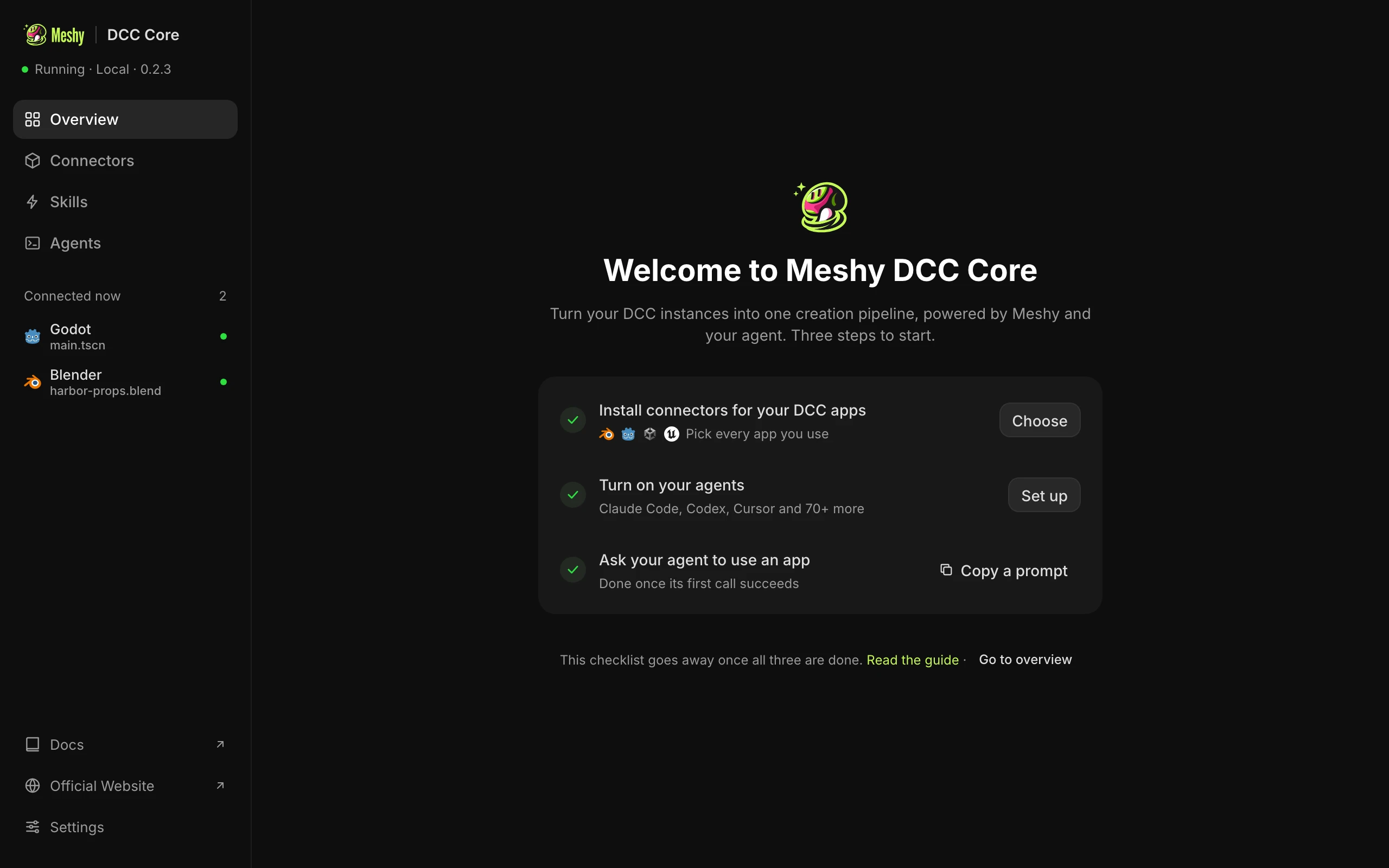
-
In Connectors, click Install next to each app you use. For Unity, Godot, and Unreal Engine, click Add to a project and enter the project folder's full path. For details, see Connectors.
-
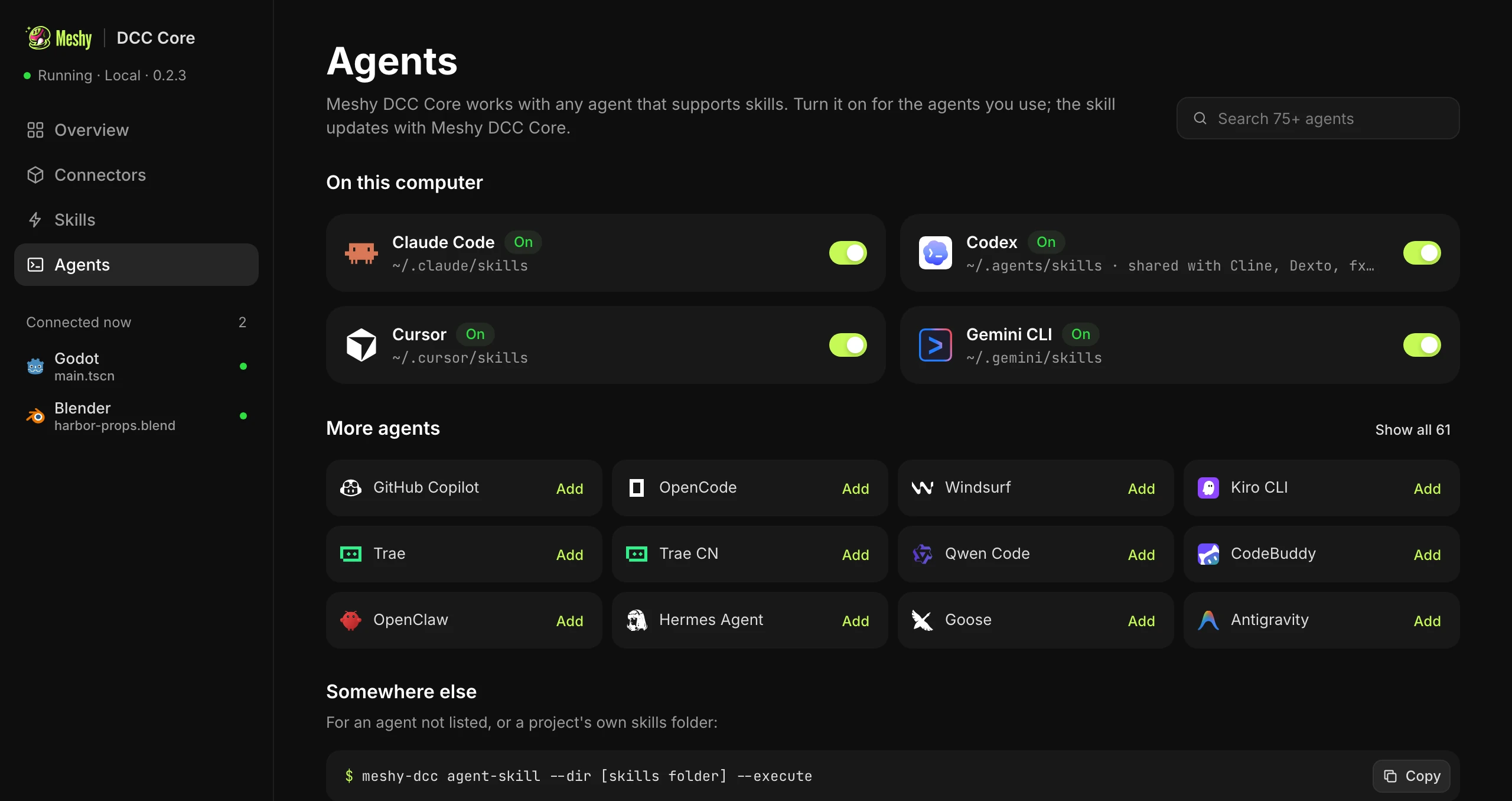
In Agents, turn on the agents you use. The installer already turned on the ones it found.
-
Open your app as usual, or open your project in Unity, Godot, or Unreal Engine. Within a few seconds, it appears under Connected now in the sidebar.
-
In your agent, start a new chat and describe the task. After the first request succeeds, the checklist goes away and the window opens on Overview.
Example prompts
For example, you can ask your agent:
- List the apps and scenes I have open right now, and what's in each scene.
- I have two Blender scenes open. Export the chair from scene A as GLB and import it into my Unreal project with its materials.
- Import ./meshy_output/chest.glb into my open Blender scene, place it on the table, and save the file.
- In my Unity project, import Assets/Models/robot.fbx, build a PBR material from its textures, and add it to the open scene.
- Generate a low-poly treasure chest with Meshy and place it in my Godot level. This prompt needs the Meshy 3D skills.
- Import ./chair.glb into my Unreal project and show me a rendered preview.
When more than one open app fits a request, the agent asks which one you mean.
Connect over MCP
The skill is the usual way for an agent to use Meshy DCC Core. An agent that works over MCP can connect to the local service instead, at this address:
http://127.0.0.1:19765/mcp
The meshy-dcc command starts the service when it isn't running. To start it yourself, run meshy-dcc gateway start.
The service gives the agent the tools to search, describe, load, and call each app's tools, and a lifecycle tool for projects. With lifecycle, an agent can do the following:
- List the apps installed on your computer and whether their connectors are prepared.
- Configure a project for an app, and open or reuse the exact app instance for that project.
- Check or wait for a request that is still running.
- Close an app that Meshy DCC Core opened, without discarding unsaved work.
Over MCP, an agent can't discard unsaved work. As with the command line, every call goes to the instance the agent names.
Safe by design
- Every change is checked. After a change, the agent reads the scene back and compares it with what you asked for. If a result is unclear, the agent checks the scene instead of repeating the change.
- Your work stays safe. Before an action would discard unsaved work, the agent asks you first. The local service accepts requests only from your own computer, and web pages from other sites can't reach it.
Updates
Meshy DCC Core checks for a new version once a day and tells your agent, which tells you. Nothing downloads without your approval. To update, click Update now on Overview in the window, run meshy-dcc update apply --yes, or ask your agent to do it. Meshy DCC Core downloads the update and restarts its local service, so open apps reconnect. If you installed with npm, run npm install -g meshy-dcc@latest instead, then run meshy-dcc gateway restart.
To turn off the daily check, go to Settings in the window and turn off Check for updates once a day.
When a connector has a new version, Connectors shows an Update button next to it. For what changed, see Release notes.
Next steps
- Connectors: set up each of the 13 supported apps.
- Custom skills: add tools of your own.
- Troubleshooting: fix common problems and uninstall Meshy DCC Core.