Bridge to Godot
Send a model from the Meshy web app straight into your open Godot scene, without downloading and importing the file by hand.
Before you begin
-
You need a Pro plan or higher. On the Free and Starter plans, clicking Send to Godot opens the upgrade options.
-
Install and enable the Meshy plugin in your Godot project. For the steps, see Meshy for Godot.
Start the bridge
To start the bridge in Godot, follow these steps:
-
At the top of the Godot editor, click the Meshy tab.
-
Click Run Meshy Bridge. The status changes to Bridge: Running, the button changes to Stop Meshy Bridge, and the plugin waits for models from Meshy.

To stop the bridge, click Stop Meshy Bridge. The bridge doesn't start on its own, so start it again each time you open the project.
Send a model
To send a model to Godot, follow these steps:
-
In Godot, open the scene you want to add the model to. If no scene is open, the plugin creates a 3D scene in
res://imported_modelsand opens it. -
In the Meshy web app on a computer, open the model in the viewer. DCC Bridge isn't available on mobile.
-
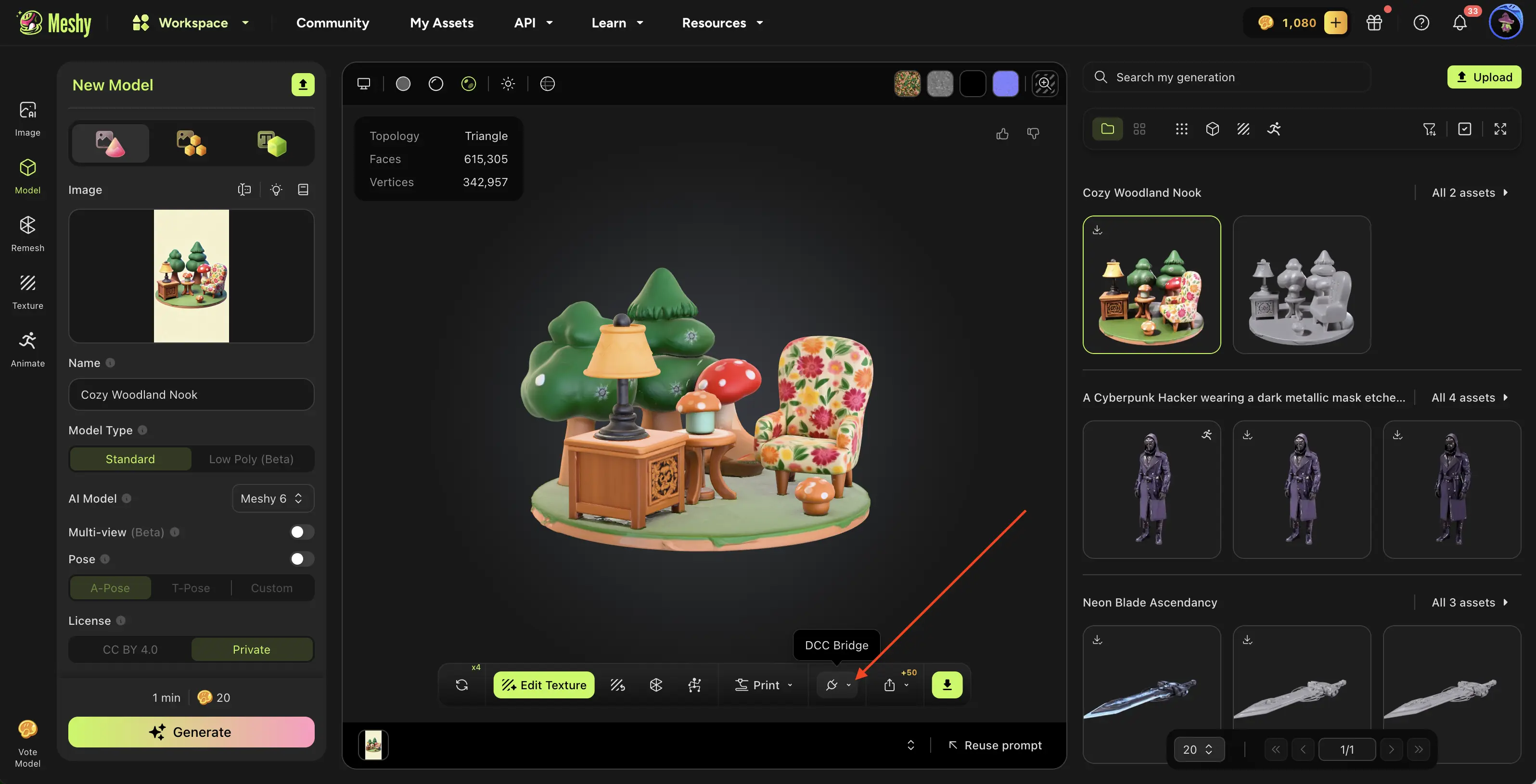
In the viewer toolbar, click DCC Bridge (the plug icon).
-
Click Send to Godot.
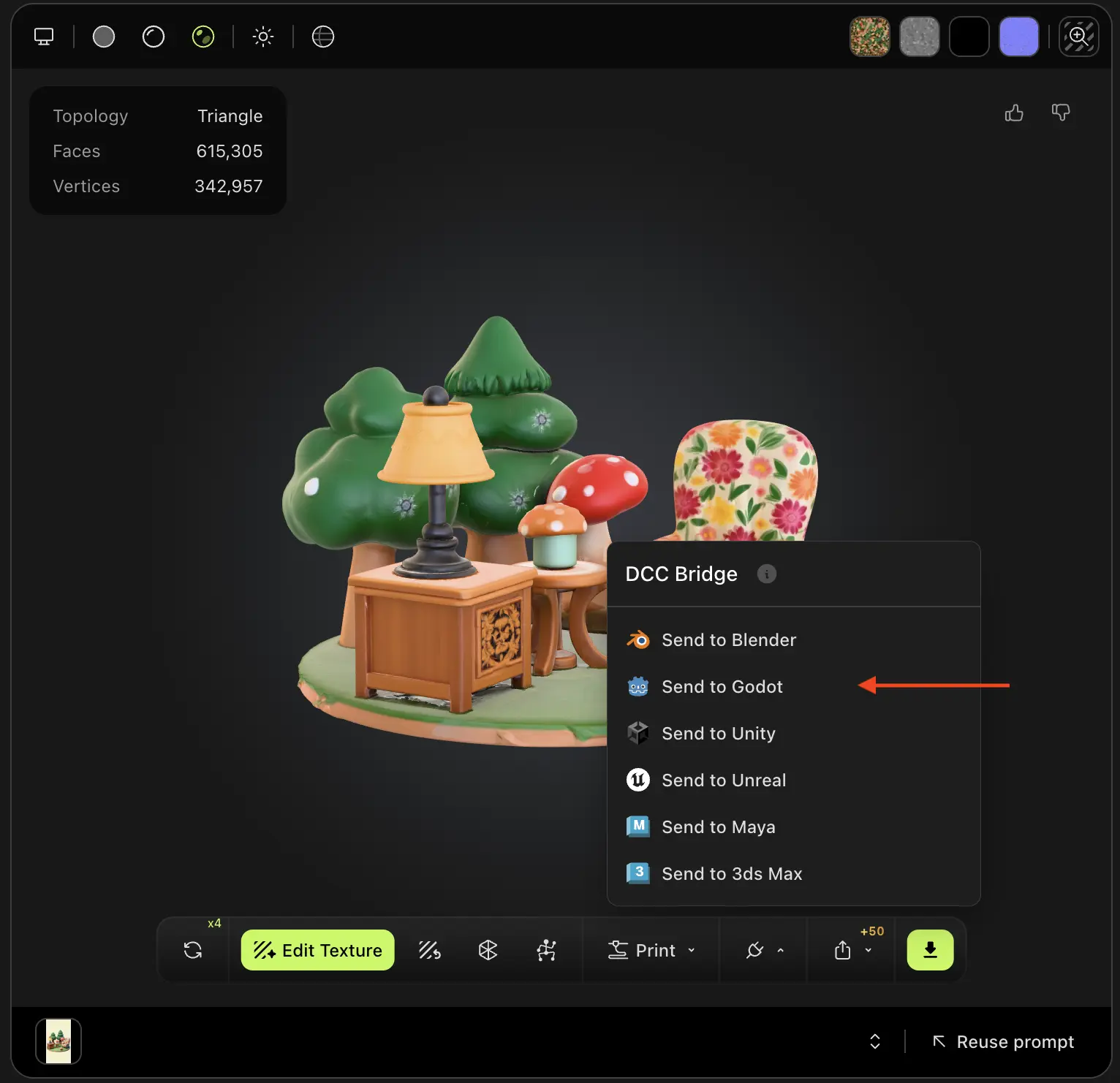
Meshy sends the model as a GLB file. The plugin saves it in its own folder in res://imported_models, adds it to the open scene, and selects it.

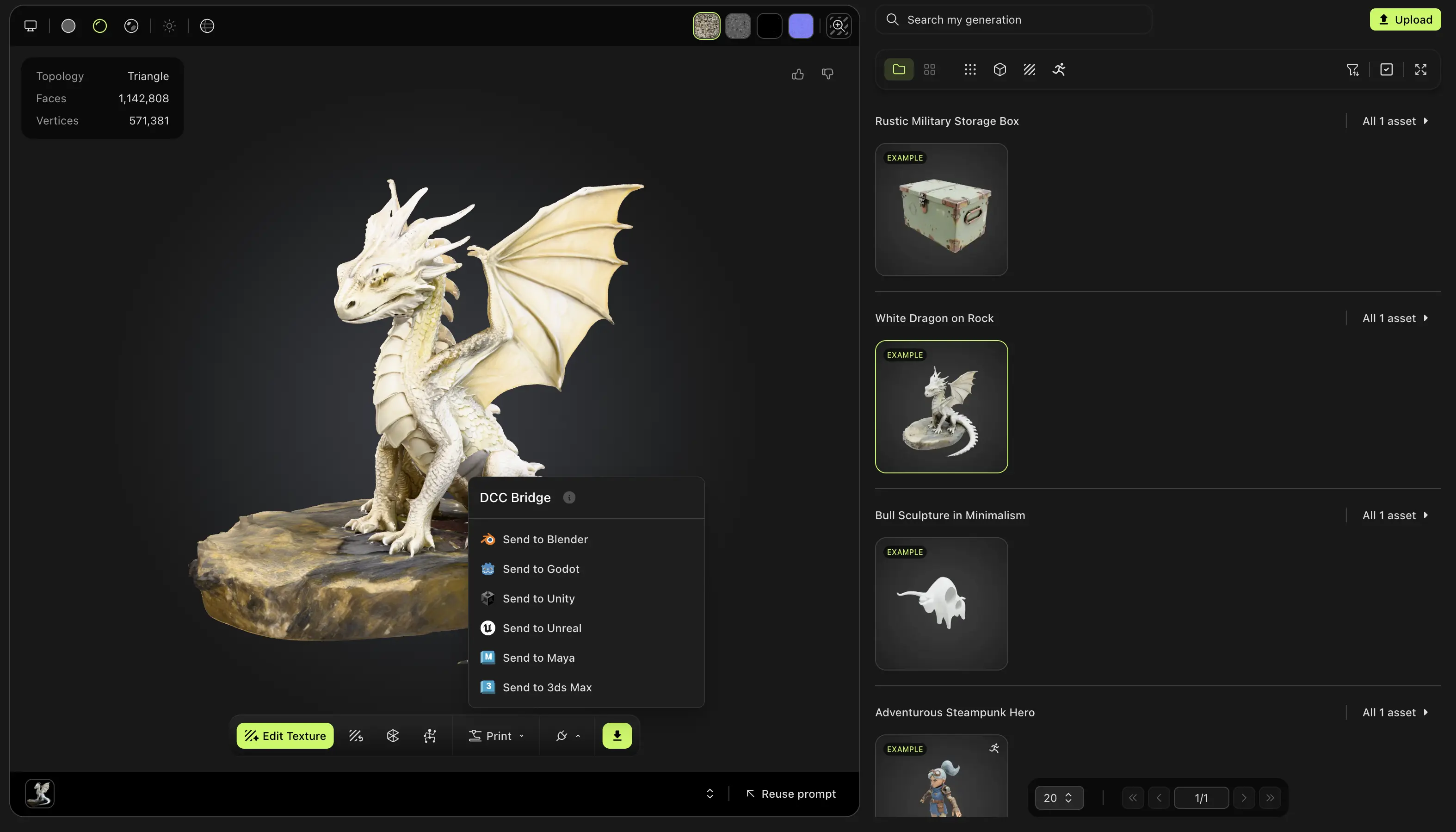
You can send any model in your generations, whichever tool made it, except a Smart Rig result or an Ultra 4K model.
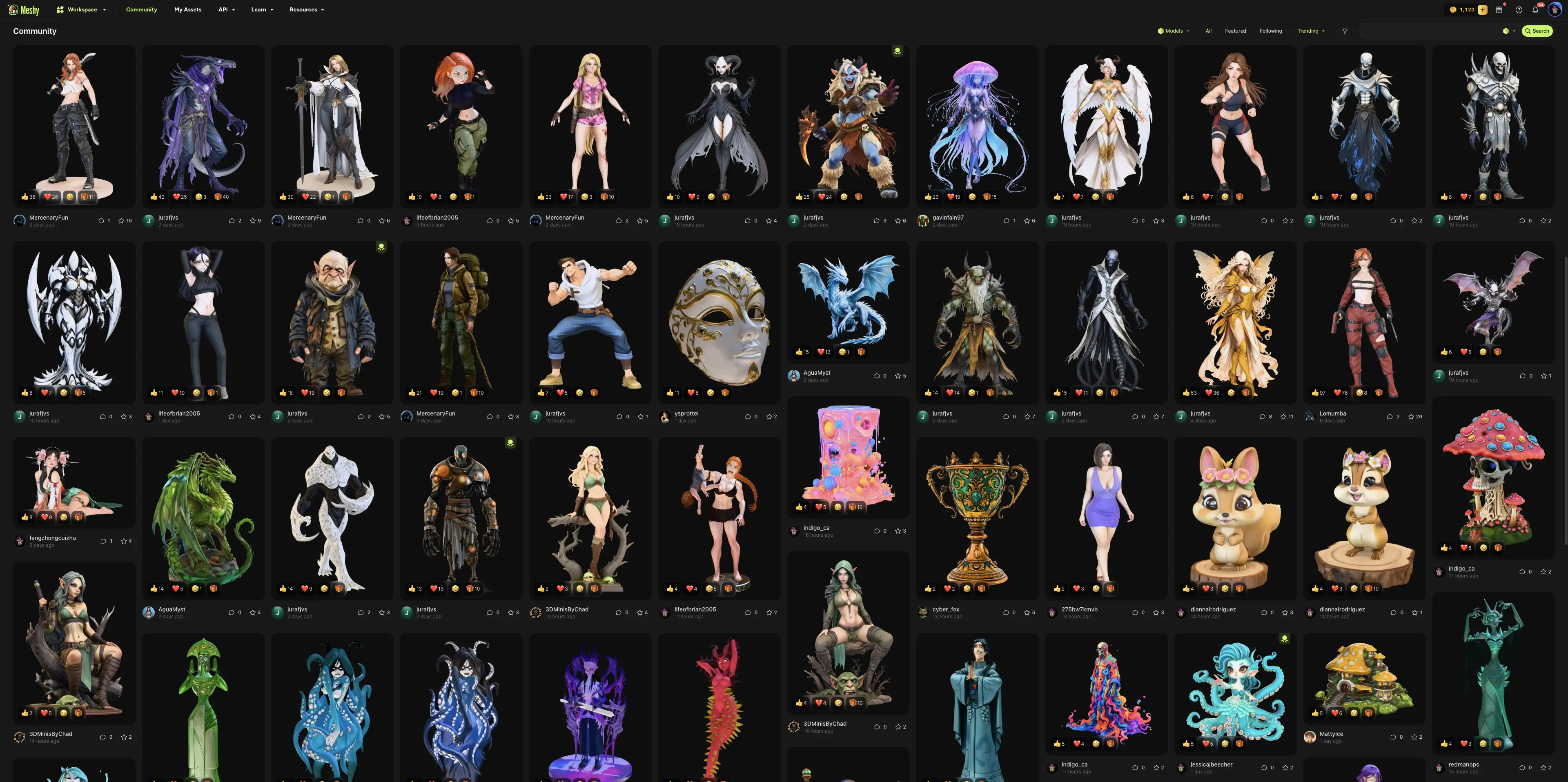
You can also send a model that another user shared in Community. Open the model, click DCC Bridge, and then click Send to Godot.
Troubleshooting
The following table lists common problems, their causes, and how to fix them.
| Problem | Cause | Fix |
|---|---|---|
| Meshy shows "Failed to send model to godot" | Godot isn't open, the bridge isn't running, or your browser blocks access to your local network. | In Godot, click the Meshy tab, click Run Meshy Bridge, and then send the model again. If your browser asks for local network access, allow it for Meshy, and then send the model again. |
| The status stays at Bridge: Stopped after you click Run Meshy Bridge | Another app, or another Godot editor with the bridge running, uses port 5325. | Close the other app or stop the bridge in the other editor, and then click Run Meshy Bridge again. |
Next steps
- To bring a rigged character and its animation into Godot, see Animated models.