Model cleanup
Repair holes, loose geometry, and flipped normals in Blender, and remove small fragments, with the Clean Up panel of the Meshy plugin.
Before you begin
-
Install the Meshy plugin in Blender. For the steps, see Meshy for Blender.
-
Find the problems first with the checks in the Analyze panel. For the steps, see Model analysis.
-
Save your Blender file. Both tools change the mesh. You can undo them with
Ctrl+Z(Cmd+Zon macOS).
Make Manifold
Make Manifold repairs a mesh so it's closed and watertight, as a model must be to print.
To run Make Manifold, follow these steps:
-
Select the model.
-
In the Meshy tab, expand the Clean Up panel.
-
Click Make Manifold.
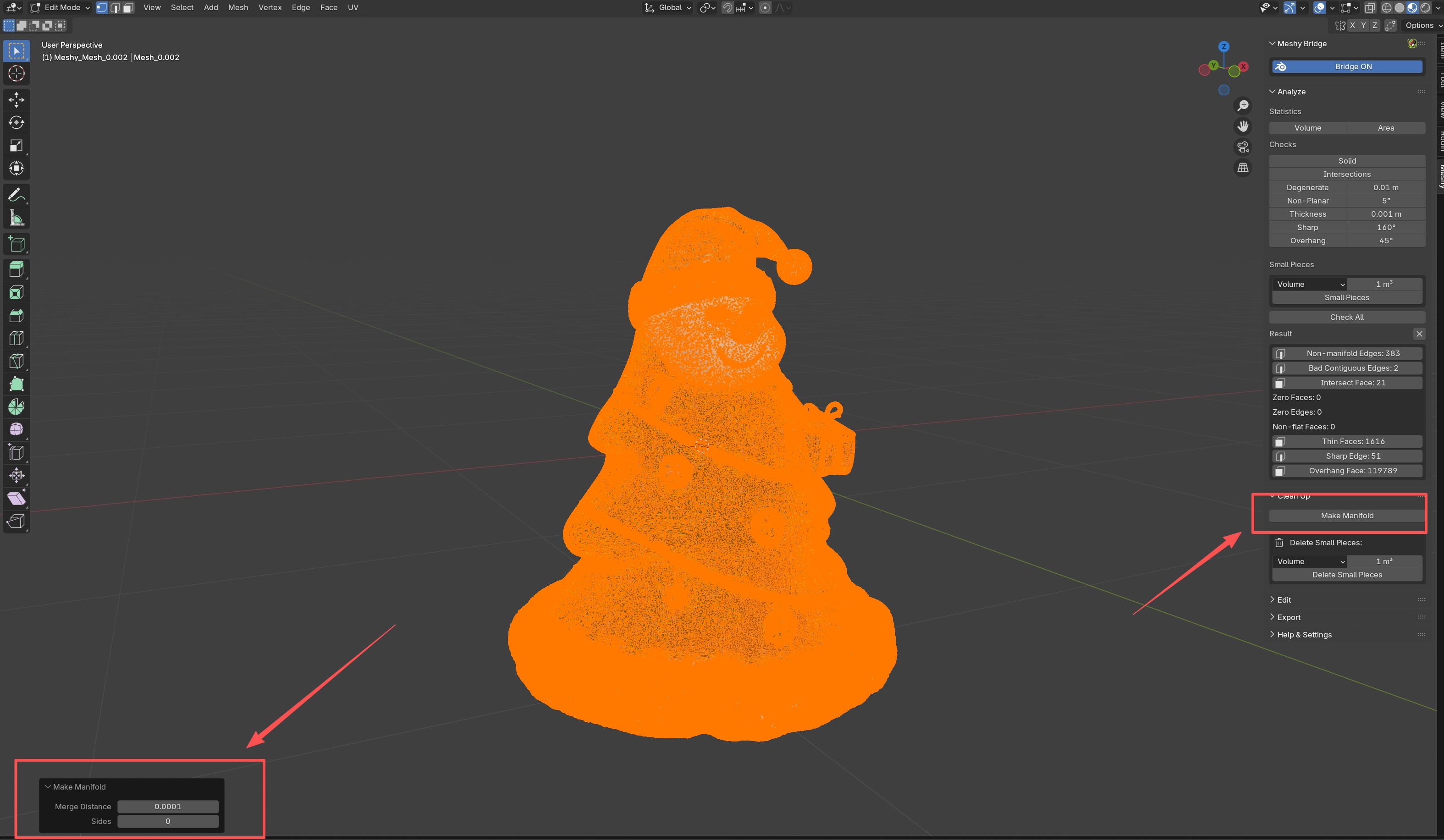
-
Optional: In the Make Manifold panel that Blender opens in the viewport, change a setting. Blender runs the repair again with the new value.
-
Merge Distance: how close two vertices must be to merge. The default is
0.0001. -
Sides: the most sides a hole can have to be filled. The default,
0, fills every hole.
-
Make Manifold runs these repairs in order:
-
Deletes loose vertices, edges, and faces.
-
Deletes interior faces, which sit inside the model.
-
Merges vertices that are closer than Merge Distance.
-
Fills holes, and deletes the non-manifold vertices that filling leaves behind, until the mesh stops changing.
-
Makes all normals point outward.
When it finishes, Blender shows how many vertices, edges, and faces it added or removed.
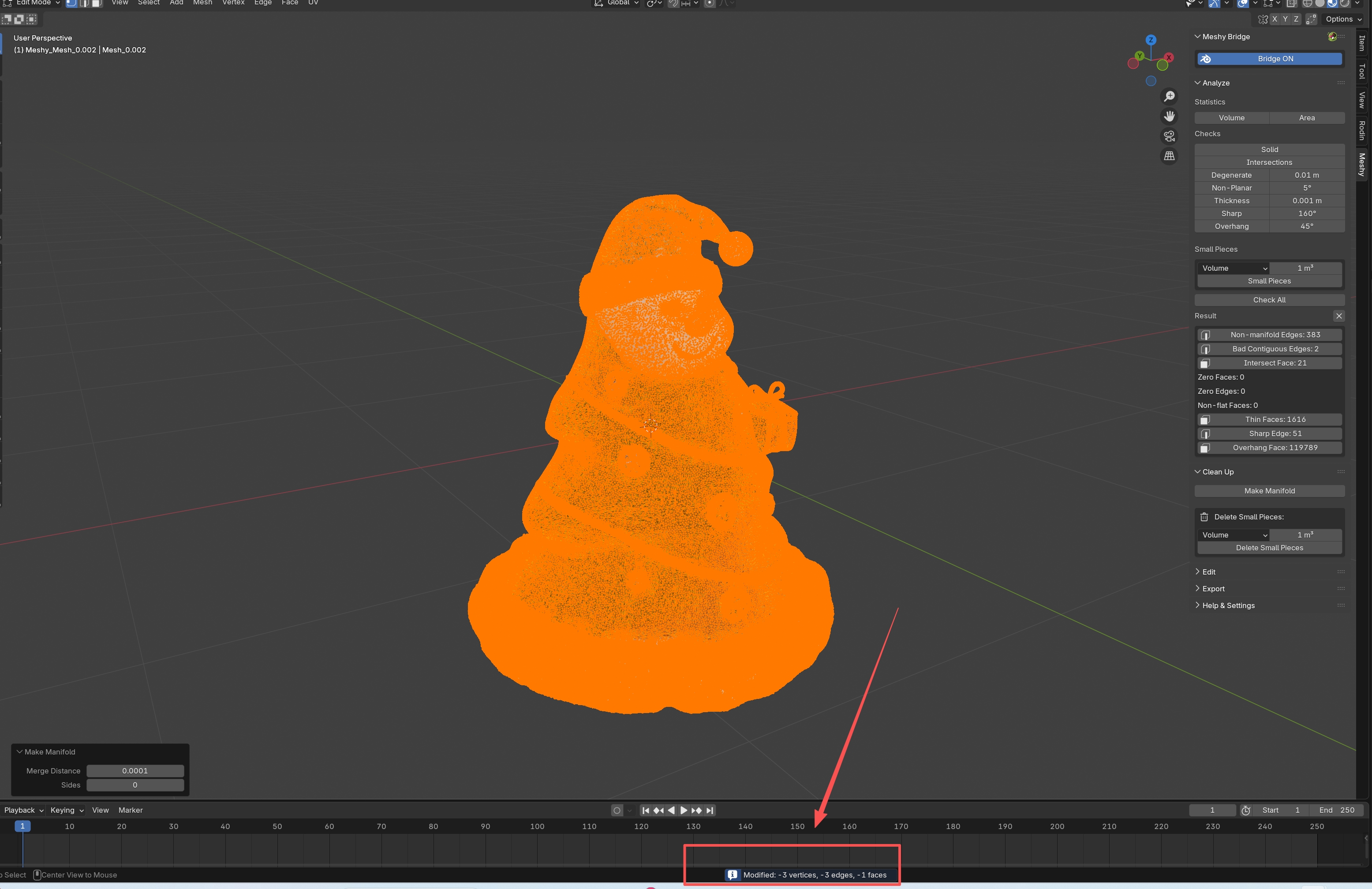
Check the result in the viewport, and run Check All in the Analyze panel again to confirm the fixes.
Delete Small Pieces
Delete Small Pieces deletes loose pieces that are smaller than a limit, such as debris in a photogrammetry scan or droplets in a fluid simulation mesh.
To delete small pieces, follow these steps:
-
Optional: In the Analyze panel, run the Small Pieces check to see what the tool deletes. The check uses the same measure and limit.
-
Click the model to make it the active object.
-
If the object's scale isn't
1, apply it with Object > Apply > Scale. The Small Pieces check measures the scaled model, but Delete Small Pieces measures the mesh before scaling, so the two match only when the scale is applied. -
In the Clean Up panel, under Delete Small Pieces, select how to measure each piece:
-
Volume: the volume of the piece's bounding box, in cm³. Use it to remove small solid fragments.
-
Surface Area: the piece's surface area, in cm². Use it to remove thin flakes or sheets.
-
Diagonal: the length of the piece's bounding box diagonal, in cm. It works for fragments of any shape.
-
-
In the field next to the measure, enter the size limit. The default is
1. The plugin reads it in cm³, cm², or cm for the selected measure, whatever unit the field shows. -
Click Delete Small Pieces.
Blender shows how many pieces the tool deleted. Start with a small limit, and raise it if fragments remain. After the tool runs, check that it didn't remove parts you need.
Clean up a model for printing
A model is ready to print when it's manifold, has no self-intersections, has the right scale, and has walls thick enough to print.
To clean up a model for printing, follow these steps:
-
In the Analyze panel, click Check All, and review the results.
-
In the Clean Up panel, click Make Manifold.
-
If the model has small fragments, click Delete Small Pieces.
-
In the Analyze panel, click Check All again, and confirm that the problems are gone.
-
In Edit Mode, fix any remaining problems by hand.
When all checks pass, export the model from the Export panel.
Troubleshooting
The following table lists common problems, their causes, and how to fix them.
| Problem | Cause | Fix |
|---|---|---|
| The Clean Up panel is grayed out | The active object isn't a mesh. | Click a mesh object to make it active. |
| Blender shows "No small pieces found below threshold" | No piece is smaller than the limit in the selected measure. | Raise the limit. The plugin reads it in cm³, cm², or cm, whatever unit the field shows. |
Next steps
-
To scale, orient, or hollow the repaired model, see Model editing.
-
To export the model for printing, see Model export.