Meshy for Roblox
Send models from the Meshy web app to your Roblox inventory and use them in Roblox Studio, with no app to install.
Before you begin
-
You need a Meshy Pro plan or higher.
-
You need a global Roblox account. To create one, go to Roblox.
-
Meshy doesn't work with Roblox accounts from mainland China (
roblox.qq.comorroblox.cn), which a regional partner runs with a separate account system. From mainland China, you need a network proxy or VPN to reachroblox.com, and a global Roblox account. Send to Roblox isn't available on meshy.cn.
There's nothing to install. You connect your Roblox account in the browser and send models from the Meshy web app. Meshy uploads each model as a GLB asset to your Creator Hub inventory. For the steps, see Bridge to Roblox.
If you already use the Meshy Roblox Bridge desktop app, it keeps working, but you don't need it. For details, see Use the legacy desktop app.
Allow the legacy app on macOS
This section applies only to the legacy desktop app. If you send models from the Meshy web app without the app, skip it.
Meshy distributes the Meshy Roblox Bridge desktop app outside the Mac App Store, and Apple might not have notarized it. As a result, macOS Gatekeeper can block the app from opening, with a warning that Apple can't verify the app. The wording of the warning depends on your macOS version.
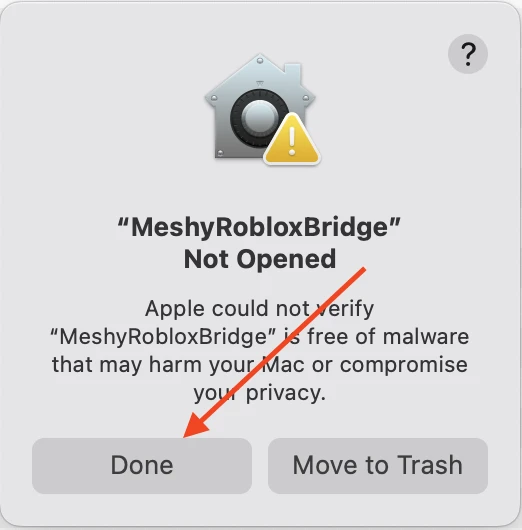
To allow the app in System Settings, which is the recommended way, follow these steps:
-
In the warning dialog, click Done.
-
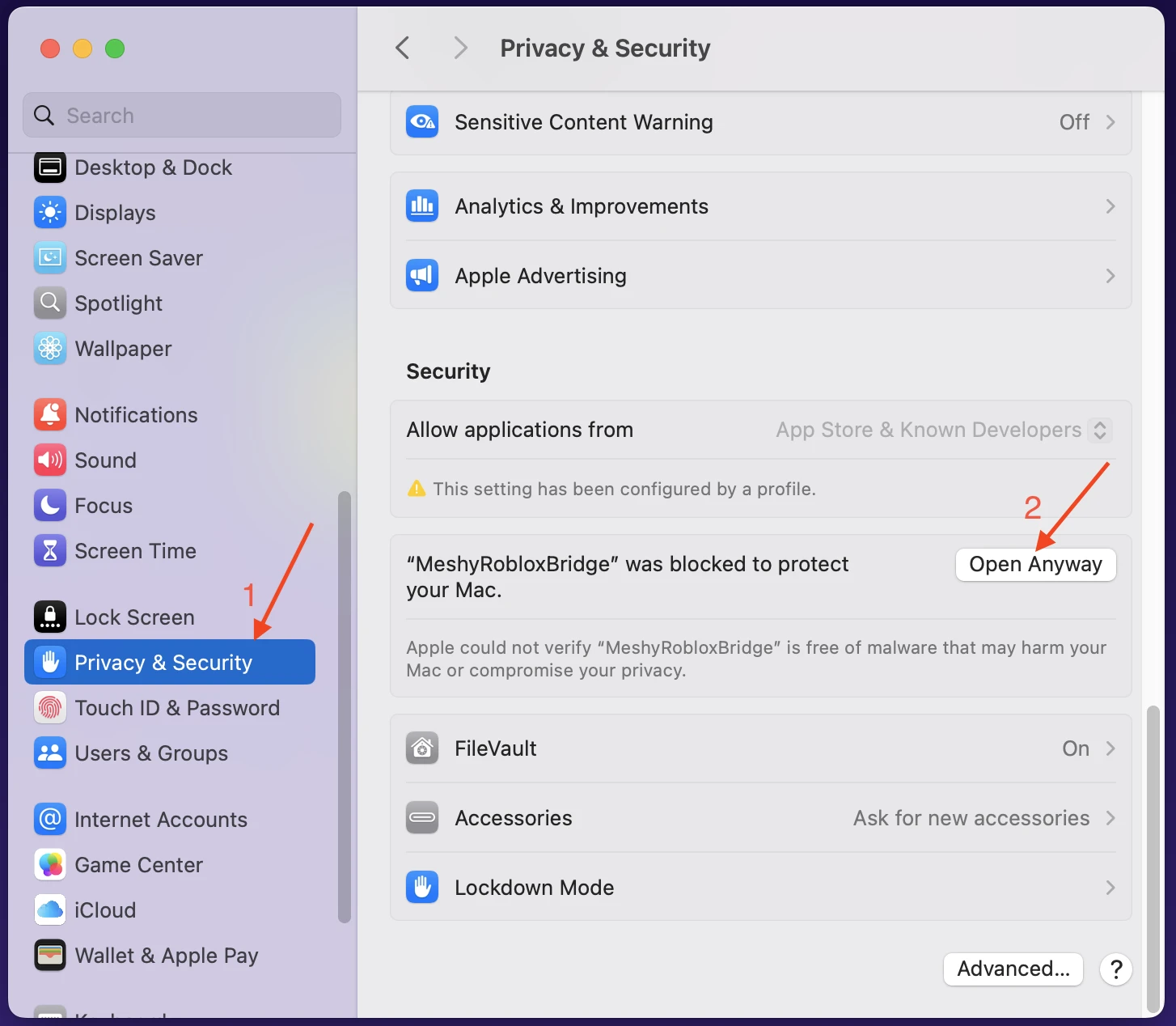
Go to System Settings > Privacy & Security.
-
In the Security section, find the message that says MeshyRobloxBridge was blocked, and click Open Anyway.
-
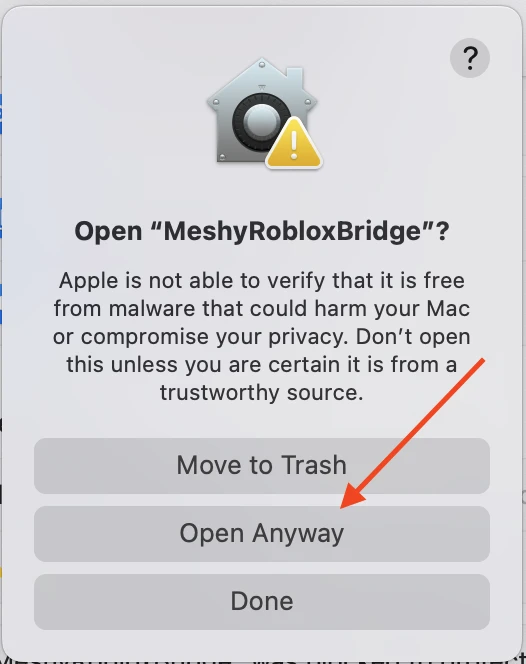
In the confirmation dialog, click Open Anyway.
-
Enter an administrator user name and password, and then click OK.
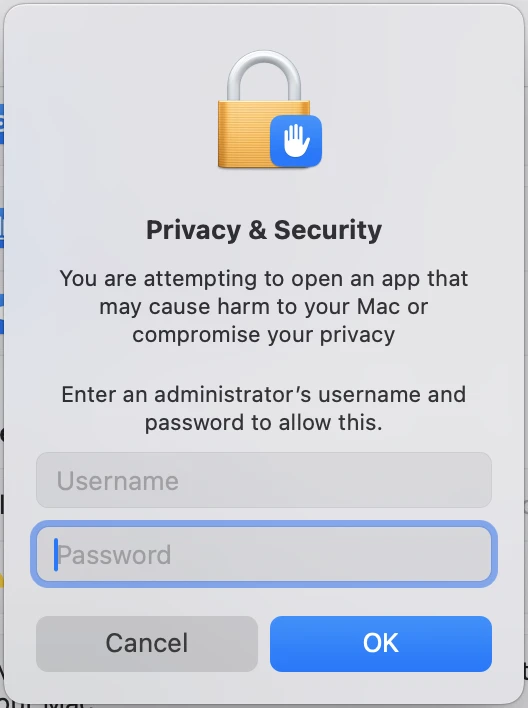
The app opens, and its window shows Server as Running.
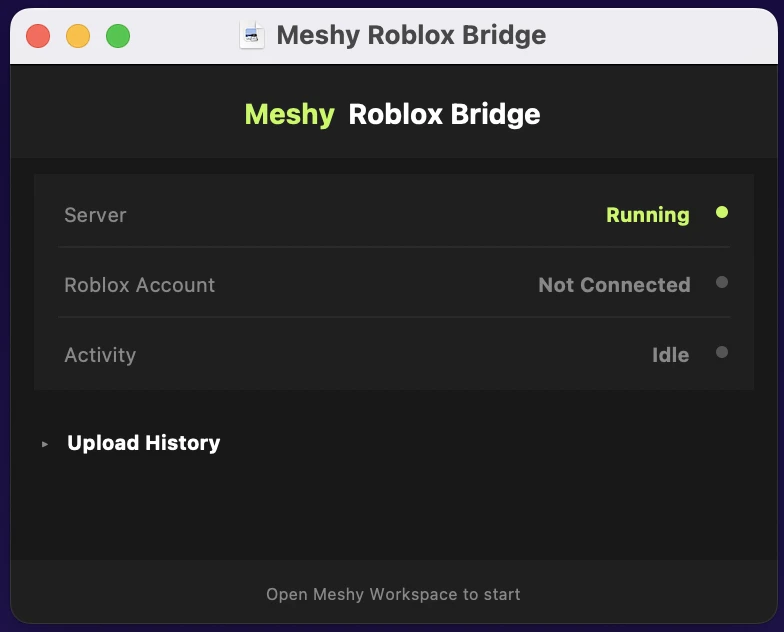
To allow the app in Terminal instead, open Terminal and run the following command:
xattr -cr /path/to/MeshyRobloxBridge.app
Replace /path/to/MeshyRobloxBridge.app with the path to the app, such as ~/Downloads/MeshyRobloxBridge.app. After the command runs, double-click the app to open it.
You need to allow the app only one time. After you allow it, macOS doesn't show the Gatekeeper warning for it again.
Next steps
- To connect your Roblox account and send your first model, see Bridge to Roblox.