Model export
Export models from Blender as STL, OBJ, or PLY files for a slicer or other 3D software, with the Export panel of the Meshy plugin.
Before you begin
-
Install the Meshy plugin in Blender. For the steps, see Meshy for Blender.
-
Get the model ready. Check it in the Analyze panel, fix it in the Clean Up panel, and set its size and orientation in the Edit panel. For the steps, see Model analysis.
Export a model
To export a model, follow these steps:
-
Select the objects you want to export. The plugin exports only the selected objects, with their modifiers applied.
-
In the Meshy tab, expand the Export panel.
-
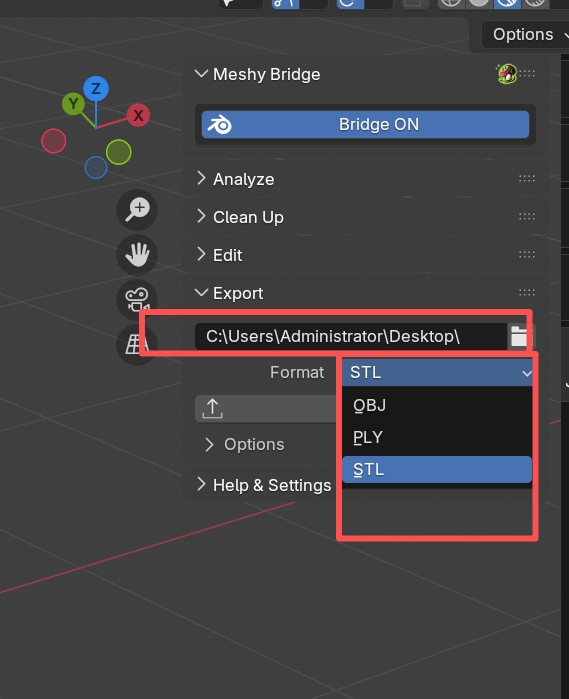
In the folder field, enter the folder to save the file in, or click the folder icon to browse.
-
In Format, select STL, OBJ, or PLY. Select STL for 3D printing.
-
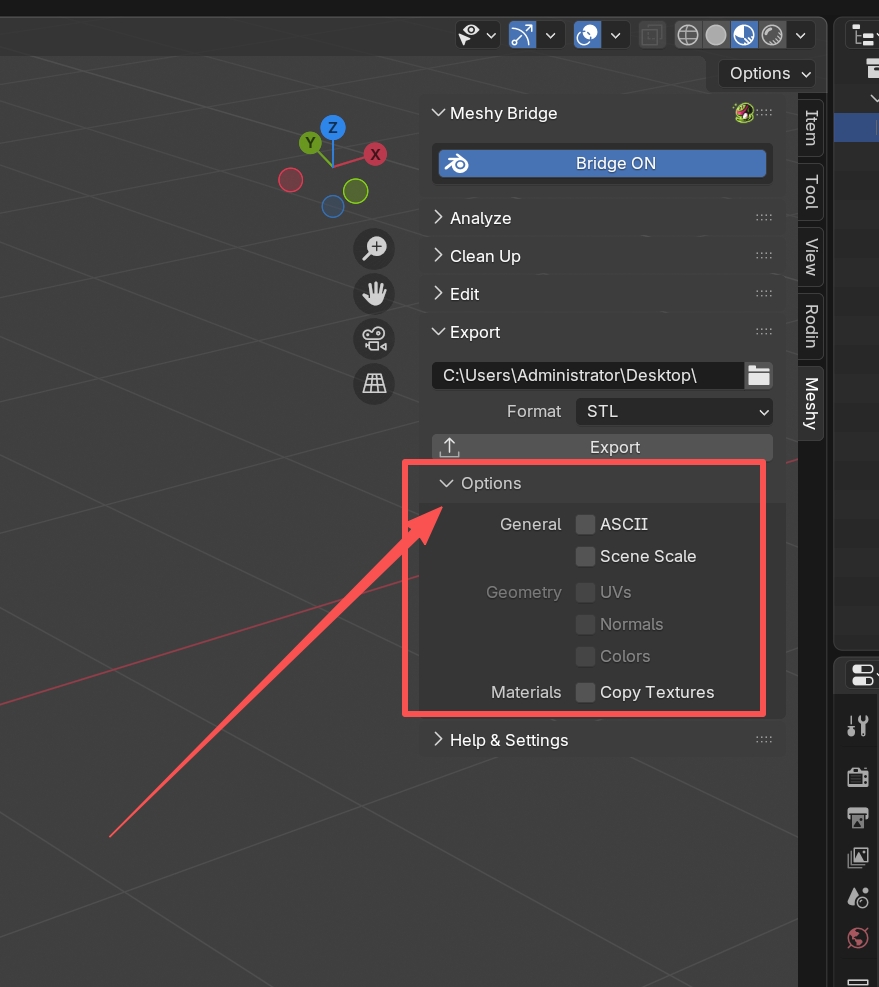
Optional: Expand Options, and change the export options. For what each option does, see Export options.
-
Click Export.
Blender shows the path of the exported file. To check the file, open it in your slicer or target software.
Export settings
The folder field and Format sit at the top of the Export panel.
The folder field accepts a full path or a path that starts with //, which means the folder of your Blender file. The default is //. Where the file goes depends on these settings:
-
If your Blender file is saved, or the folder is a full path, the plugin saves the file in that folder without asking.
-
Otherwise, a file browser opens in your home folder, where you choose the location and file name.
The plugin names the file after the Blender file and the active object, such as MyProject-MyModel.stl. If the Blender file isn't saved, the name starts with Untitled.
Format sets the file type: STL, OBJ, or PLY. The default is STL. The format also sets which options you can change.
Export options
Expand Options in the Export panel to see these settings. They're all off by default.
General
-
ASCII: saves an STL or PLY file as text instead of binary. Text files are larger, but you can read and edit them. Not available for OBJ.
-
Scene Scale: applies the scene's unit scale to the exported file, so other software gets the size you see in Blender. Select it if you changed Unit Scale in the scene's unit settings.
Geometry
Available for OBJ and PLY. STL stores only geometry.
-
UVs: exports the texture coordinates, which other software needs to show the textures.
-
Normals: exports the mesh's custom normals if it has them, and calculated normals otherwise. Normals improve shading in other software.
-
Colors: exports vertex colors, such as the colors of a scanned model.
Materials
- Copy Textures: copies the texture images to the folder of the exported file, so they stay with the model. For OBJ, it also exports the materials. For STL and PLY, the plugin copies the base color texture and gives it the same name as the exported file.
Supported formats
The following table lists the formats the Export panel saves, what each one suits, and what it stores.
| Format | Best for | What it stores |
|---|---|---|
| STL | 3D printing. Slicers such as Cura and PrusaSlicer read it. | Geometry only, with no colors, materials, or textures. Binary or ASCII. |
| OBJ | Sharing models and opening them in other 3D software. | Geometry, UVs, normals, and vertex colors. With Copy Textures, also materials and textures. Text only. |
| PLY | Models with vertex colors, such as scans and photogrammetry. | Geometry, UVs, normals, and vertex colors. Binary or ASCII. |
For 3D printing, export a binary STL file, and check the model's dimensions in your slicer.
Troubleshooting
The following table lists common problems, their causes, and how to fix them.
| Problem | Cause | Fix |
|---|---|---|
| Clicking Export does nothing | No object is selected. | Select the objects to export, and then click Export again. |
| The OBJ file has no materials | Copy Textures is off. For OBJ, the plugin exports materials only with Copy Textures selected. | Expand Options, select Copy Textures, and export again. |
Next steps
-
To take the exported file to your slicer, see 3D printing workflow.
-
To send another model from Meshy to Blender, see Bridge to Blender.