Bridge to Omniverse / Isaac Sim
Send a model from the Meshy web app straight into your NVIDIA Omniverse or Isaac Sim stage, with physics and semantic labels applied during import.
Before you begin
-
You need a Pro plan or higher. On the Free and Starter plans, clicking Send to OV/Isaac opens the upgrade options.
-
You need the Meshy web app on Windows. On other operating systems, Send to OV/Isaac is unavailable.
-
Install the Meshy Bridge extension in Isaac Sim or your Omniverse Kit app. For the steps, see Meshy for Omniverse / Isaac Sim.
Start the bridge
The extension runs the bridge while it's enabled, so you don't start anything else.
To get the app ready, follow these steps:
-
Open Isaac Sim or your Omniverse Kit app.
-
Click Window > Extensions, and check that MESHY BRIDGE is turned on.
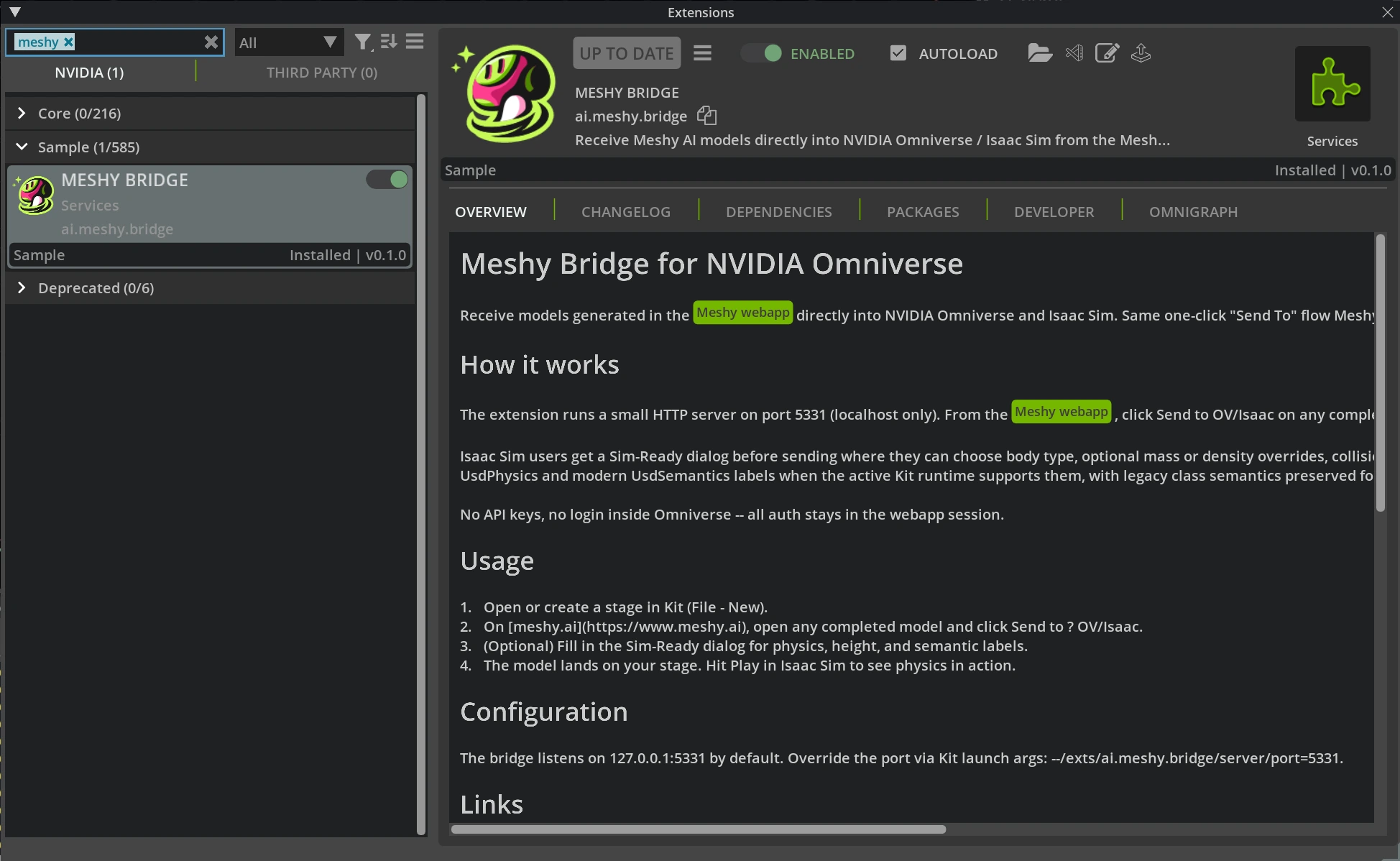
-
Open or create a USD stage. To create one, click File > New.
Keep the app open while you send models from Meshy.
Send a model
To send a model to Omniverse or Isaac Sim, follow these steps:
-
In the Meshy web app on Windows, open a finished model in the viewer.
-
In the viewer toolbar, click DCC Bridge (the plug icon).
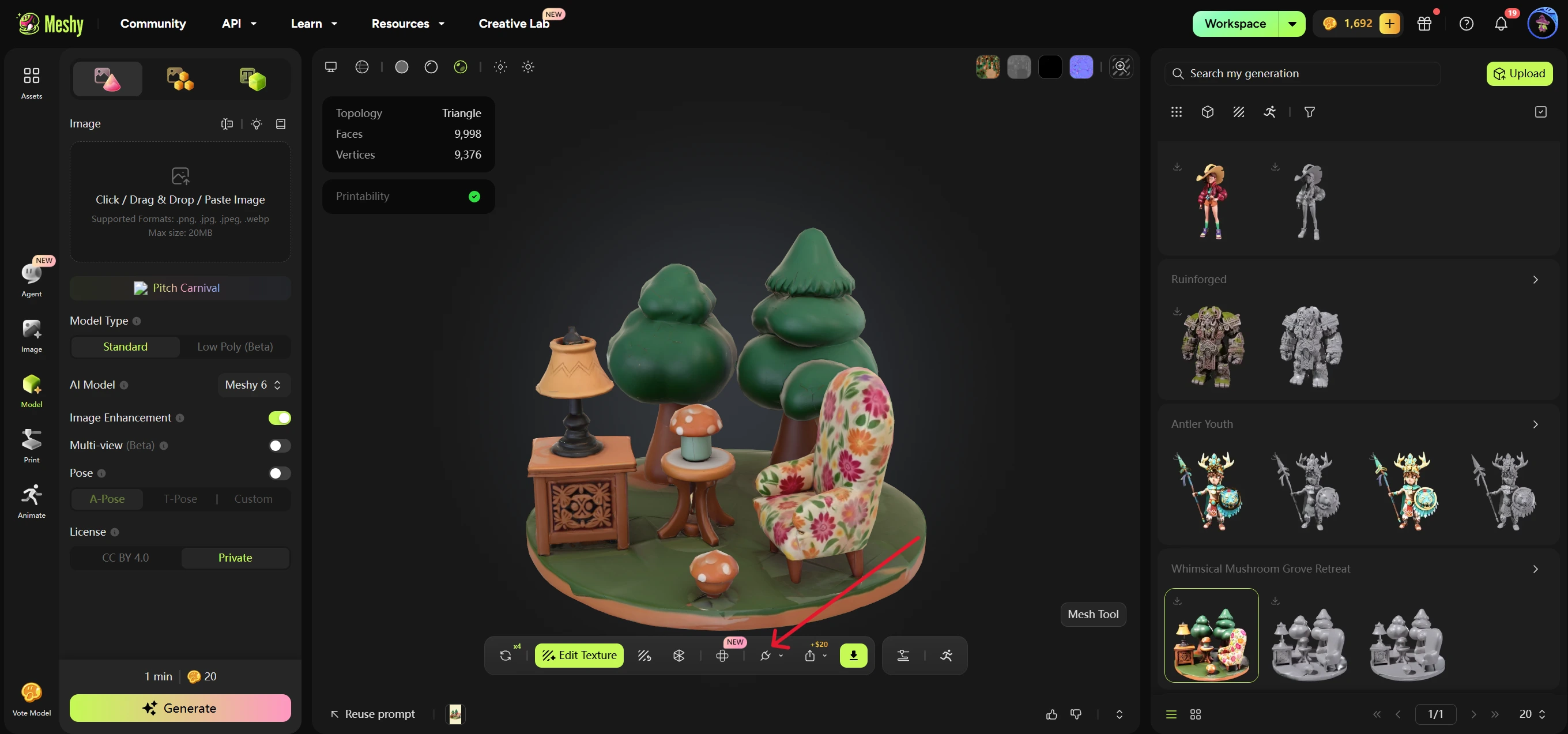
-
Click Send to OV/Isaac. Meshy checks that the bridge is running, and then opens the Sim-Ready Properties dialog.
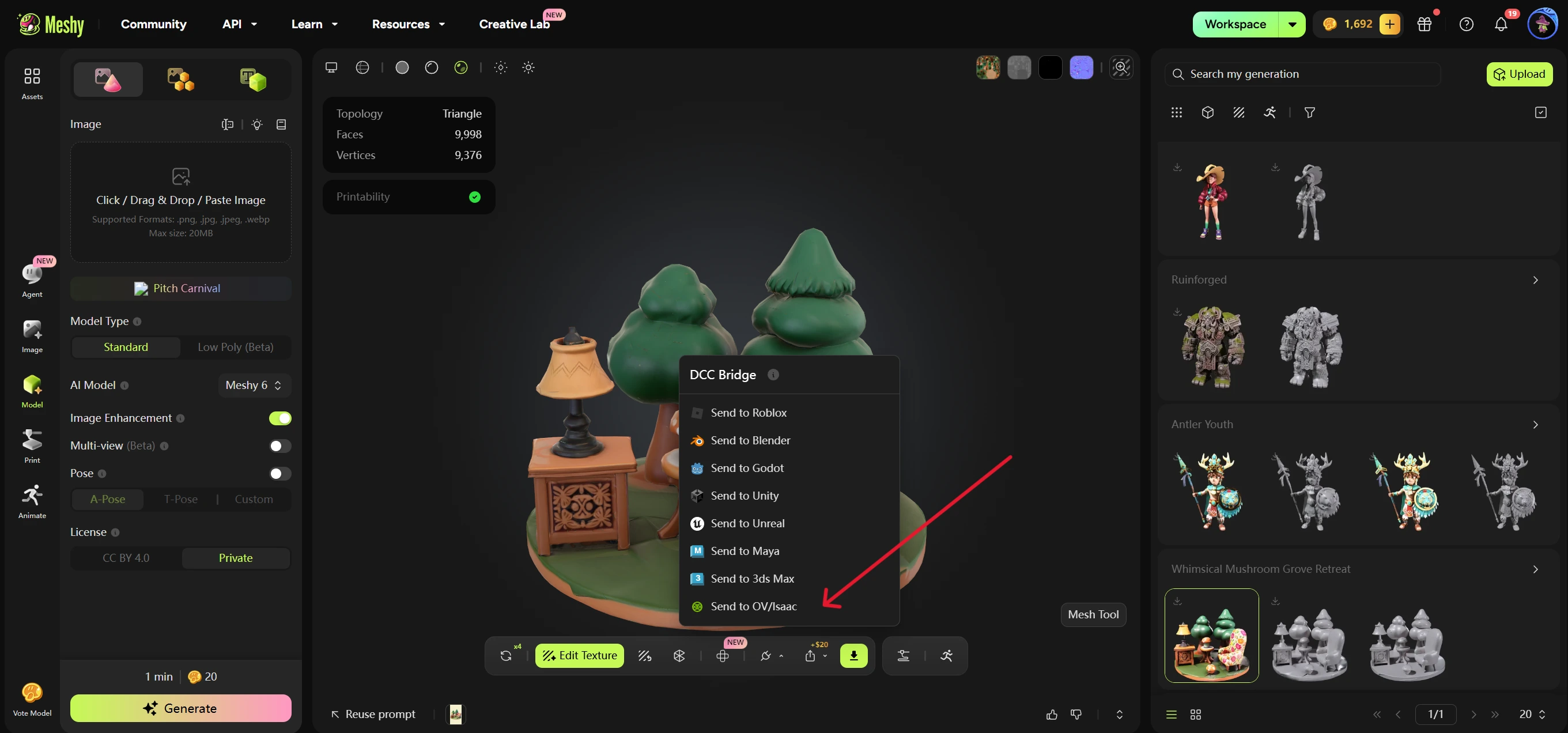
-
Optional: Change the Sim-Ready settings. For what each setting does, see Sim-Ready settings.
-
In the Sim-Ready Properties dialog, click Send to OV/Isaac. To cancel without sending, click Cancel.
Meshy sends the model as a USDZ file, with the name of the model and your Sim-Ready settings. The extension downloads the file and adds the model to the open stage under /World, in a prim named after the model. It also matches the model's up axis and units to the stage.
Sim-Ready settings
The Sim-Ready Properties dialog sets how the model behaves in a physics simulation and how it's labeled. You can send without changing any setting.
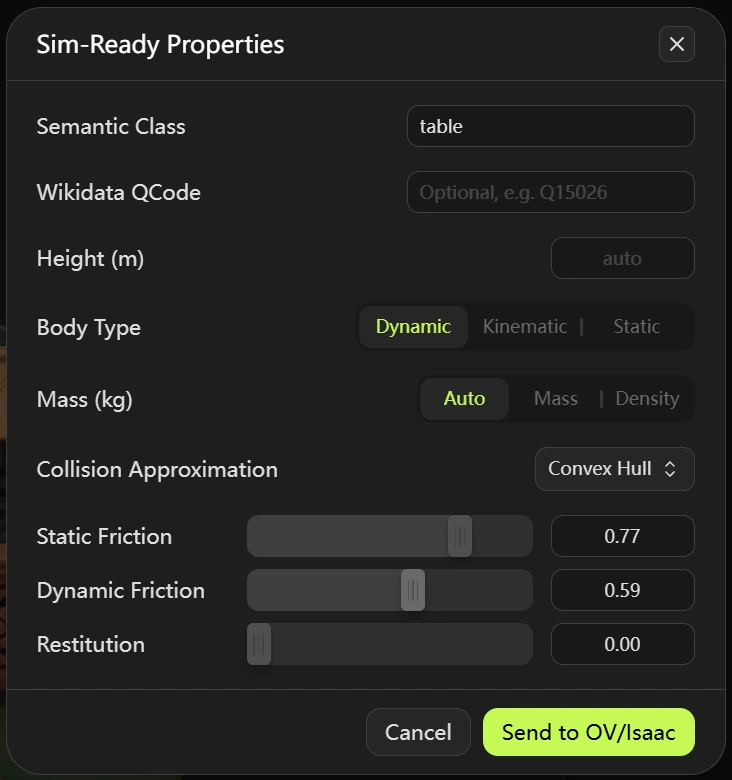
The dialog has the following settings:
- Semantic Class: Optional. A class label, such as
chair,table, orrobot. The extension writes it as a semantic label, and also as a legacy class label for older Isaac Sim versions. - Wikidata QCode: Optional. A Wikidata ID, such as
Q15026. It starts withQ, followed by a number that doesn't start with0. - Height (m): Optional. The model's real-world height in meters. If you leave it empty, the extension scales the model by the units of the file and the stage.
- Body Type: Dynamic (the default), Kinematic, or Static.
- Mass (kg): Auto (the default), Mass, or Density. Auto sets no mass or density, so the physics engine uses its defaults and the collider shape. Mass sets the mass in kilograms. Density sets the density in kg/m³, and the label changes to Density (kg/m³). A Static body has no mass setting.
- Collision Approximation: Convex Hull (the default), Convex Decomposition, Mesh Simplification, Bounding Cube, Bounding Sphere, or Triangle Mesh. For a Dynamic body, the list leaves out Mesh Simplification and Triangle Mesh. SDF collision isn't available.
- Static Friction, Dynamic Friction, and Restitution: Physics material values from
0to1for the model's colliders. The defaults are0.50,0.50, and0.00.
Check the import
After Meshy shows "Model sent to omniverse", the model appears in the open stage under /World.
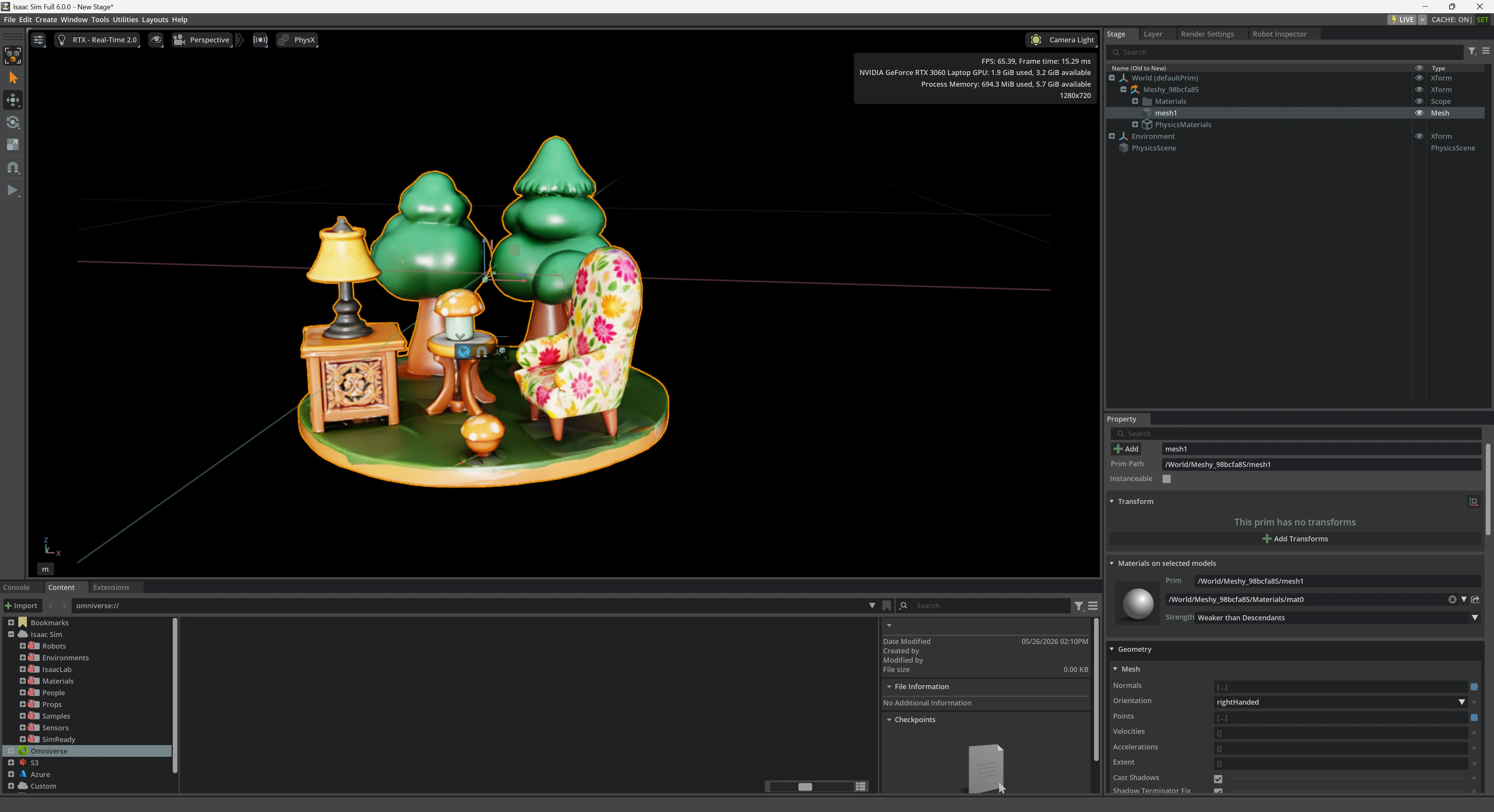
The extension adds UsdPhysics.CollisionAPI and UsdPhysics.MeshCollisionAPI to each mesh in the model. For a dynamic or kinematic body, it also adds UsdPhysics.RigidBodyAPI and UsdPhysics.MassAPI to the model's prim.
To test the physics, click Play in Isaac Sim. A dynamic body moves with the simulation, and a static body stays in place. A kinematic body moves only by animation or script, and other bodies still collide with it.

Send an animated model
You send an animated model the same way as a static one. Meshy sends the rigged character with the selected animation. Smart Rig models don't have DCC Bridge, so you can't send them.
Troubleshooting
The following table lists common problems, their causes, and how to fix them.
| Problem | Cause | Fix |
|---|---|---|
| Meshy shows "Failed to send model to omniverse" before the Sim-Ready Properties dialog opens | Isaac Sim or your Kit app isn't open, or the extension is off. | Open the app, and turn on MESHY BRIDGE in Window > Extensions. Then send the model again. |
The dialog opens, but the send fails, and http://127.0.0.1:5331/status in your browser doesn't show "dcc": "omniverse" | Another app uses port 5331, so the extension can't start its bridge. | Close the other app, and then turn MESHY BRIDGE off and on again in Window > Extensions. Check that the status page shows "dcc": "omniverse". |
Meshy shows "Failed to send model to omniverse" after you click Send to OV/Isaac in the dialog, and the status page shows "dcc": "omniverse" | No USD stage is open. The app's Console shows no active USD stage. | Open or create a stage with File > New, and then send the model again. |
| Send to OV/Isaac in the dialog is unavailable | Wikidata QCode, Height (m), or the mass or density value isn't valid. | Enter a QCode in the format Q15026, and a height, mass, or density greater than 0. |
| Send to OV/Isaac in the DCC Bridge menu is unavailable | You use the Meshy web app on macOS or Linux. | Use the Meshy web app on Windows. |
Next steps
- To add an animation to a character before you send it, see Animation.