Meshy plugin for Codex
Install the Meshy plugin in Codex to generate and texture 3D models from a chat, and save the files in your project.
Overview
The Meshy plugin is in the Plugins Directory that ChatGPT and Codex share, and it works in Work and Codex, but not in Chat. To create models in a ChatGPT chat, to work with the models that you made on the Meshy website, or to skip the install, use Meshy 3D, Meshy's other plugin in the same directory. To compare the two, see Which Meshy plugin to use.
The Meshy plugin has two skills:
- Meshy 3D Generation: Text to 3D, Image to 3D, and Multi-Image to 3D, AI texturing and retexturing, remeshing to a polygon budget, UV unwrapping, auto-rigging and animation for humanoid characters, and export to GLB, FBX, OBJ, STL, or USDZ.
- Meshy 3D Printing: printability analysis and repair, single-color and multicolor 3MF, sizing to real-world dimensions, Creative Lab products such as figurines, lamps, keychains, and fridge magnets, and handoff to an installed slicer.
Both skills run the Meshy CLI on your computer. The CLI is the meshy-cli package on npm. You sign in once in your browser, and you never paste an API key into the chat.
The plugin saves files in the folder you name, with a rendered preview and the task IDs that Codex needs for follow-up edits. The skills are open source in the meshy-3d-agent repository on GitHub.
Before you begin
-
You need Codex, in the ChatGPT desktop app or the Codex CLI. The Meshy plugin doesn't run in ChatGPT in a web browser. On a work or school workspace, an admin might need to allow plugins.
-
You need Node.js 22.12 or later, with npm. To check your version, run
node --version. If Node.js is missing or older, install the current LTS release from the Node.js website. -
To generate models, you need a paid Meshy plan. Every generation task spends Meshy credits. Local print steps, such as rescaling a model or opening it in a slicer, don't need a sign-in.
Install the plugin
To install the plugin in the ChatGPT desktop app, follow these steps:
-
In the ChatGPT desktop app, switch to Codex.
-
Open Plugins.
-
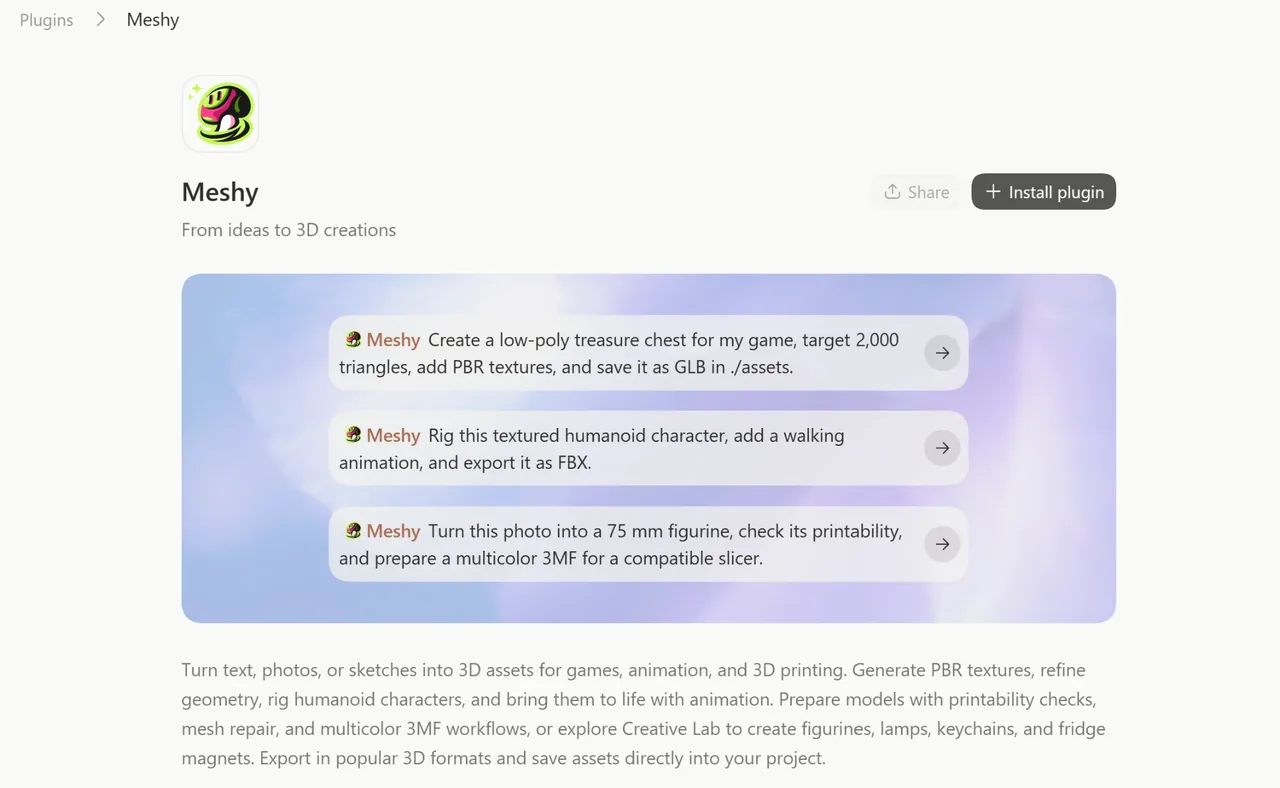
Search for Meshy, and then open the Meshy plugin.
-
Click Install plugin.
-
Start a new chat. Codex loads plugins only in chats that you open after the install.
To install the plugin in the Codex CLI, follow these steps:
-
Run
/plugins. -
Install Meshy.
-
Start a new session.
To confirm the install, type @ in a new chat and look for Meshy, or ask Codex which Meshy skills are available.
For a step-by-step tutorial, see How to Use Meshy Plugin in Codex.
Sign in
The first time you ask for a model, the plugin checks for the Meshy CLI and a saved Meshy session. If it finds no session, Codex shows a Meshy sign-in link and a one-time code.
To sign in, follow these steps:
-
Open the link.
-
If the page asks for a code, enter the code in Device code exactly as Codex shows it, and then click Continue.
-
If Meshy asks you to sign in, sign in to your Meshy account.
-
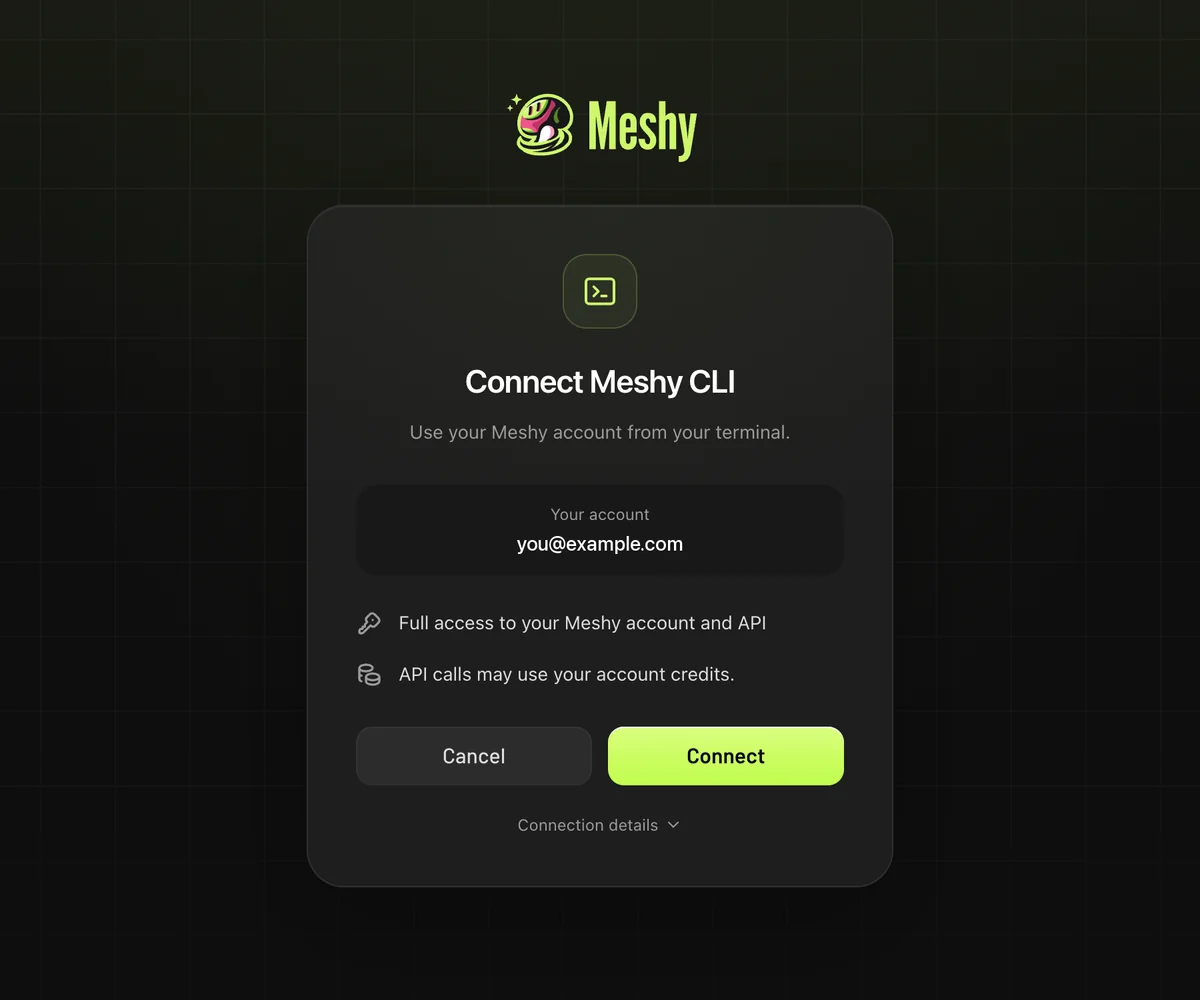
On the Connect Meshy CLI page, click Connect. The page shows Meshy CLI authorized.
-
Return to Codex. Codex continues the request you made.
The code expires after 10 minutes. If it expires, ask Codex for a new one. The Meshy CLI stores the session on your computer and reuses it in later chats. If MESHY_API_KEY is set in your environment, the CLI uses that API key instead of the browser session.
In the Codex CLI, the first run might ask for network access. Approve it so the Meshy CLI can reach the Meshy API.
Example prompts
Mention @Meshy, or describe the job in your own words. For example:
- Create a low-poly treasure chest for my game, target 2,000 triangles, add PBR textures, and save it as GLB in ./assets.
- Turn this photo into a textured 3D model and keep its proportions. (attach the image)
- Rig this textured humanoid character, add a walking animation, and export it as FBX.
- Retexture ./assets/chest.glb as weathered bronze and save it beside the original.
- Turn this photo into a 75 mm figurine, check its printability, and prepare a multicolor 3MF for a compatible slicer.
Follow-up requests reuse the previous result, for example make a 1,500-face LOD, now as FBX, or scale it to 150 mm. If you don't name a folder, the plugin saves files in ./meshy_output.
Credits
Generation, texturing, remeshing, rigging, animation, and repair spend credits from your Meshy account at API rates. Printability analysis is free. For the cost of each task, see Pricing.
Before a paid step, Codex estimates its cost, and it asks before it spends more than you approved. To approve each paid step yourself, add ask me before spending credits to your request. To check your balance at any time, ask how many Meshy credits do I have?
Troubleshooting
The following table lists common problems, their causes, and how to fix them.
| Problem | Cause | Fix |
|---|---|---|
Meshy doesn't appear after you type @ | You're in ChatGPT in a web browser, or the chat was open before you installed the plugin. | Use the ChatGPT desktop app or the Codex CLI. Restart Codex, and open a new chat. |
| Codex asks for an API key | The plugin doesn't need one. It signs in through your browser. | Decline, and ask Codex to sign in through the browser instead. Never paste an API key into a chat. |
node or npm isn't found | Node.js isn't installed, or Codex can't find it. | Install Node.js 22.12 or later from the Node.js website, and then restart Codex. |
| The sign-in code expired | A code is valid for 10 minutes. | Ask Codex to start the sign-in again. |
| Codex can't generate because of your plan or credits | Generation needs a paid plan and enough credits. | Check your plan and balance on the Subscription page in the Meshy web app. |
| You're signed in to the wrong Meshy account | The Meshy CLI reuses the session that it stored on your computer. | Ask Codex to run meshy auth logout, and then sign in again. |
FAQ
- Is the Meshy plugin for Codex free?
- The plugin is free to install. Generating 3D models requires a paid Meshy plan and spends Meshy credits at API rates. Printability analysis is free, and local steps, such as rescaling a model or opening it in a slicer, don't need a sign-in.
- Do I need a Meshy API key?
- No. The plugin signs in through your browser with a one-time code, and the Meshy CLI stores the session on your computer. Never paste an API key into a chat. If MESHY_API_KEY is already set in your environment, the Meshy CLI uses it instead of the browser session.
- Where are my models saved?
- In the folder you name in your request, or in ./meshy_output if you don't name one, together with a preview image and the task IDs. The plugin saves files on your computer, not in the Meshy web app.
- Which file formats can the plugin export?
- GLB, FBX, OBJ, STL, and USDZ for 3D assets, and single-color or multicolor 3MF for 3D printing.
- Does the plugin work in ChatGPT in a web browser?
- No. The Meshy plugin runs in Work and Codex, in the ChatGPT desktop app or the Codex CLI.
- Can the plugin see the models that I made on the Meshy website?
- No. The Meshy plugin works only with tasks that were created through the Meshy API, such as the ones that it created itself. To view and download the models in your Meshy account, including the ones from the Meshy website, use Meshy 3D.
- Can I use the same Meshy skills in Claude Code or Cursor?
- Yes. The skills are open source in the meshy-3d-agent repository on GitHub, and you can install them in Claude Code, Cursor, Gemini CLI, and other agents. Ask your agent to follow https://raw.githubusercontent.com/meshy-dev/meshy-3d-agent/main/INSTALL.md.
Next steps
-
To create models in a ChatGPT chat, see Meshy 3D for ChatGPT.
-
To use the same skills in Hermes Agent, see Meshy skills for Hermes Agent.
-
To use the same skills in OpenClaw, see Meshy skill for OpenClaw.
-
To call the Meshy API from an AI agent with your own API key, see AI integration.