Meshy plugin for DeepSeek Harness
Install the Meshy plugin in DeepSeek Harness to generate 3D models, textures, and animations, and prepare 3D prints, from a chat.
Overview
The Meshy plugin adds two skills to DeepSeek Harness (dsh):
meshy-3d-generation: Text to 3D, Image to 3D, and Multi-Image to 3D, AI texturing and retexturing, remeshing to a polygon budget, UV unwrapping, auto-rigging and animation for humanoid characters, and export to GLB, FBX, OBJ, STL, or USDZ.meshy-3d-printing: printability analysis and repair, single-color and multicolor 3MF, sizing to real-world dimensions, Creative Lab products such as figurines, lamps, keychains, and fridge magnets, and handoff to an installed slicer.
The plugin includes the Meshy CLI, which is the meshy-cli package on npm. The skills run it and save the files in your project. You sign in once in your browser, and you don't need an API key.
In dsh Web and Desktop, the plugin also adds a Meshy page to the sidebar, a Meshy settings page, and a 3D preview for GLB files.
The plugin is the meshy-dsh package on npm, and dsh shows it as Meshy under Plugins. The plugin is open source in the meshy-dsh repository on GitHub, and the skills come from the meshy-3d-agent repository.
Before you begin
-
You need DeepSeek Harness.
-
To generate models, you need a paid Meshy plan. Every generation task spends Meshy credits at API rates. For the cost of each task, see Pricing. Printability analysis is free, and local print steps, such as rescaling a model or opening it in a slicer, don't need a sign-in.
Install the plugin
You can install the plugin in any of the following ways:
-
Ask the agent: in a dsh session, ask Install the Meshy plugin. The agent installs it for you.
-
Plugins page: in dsh, open Plugins, select Add plugin, and enter
meshy-dsh. In mainland China, choose the Mainland China mirror registry. -
Command line: run the following command. To install from GitHub instead, use
github:meshy-dev/meshy-dsh.dsh plugin --profile web add meshy-dshdsh installs plugins per profile. To install the plugin into another profile, such as
desktoportui, replacewebwith the name of that profile.
To confirm the install, open Plugins in dsh. The Meshy plugin is listed and running. Then start a new session, and type /. The list shows meshy-3d-generation and meshy-3d-printing. dsh loads the skills only in sessions that you start after the install.
The plugin includes the Meshy CLI, so you don't install anything else.
Sign in
You sign in once, and every session, new or old, uses the sign-in. In dsh Web and Desktop, you can sign in from the Meshy page or from Settings > Meshy. In a chat, the agent shows you a link and a code when you first ask for a model.
To sign in from the Meshy page, follow these steps:
-
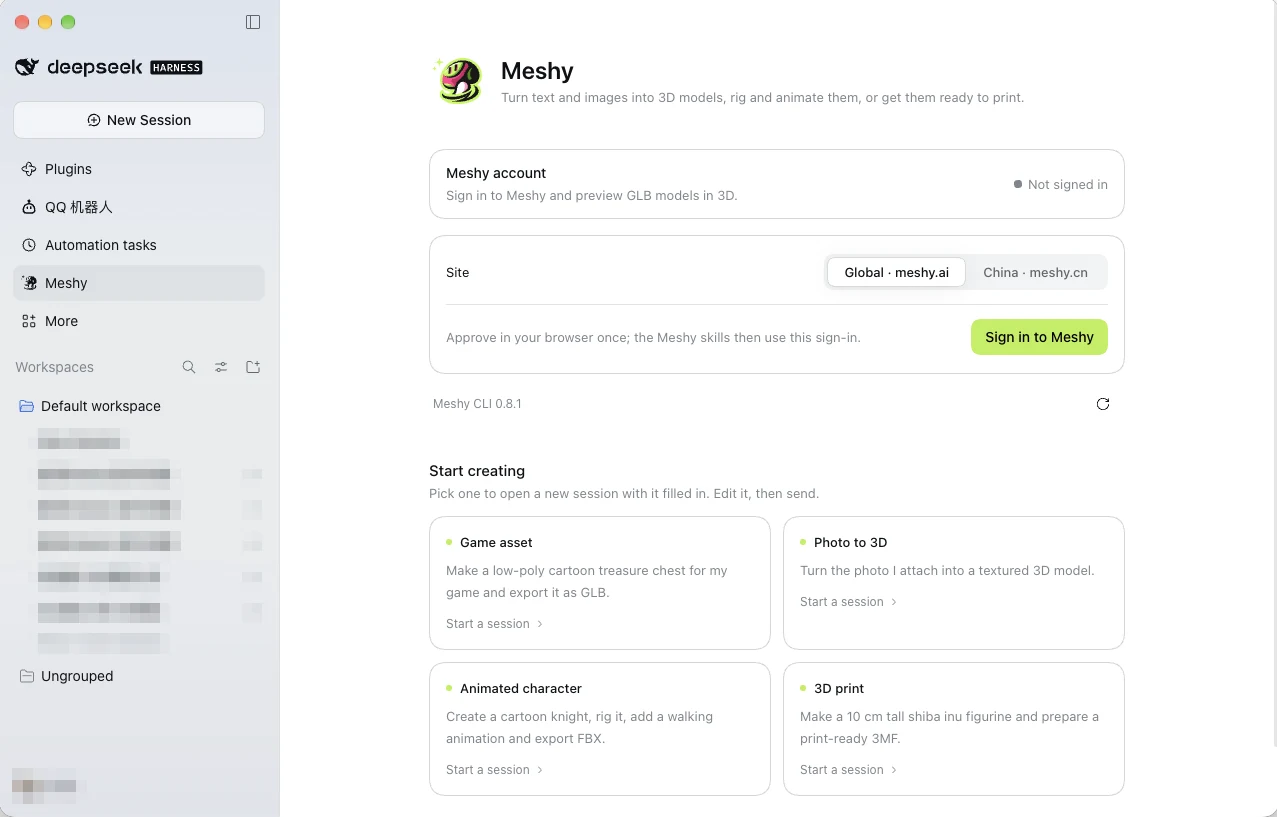
In the dsh sidebar, select Meshy.
-
Under Site, choose Global · meshy.ai. In mainland China, choose China · meshy.cn. You use the same Meshy account and the same credits on both sites.
-
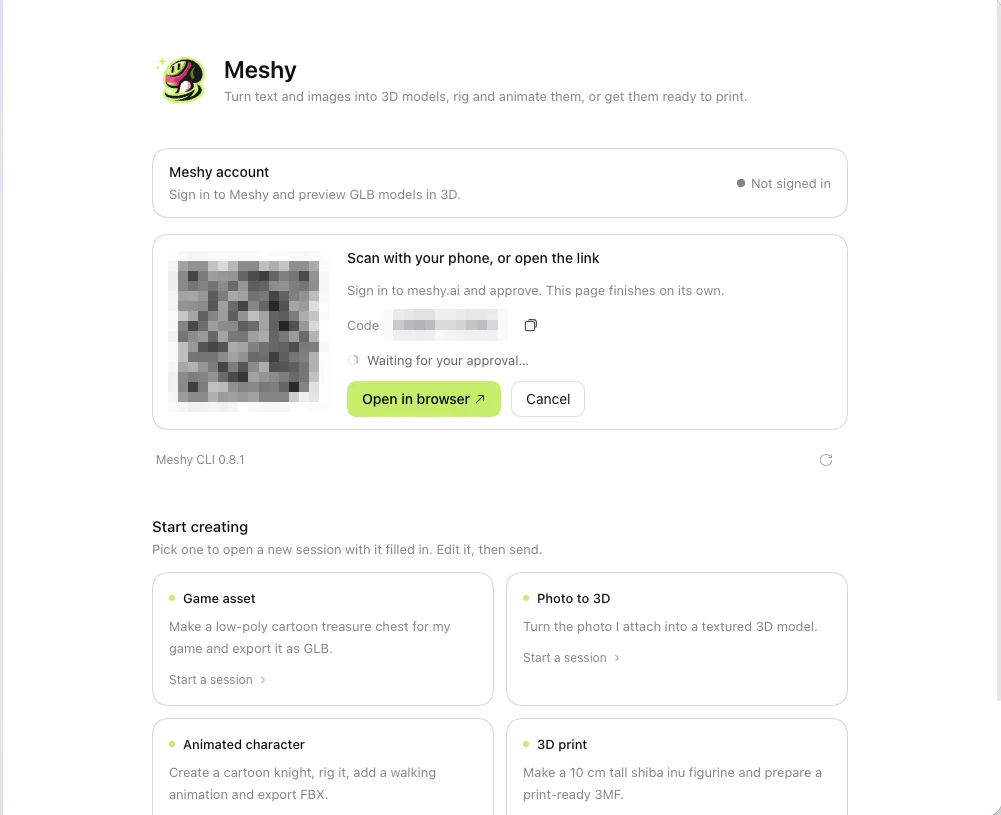
Click Sign in to Meshy. The page shows a QR code, a link, and a code.
-
Scan the QR code with your phone, or click Open in browser.
-
If Meshy asks you to sign in, sign in to your Meshy account.
-
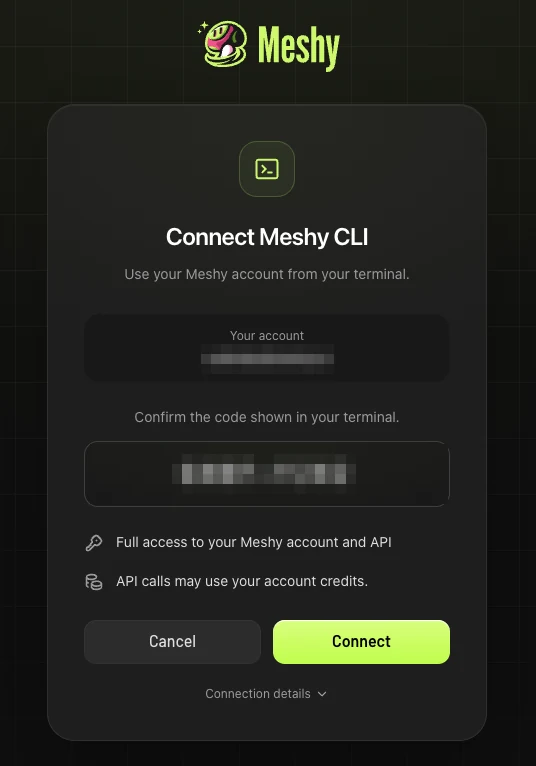
On the Connect Meshy CLI page, check that the code matches the code in dsh, and then click Connect.
-
Return to dsh. The page finishes on its own and shows Signed in.
The code expires after 10 minutes. If it expires, start the sign-in again.
The sign-in is the Meshy CLI's own, and your operating system keeps the key that encrypts it, so meshy in your terminal uses the same sign-in. dsh keeps an exported MESHY_API_KEY out of the agent's shell, and the plugin doesn't pass it on, so sign in through your browser.
Meshy page and 3D preview
dsh Web and Desktop show the following Meshy pages. dsh tui and headless mode don't show them, but the skills work the same way.
-
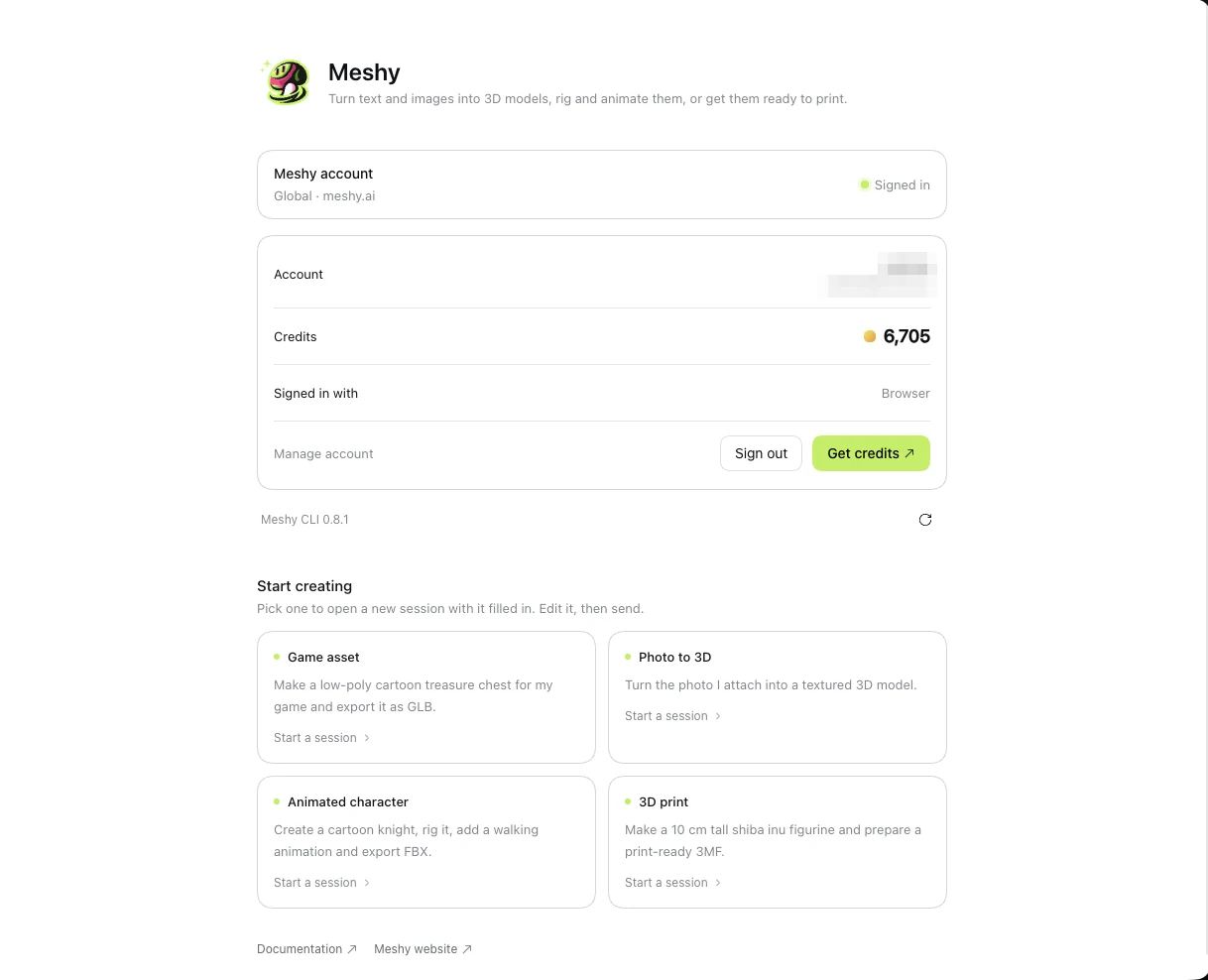
Meshy page: select Meshy in the left sidebar. The page shows your Meshy account and four example requests under Start creating.
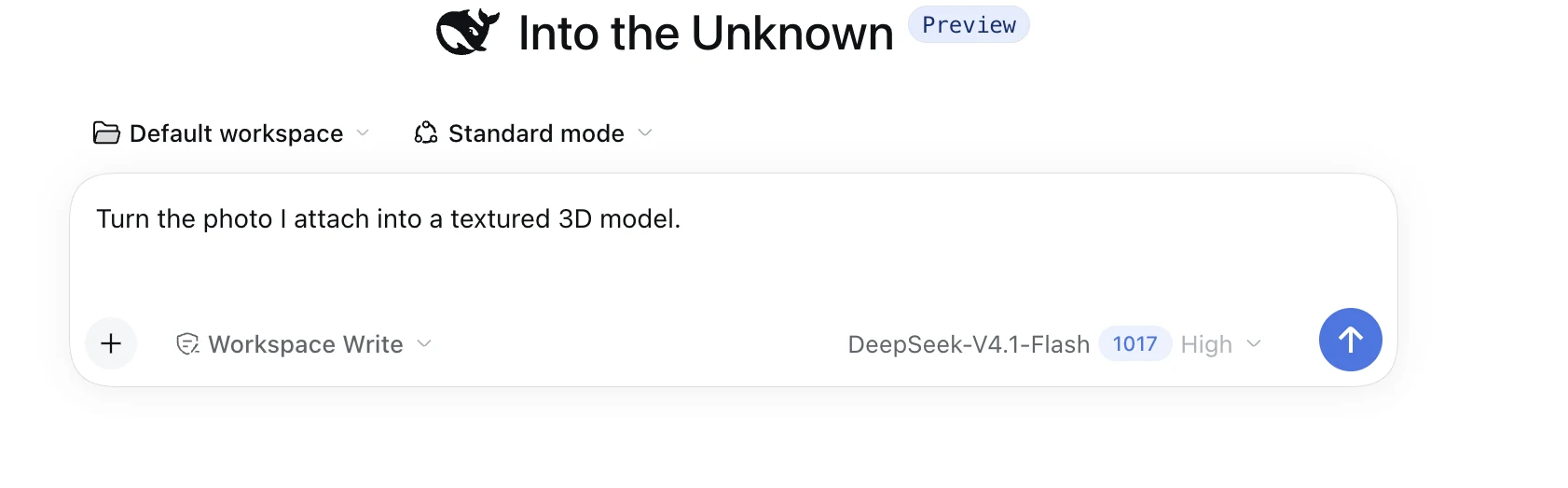
Select an example to start a new session with the request filled in. You can edit the request before you send it.
-
Settings page: open Settings, and then select Meshy. You can also open the page from the Meshy plugin under Plugins. When you're signed in, the page shows your account, your credits, how you signed in (browser or API key), the site, and the version of the Meshy CLI. From this page, you can sign out or get more credits. The China site doesn't show the account name yet.
-
3D preview: select a
.glbfile in the right sidebar, or select the card of a model that the agent delivers. The preview shows the model in 3D with its file size and triangle count. Drag to orbit, scroll to zoom, and use the buttons to reset the view or turn the model. The preview opens models up to 256 MB.
Example prompts
Describe the job in your own words. For example:
- Make a low-poly cartoon treasure chest for my game and export it as GLB.
- Turn the photo I attach into a textured 3D model. (attach the image)
- Create a cartoon knight, rig it, add a walking animation, and export FBX.
- Make a 10 cm tall shiba inu figurine and prepare a print-ready 3MF.
- Create three low-poly potion bottles for my game, each under 1,500 triangles.
Follow-up requests reuse the previous result, for example make a 1,500-face LOD, now as FBX, or scale it to 150 mm. Before the agent spends credits, it tells you the cost and waits for you to confirm.
Troubleshooting
The following table lists common problems, their causes, and how to fix them.
| Problem | Cause | Fix |
|---|---|---|
Typing / doesn't list the Meshy skills | The session started before the install, or you installed the plugin into a different profile. | Start a new session. If the skills are still missing, install the plugin into the profile that you run, for example dsh plugin --profile desktop add meshy-dsh. |
| The sidebar has no Meshy entry | You're using dsh tui or headless mode, which have no Meshy pages. | Use dsh Web or Desktop. The skills work in every mode. |
| The Meshy page shows Needs attention | The saved sign-in could not be verified. | Click the refresh icon. If the message stays, sign out and sign in again. |
The Meshy CLI doesn't use your MESHY_API_KEY | dsh keeps credential variables out of the agent's shell. | Sign in through your browser. Never paste an API key into a chat. |
| The sign-in code expired | A code is valid for 10 minutes. | Start the sign-in again, or ask the agent for a new code. |
| The agent can't generate because of your plan or credits | Generation needs a paid plan and enough credits. | Check your plan and balance on the Subscription page in the Meshy web app. |
| The 3D preview says the model is too large | The preview opens models up to 256 MB. | Ask the agent to remesh the model to fewer faces, and then open it again. |
| You're signed in to the wrong Meshy account | The plugin keeps the sign-in that you made last. | On the Meshy page, click Sign out, and then sign in again. |
FAQ
- How do I add Meshy to DeepSeek Harness?
- Ask the agent to install the Meshy plugin, add meshy-dsh under Plugins > Add plugin, or run dsh plugin --profile web add meshy-dsh. Then start a new session.
- Do I need a Meshy API key?
- No. You sign in through your browser once, and every dsh session uses that sign-in. dsh doesn't pass an exported MESHY_API_KEY to the agent.
- Do I need to install Node.js or the Meshy CLI?
- No. The plugin includes the Meshy CLI and runs it for the skills.
- Does it work in dsh tui?
- Yes. The skills work in every dsh mode. The Meshy page, the settings page, and the 3D preview are only in dsh Web and Desktop.
- Can I use it in mainland China?
- Yes. Choose China · meshy.cn when you sign in. You use the same Meshy account and the same credits, and later requests go to the China site.
- Are these the same skills as the Codex plugin?
- Yes. The plugins for Codex, Claude Code, Cursor, OpenClaw, Hermes Agent, and DeepSeek Harness all use meshy-3d-generation and meshy-3d-printing from the open-source meshy-3d-agent repository.
- Is it free?
- The plugin is free and open source. Generating 3D models requires a paid Meshy plan and spends Meshy credits at API rates. Printability analysis is free.
Next steps
-
To use the same skills in Codex, see Meshy plugin for Codex.
-
To use the same skills in Hermes Agent, see Meshy skills for Hermes Agent.
-
To call the Meshy API from an AI agent with your own API key, see AI integration.