Model editing
Hollow, orient, and scale a model in Blender for 3D printing with the Edit panel of the Meshy plugin.
Before you begin
-
Install the Meshy plugin in Blender. For the steps, see Meshy for Blender.
-
Save your Blender file before you make large changes. You can undo each edit with
Ctrl+Z(Cmd+Zon macOS).
Hollow
Hollow builds an offset surface inside or outside a model. With Hollow Duplicate selected, it creates a hollow copy of the model. A hollow model uses less material to print, and suits shells for casting, lighter models, and containers or vases.
Hollow needs a closed, watertight mesh. If the model has holes, run Make Manifold first. For the steps, see Model cleanup. To check that the walls are thick enough, run the Thickness check in the Analyze panel.
To hollow a model, follow these steps:
-
Select the model.
-
In the Meshy tab, expand the Edit panel.
-
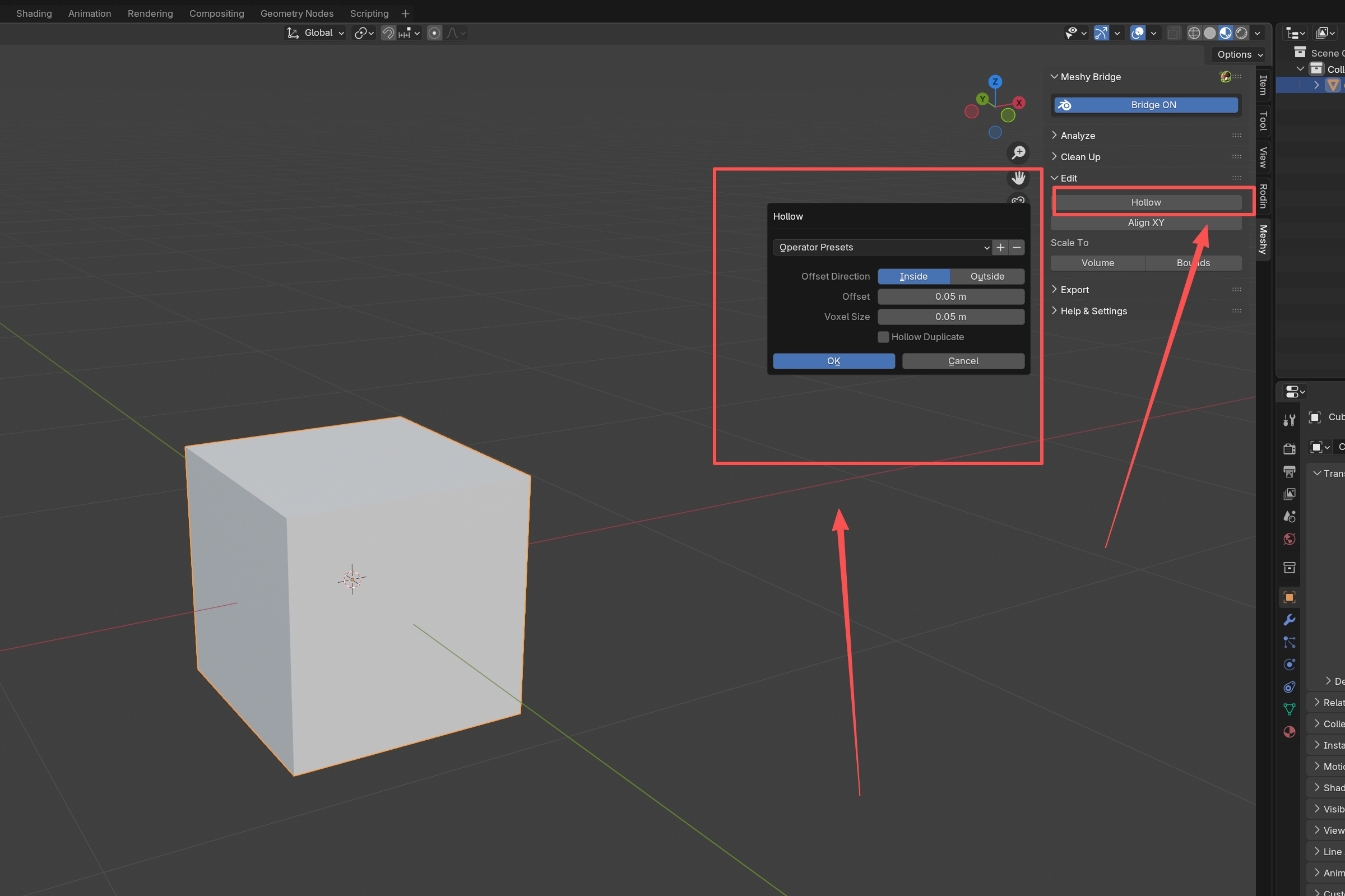
Click Hollow. The Hollow dialog opens.
-
Set the options:
-
Offset Direction: Inside builds the offset surface inside the model, and Outside builds it outside. The default is Inside.
-
Offset: the wall thickness, the distance between the model's surface and the offset surface. The default is
1.0, in the scene's length unit, so 1 m in a default scene. With Inside, it must be less than half the model's thickness. Start with a small value, and raise it if needed. -
Voxel Size: the size of the voxels the plugin uses to build the surface. Smaller values, such as
0.1to0.5, keep fine detail but take longer. Larger values, such as1.0to2.0, process faster. The default is1.0, in the scene's length unit. -
Hollow Duplicate: whether to also create a hollow copy of the model. It's off by default.
-
-
Click OK.
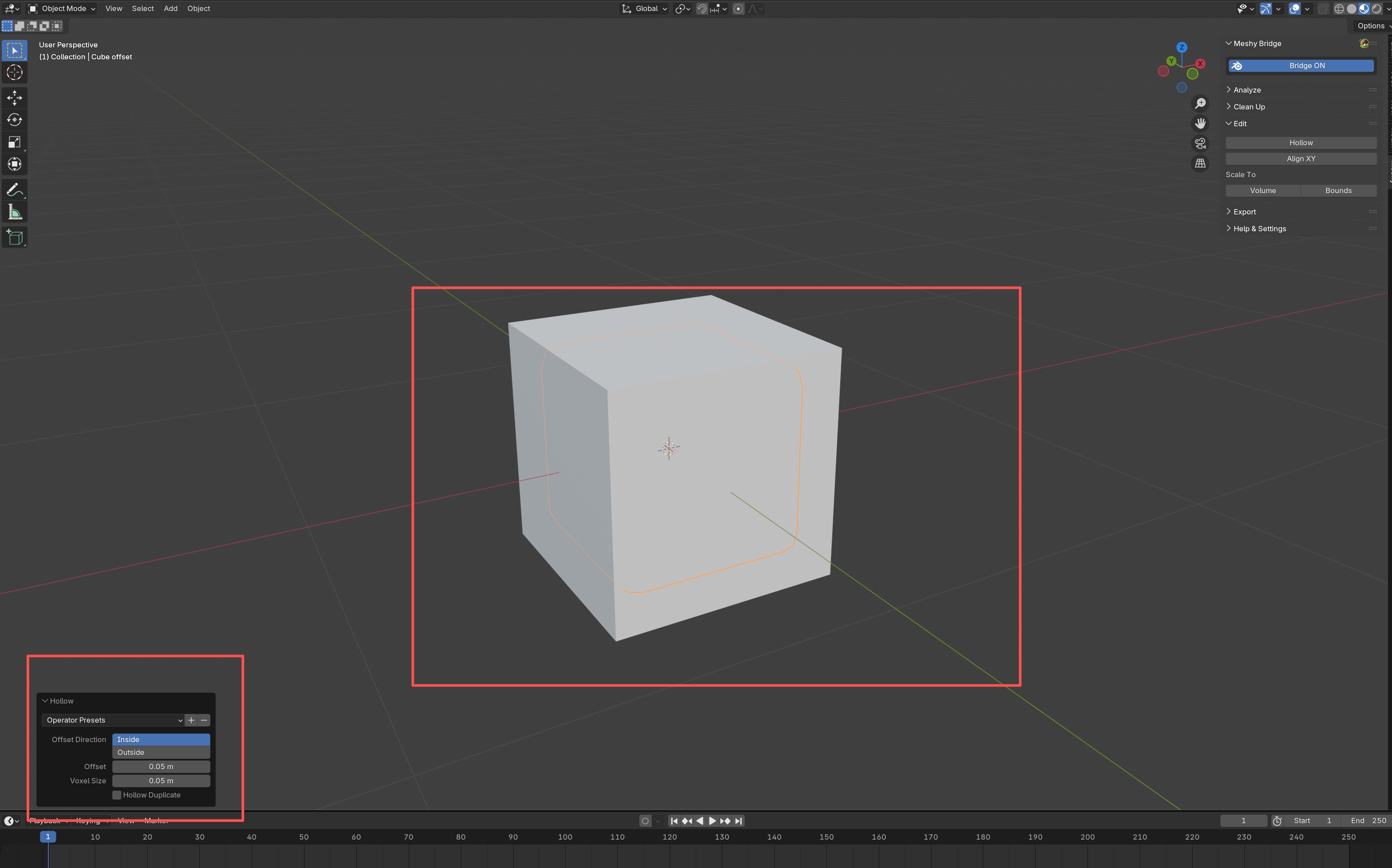
The plugin adds the result as a new object and keeps the original model unchanged:
-
Without Hollow Duplicate, the new object holds only the offset surface. It's named after the model, such as
Cube offset. -
With Hollow Duplicate, the new object joins the model's surface and the offset surface into a hollow shell. It's named after the model, such as
Cube hollow.
To change the options after you click OK, use the Hollow panel that Blender opens in the viewport.
Align XY
Align XY rotates an object so the faces you select face down, parallel to the XY plane. Use it to make a model sit flat on the print bed.
To align a model, follow these steps:
-
Select the model.
-
Press
Tabto switch to Edit Mode. -
Select the faces that should touch the print bed, usually the bottom faces.
-
In the Edit panel, click Align XY.
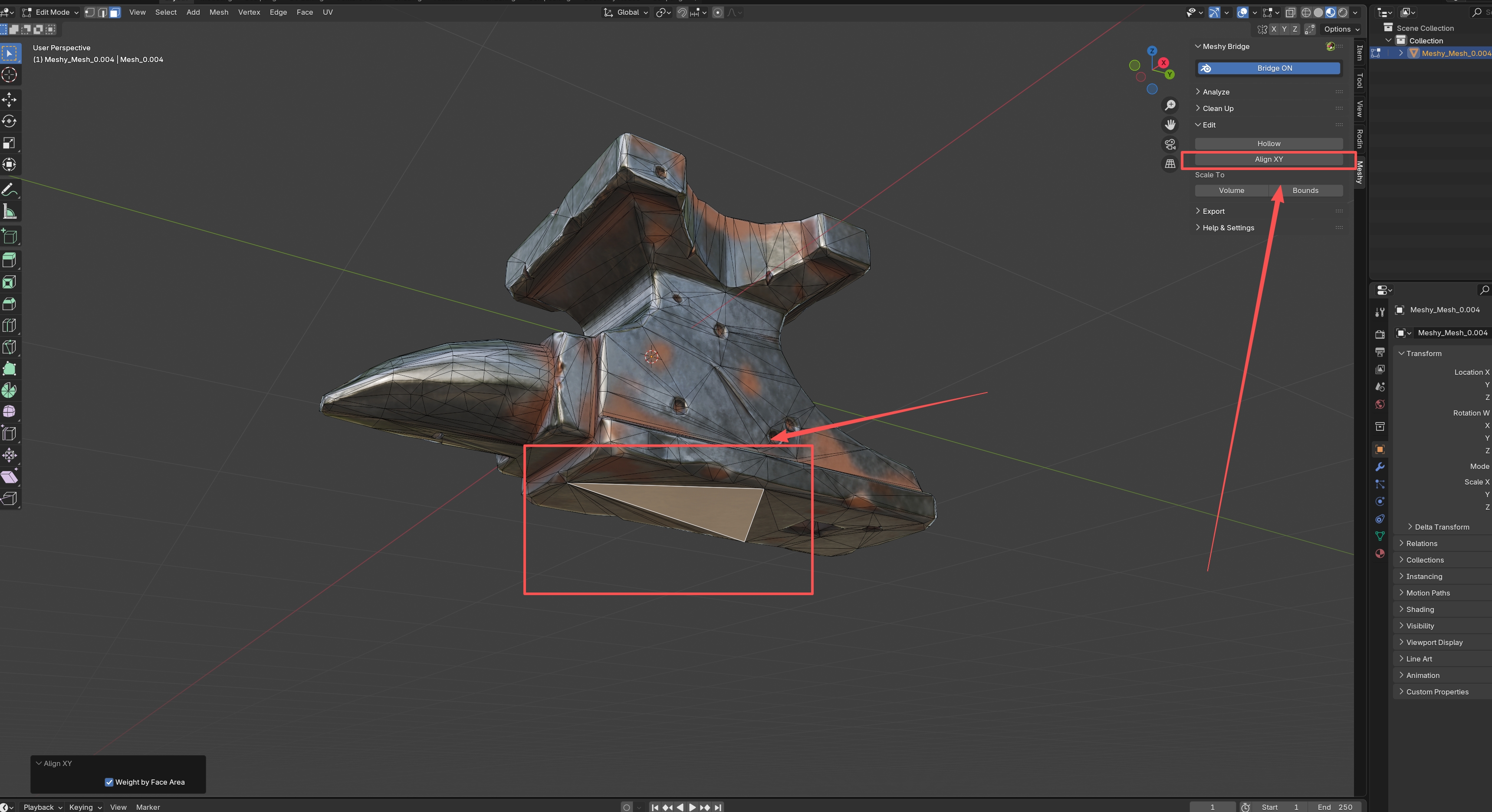
The plugin rotates the model so the selected faces are parallel to the XY plane.
Weight by Face Area gives larger faces more influence on the rotation. It's selected by default, and it gives more stable results on models with faces of different sizes. To clear it, use the Align XY panel that Blender opens in the viewport.
To align several objects at once, select them all. Each object needs selected faces, or the plugin skips it.
Scale to Volume
Scale to Volume scales the selected objects evenly until their volume matches a value you enter. Use it to meet a size requirement, match the volume of another model, or plan how much material a print uses.
To scale a model to a volume, follow these steps:
-
Make sure Blender is in Object Mode. In Edit Mode, the tool measures the whole mesh but scales only the selected geometry. To switch modes, press
Tab. -
Select the model. If you select several mesh objects, the plugin uses their combined volume.
-
In the Edit panel, under Scale To, click Volume. A dialog opens with the current volume in Volume.
-
Enter the volume you want.
-
Click OK.
The plugin scales the objects by the same factor on every axis, and Blender shows the scale factor.
Scale to Bounds
Scale to Bounds scales the selected objects evenly so their longest side matches a length you enter. Use it to fit a model on your printer's bed or to meet a size limit.
To scale a model to a length, follow these steps:
-
Make sure Blender is in Object Mode. In Edit Mode, the tool measures the whole mesh but scales only the selected geometry. To switch modes, press
Tab. -
Select the model. If you select several mesh objects, the plugin measures them together.
-
In the Edit panel, under Scale To, click Bounds. A dialog opens with the current longest side in Length.
-
Enter the length you want, such as the size of your print bed.
-
Click OK.
The plugin keeps the model's proportions, and Blender shows the scale factor and the axis of the longest side.
Troubleshooting
The following table lists common problems, their causes, and how to fix them.
| Problem | Cause | Fix |
|---|---|---|
| Hollow shows "Make sure target mesh has closed surface and offset value is less than half of target thickness" | The mesh has holes, or Offset is too large for the model's thickness. | Run Make Manifold in the Clean Up panel, or lower Offset, and then click Hollow again. |
Align XY shows Skipping object <name>. No faces selected, with the object's name | An object has no selected faces, so the plugin skips it. | In Edit Mode, select the faces that should face down, and then click Align XY again. |
Next steps
-
To export the edited model for printing, see Model export.
-
To check the model again after you edit it, see Model analysis.