Model analysis
Check a model in Blender for problems that make 3D prints fail, such as holes, thin walls, and overhangs, with the Analyze panel of the Meshy plugin.
Before you begin
- Install the Meshy plugin in Blender. For the steps, see Meshy for Blender.
Check a model
To check a model, follow these steps:
-
Click the model to make it the active object. If you select several objects, the checks evaluate only the active one.
-
In the 3D viewport, press
Nto open the sidebar. -
Click the Meshy tab.
-
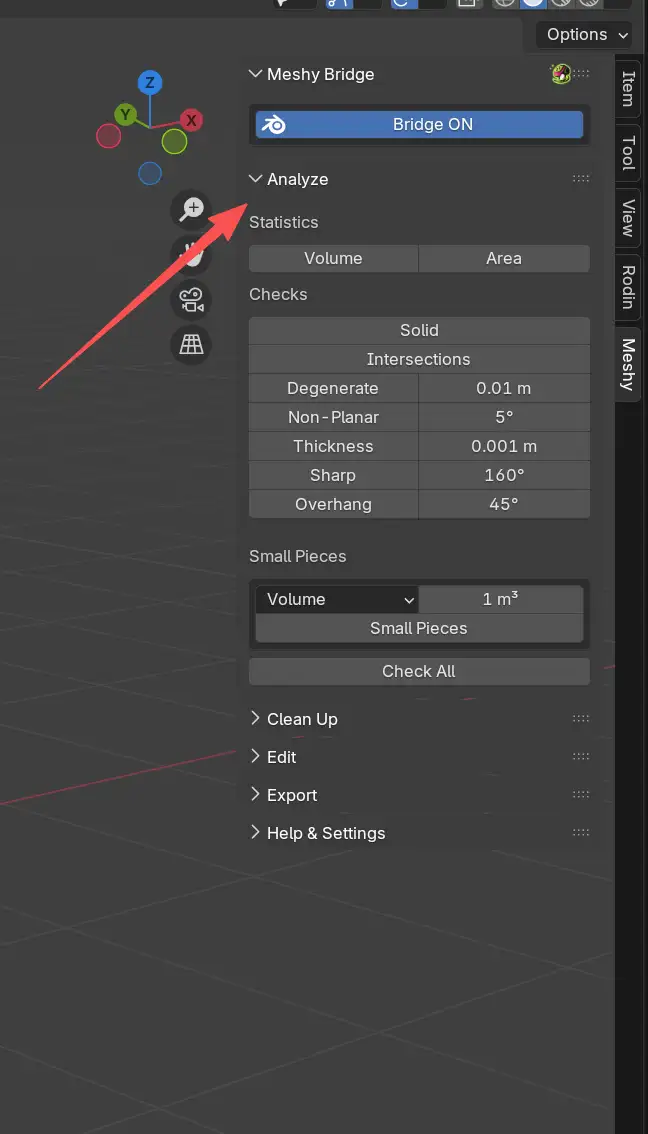
Expand the Analyze panel.
-
Click Check All. To run a single check instead, click its button under Checks.
The results appear under Result, with the number of problems that each check found. Check All runs every check under Checks. It doesn't run Small Pieces, so run that check on its own.
Select problem geometry
In Edit Mode, each result that found problems becomes a button that selects the faces, edges, or vertices it found.
To select problem geometry, follow these steps:
-
Press
Tabto switch to Edit Mode.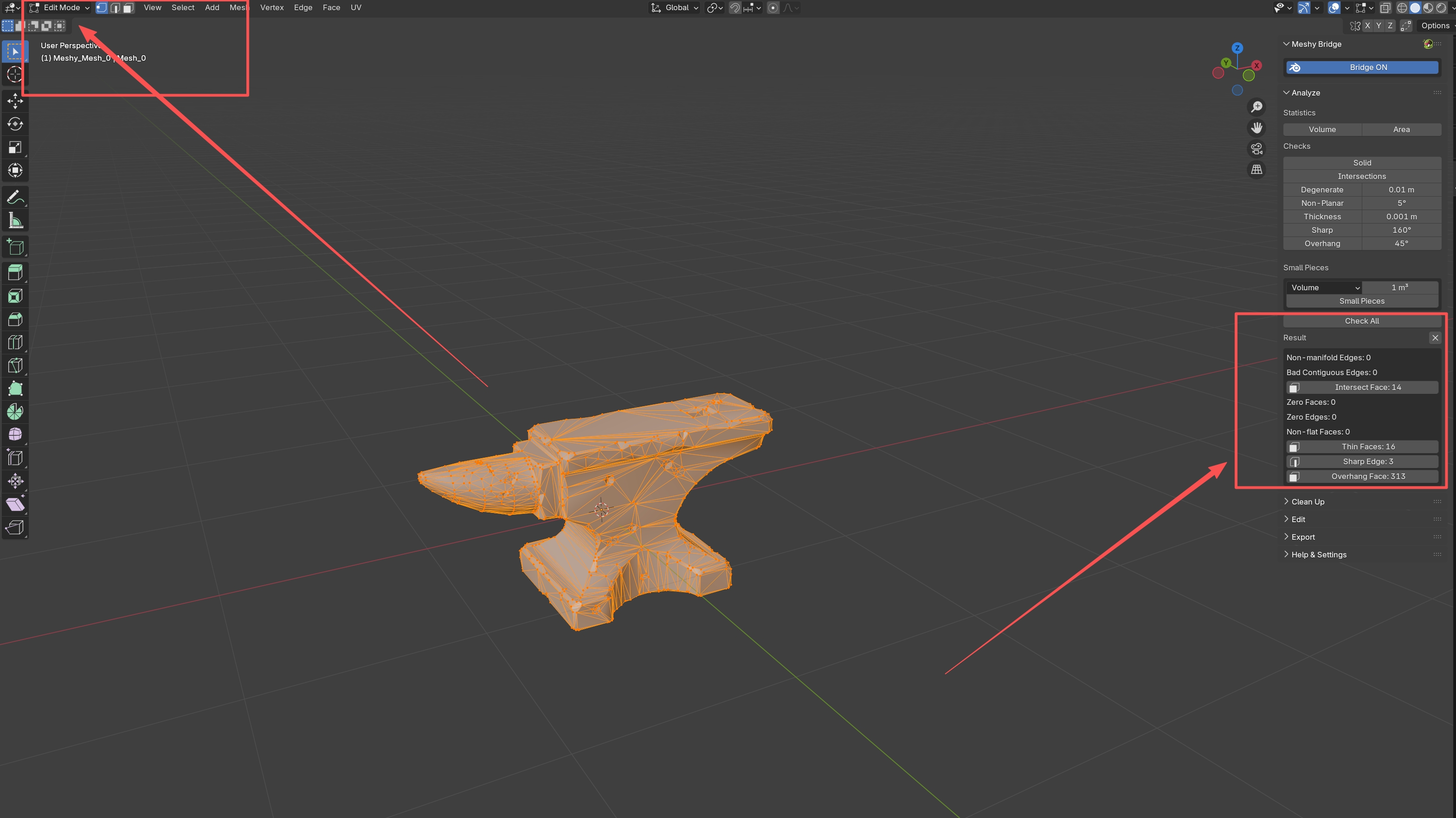
-
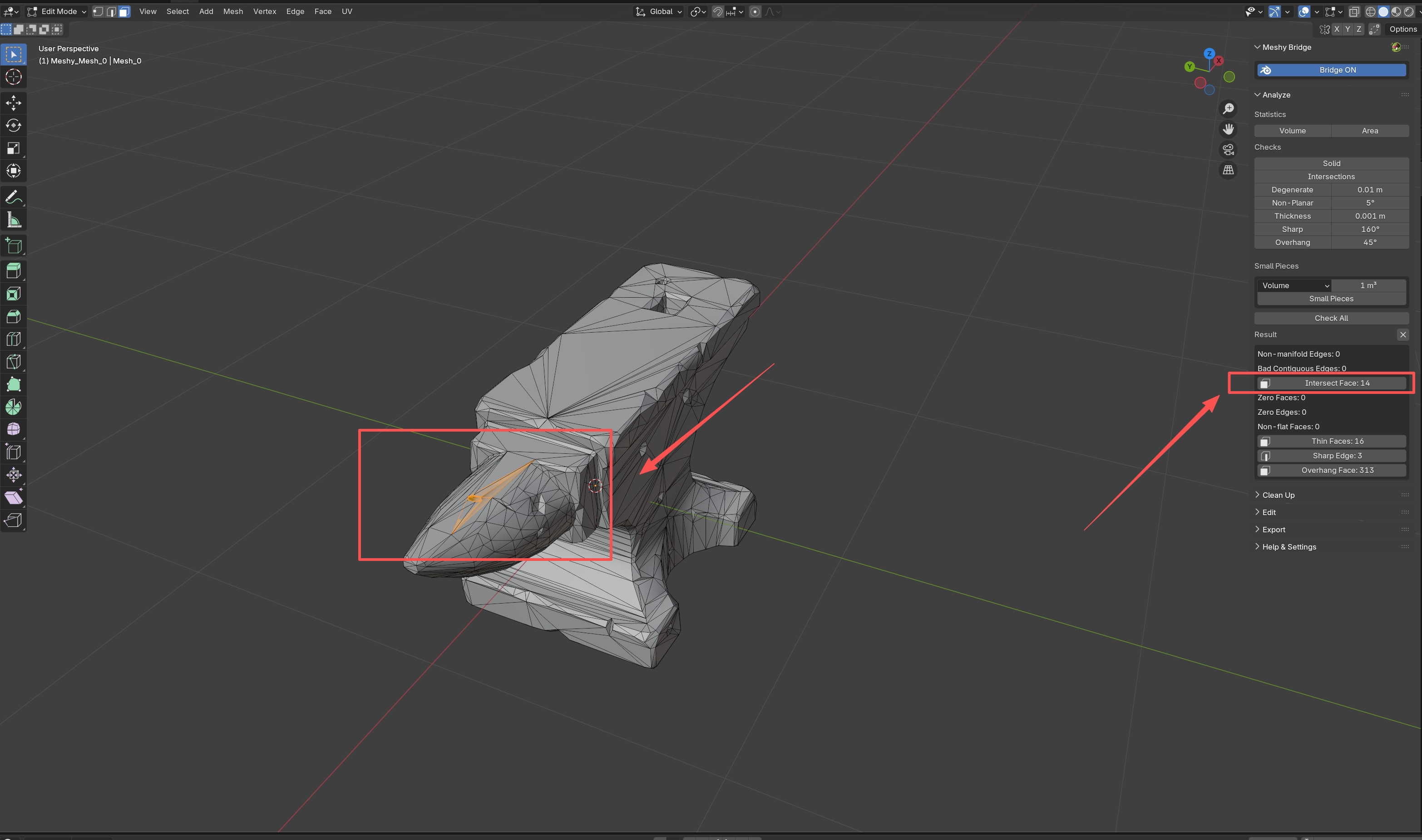
Under Result, click a result, such as Intersect Face. The plugin selects the geometry that the check found.
-
Fix or delete the selected geometry.
To clear the results, click the X icon next to Result.
Statistics
Under Statistics, click Volume or Area to measure the active mesh, with its modifiers applied. The value appears under Result, in the scene's units, such as m³ or m².
Volume
Measures the volume of the mesh. Use it to estimate how much material a print needs, to compare model sizes, or to check a size requirement.
Area
Measures the surface area of the mesh. Use it to estimate paint or coating, or to plan the surface finish.
Geometry checks
Each button under Checks, and the Small Pieces button, runs one check on the active mesh. A value next to a button sets that check's limit.
Solid
Checks that the model is a closed solid with consistent normals. It reports two counts:
-
Non-manifold Edges: edges that don't join exactly two faces, which point to holes or badly connected geometry.
-
Bad Contiguous Edges: edges between faces that point in opposite directions, one inward and one outward.
A model must be manifold, or watertight, to print. Slicers can fail on non-manifold geometry.
Intersections
Finds faces where the model cuts through itself, and reports them as Intersect Face. Self-intersections can make a print or a slicer fail, and they throw off measurements such as volume.
Degenerate
Finds geometry too small to keep:
-
Zero Faces: faces with an area at or below the square of the limit.
-
Zero Edges: edges no longer than the limit, where vertices overlap or almost overlap.
Set the limit in the field next to Degenerate. The plugin reads the value in centimeters, whatever unit the field shows, so the default 0.01 means 0.01 cm (0.1 mm).
Non-Planar
Finds faces that aren't flat, and reports them as Non-flat Faces. Non-flat faces can cause rendering artifacts and printing problems. Set the angle limit next to Non-Planar. The default is 5°.
Thickness
Finds walls thinner than the value next to Thickness, and reports them as Thin Faces. The default is 1 mm. Thin walls can break during printing or fail to print.
Sharp
Finds edges sharper than the angle next to Sharp, and reports them as Sharp Edge. The default is 160°. Very sharp edges are hard to print accurately and can need support material.
Overhang
Finds faces that overhang past the angle next to Overhang, and reports them as Overhang Face. The default is 45°. Large overhangs need support material to print.
Small Pieces
Finds small loose pieces, such as scattered fragments in a photogrammetry scan or droplets in a fluid simulation.
To find small pieces, follow these steps:
-
Under Small Pieces, select how to measure each piece:
-
Volume: the volume of the piece's bounding box, in cm³.
-
Surface Area: the piece's surface area, in cm².
-
Diagonal: the length of the piece's bounding box diagonal, in cm.
-
-
In the field next to the measure, enter the size limit. The default is
1. The plugin reads it in cm³, cm², or cm for the selected measure, whatever unit the field shows. -
Click Small Pieces.
The results show how many pieces are smaller than the limit, and the total number of pieces. The Clean Up panel uses the same measure and limit to delete small pieces.
Troubleshooting
The following table lists common problems, their causes, and how to fix them.
| Problem | Cause | Fix |
|---|---|---|
| The Analyze panel is grayed out | The active object isn't a mesh. | Click a mesh object to make it active. |
| Blender shows "Report is out of date, re-run check" | The mesh changed after the check ran. | Run the check again, and then click the result. |
Next steps
-
To fix the problems the checks find, see Model cleanup.
-
To export the model after it passes the checks, see Model export.