Meshy 3D for ChatGPT
Add Meshy 3D to ChatGPT to turn text or images into 3D models in a chat or in Codex, view them in 3D, and download them.
Overview
Meshy 3D is Meshy's plugin in the ChatGPT Plugins directory. It works in Chat, Work, and Codex, in ChatGPT on the web and in the desktop app, and you don't install anything on your computer. With Meshy 3D, you can:
- Generate a 3D model from a text prompt, untextured or with textures.
- Generate a 3D model from an image that you attach.
- Add textures to one of your untextured models, from a text prompt or a reference image.
- Generate an image from a text prompt, and then turn it into a 3D model.
- View a model in 3D, and download it as GLB, FBX, OBJ, STL, or USDZ.
Meshy 3D uses your Meshy account. The models that you create appear in your Meshy account, and the models that you create on the Meshy website appear in Meshy 3D.
Which Meshy plugin to use
When you search for Meshy in ChatGPT, you find two plugins. Both use your Meshy account.

| Meshy 3D | Meshy | |
|---|---|---|
| Where it works | Chat, Work, and Codex, on the web and in the desktop app | Work and Codex, in the ChatGPT desktop app or the Codex CLI. Not in Chat |
| Your existing models | Shows and downloads the models in your Meshy account, including the ones that you made on the Meshy website | Works only with tasks that were created through the Meshy API, such as the ones that the plugin created |
| What it does | Text to 3D, Image to 3D, texturing, text to image, and downloads | Everything Meshy 3D does, plus remeshing, rigging and animation, and 3D printing |
| Setup | Add the plugin and sign in | Install Node.js; the plugin runs the Meshy CLI on your computer |
| Where the files go | Download links, and your Meshy account | The folder in your project that you name |
To create models in a chat, or to work with the models in your Meshy account, use Meshy 3D. To build a project in Work or Codex with the full Meshy toolset, see Meshy plugin for Codex.
Before you begin
-
You need ChatGPT, on the web or in the desktop app. On a work or school workspace, an admin might need to allow plugins.
-
You need a Meshy account with an email address. You sign in to Meshy 3D on the Meshy website at meshy.ai.
-
Every generation spends Meshy credits. For the cost of each task, see Pricing.
Add Meshy 3D
To add Meshy 3D to ChatGPT, follow these steps:
-
In ChatGPT, open Plugins.
-
Search for Meshy 3D, and then add Meshy 3D.
-
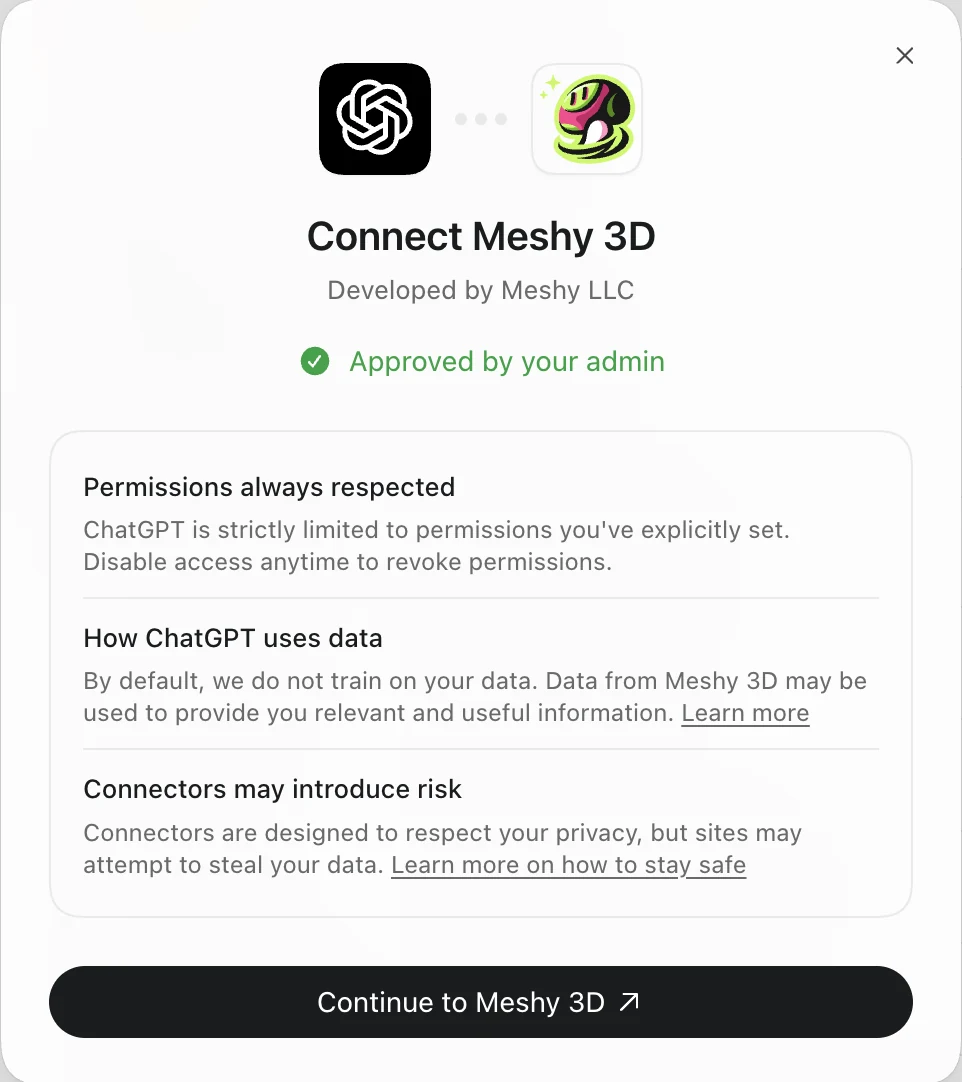
In Connect Meshy 3D, click Continue to Meshy 3D. ChatGPT opens the Meshy website in your browser.
-
If Meshy asks you to sign in, sign in to your Meshy account.
-
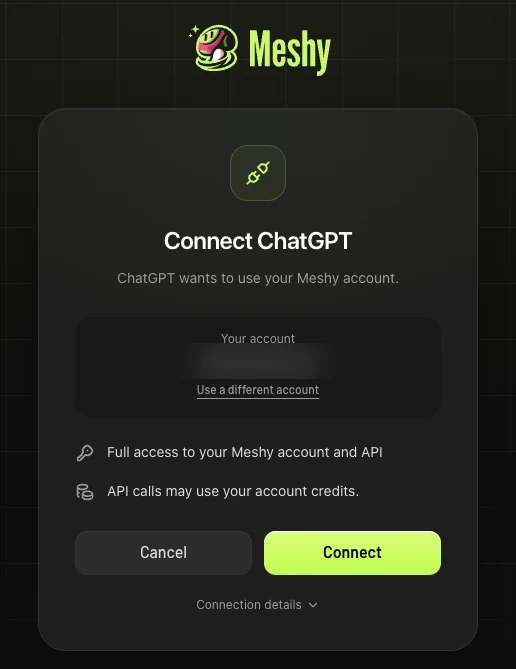
On the Connect ChatGPT page, check the account under Your account, and then click Connect. To use another account, click Use a different account.
-
Return to ChatGPT.
You connect Meshy 3D once. To stop using it, see Disconnect Meshy 3D.
Create models in a chat
Describe the model in your own words. For example:
- Make a 3D model of a cute robot mascot.
- Turn this photo into a textured 3D model. (attach the image)
- Make a picture of a medieval lantern, and then turn it into a 3D model.
- Add a weathered bronze texture to my last model.
If ChatGPT doesn't use Meshy 3D, mention Meshy 3D in your request.
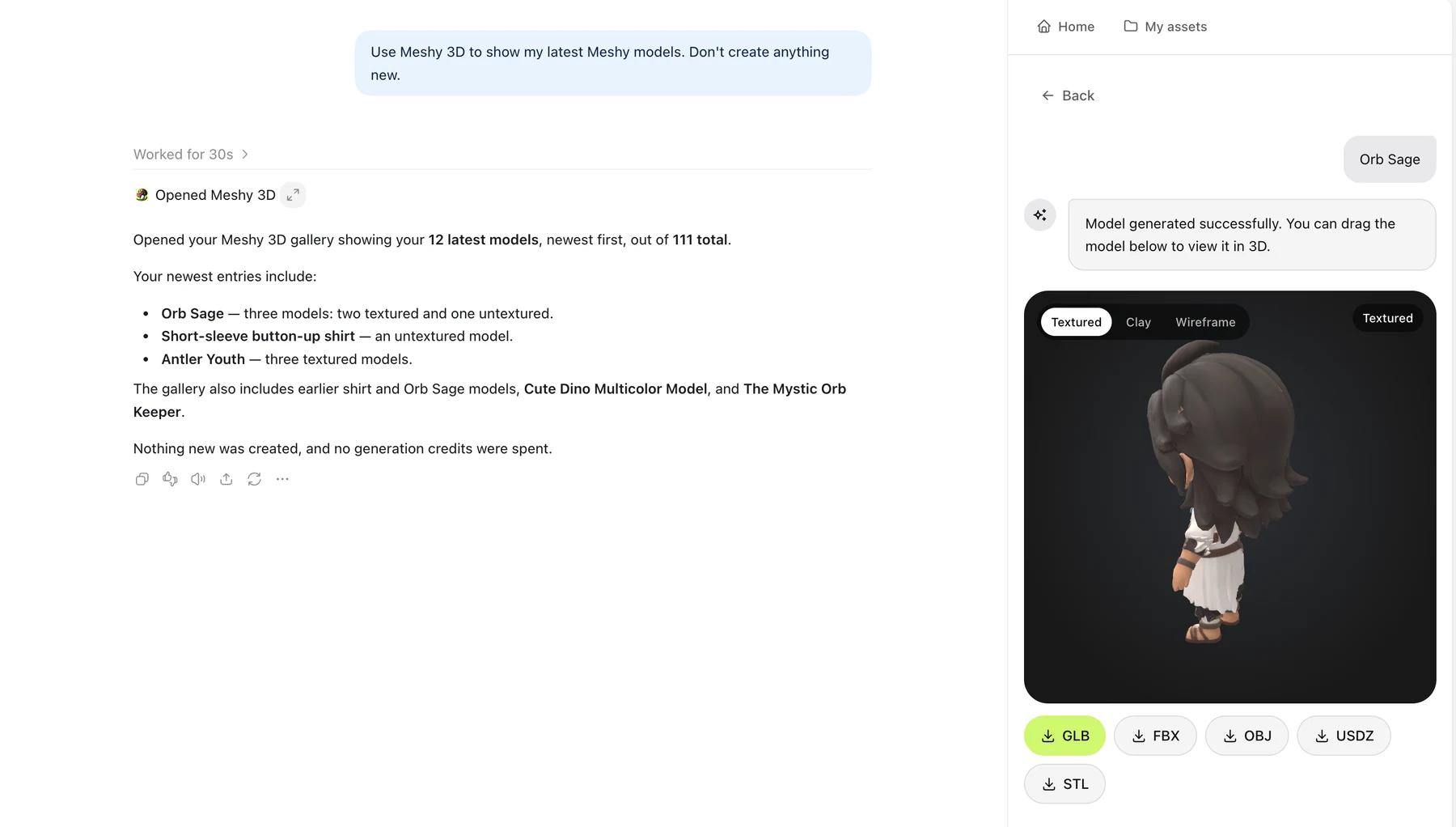
Meshy 3D shows a card in the chat with the progress of the model. A model usually takes about a minute. When the card shows Ready, you can do the following:
- To view the model, click View in 3D. Drag to turn the model, and switch between Textured, Clay, and Wireframe.
- To download the model, click Download, or choose a format in the 3D view.
- To add textures to an untextured model, open it in the 3D view, and then use Add textures. You can choose PBR maps and a texture resolution of 2K, 4K, or 8K.
- To open Meshy 3D in a panel beside the chat, click the expand icon next to Opened Meshy 3D.
Meshy 3D in the sidebar
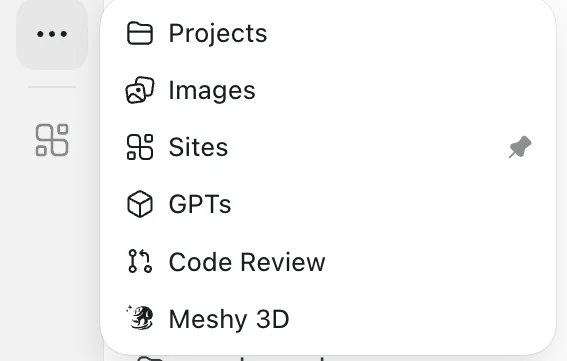
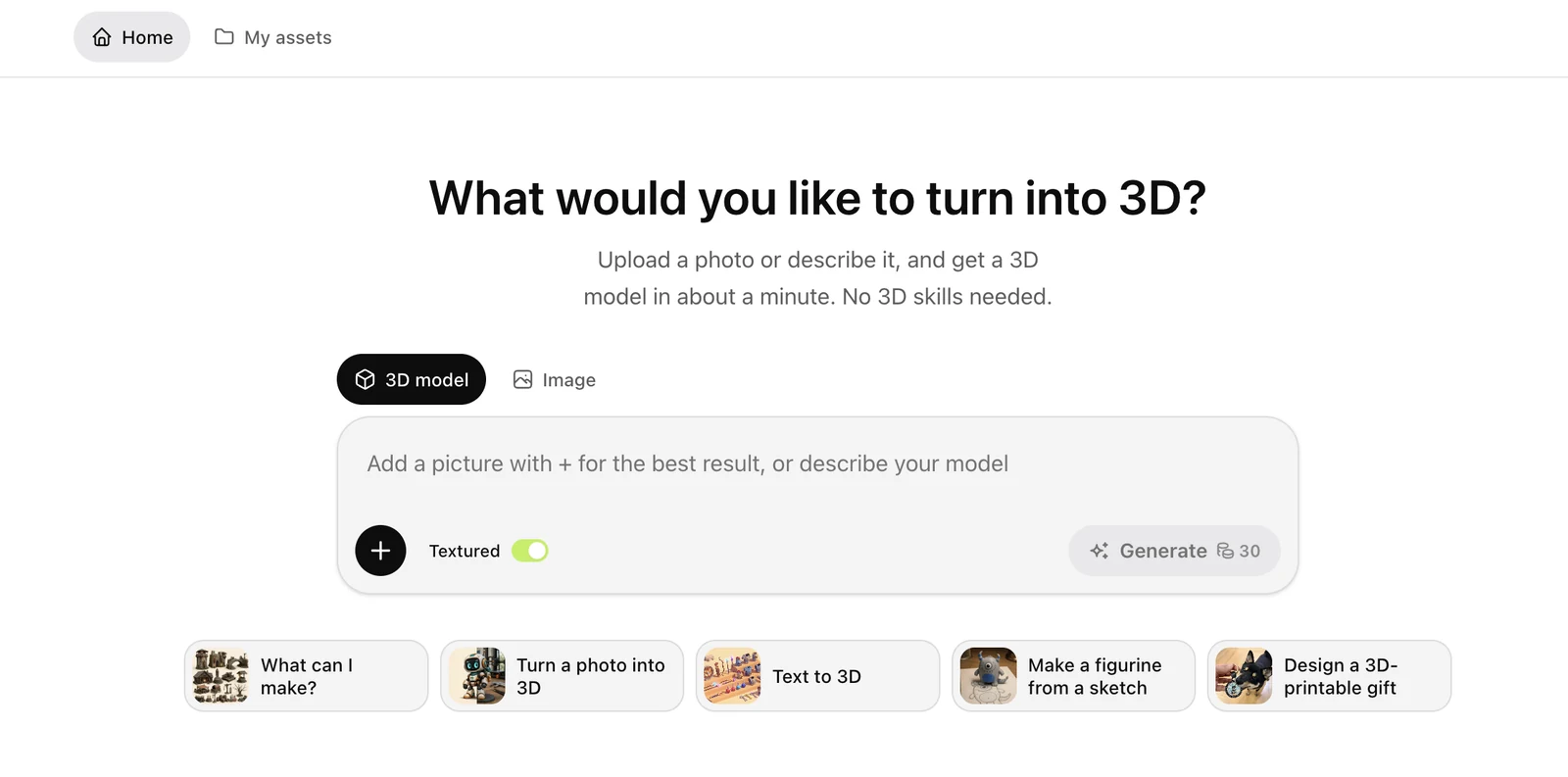
To open Meshy 3D on its own, select ... in the ChatGPT sidebar, and then select Meshy 3D.
Meshy 3D opens with two tabs:
- Home: describe a model, or switch to Image to generate a picture. Each Generate button shows its price in credits. Your five most recent generations appear below.
- My assets: your models and images, which you can filter by All, Model, or Textured. Open a model to view it in 3D or download it.
To start from a photo, attach it in a chat, and ask ChatGPT to turn it into a 3D model.
Credits and downloads
- Meshy 3D spends credits from your Meshy account. Before it spends credits, ChatGPT might ask you to confirm.
- To check your balance, ask ChatGPT how many Meshy credits you have. To add credits or change your plan, go to the Subscription page in the Meshy web app. Meshy 3D doesn't show plans or payments.
- Downloads follow the download limits of your Meshy plan. A download link is valid for less than two days, so download the file soon after you get the link.
- Some options depend on your plan. For example, the Free plan textures at 2K only.
Disconnect Meshy 3D
To disconnect Meshy 3D from your Meshy account, follow these steps:
-
In the Meshy web app, go to Settings > Profile.
-
In Authorized apps, find ChatGPT, and then click Revoke.
-
In the dialog, click Revoke access.
ChatGPT can no longer use your Meshy account. To use Meshy 3D again, connect it again from ChatGPT.
Troubleshooting
The following table lists common problems, their causes, and how to fix them.
| Problem | Cause | Fix |
|---|---|---|
| ChatGPT doesn't use Meshy 3D | ChatGPT didn't match your request to the plugin. | Mention Meshy 3D in your request. |
| ChatGPT says that the Meshy connection is no longer authorized | The connection was revoked or expired. | Connect Meshy 3D again from Plugins. |
| The Connect ChatGPT page asks you to add an email address | Your Meshy account has no email address. | Add an email address in Settings in the Meshy web app, and then try again. |
| A generation fails because of credits | Your Meshy account doesn't have enough credits. | Check your balance, and add credits on the Subscription page. |
| Meshy 3D says that too many tasks are queued | You have the maximum number of tasks in progress. | Wait for the current tasks to finish, and then try again. |
| The card shows Finishing up… for a long time | Meshy is busy. | Wait a few minutes. The card updates on its own. |
| The card says that Meshy couldn't confirm that the generation started | The result of the request isn't known yet. | Wait a few minutes, and then check again. Generating again spends credits again. |
| A model from a team workspace is missing | Meshy 3D shows only your personal models. | Open the model on the Meshy website. |
FAQ
- How do I add Meshy to ChatGPT?
- In ChatGPT, open Plugins, search for Meshy 3D, and add it. Sign in to your Meshy account and click Connect on the Connect ChatGPT page.
- What is the difference between Meshy 3D and Meshy in ChatGPT?
- Meshy 3D works in Chat, Work, and Codex, on the web and in the desktop app, without installing anything. Meshy works in Work and Codex but not in Chat, and runs the Meshy CLI on your computer, with more tools such as rigging, animation, and 3D printing.
- Which ChatGPT modes does Meshy 3D work in?
- All of them: Chat, Work, and Codex. The Meshy plugin works in Work and Codex, but not in Chat.
- Can Meshy 3D see the models that I made on the Meshy website?
- Yes. Meshy 3D shows the models in your Meshy account, including the ones that you made on the Meshy website, and you can view and download them in ChatGPT. The Meshy plugin works only with tasks that were created through the Meshy API, such as the ones that it created itself.
- Do I need a Meshy API key?
- No. You connect Meshy 3D to your Meshy account on the Connect ChatGPT page.
- Which file formats can I download?
- GLB, FBX, OBJ, STL, and USDZ.
- Do my models appear on the Meshy website?
- Yes. Models that you create with Meshy 3D are in your Meshy account, and models that you create on the Meshy website appear in Meshy 3D.
- Is it free?
- Adding Meshy 3D is free. Every generation spends Meshy credits, and downloads follow the limits of your Meshy plan.
Next steps
-
To use the full Meshy toolset in Codex, see Meshy plugin for Codex.
-
To use Meshy in DeepSeek Harness, see Meshy plugin for DeepSeek Harness.
-
To learn what each task costs, see Pricing.