Animated models
Send an animated character from Meshy to 3ds Max with its bones and animation.
Send an animated model
You send an animated model the same way as a static one. Before you start, run the bridge in 3ds Max. For the steps, see Bridge to 3ds Max.
To send an animated model, follow these steps:
-
In the Meshy web app, open the animated model in the viewer.
-
Select the animation you want to send.
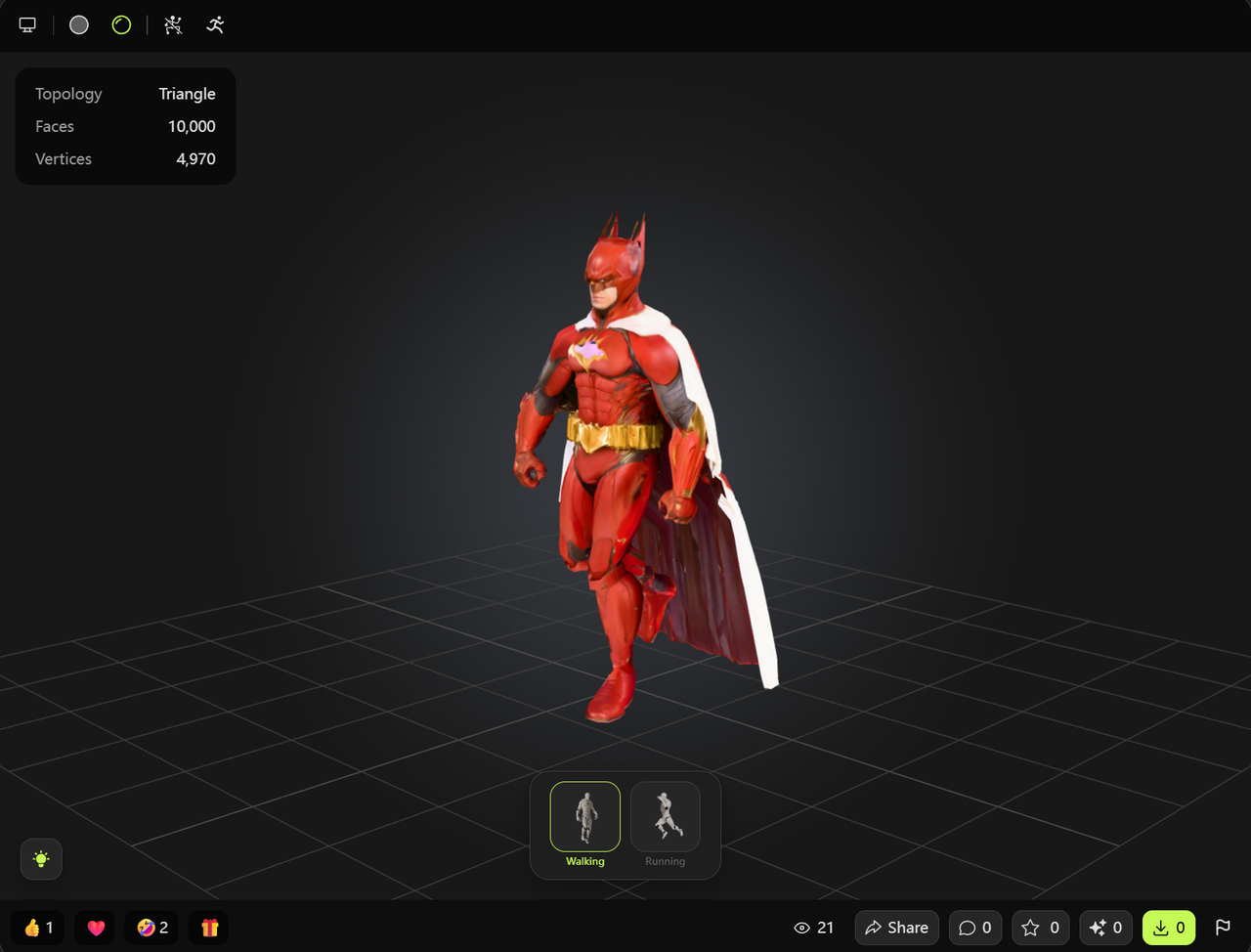
-
In the viewer toolbar, click DCC Bridge (the plug icon).
-
Click Send to 3ds Max.
Meshy sends the rigged character with the selected animation at 30 frames per second. The plugin imports the character with its bones and animation, and sets the 3ds Max timeline to the length of the animation. It doesn't import the skin weights from the file, so check how the mesh follows the bones, and re-skin it if needed.
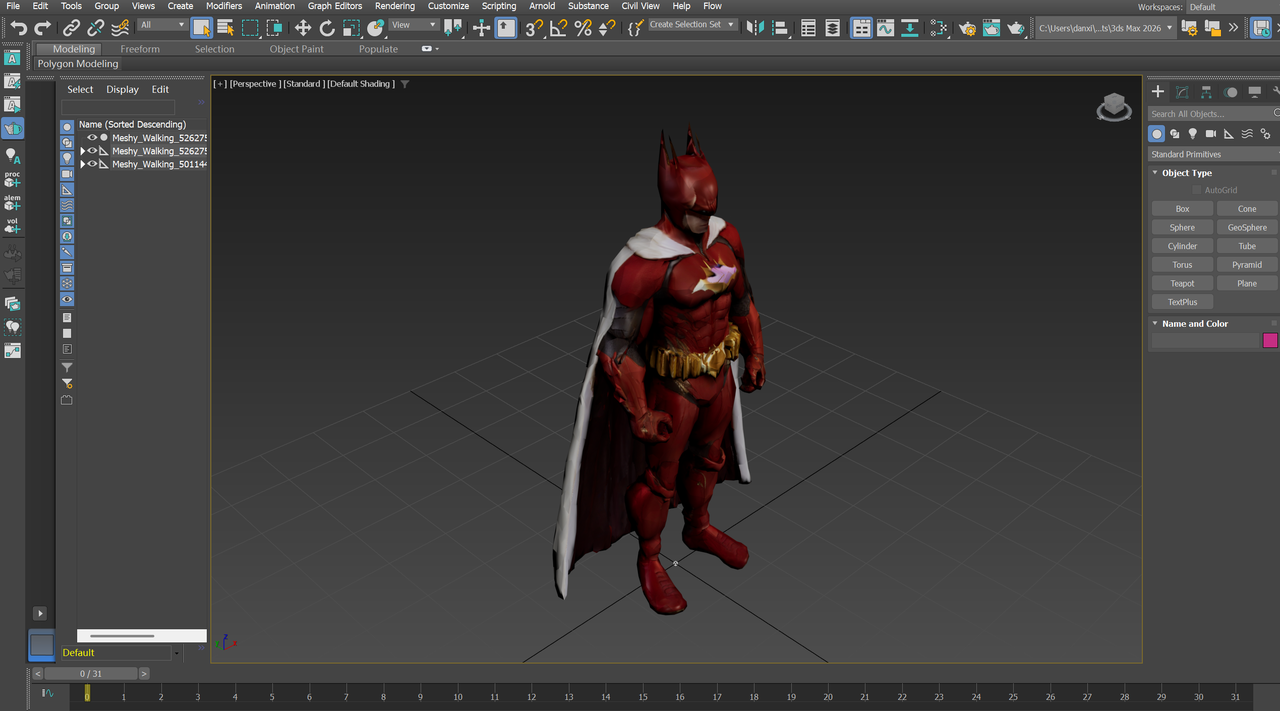
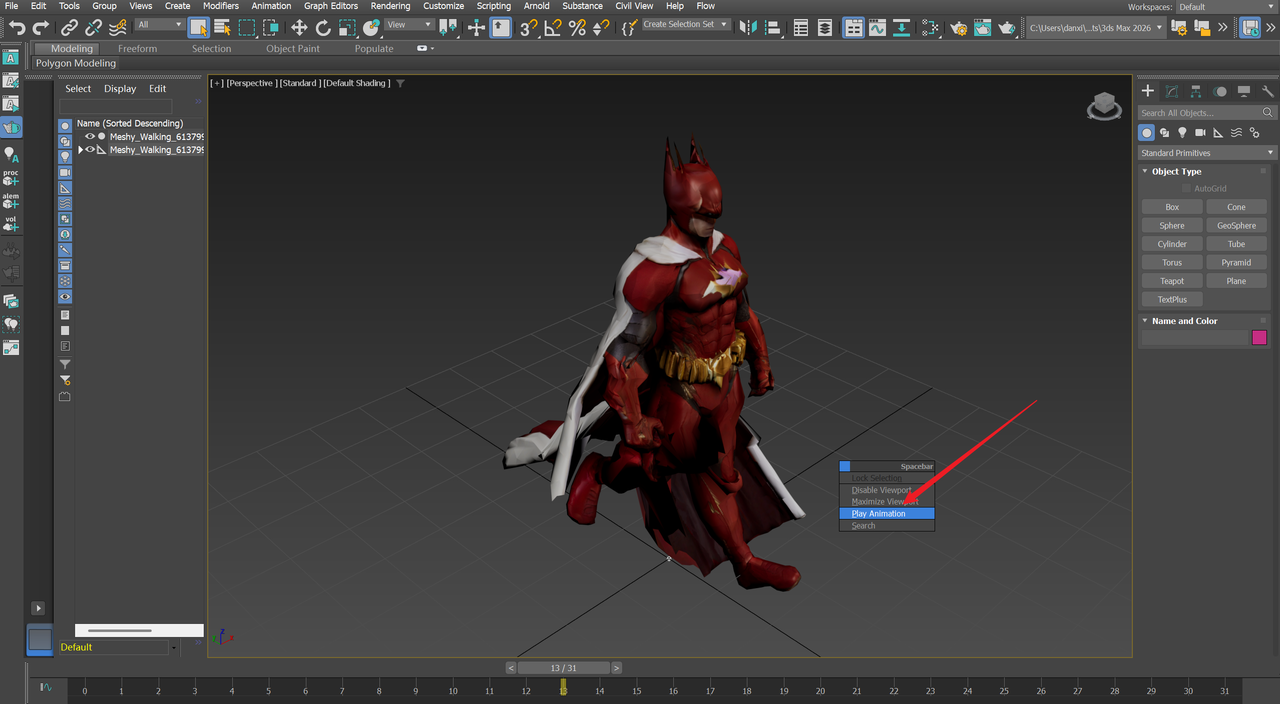
To play the animation, press the Spacebar in the viewport, and then click Play Animation.
Next steps
- To add more animations to a character before you send it, see Animation.