Meshy for Fusion
Send a model from the Meshy web app to Autodesk Fusion (Fusion 360), where it opens as a mesh body in a new design.
Before you begin
-
You need a Pro plan or higher. On the Free and Starter plans, clicking Send to Fusion opens the upgrade options. For plans, see Pricing and credits.
-
You need Fusion installed on Windows or macOS, and you must be signed in to it.
-
You need a desktop browser. On phones and tablets, the DCC Bridge menu is hidden.
You don't install a plugin. Meshy hands the model to Fusion through Fusion's own link handler.
Send a model
To send a model to Fusion, follow these steps:
-
In the Meshy web app, open the model in the viewer.
-
In the viewer toolbar, click DCC Bridge (the plug icon).
-
Click Send to Fusion.
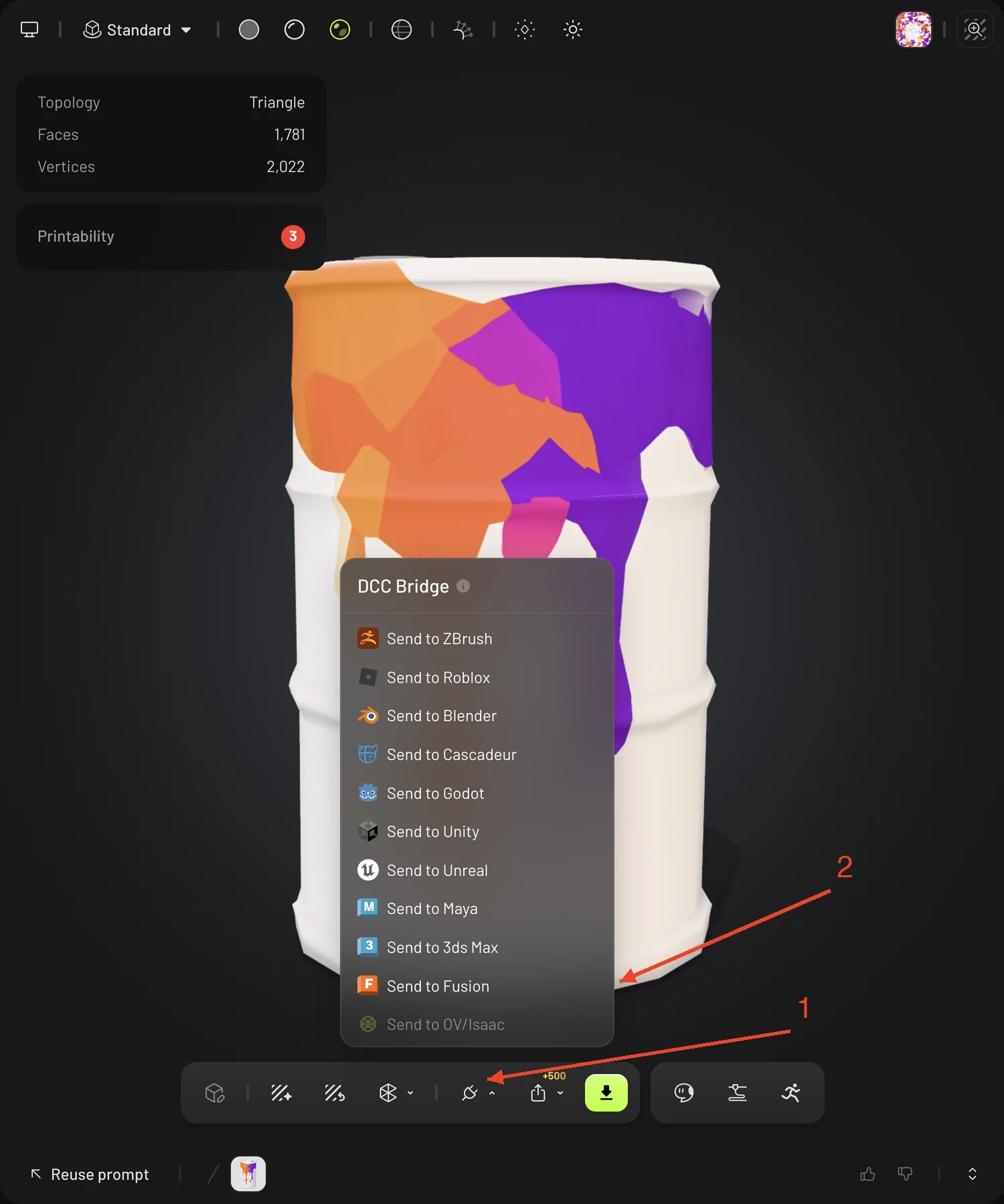
-
The first time you send a model, the browser asks whether to open Fusion. Allow it. To stop the browser from asking again, select the always-allow option that it offers.
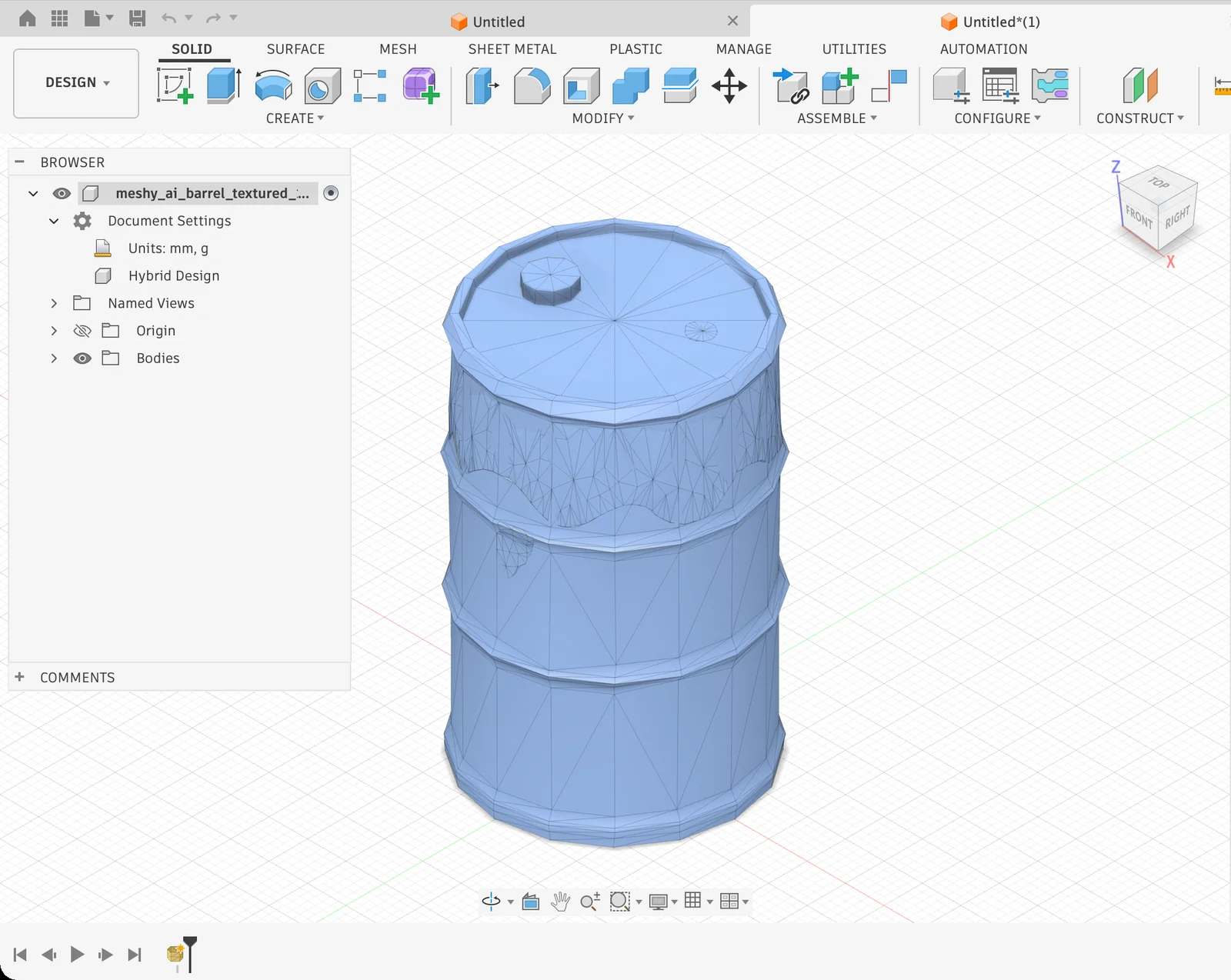
Fusion opens the model in a new design.
You can also send a model from its card in the list of your generations. Click Actions (the three-dot icon) on the card, and then click DCC Bridge > Send to Fusion.
What Fusion receives
Meshy sends the model as an STL file. The model arrives as follows:
-
Design: Fusion opens each model in a new design. To keep the model, save the design in Fusion.
-
Body: The model is a mesh body.
-
Size: The model is about 50 mm tall.
-
Orientation: The model is Z-up and stands on the ground plane, with its base at
Z = 0.
Fusion mesh bodies don't carry Meshy's textures or vertex colors, so the model arrives as geometry only. To add color, apply appearances in Fusion.
You can't send an animated or rigged model to Fusion, because Fusion receives static geometry only. For these models, Send to Fusion is disabled.
Work with the mesh
To turn the mesh body into a solid body, use the tools in Fusion's Mesh workspace, for example Reduce and Convert Mesh.
Troubleshooting
The following table lists common problems, their causes, and how to fix them.
| Problem | Cause | Fix |
|---|---|---|
| Nothing happens when you click Send to Fusion. | Fusion isn't installed, or the browser's prompt to open Fusion was dismissed. | Check that Fusion is installed. Then send the model again, and when the browser asks whether to open Fusion, allow it. |
| The model lies on its side. | Fusion's default modeling orientation is Y up, and Meshy sends the model Z-up. | In Fusion's preferences, under General > Design, set Default modeling orientation to Z up, and then send the model again. The setting applies to new designs, and each send opens a new design. |
| The model looks too big or too small. | Meshy sends the model about 50 mm tall. | In Fusion, resize the model with Scale. |
| You want the model in an existing design. | Fusion opens each model in a new design. | Copy the mesh body from the new design and paste it into your design. |
Next steps
- To see the Fusion integration and the other Meshy integrations, go to the Fusion integration page.