Meshy for ZBrush
This is the official documentation of the Meshy ZBrush plugin. You'll find detailed instructions on how to install the plugin and import the models you generated in Meshy directly onto the ZBrush canvas for sculpting.
In this guide, we will walk you through how to efficiently use this plugin. The documentation covers:
- Plugin Introduction – Learn about prerequisites and installation
- Bridge to ZBrush – Learn how to quickly send assets to ZBrush from the webapp
Let's get started! 🚀
Overview
Meshy ZBrush Plugin is a plugin that brings MeshyAI-generated models into a running ZBrush session. ZBrush is a sculpting tool, so the bridge imports clean OBJ geometry straight onto the canvas as a starting point for your sculpt (base color is applied where available). Imported models are saved as ZTools under ZTools/Meshy.
Because ZBrush's embedded Python cannot host a server, the plugin runs a small background bridge process that listens for models sent from Meshy and hands them to the Meshy palette inside ZBrush.
Prerequisite
- ZBrush 2025.1 or later — the plugin relies on the official ZBrush Python API. Older versions are not supported.
- macOS or Windows — download the build for your platform (a macOS
.dmgor a Windows.zip). Each installer bundles its own Python runtime, so no separate Python install is needed. - A Meshy Pro account or above — required to use the DCC Bridge.
Installation
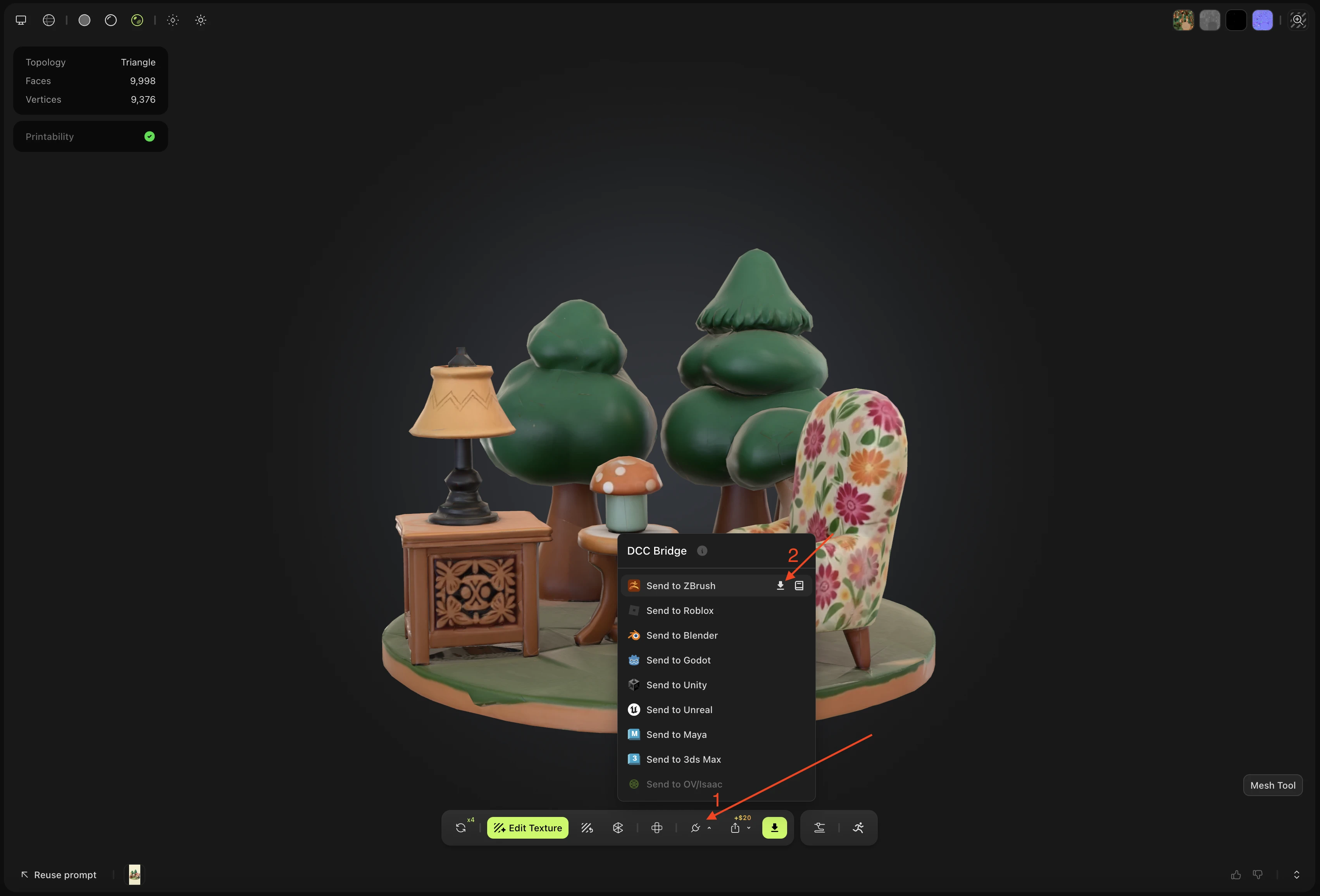
In your MeshyAI workspace, open the DCC Bridge and click the download button next to ZBrush.
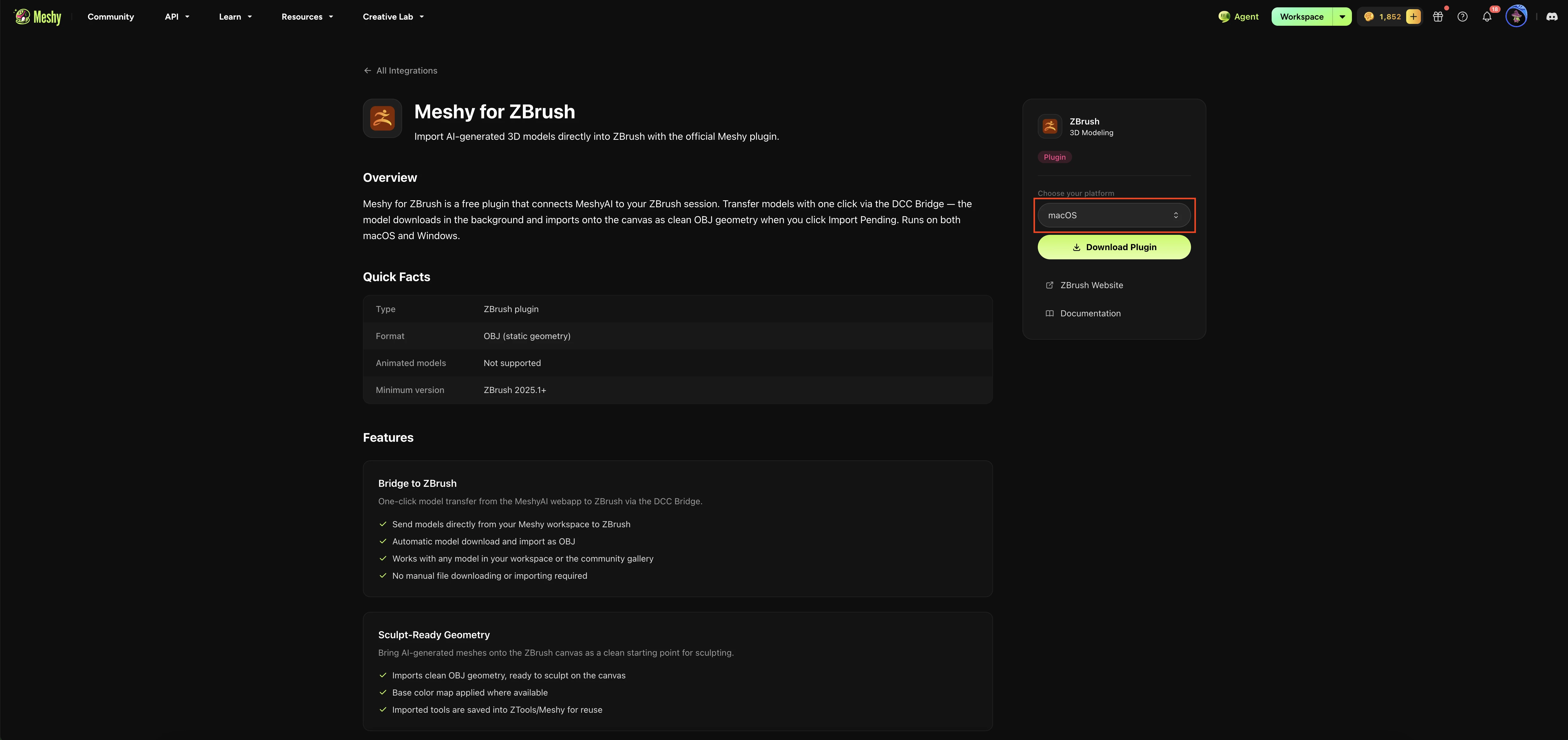
This opens the ZBrush plugin detail page. Choose your platform and download the matching build — the macOS .dmg or the Windows .zip.
Open the downloaded build (on macOS, open the .dmg; on Windows, extract the .zip) and copy MeshyBridge.zsc and the MeshyBridgeData folder into ZBrush's plugin directory, ZData/ZPlugs64:
-
macOS — e.g.
/Applications/Maxon ZBrush 2026/ZData/ZPlugs64 -
Windows — e.g.
C:\Program Files\Maxon ZBrush 2026\ZData\ZPlugs64
macOS only: the build is not notarized, so macOS quarantines the bundled runtime on first download. If you skip this step, ZBrush fails to launch the bundled Python and shows an error like the one below.
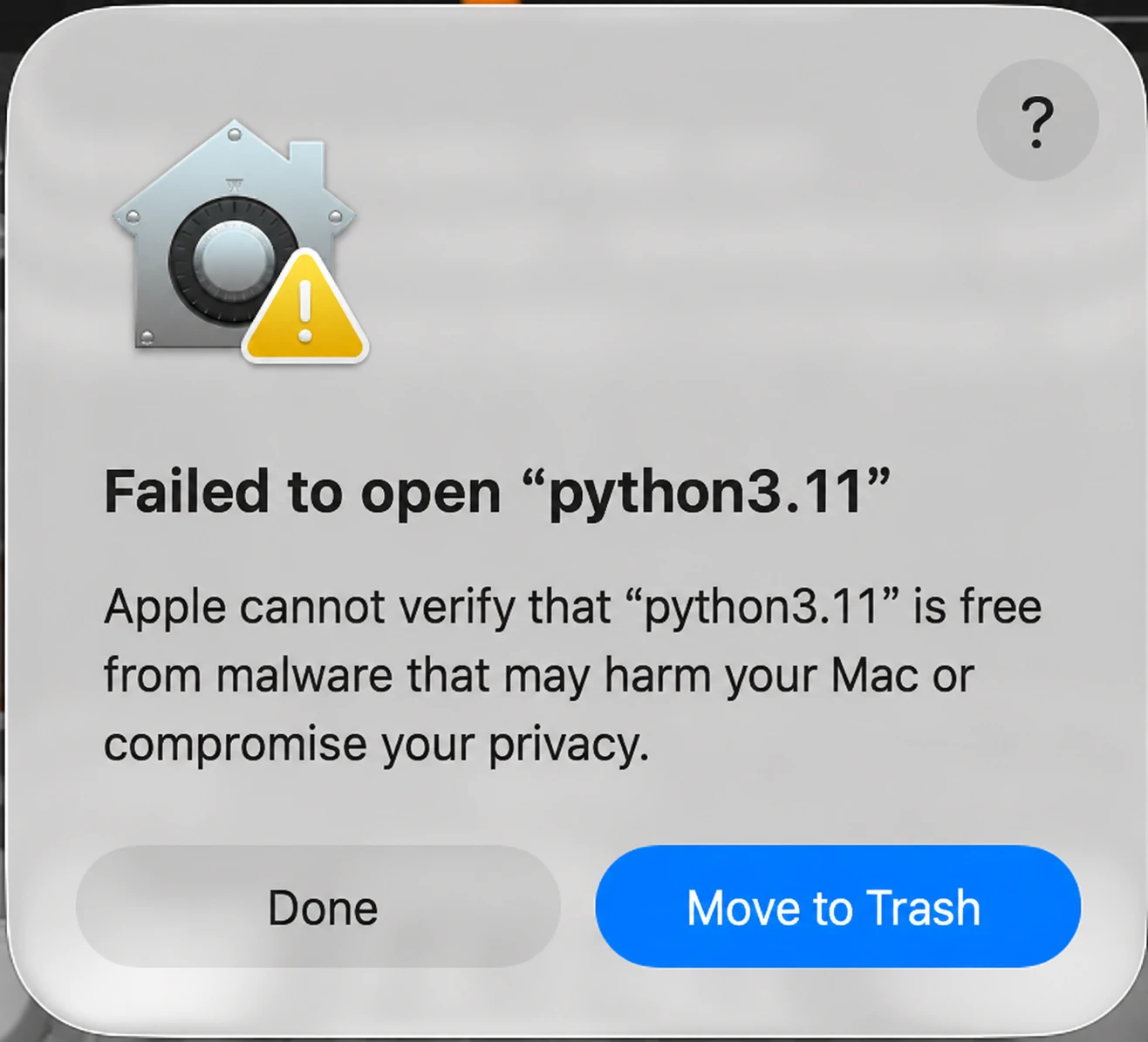
After copying the files into ZPlugs64, clear the quarantine flag once so ZBrush can launch the bundled Python:
xattr -dr com.apple.quarantine "/Applications/Maxon ZBrush 2026/ZData/ZPlugs64/MeshyBridgeData"
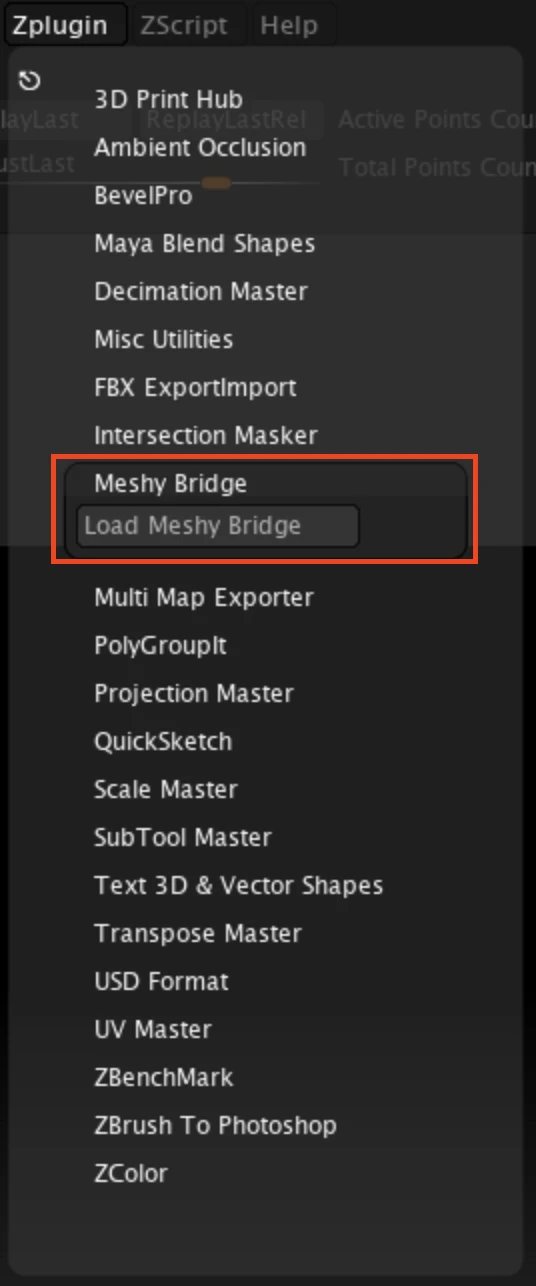
Restart ZBrush, then open ZPlugin → Meshy Bridge → Load Meshy Bridge. After a few seconds, a new Meshy menu appears in ZBrush's top menu bar (the same row as Zplugin, Render, Tool, etc.) — that Meshy menu is where all the bridge controls live. The plugin is installed successfully.
🚀 Next, head to Bridge to ZBrush to send your first model from the Meshy webapp.