Bridge to Roblox
Send a model from the Meshy web app to your Roblox inventory, with no app to install, and use it in Roblox Studio.
Before you begin
-
You need a Pro plan or higher. On the Free and Starter plans, clicking Send to Roblox opens the upgrade options.
-
You need a global Roblox account. For the requirements, see Meshy for Roblox.
-
The model must be 20 MB or smaller, and it can't be rigged or animated. To keep a model under the limit, finish it in this order: generate, remesh, and then texture. Remeshing reduces the face count and the file size.
Connect your Roblox account
You connect your Roblox account the first time you send a model. To connect it, follow these steps:
-
In the Meshy web app on a computer, open the model in the viewer. DCC Bridge isn't available on mobile.
-
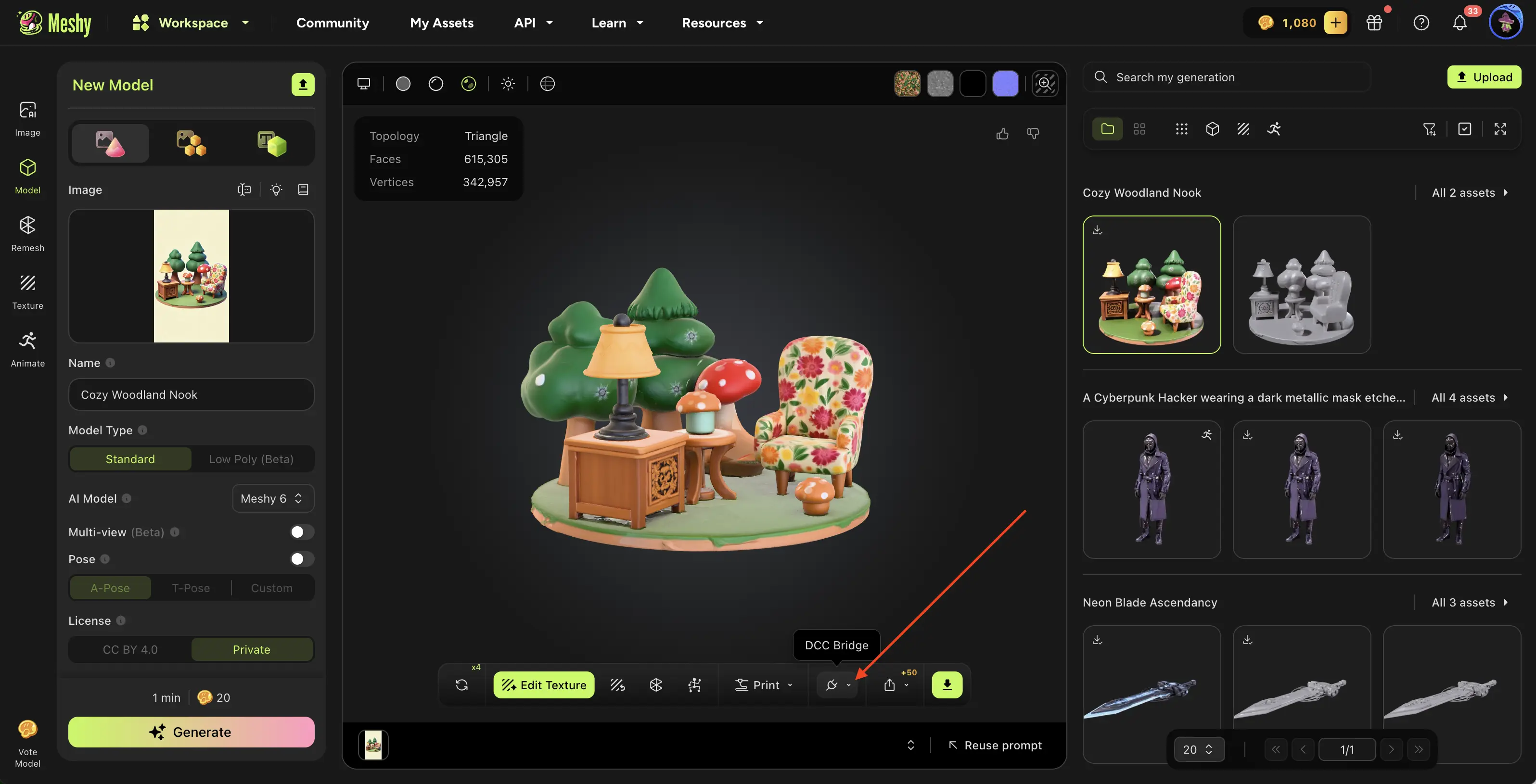
In the viewer toolbar, click DCC Bridge (the plug icon).
-
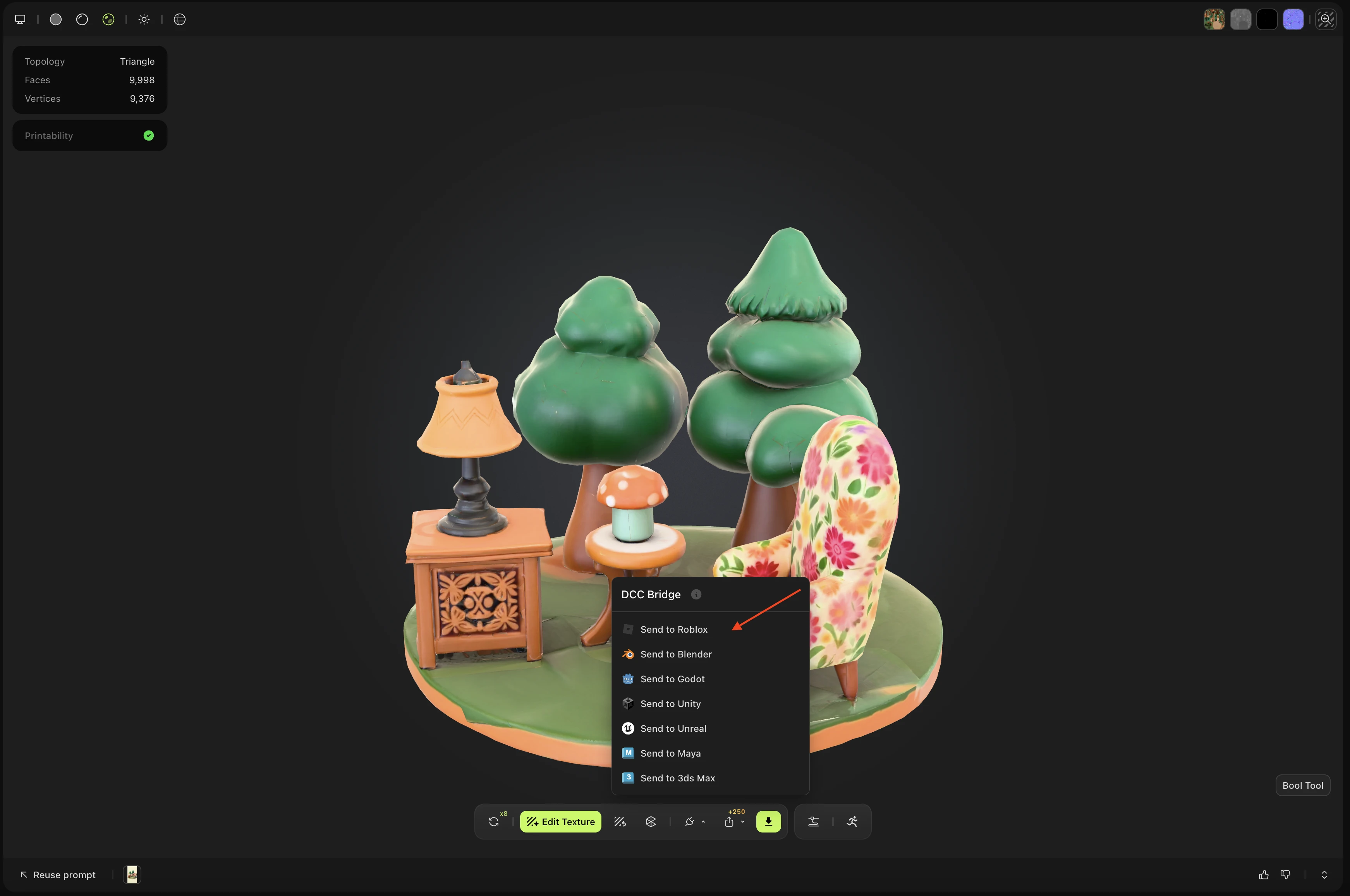
Click Send to Roblox.
-
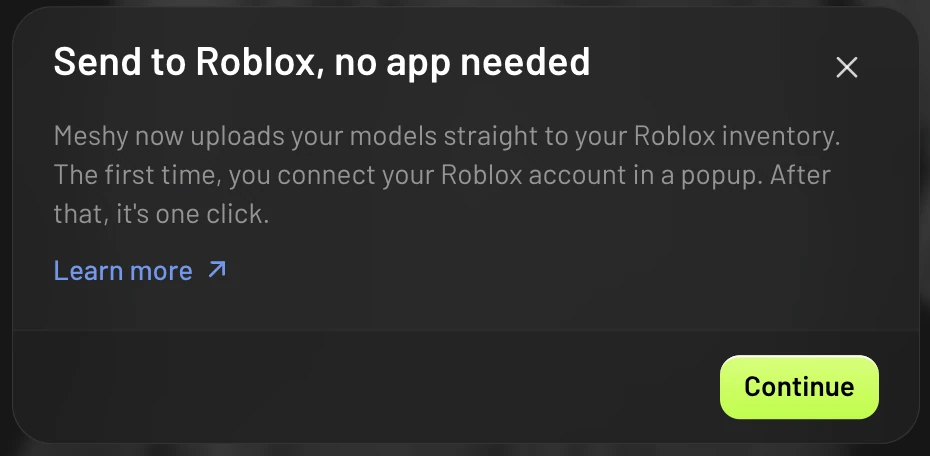
In the Send to Roblox, no app needed dialog, click Continue. Meshy shows this dialog only the first time you send from a browser.
-
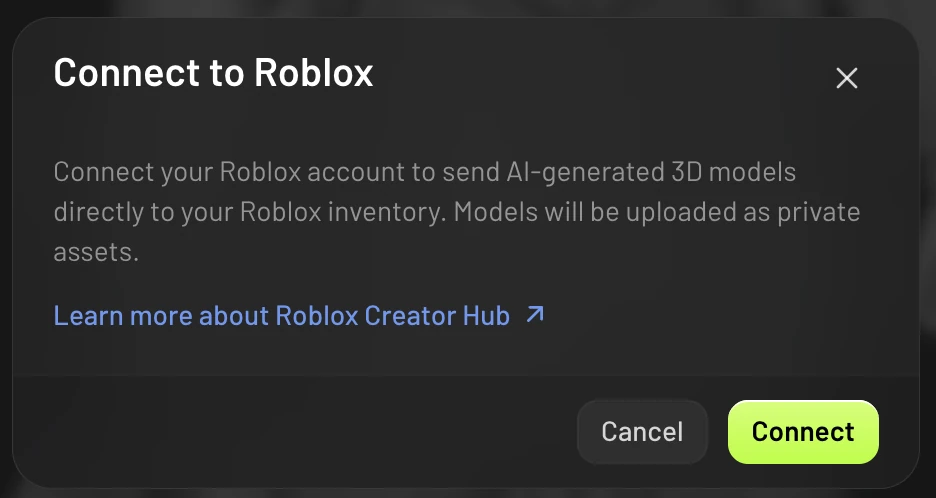
In the Connect to Roblox dialog, click Connect. A Roblox authorization popup opens.
-
In the popup, sign in to Roblox if it asks you to, and then click Continue.
-
Under Accounts, click Select next to your Roblox account, and then click Continue.
-
Review the permissions, and then click Confirm and Give Access.
The following images show the pages of the Roblox authorization popup in order.
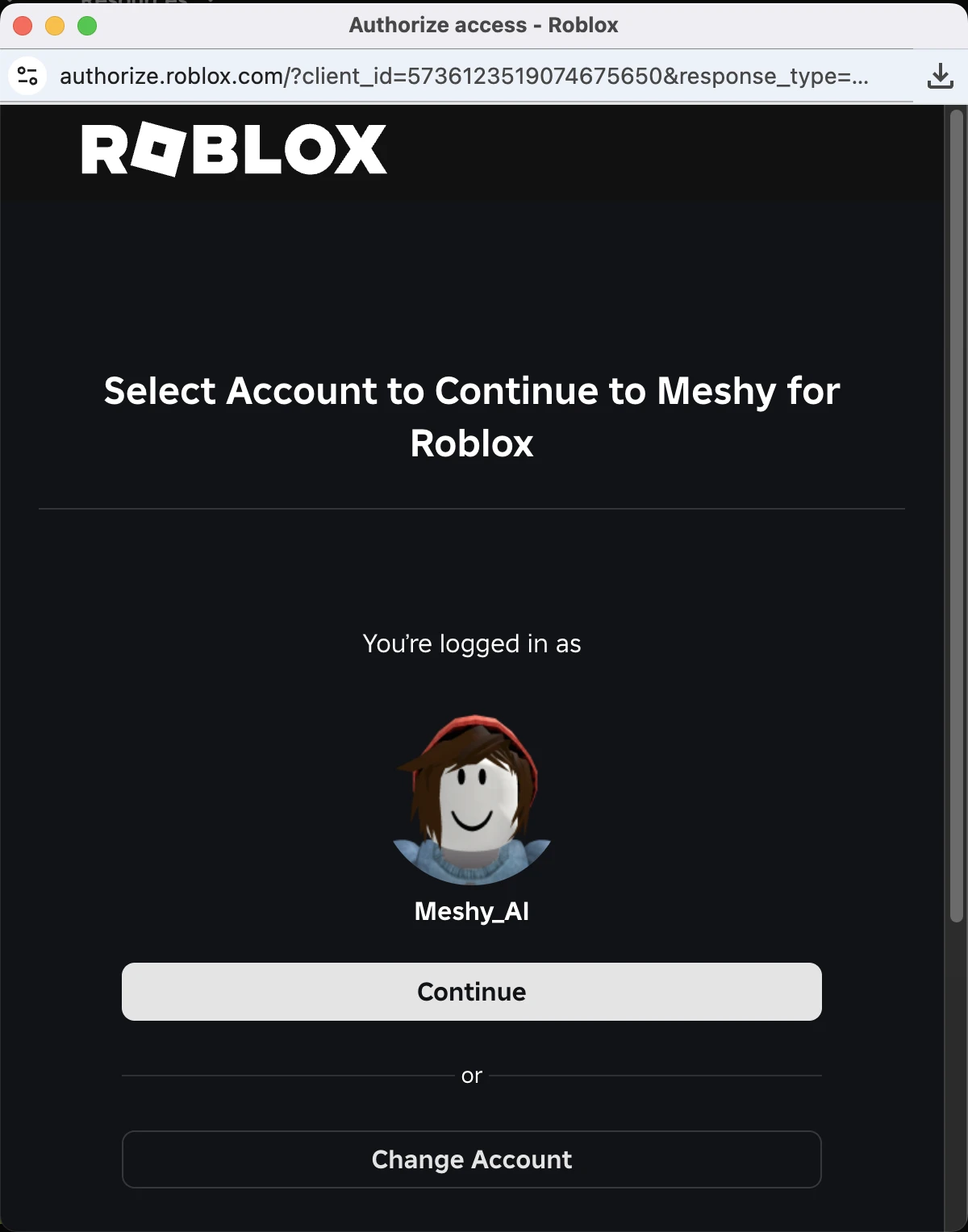
1. Sign in and continue
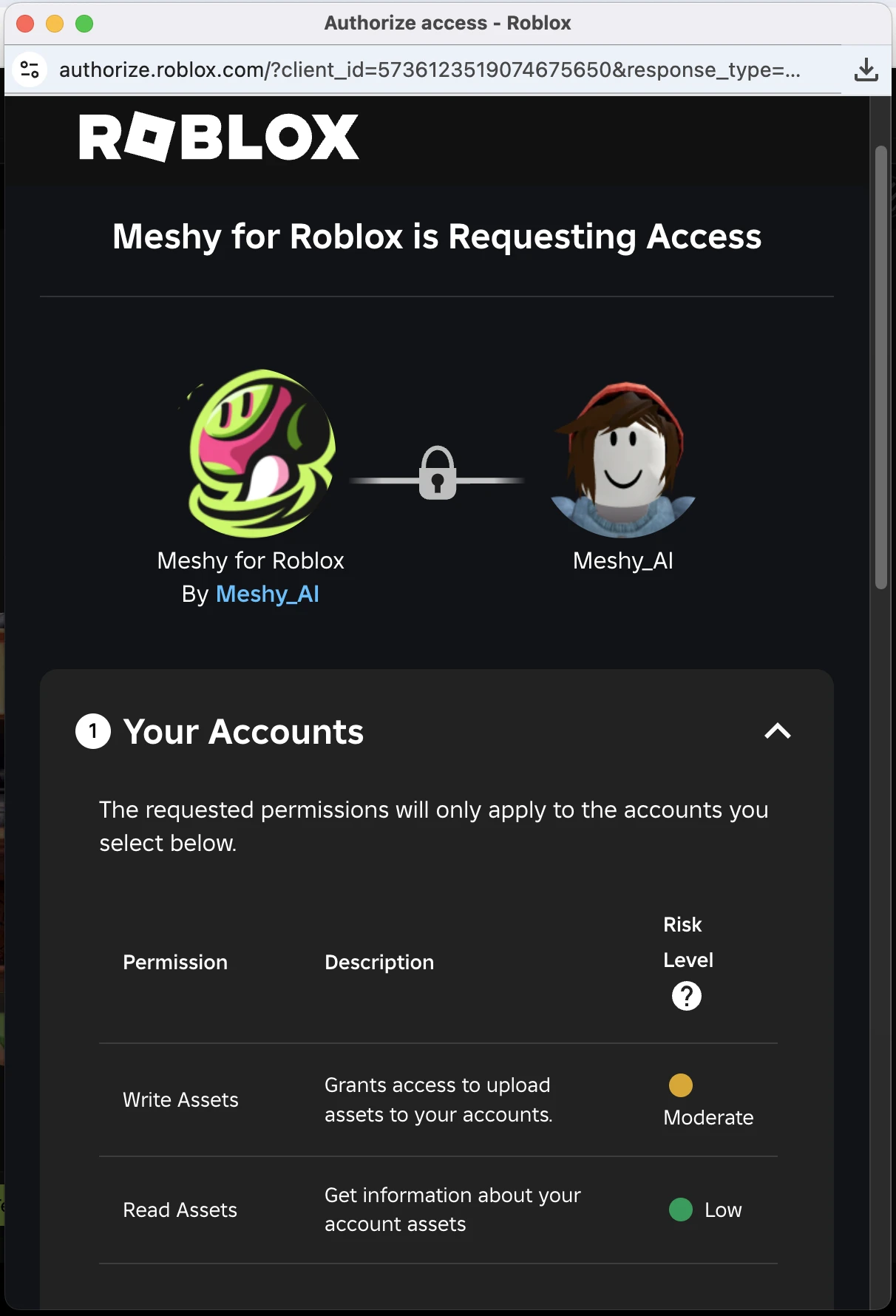
2. View the requested permissions
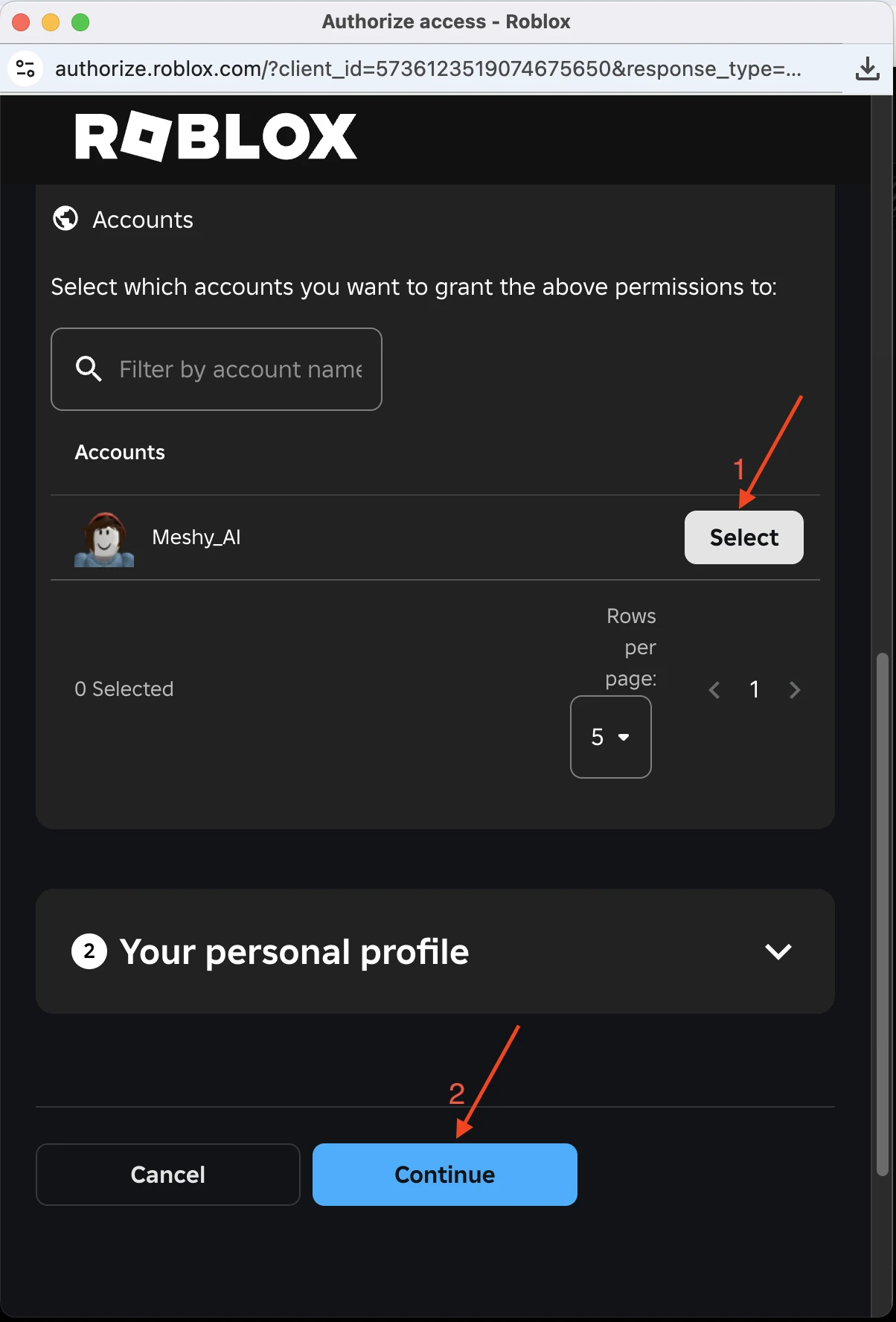
3. Select the account and continue
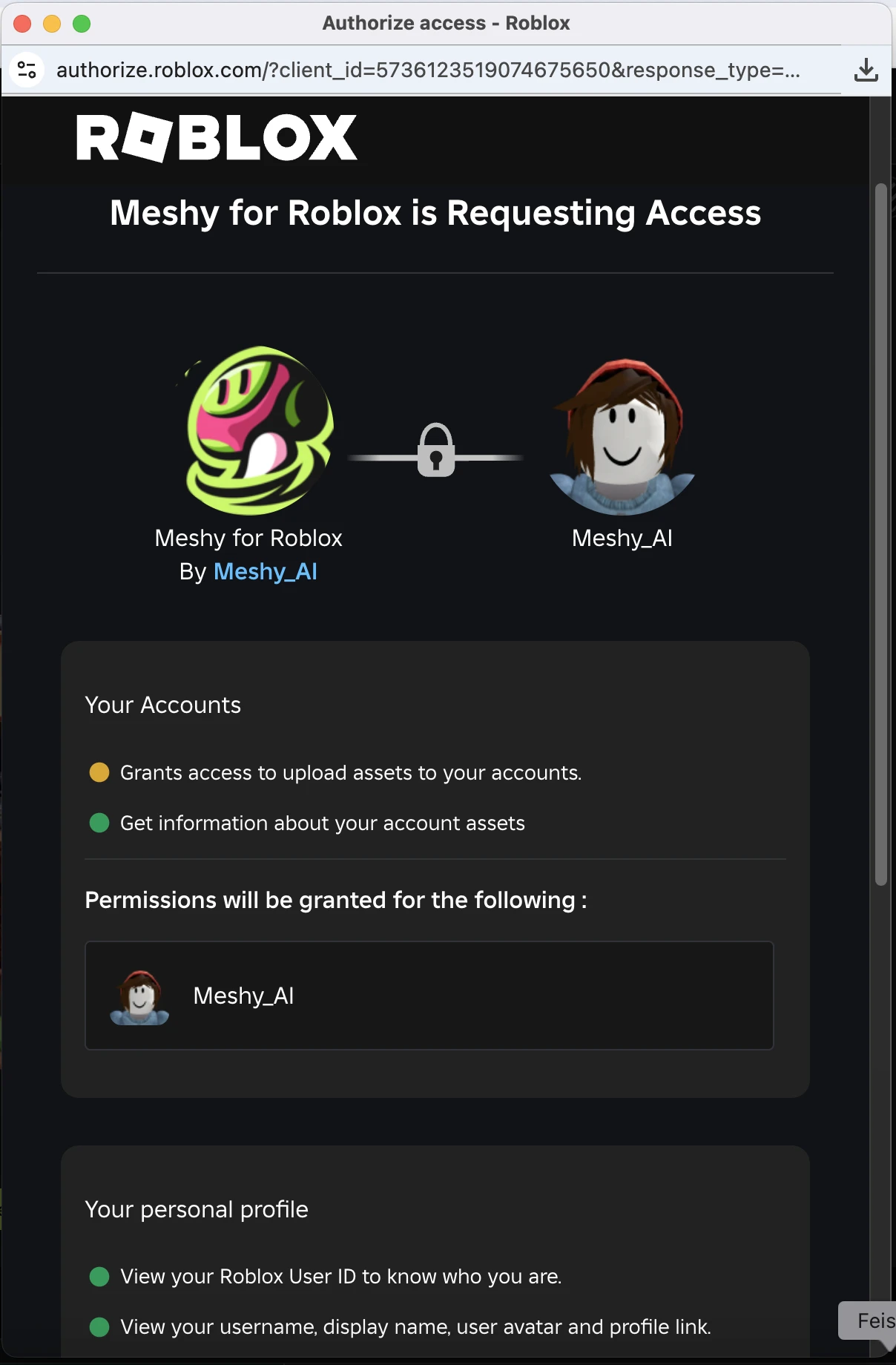
4. Review the permissions
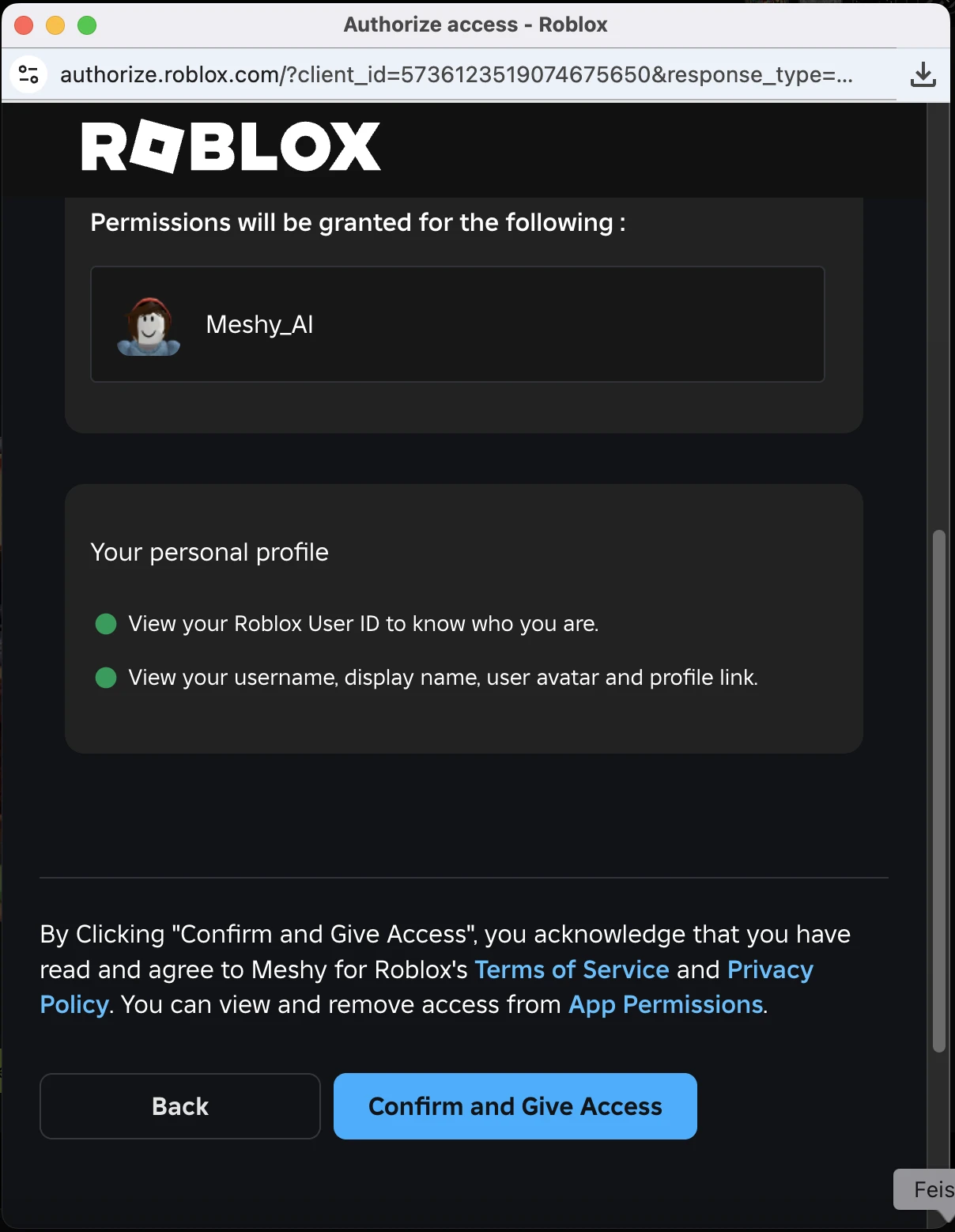
5. Confirm and give access
After you confirm, the popup closes, and Meshy continues the upload. You don't need to click Send to Roblox again.
You connect only once. Meshy keeps your Roblox account connected for later uploads.
Switch to another Roblox account
To send models to a different Roblox account, follow these steps:
-
In the viewer toolbar, click DCC Bridge.
-
Hover over Send to Roblox, and then click Switch Account (the user icon). The icon appears only while a Roblox account is connected.
-
In the Roblox Account Connected dialog, click Switch Account. Meshy disconnects the current account.
-
Click Connect, and then give Meshy access to the other account in the Roblox popup. If the popup shows your previous account, click Change Account first.
Switching disconnects your previous Roblox account from Meshy. Assets you already uploaded stay in that account.
Send a model
After you connect your Roblox account, you send models without authorizing again. To send a model, follow these steps:
-
In the Meshy web app, open the model in the viewer.
-
In the viewer toolbar, click DCC Bridge, and then click Send to Roblox.
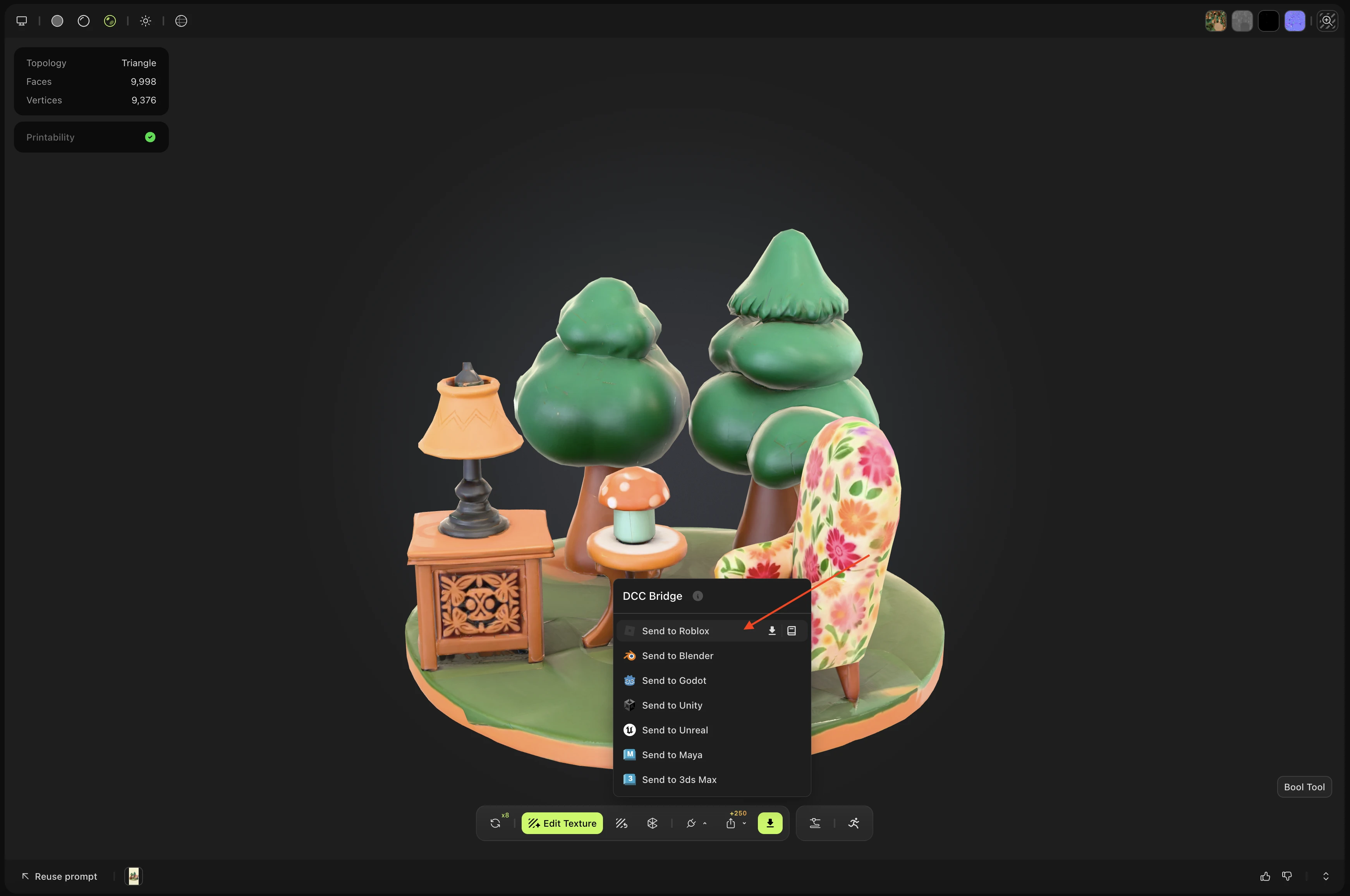
Meshy uploads the model to your Roblox inventory as a private GLB asset. The asset name starts with Meshy_.
You can send any static model in your generations, whichever tool made it, except a Smart Rig result or an Ultra 4K model.
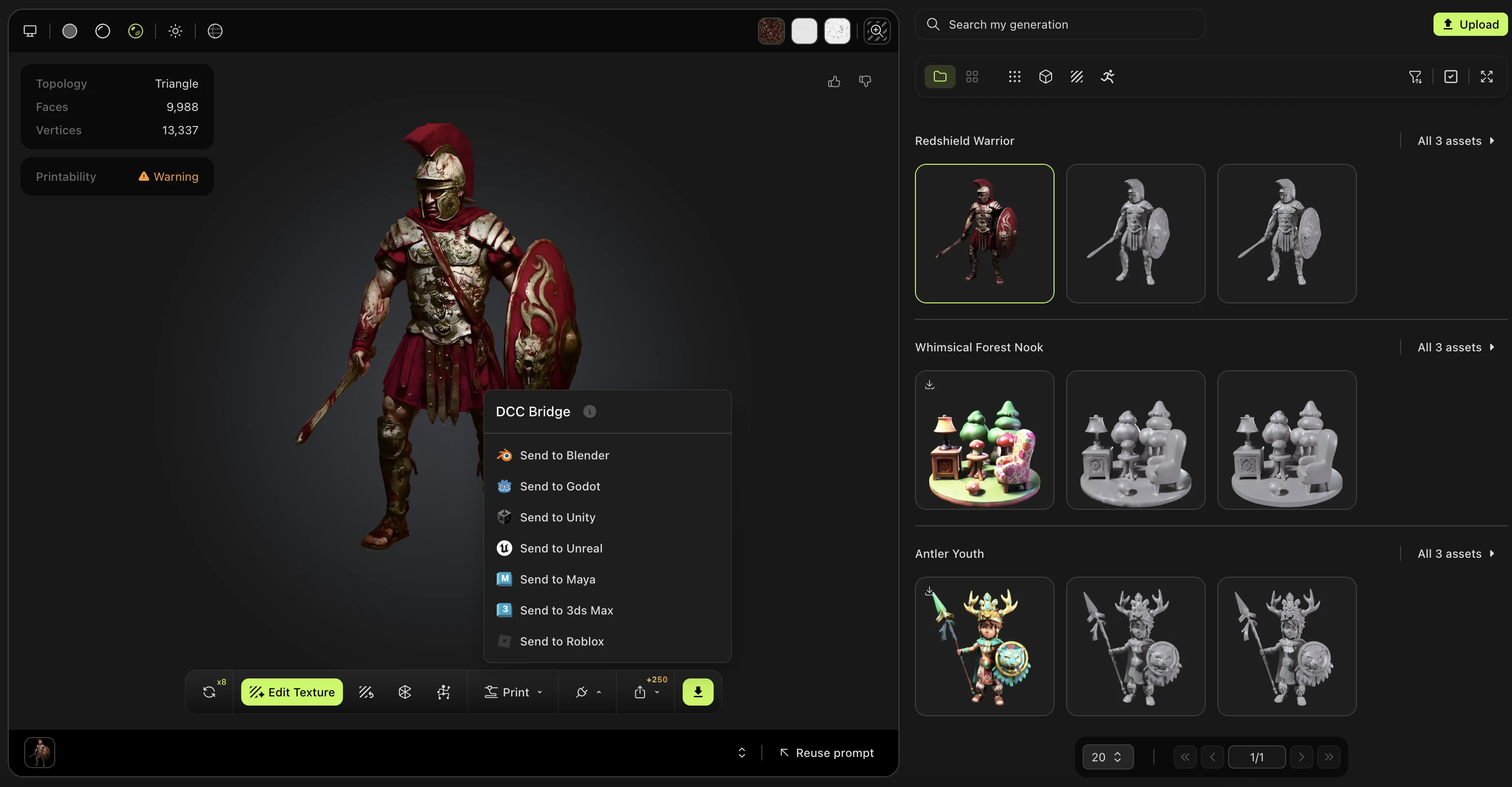
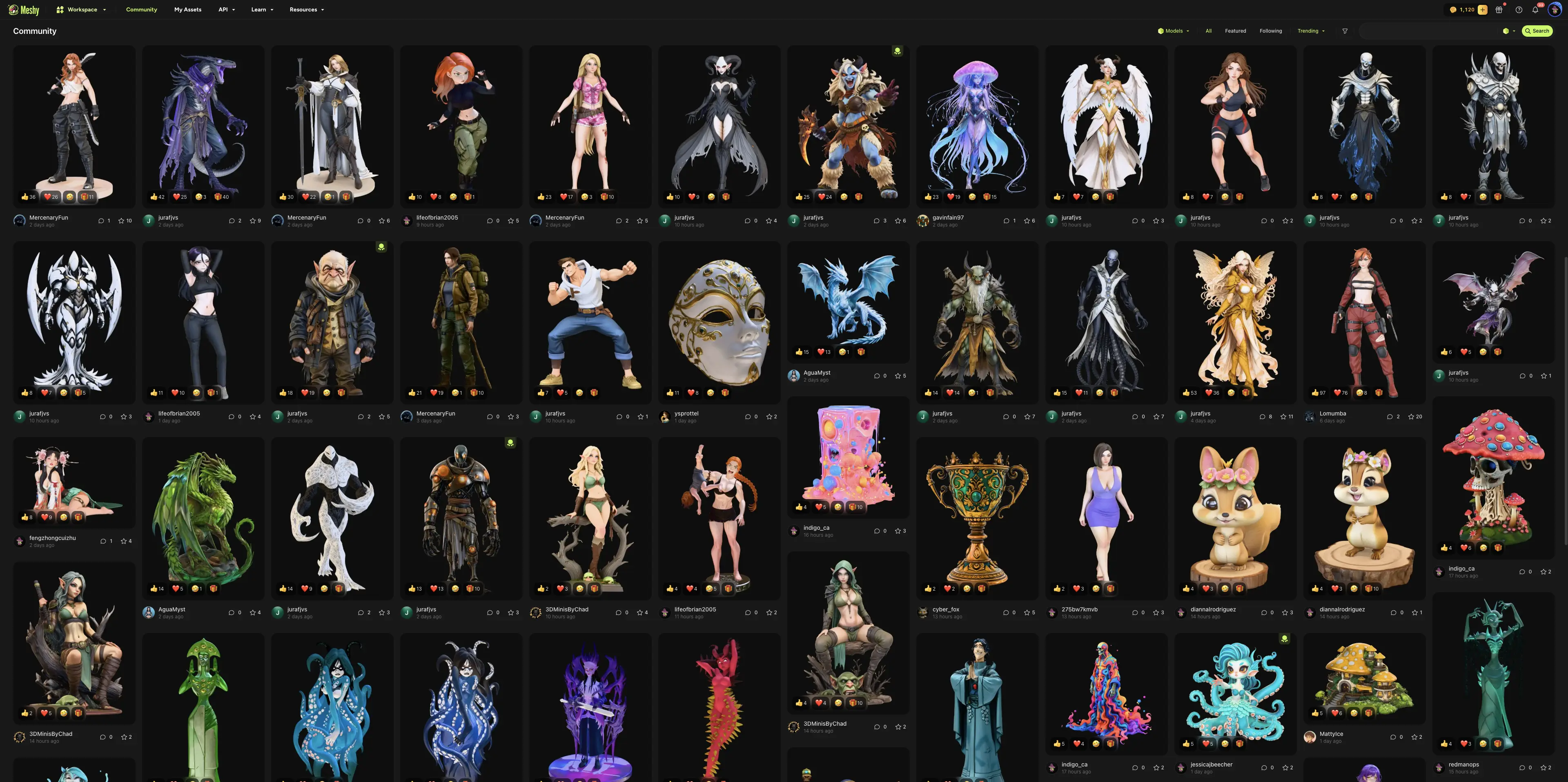
You can also send a model that another user shared in Community. Open the model, click DCC Bridge, and then click Send to Roblox.
Open the uploaded model
When the upload finishes, Meshy shows the Uploaded to Roblox dialog with the asset ID.
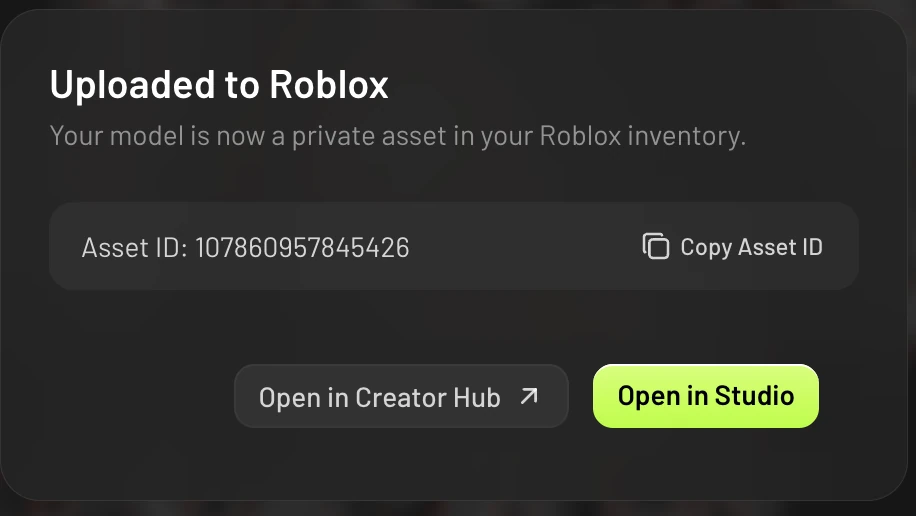
In the dialog, you can click the following:
-
Open in Creator Hub: Opens the asset in your Roblox Creator Hub, where you can manage it.
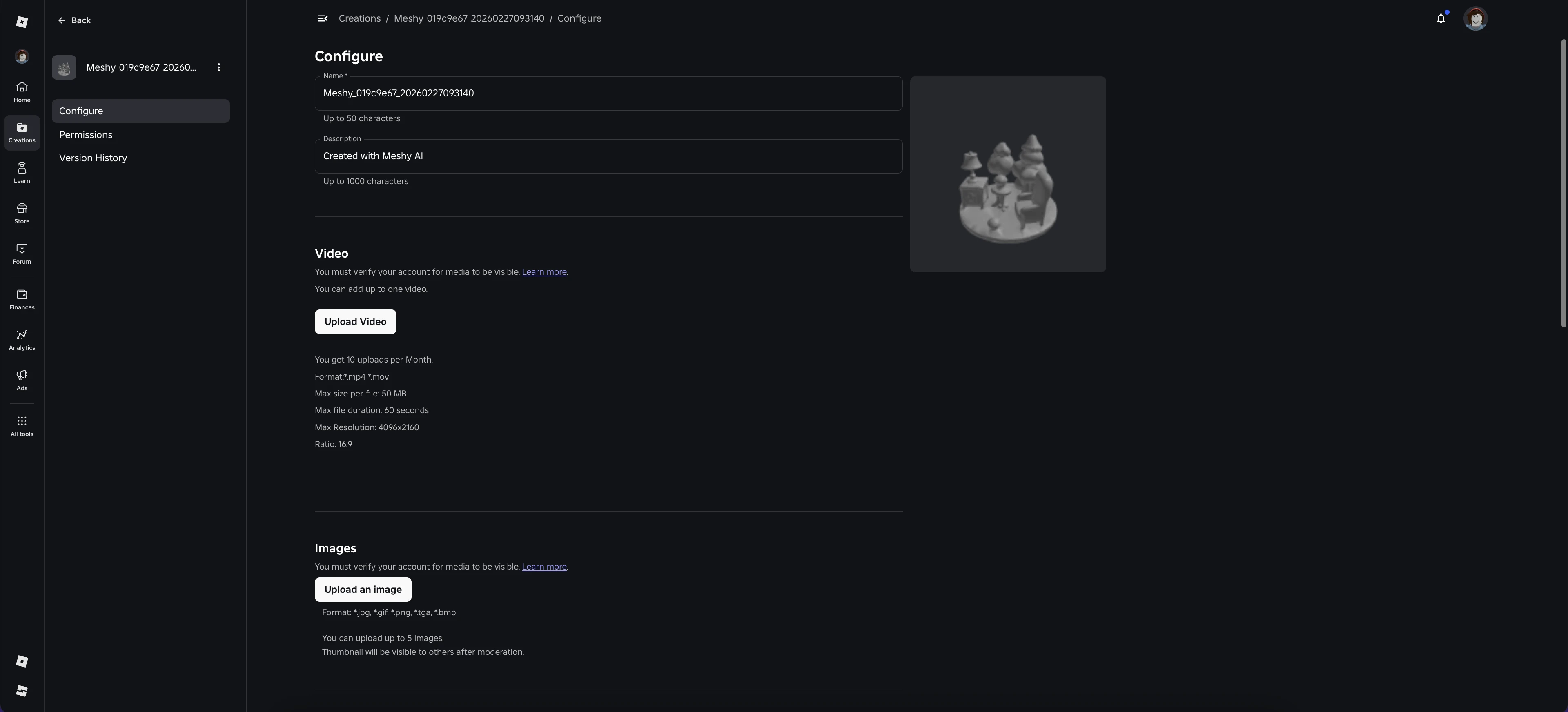
-
Open in Studio: Opens Roblox Studio with a default scene that contains only the model you uploaded. Use this temporary scene to view the asset.
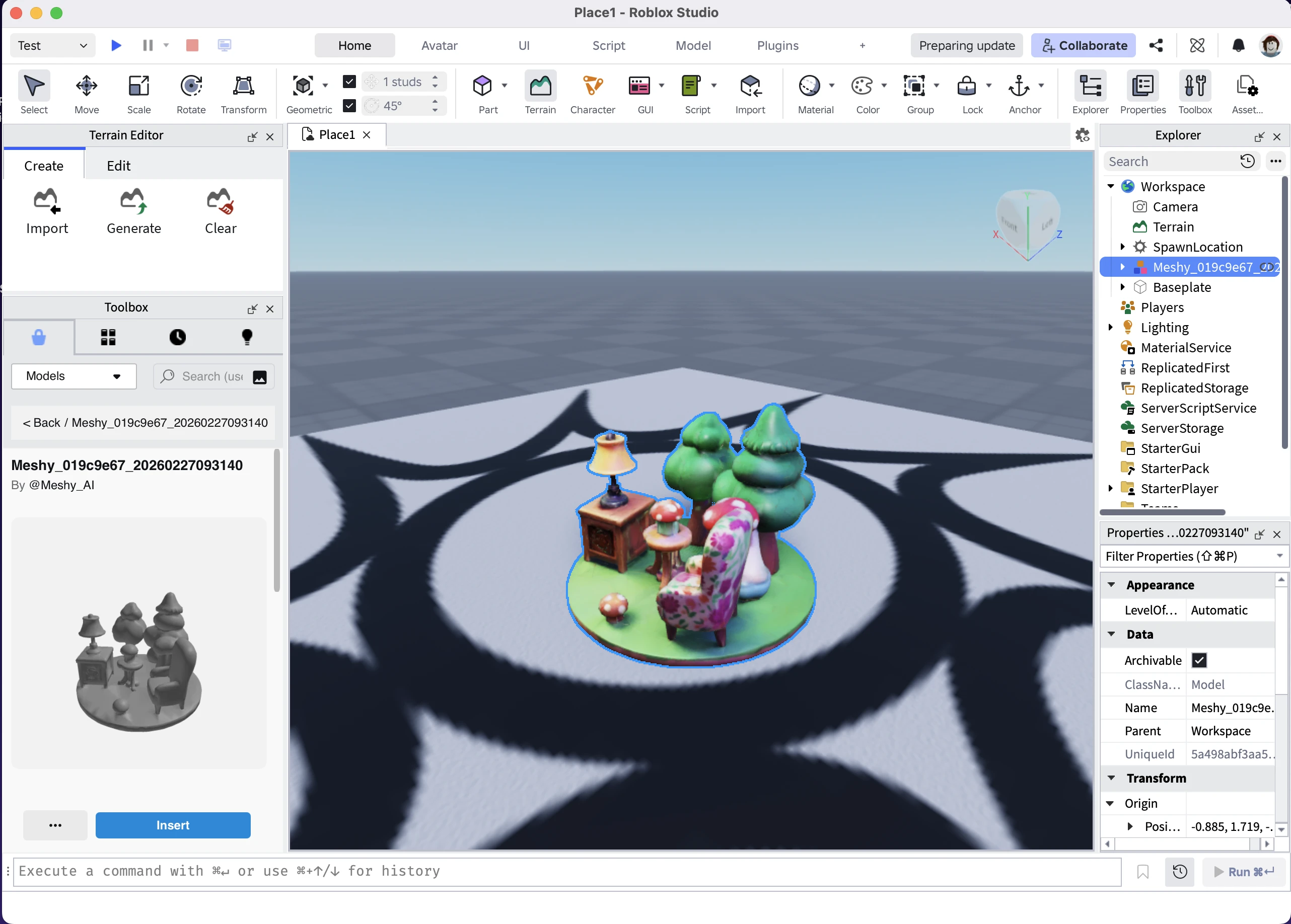
-
Copy Asset ID: Copies the Roblox asset ID to your clipboard.
The Creator Hub web preview might not show the textures of a larger model correctly. This affects only the Roblox web viewer. The textures appear as expected when you import the model into Roblox Studio.
Roblox reviews every new asset. Until the review finishes, the asset might not appear in Creator Hub or Studio. The review usually takes a few minutes.
Find your models in Roblox Studio
To find every model you sent to Roblox, follow these steps:
-
In Roblox Studio, open the Toolbox.
-
Click the Inventory tab.
-
In the drop-down list, select My Packages.
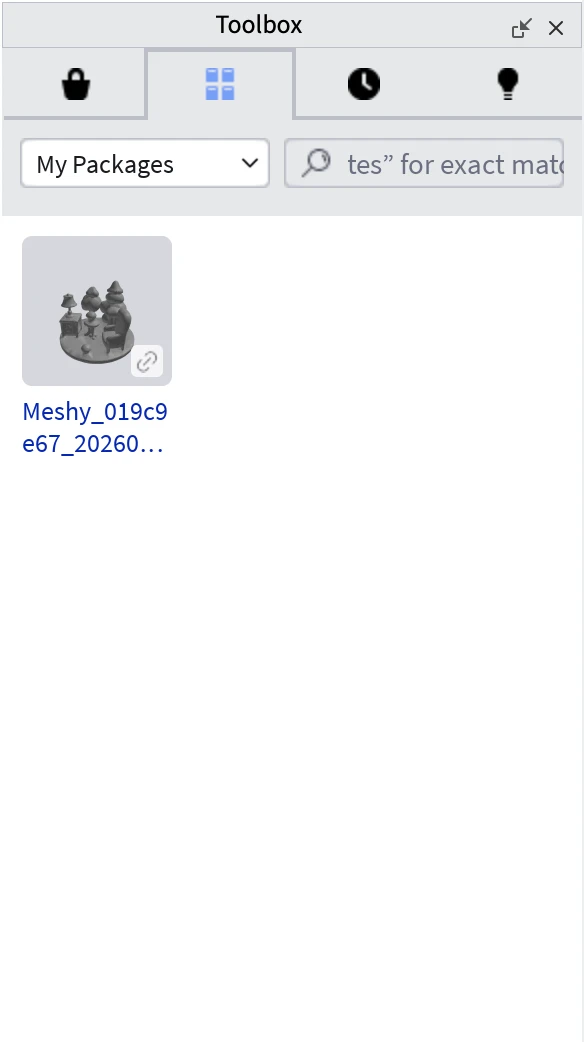
Use the legacy desktop app
You don't need the Meshy Roblox Bridge desktop app to send models. If you already use it, it keeps working. If you choose Keep using desktop app, Meshy sends your models through the app while it's running and connected to your Roblox account. When an upload finishes, the app window comes to the front, with links to open the asset.
The first time you click Send to Roblox with the desktop app set up, Meshy asks whether to keep using it. Click Keep using desktop app or Try the new way. Meshy keeps your choice for later sends.
To stop using the app later, quit it, and then click Send to Roblox. In the message that Meshy shows, click Use without the app, and then connect your Roblox account in the browser. If the app is running but isn't connected to Roblox, the Connect to Roblox dialog also shows Use without the app.
To download the app, go to the Meshy for Roblox integration page, and expand Legacy desktop app. To open the app on macOS for the first time, see Allow the legacy app on macOS.
View the upload history
The desktop app keeps a record of the models you sent through it. To see the record, expand Upload History in the app window.
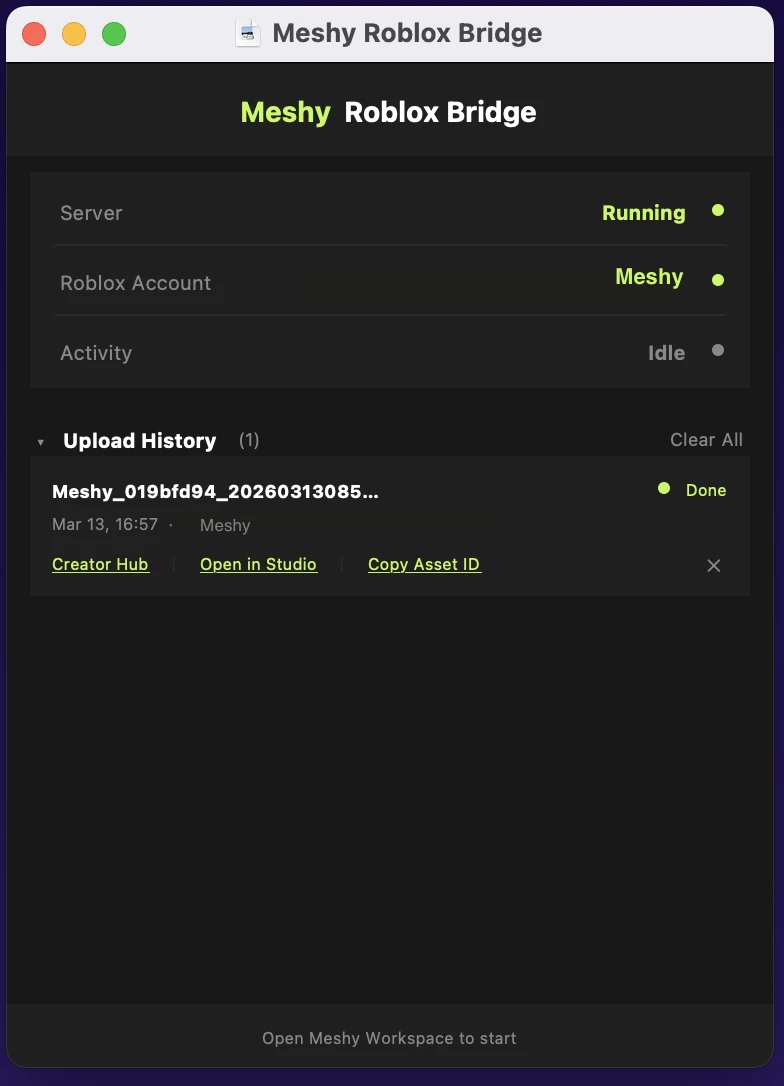
In the upload history, you can do the following:
-
To open or copy an asset, click Creator Hub, Open in Studio, or Copy Asset ID under the model.
-
To delete one record, click the X icon next to it.
-
To delete all records, click Clear All.
The desktop app stores the upload history on your computer. Clearing it doesn't affect the assets in your Roblox account. Models you send without the desktop app don't appear in this history, so find them in Creator Hub or the Studio Toolbox.
Troubleshooting
The following table lists common problems, their causes, and how to fix them.
| Problem | Cause | Fix |
|---|---|---|
| The Roblox authorization popup doesn't open, and Meshy shows "Roblox authorization failed" | Your browser blocked the popup. | Allow popups for meshy.ai in your browser settings, and then click Connect again. |
| The popup closed, but your Roblox account isn't connected | The popup closed before you confirmed access on Roblox. | In the Connect to Roblox dialog, click Connect, and finish the authorization on roblox.com. |
| Meshy asks you to connect your Roblox account again | The Roblox authorization expired, or you removed Meshy's access in Roblox. | Click Connect, and authorize your account again. Meshy then continues the upload. |
| Meshy shows "Model exceeds Roblox upload size limit (20MB)" | Roblox accepts models up to 20 MB. | Use Remesh to reduce the model's face count, and then send the remeshed model. |
| Send to Roblox is unavailable for a rigged or animated model | Meshy sends only static models to Roblox. | Send the static model instead, or download the animated model and import it by hand. |
| The asset doesn't appear in Creator Hub or Studio | Roblox is still reviewing the asset. | Wait a few minutes, and then refresh. To check the asset later, use Copy Asset ID. |
| Meshy shows "Upload timed out" and asks you to check your Roblox inventory | Roblox took longer than 3 minutes to process the upload, and Meshy stopped waiting. | Check your inventory in Creator Hub. The upload might have finished after the timeout. |
| Meshy shows "Upload failed" or an error message from Roblox | Roblox rejected the upload, or the connection failed during the upload. | Send the model again. If it keeps failing, disconnect and reconnect your Roblox account. For the steps, see Switch to another Roblox account. |
| Meshy asks you to start the Meshy Roblox Bridge app | You chose to keep using the desktop app, and the app isn't running. | Open the desktop app, and then send the model again. To send without the app, click Use without the app in the message. |
Next steps
-
To reduce a model's size before you send it, see Remesh.
-
To review what you need to use Meshy with Roblox, see Meshy for Roblox.