Meshy for Omniverse / Isaac Sim
Use the Meshy Omniverse Bridge to send Meshy-generated 3D models directly into an active NVIDIA Omniverse or Isaac Sim stage.
In this guide, we will walk you through how to use this extension. The documentation is divided into two main sections:
- Plugin Introduction - Learn about installation and setup requirements.
- Bridge to Omniverse - Learn how to send a model from Meshy to an active Omniverse or Isaac Sim stage.
Let's get started!🚀
Prerequisite
Meshy Omniverse Bridge sends MeshyAI-generated models to the active USD stage in NVIDIA Omniverse or Isaac Sim. It can also apply Sim-Ready body type, collision, physics material, height, semantic class, and optional Wikidata QCode settings during import.
To use Meshy-for-Omniverse / Isaac Sim, you should follow the following steps:
-
Download Meshy-Omniverse-Bridge.
-
Register a Meshy account.
ATTENTION: We have tested the following Isaac Sim version: Isaac Sim 6.0.0
Installation
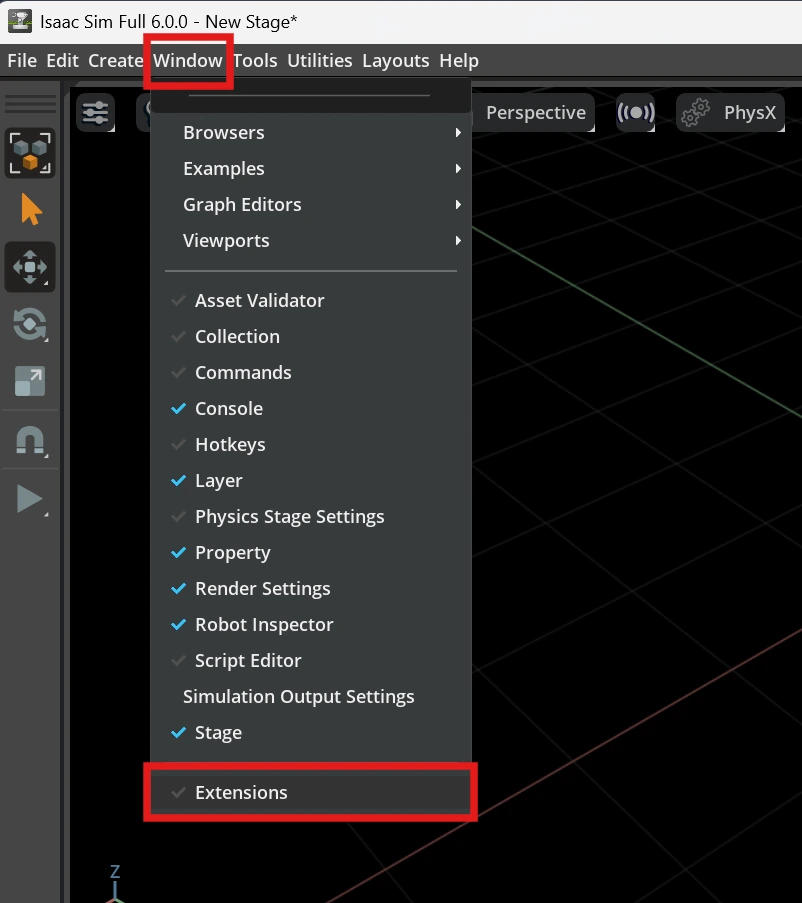
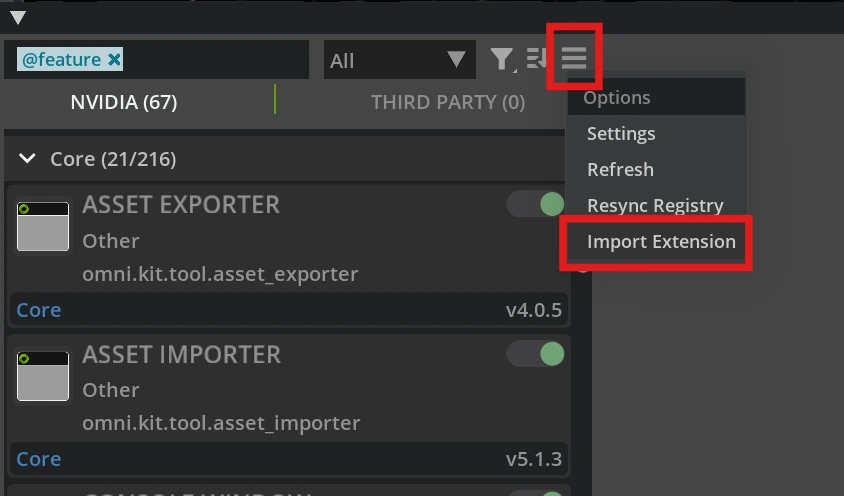
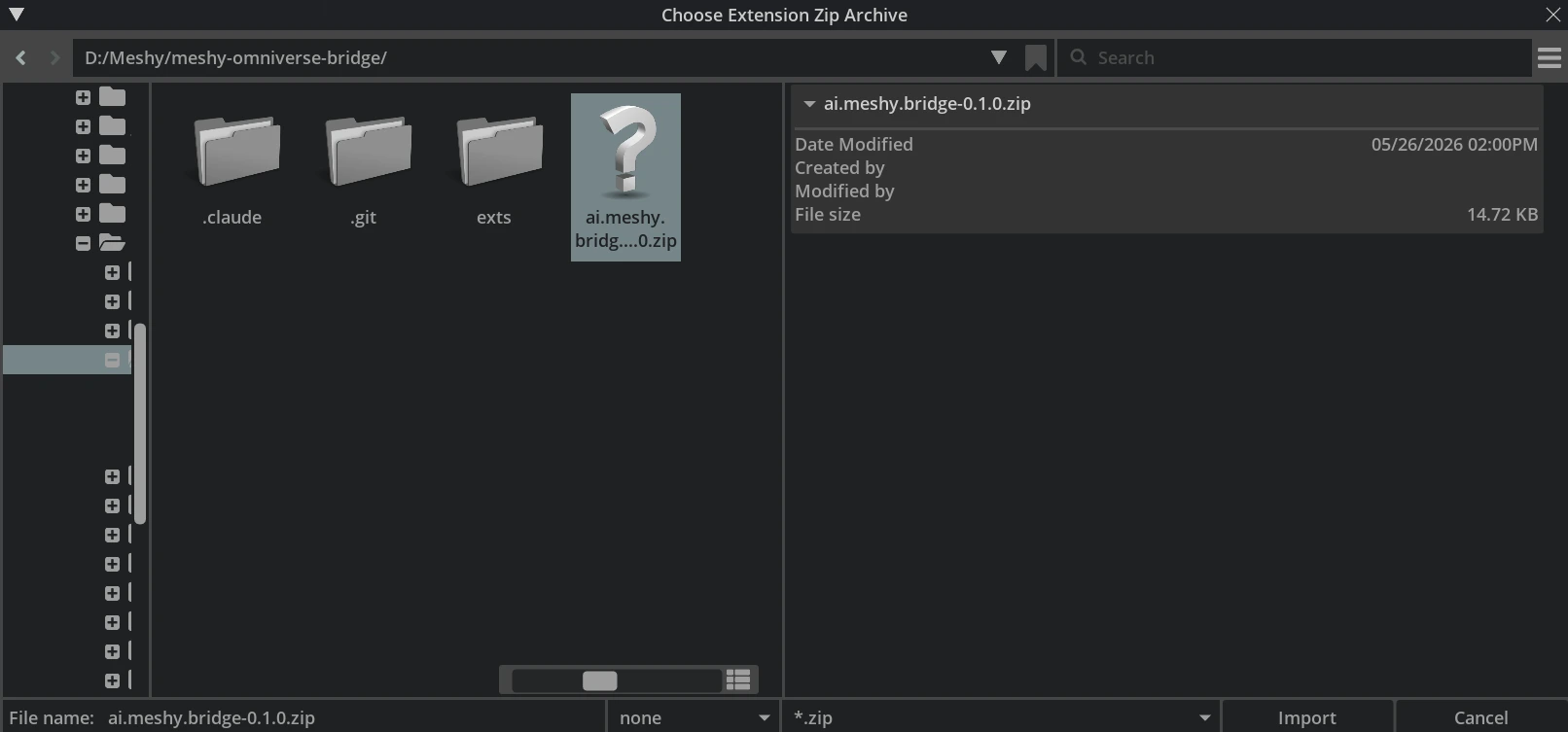
In Isaac Sim or your Omniverse Kit app, open Window > Extensions, click the menu icon (☰), choose Import Extension, then select the downloaded Meshy Bridge zip package.
Enable the Extension
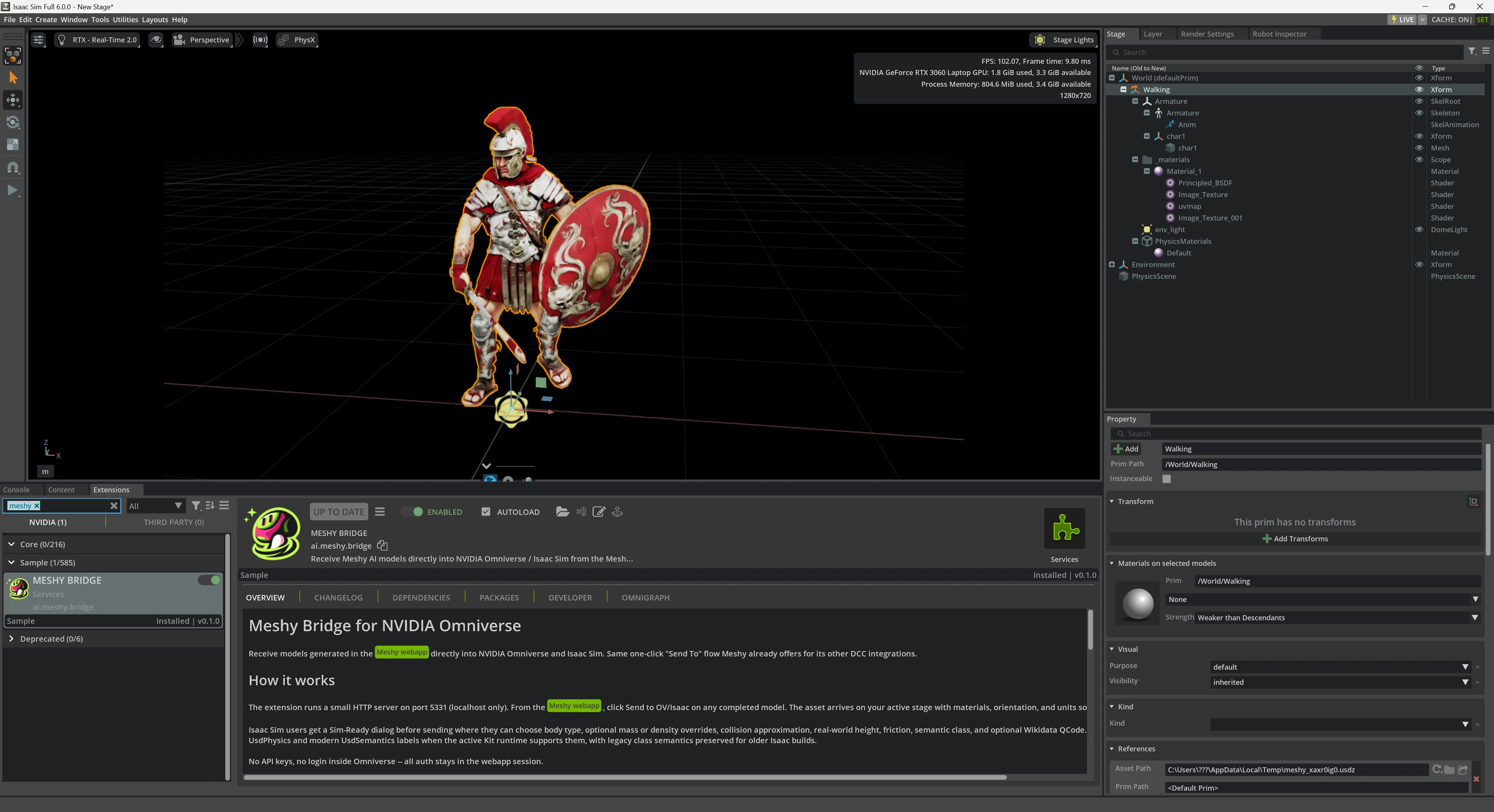
Search for Meshy Bridge in the Extension Manager, enable it, and turn on Autoload if you want it to start automatically next time.
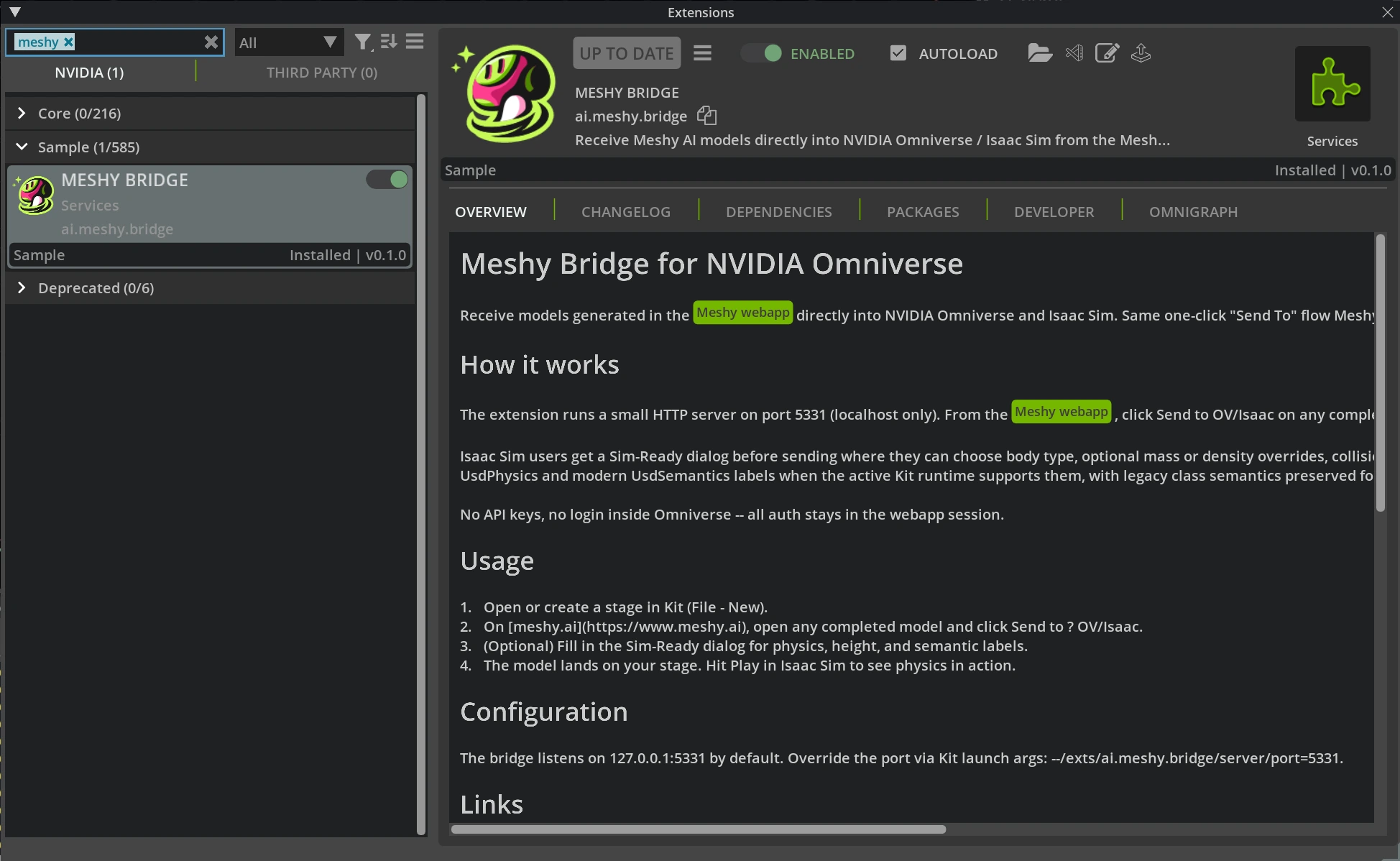
When enabled, the bridge listens on 127.0.0.1:5331 and exposes /status and /import for the Meshy webapp. If the app is closed or the extension is disabled, Meshy cannot connect to Omniverse.
Sim-Ready Support
When sending to Omniverse / Isaac Sim, Meshy can apply Sim-Ready settings during import:
- Body type:
dynamic,kinematic, orstatic. - Mass mode:
Auto,Mass, orDensity. Auto does not authormassordensity; the physics runtime uses its normal defaults and collider data. - Collision approximation:
convexHull,convexDecomposition,meshSimplification,boundingCube,boundingSphere, ornone. SDF collision is not exposed in this release. - Dynamic bodies only allow convex or bounding approximations.
noneandmeshSimplificationare reserved for static or kinematic bodies. - Semantic labels:
classplus an optionalwikidata_qcode. QCode is optional and must use the Wikidata format, such asQ15026.
Next Steps
After installation, continue to Bridge to Omniverse to send a Meshy model into your stage and verify the Sim-Ready import.