Bridge to Cascadeur
Send a model from the Meshy web app straight into your open Cascadeur scene, ready to animate.
Before you begin
-
You need a Pro plan or higher. On the Free and Starter plans, clicking Send to Cascadeur opens the upgrade options.
-
You need Cascadeur 2026.2.3 or later. For details, see Meshy for Cascadeur.
Start the bridge
To start the bridge in Cascadeur, follow these steps:
-
Open Cascadeur, and create or open a scene.
-
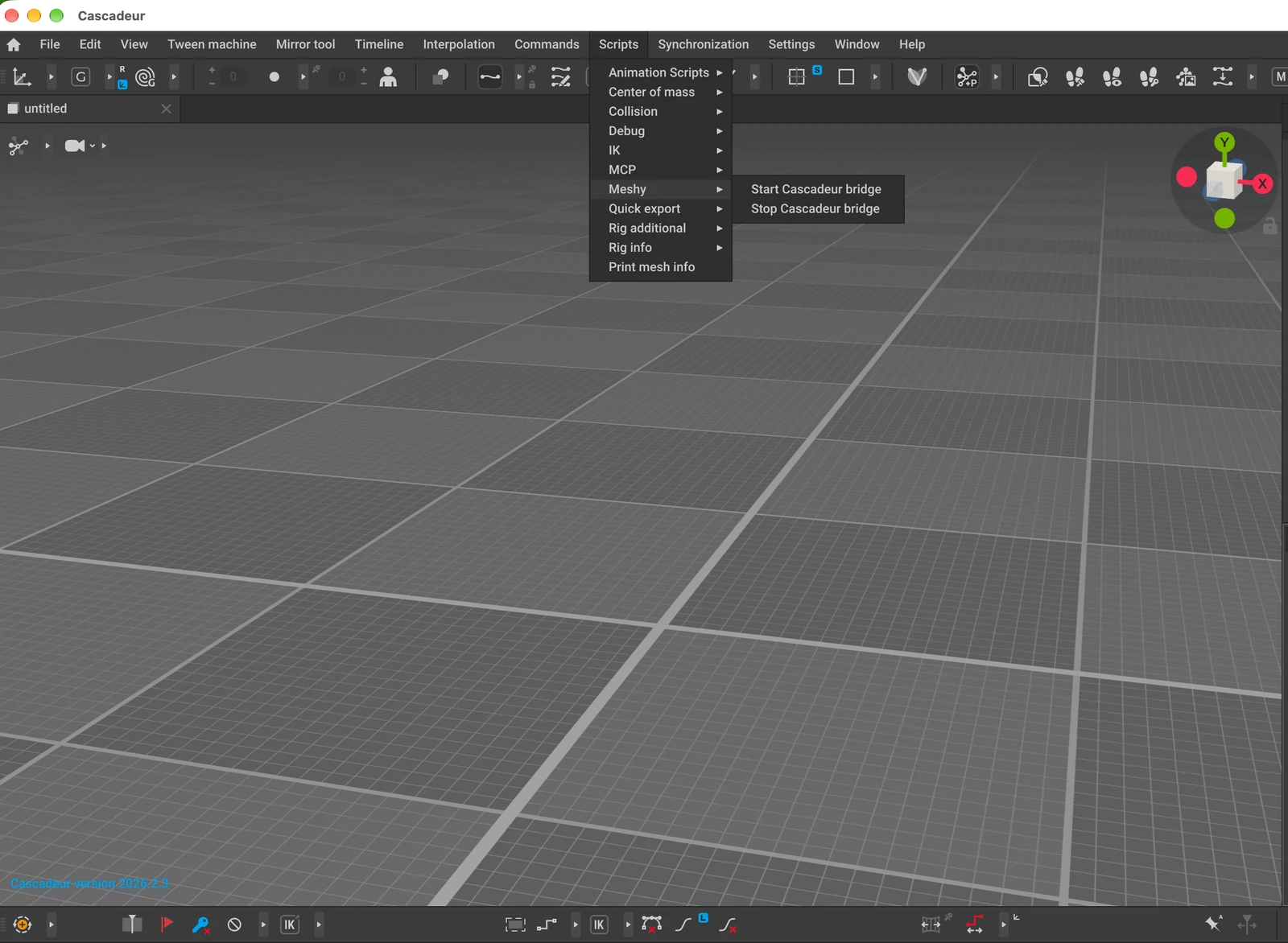
Click Scripts > Meshy > Start Cascadeur bridge.
-
In the Event log tab, check that the bridge is listening on port
5333.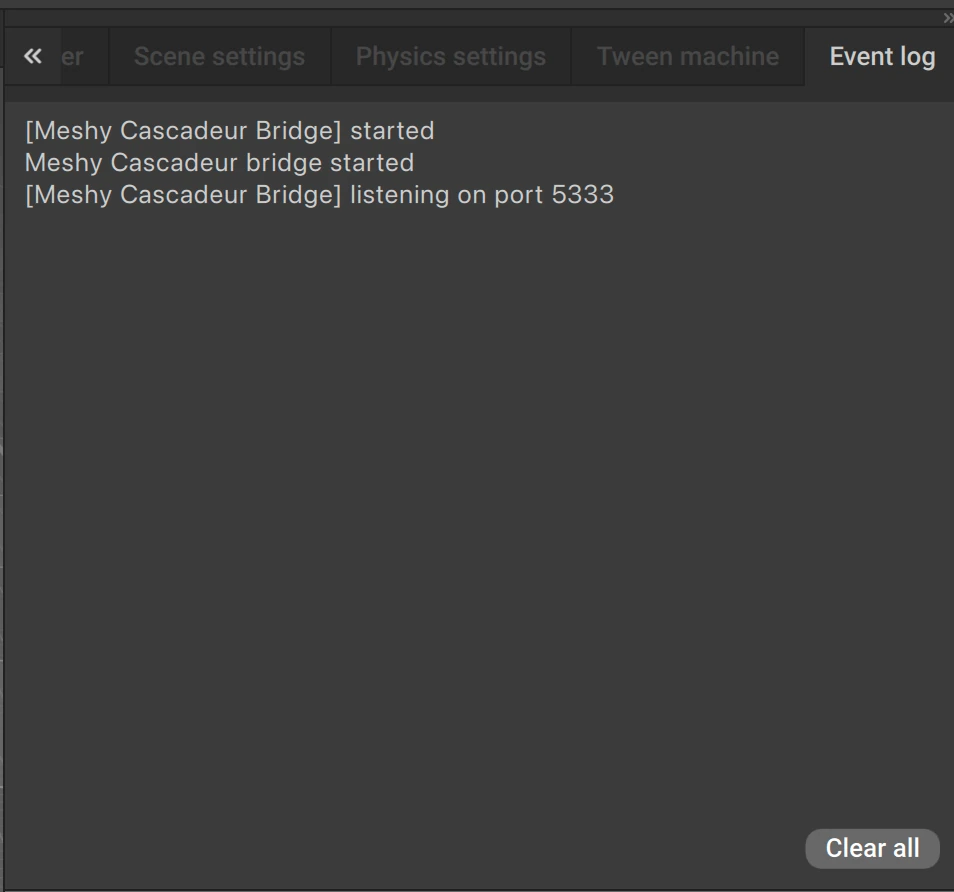
Keep Cascadeur open while you send models from Meshy. Start the bridge again each time you open Cascadeur. To stop it, click Scripts > Meshy > Stop Cascadeur bridge.
Send a model
To send a model to Cascadeur, follow these steps:
-
In the Meshy web app on a computer, open the model in the viewer. DCC Bridge isn't available on mobile.
-
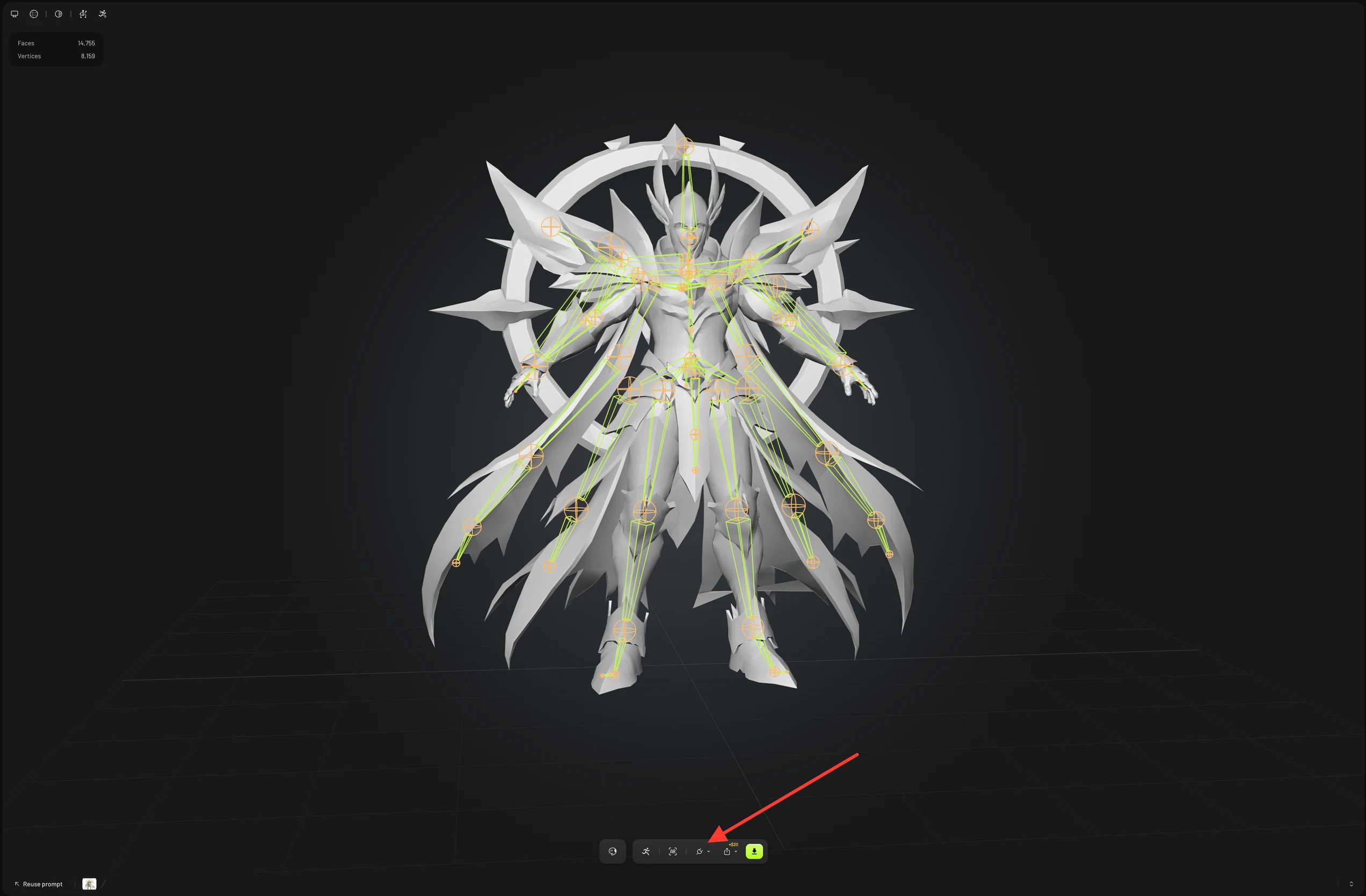
In the viewer toolbar, click DCC Bridge (the plug icon).
-
Click Send to Cascadeur.
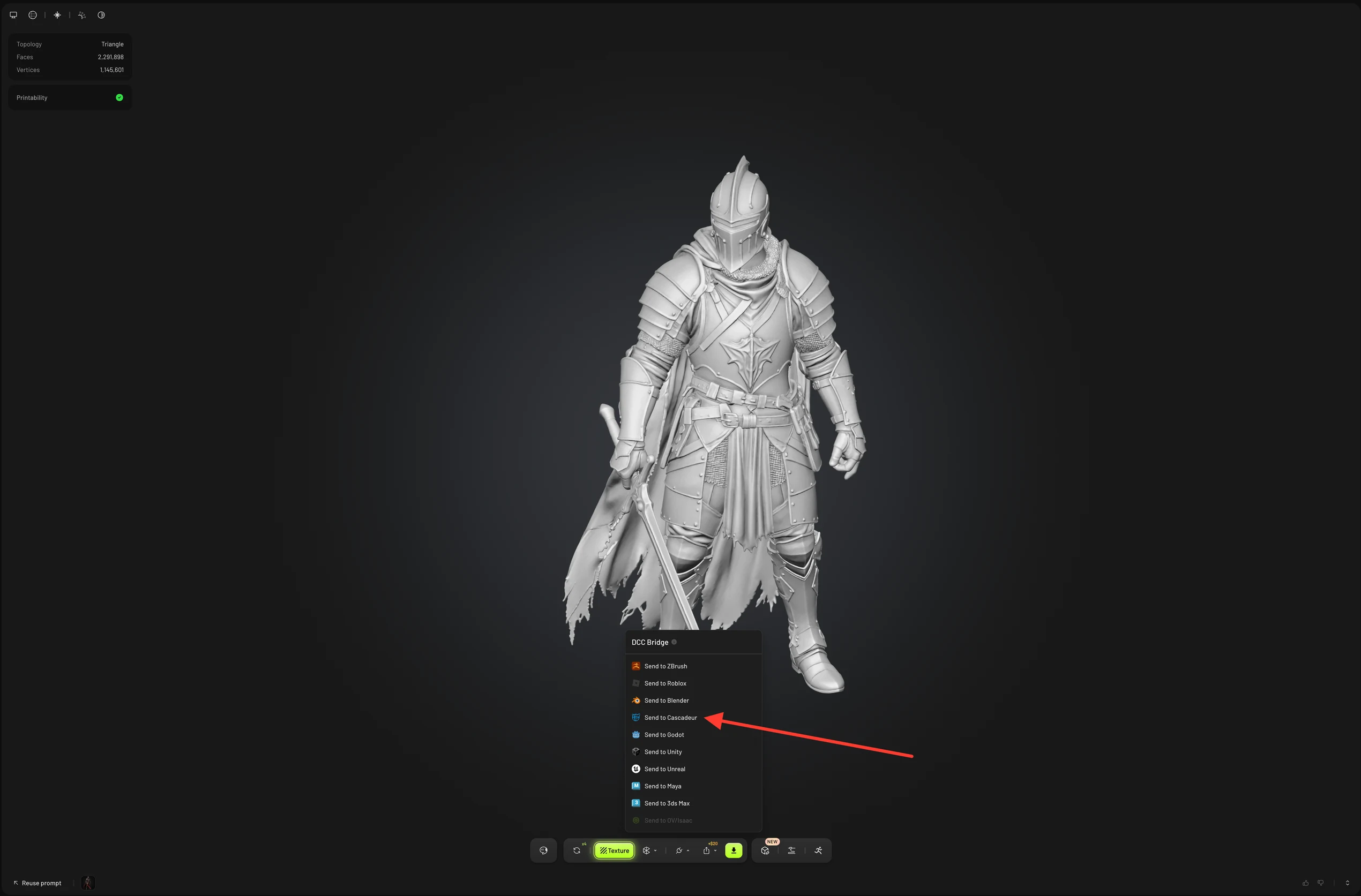
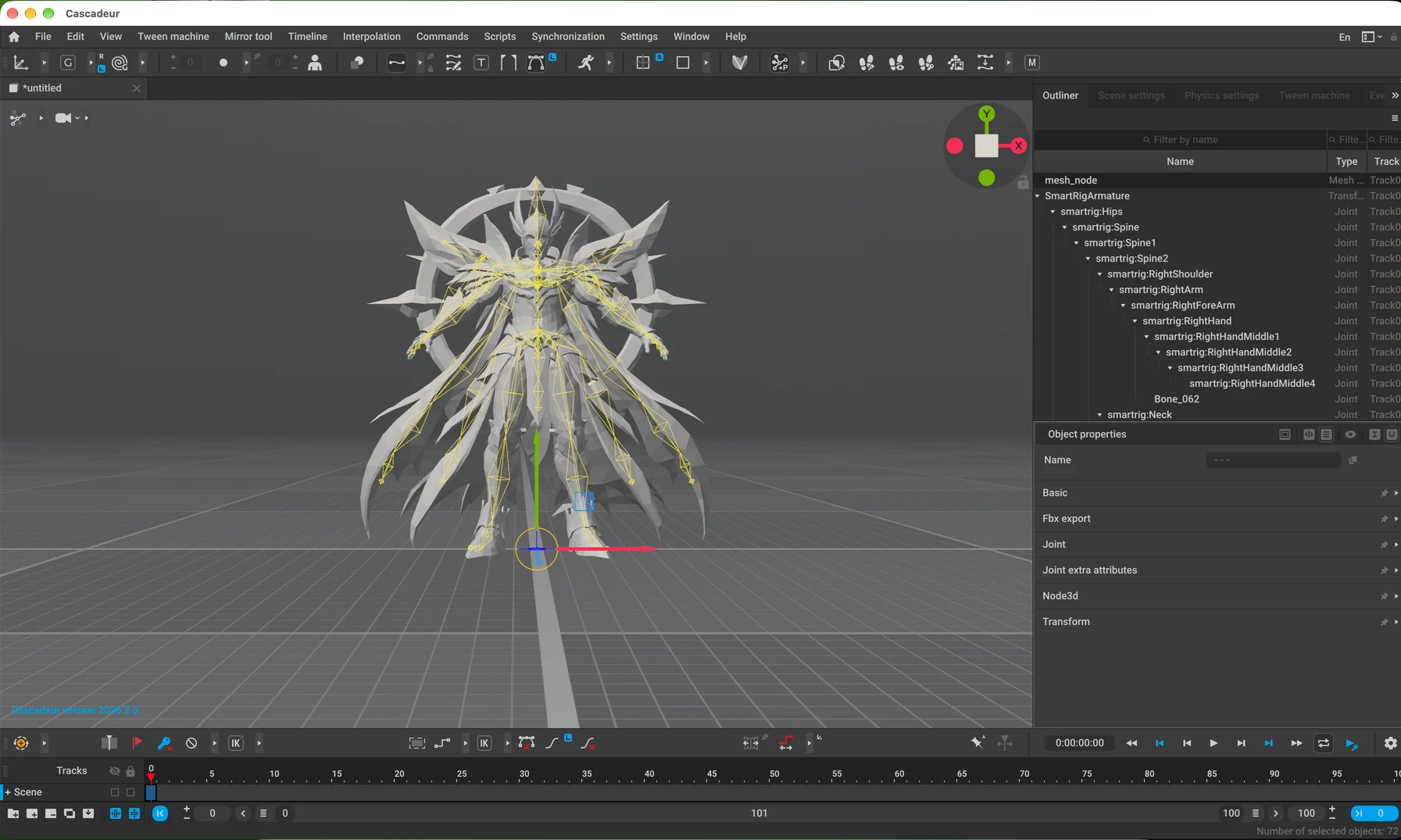
Meshy sends the model as a GLB file, and Cascadeur imports it into the open scene. For a rigged or animated character, Meshy sends the mesh with its skeleton and skin, ready to animate in Cascadeur. Meshy animations aren't included. You send a model without a rig, such as a prop, the same way.
Other ways to send
You can also send a model from these places:
-
In the list of your generations, click Actions (the three-dot icon) on the model's card, and then click DCC Bridge > Send to Cascadeur.
-
In Community, open a model that another user shared, click DCC Bridge, and then click Send to Cascadeur.
Troubleshooting
The following table lists common problems, their causes, and how to fix them.
| Problem | Cause | Fix |
|---|---|---|
| Meshy shows "Failed to send model to cascadeur" | Cascadeur isn't open, the bridge isn't running, or your browser blocks access to your local network. | In Cascadeur, click Scripts > Meshy > Start Cascadeur bridge, and check the Event log for port 5333. If your browser asks for local network access, allow it for Meshy. Then send the model again. |
| Meshy shows "Model sent to cascadeur", but the model doesn't appear | Cascadeur downloads and imports the model after Meshy hands it off, and the download or import failed. | Check the Event log in Cascadeur for download or import errors. |
Next steps
- To add a skeleton to a character before you send it, see Rigging.