Rigging
Add a skeleton to a humanoid or four-legged character so you can animate it in Meshy or in engines such as Unity and Unreal.
For a custom skeleton, such as facial bones or tail physics, download the model and rig it by hand in a DCC tool such as Blender or Maya.
Before you begin
-
You need a character model in the list of your generations. It can be a model you generated in Meshy, or a
.fbx,.obj,.stl,.gltf, or.glbfile of up to 100 MB that you added with Upload. The model doesn't need textures. -
For the best result, the character stands in a T-pose or A-pose, with a clear gap between the limbs and the body. To generate a character in that pose, set Pose to A-Pose or T-Pose in Image to 3D or Text to 3D.
-
If a generated model has more than 300,000 faces, Meshy asks you to reduce the face count with Remesh before rigging.
Rig a character
To rig a character, follow these steps:
-
In the left sidebar, click Animate.
-
In the list of your generations, select the character.
-
In the viewer toolbar, click Rig. The Rig Model dialog opens.
-
Under Select Character Type, select the type that matches your character:
-
Humanoid: A character with two arms and two legs.
-
Quadruped Dog: A four-legged character.
-
Smart Rig (Beta): Any other model, such as a creature, robot, or prop. Meshy rigs it automatically, without markers, so click Confirm and skip the remaining steps. Smart Rig models can't use the animation library and download as GLB only.
-
-
Click Next.
-
Use Rotate, Offset, and Height to center the character, turn it to face the front, and set its height in meters. Turn a four-legged character to face the left side of the screen. Offset is for humanoids only.
-
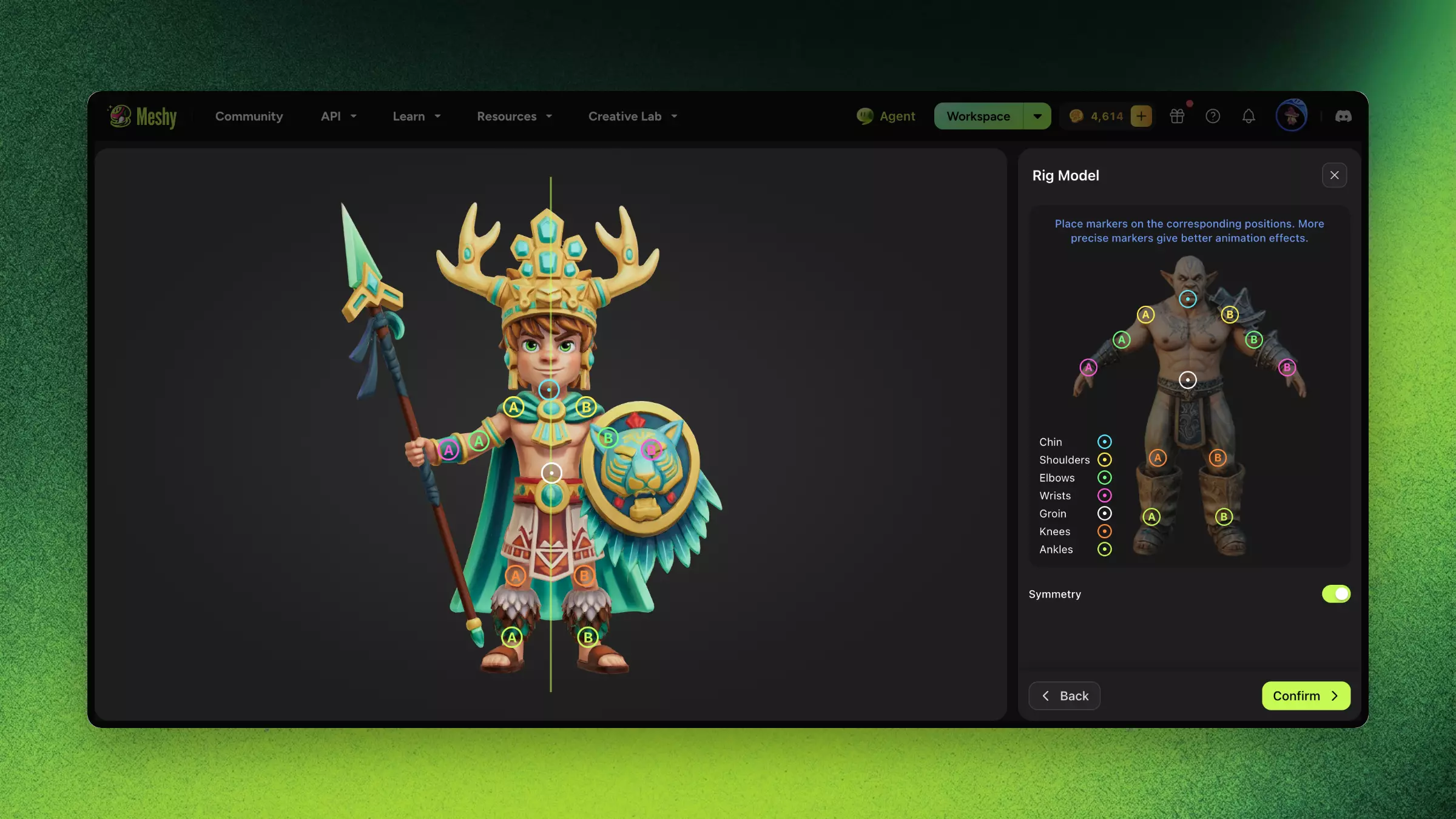
Click Next. For a humanoid, Meshy places markers on the joints automatically.
-
Drag each marker onto its body part. For a humanoid, the markers are the chin, shoulders, elbows, wrists, groin, knees, and ankles. With Symmetry on, which is the default for humanoids, Meshy mirrors each marker you move to the other side.
-
Click Confirm. On the Free and Starter plans, the button is Generate.
When rigging finishes, a humanoid comes with walking and running animations, and a four-legged character with a walking animation. To add more, see Animation.
Troubleshooting
The following table lists common problems, their causes, and how to fix them.
| Problem | Cause | Fix |
|---|---|---|
| Rigging fails with a message that the markers aren't positioned correctly | One or more markers are outside the model | Click Re-rig and place every marker on the body. |
| Bones are in the wrong place | The model isn't close to a T-pose or A-pose | Generate the character with Pose set to A-Pose or T-Pose, and then rig it again. |
| The mesh clips through itself when the character moves | The topology is too dense or uneven | Use Remesh to reduce the face count, and then rig the remeshed model. |
| Limbs deform badly | The character's proportions are far from a standard body | Use a character with proportions close to a standard human body. |
FAQ
- How do I rig a 3D character in Meshy?
- In the left sidebar, click Animate, select the character, and click Rig. Choose the character type, adjust the model, place the markers on its joints, and click Confirm.
- What models can Meshy auto-rig?
- Humanoid and four-legged characters, rigged with markers that you place. Smart Rig rigs other models, such as creatures, robots, and props, without markers, but Smart Rig models can't use the animation library.
- Is Meshy rigging compatible with Unity and Unreal?
- Yes. Download the rigged model as FBX or GLB. For a humanoid, Download Settings also lets you choose a skeleton template, such as Mixamo, which is the default.
- Should I Remesh before rigging?
- Yes. Clean topology gives the most accurate bone binding and weight assignment, so Remesh first. A generated model with more than 300,000 faces must be remeshed before you can rig it.
- Can I rig a model for facial expressions or tail physics?
- Not in Meshy. For a custom skeleton, download the model and rig it by hand in a DCC tool such as Blender or Maya.