AI Texturing
Generate or regenerate high-quality PBR textures for any 3D model — control style by prompt and output HD Albedo, Normal, Roughness, and Metallic maps.
TL;DR
-
Generate or regenerate high-quality PBR textures (Albedo, Normal, Roughness, Metallic) for existing 3D models.
-
Supports uploading your own mesh for texturing — not limited to Meshy-generated models.
-
Control parameters: Remove Lighting (remove baked lighting), Generate PBR Maps (full PBR suite), Texture Resolution (high-resolution output).
-
Style can be controlled via text prompt (e.g., "weathered wood", "futuristic metallic").
When to Use
-
The initial textures from generation aren't good enough and need to be regenerated.
-
You have an untextured mesh (white model) that needs AI auto-texturing.
-
You want to change the model's material style (e.g., from realistic to cartoon).
-
You need a complete PBR texture set for a PBR rendering pipeline.
When NOT to Use
-
You want to manually paint textures → Export UV and work in Substance Painter
-
You only need color/brightness adjustments → Fine-tune in DCC tools
Step-by-Step
-
Select the target model in My Models, or upload an external mesh (OBJ, FBX, GLB).
-
Enter the AI Texturing tool.
-
Configure parameters:
-
Text Prompt: Describe the desired material style (e.g., "rusted iron with scratches").
-
Image Prompt: Upload an image of the desired material style.
-
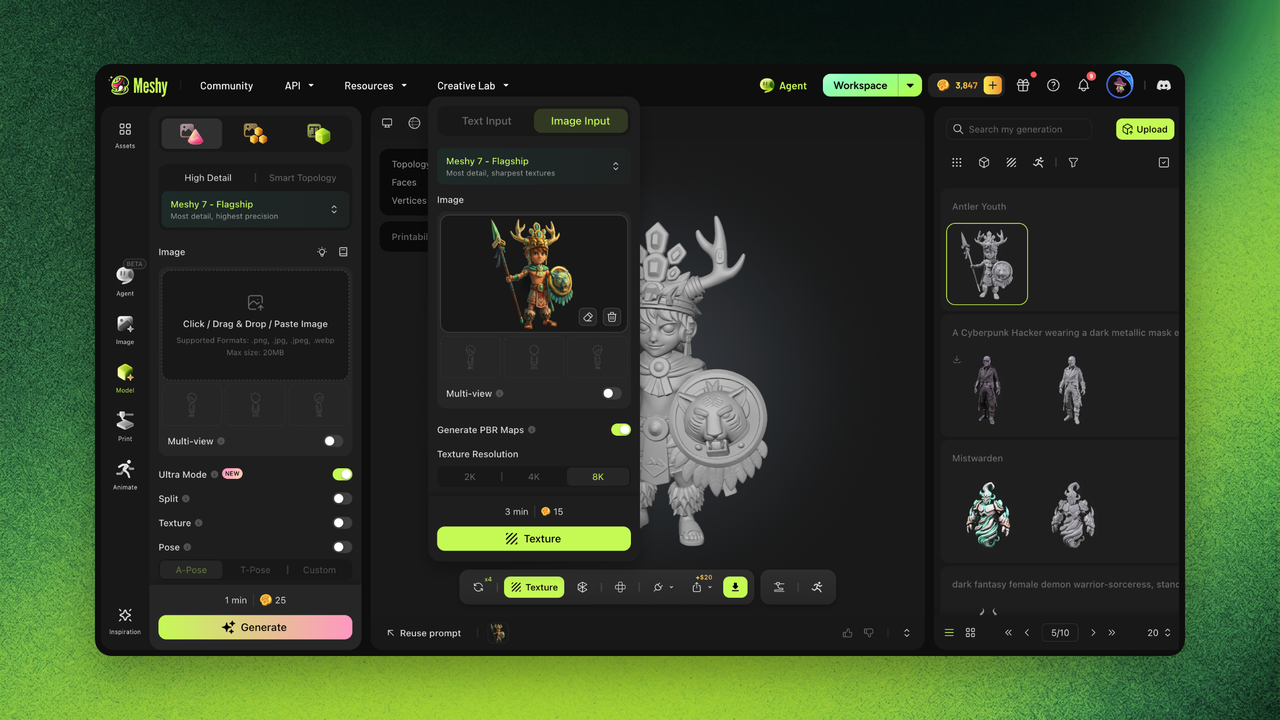
Remove Lighting: Enable to remove baked lighting for more accurate PBR rendering.
-
Generate PBR Maps: Enable to generate metallic, roughness, and normal maps in addition to Base Color.
-
Texture Resolution: Enable to output high-resolution textures (2K/4K/8K).
-
-
Click Generate Texture.
-
Preview the result under different lighting environments to check PBR quality.
-
Download the texture files or export the complete textured model.
Settings & Tradeoffs
| Setting | Options | Tradeoff |
|---|---|---|
| Remove Lighting | On / Off | On: removes baked shadows, ideal for PBR pipelines. Off: preserves original lighting info. |
| Generate PBR Maps | On / Off | On: outputs 4 maps, complete PBR pipeline. Off: Albedo only. |
| Texture Resolution | 2K / 4K / 8K | 2K for faster generation, 4K for higher detail, 8K for next-level detail with exceptionally rich textures. |
| Style Prompt | Free text | More specific = better results. Stack style keywords for best effect. |
Examples
Success Example:
-
Input: Low-poly sword mesh (no textures), prompt "ancient elvish blade, silver with blue rune engravings, fantasy style"
-
Settings: Remove Lighting On, PBR On, Choose Suitable Texture Resolution.
-
Result: Complete PBR texture set with detailed engravings, proper metallic response.
Failure Example:
-
Input: Dense mesh with overlapping UVs, prompt "wood"
-
Result: Texture seams and distortion visible.
-
Fix: Run Unwrap UV first to generate a clean UV layout, then re-apply AI Texturing.
Troubleshooting
| Symptom | Cause | Fix |
|---|---|---|
| Visible texture seams | Poor UV layout | Run Unwrap UV first, then re-texture |
| PBR maps look "flat" | Remove Lighting not enabled | Enable Remove Lighting to remove baked shadows |
| Texture style doesn't match prompt | Prompt too short | Add more descriptors: material, era, wear level, colors |
| Textures load slowly | 4K/8K texture files are large | Normal behavior; Choose 2K Resolution if ultra-high-res isn't needed |
FAQ
- How do I add textures to a 3D model in Meshy?
- Select a model or upload your own mesh, open AI Texturing, enter a material prompt, and generate PBR textures.
- Can I texture a model I made elsewhere?
- Yes. You can upload external meshes (OBJ, FBX, GLB, up to 50MB) for AI texturing — not just Meshy-generated models.
- What does "Remove Lighting" (delight) do?
- It strips baked-in lighting and shadows from the texture so PBR rendering looks correct under any lighting environment.
- What PBR maps does Meshy generate?
- With Generate PBR Textures enabled, Meshy outputs Albedo, Normal, Roughness, and Metallic maps, plus optional 2K/4K HD resolution.
- Why do my textures have seams or distortion?
- This usually means poor UVs. Run Unwrap UV first to generate a clean UV layout, then re-apply AI Texturing.
Related Links
-
Unwrap UV — Generate clean UVs before texturing
-
Remesh — Optimize mesh before texturing for best results
-
Text to 3D — Generation includes initial textures