Text to 3D
Describe an object in natural language and Meshy's AI generates a textured 3D model directly — no reference image needed.
TL;DR
-
Describe in natural language, and AI generates a textured 3D model directly.
-
Supports Meshy 6. Meshy 6 produces higher quality output at 20 credits. Meshy 7 is available in Image to 3D only.
-
Best for: concept exploration, rapid prototyping, scenarios without reference images.
-
Quality depends on prompt specificity. Detailed descriptions of materials, style, and proportions produce the best results.
-
Output includes mesh + base textures; can be further enhanced with AI Texturing.
When to Use
-
You have an idea but no reference image.
-
You need to quickly explore multiple design directions.
-
You want to batch-generate concept variants.
When NOT to Use
-
You have a clear reference image → Use Image to 3D (more precise)
-
You need to precisely match a specific IP character → Image to 3D + multi-view references is more reliable
-
You need CAD-precision engineering models → Meshy is oriented toward art/game assets
-
You want a guided creative process with brainstorming → Use 3D Agent
Step-by-Step
-
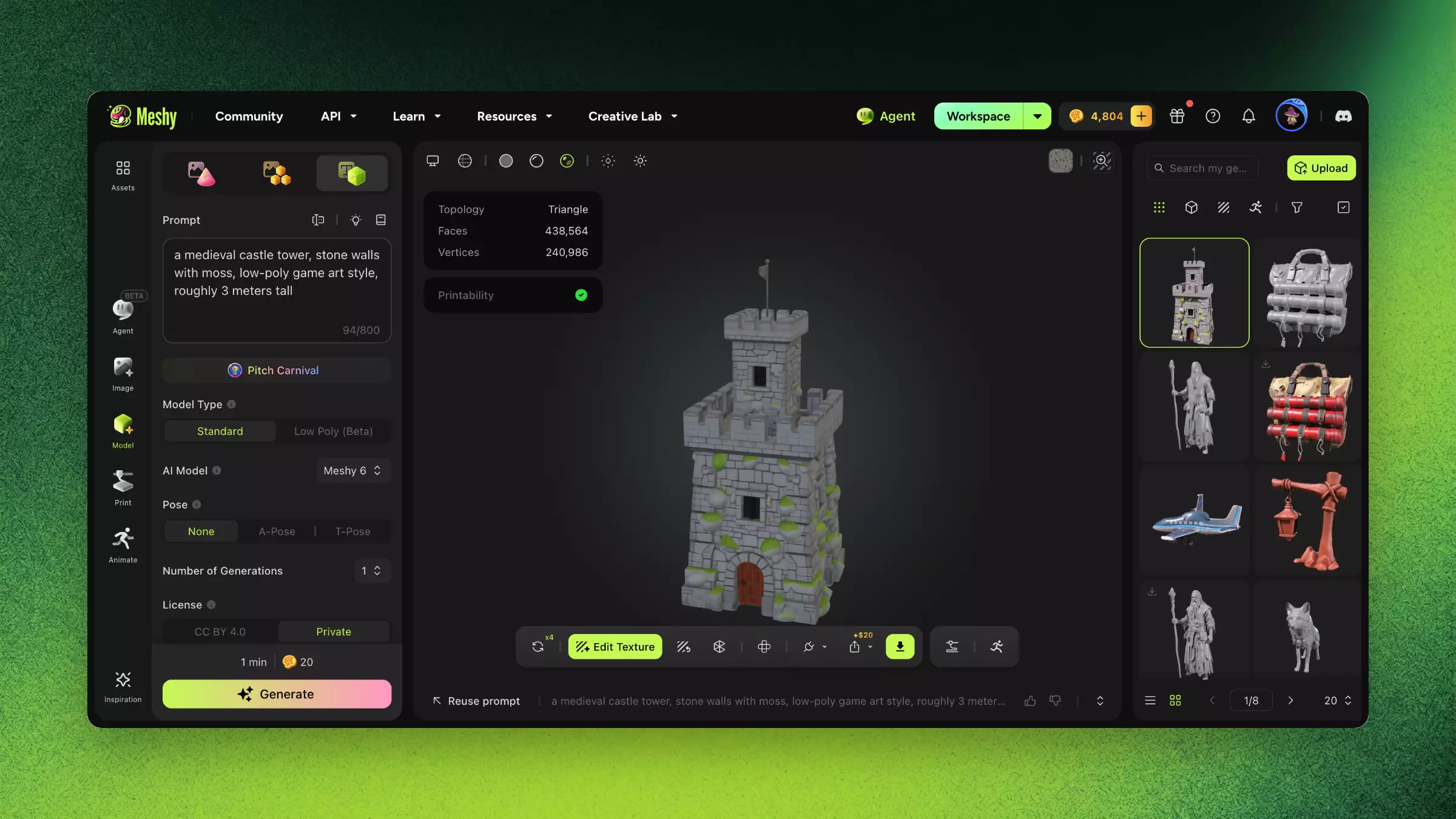
Navigate to the 3D Model module in the left sidebar.
-
Select Text to 3D.
-
Choose model version:
- Meshy 6: High quality and stable structure. 20 credits, about a minute.
-
Write your prompt:
-
Describe the subject: "a medieval castle tower"
-
Add material/texture: "stone walls with moss"
-
Specify art style: "low-poly game art style"
-
Declare scale: "roughly 3 meters tall"
-
-
Select output quality: Standard or Smart Topology.
-
Click Generate and wait, usually under a minute.
-
Inspect the result in the 3D previewer.
-
Proceed to post-processing or export directly.
Settings & Tradeoffs
| Setting | Options | Tradeoff |
|---|---|---|
| Output Quality | Standard / Smart Topology | Standard: more detail and faces. Smart Topology: fewer faces, faster, better for games. |
| Art Style | Specified in prompt | "realistic" produces high detail. "stylized/cartoon" yields cleaner topology. |
Examples
Success Example:
-
Prompt: "a detailed steampunk pocket watch with gears visible through glass, brass and copper materials, realistic style"
-
Result: Clean mesh with accurate gear details, PBR metallic textures, ~25K faces.
Failure Example:
-
Prompt: "watch"
-
Result: Ambiguous — generates a wristwatch with minimal detail, flat textures.
-
Fix: Be specific about type, materials, style, and visible features.
Troubleshooting
| Symptom | Cause | Fix |
|---|---|---|
| Model doesn't match description | Prompt too vague | Add detail: materials, style, viewpoint, colors |
| Model has floating fragments | Prompt describes multiple separate objects | Focus on a single subject; use Scene Compose for complex scenes |
| Poor topology (excess triangles) | Normal AI generation behavior | Use Remesh to optimize topology |
| Visible texture seams | UV layout issues | Use AI Texturing to regenerate textures |
FAQ
- How does Text to 3D work in Meshy?
- Describe an object in natural language and Meshy's AI generates a textured 3D model directly — no reference image needed.
- How do I write a good text-to-3D prompt?
- Combine subject, material/texture, art style, and technical specs, e.g. "a medieval castle tower, stone walls with moss, low-poly game art."
- How many credits does Text to 3D cost?
- A full Text to 3D generation costs 20 credits, including the mesh and texture stages.
- Can I use Meshy 7 for text to 3D?
- Not currently. Meshy 7 is an image-to-3D model and is available in the Image to 3D module.
- Can I use a negative prompt in Text to 3D?
- Yes — add exclusions like "no background elements" or "no text or labels" to remove unwanted features.
Related Links
-
Image to 3D — Alternative generation method with visual reference
-
3D Agent — Conversational approach to text-based 3D creation
-
Prompting Guide — Detailed prompt-writing techniques