Model Cleanup
The Clean Up panel provides automated tools to fix common 3D model issues. These tools are essential for preparing models for 3D printing and ensuring they meet quality standards.
Before you begin, make sure you have downloaded and installed the Meshy for Blender plugin. For detailed instructions, please refer to the Introduction section.
It's recommended to run checks from the Analyze panel first to identify issues. Then use the Clean Up tools to fix them automatically. After cleaning, run checks again to verify the fixes.
Make Manifold
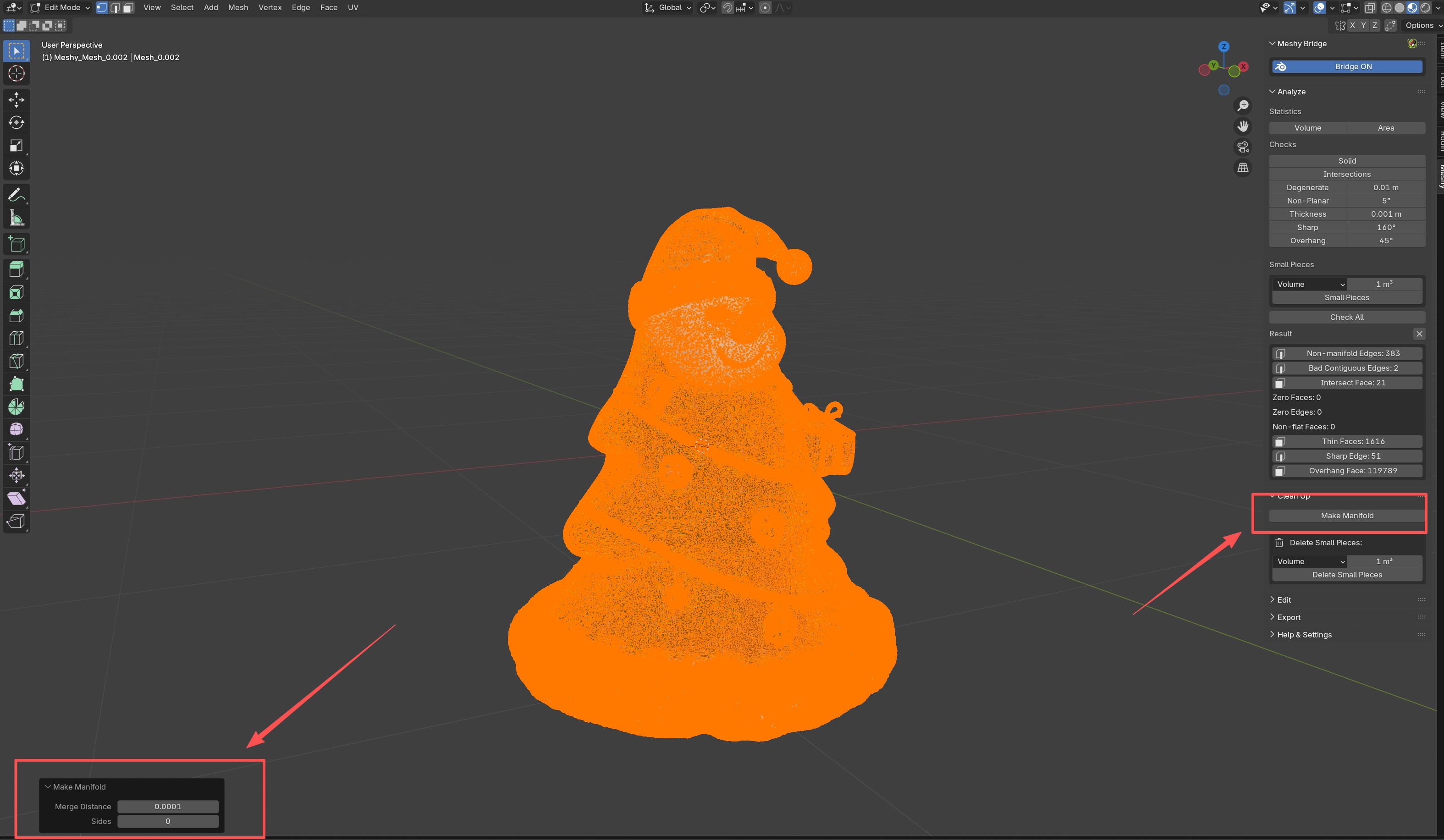
The Make Manifold tool automatically repairs your model to make it watertight and print-ready. This is one of the most important steps in preparing a model for 3D printing.
What It Does
The Make Manifold tool performs several automated repairs:
- Deletes Loose Geometry: Removes isolated vertices, edges, and faces that aren't connected to the main mesh
- Removes Interior Faces: Deletes faces that are inside the model and not visible
- Merges Duplicate Vertices: Combines vertices that are too close together (within the merge distance threshold)
- Fills Holes: Automatically fills gaps and holes in the mesh
- Fixes Non-Manifold Geometry: Resolves non-manifold edges and vertices
- Makes Normals Consistent: Ensures all faces point outward for proper rendering and printing
How to Use
- Select your model in Object Mode
- Open the Meshy panel and expand the "Clean Up" section
- Click Make Manifold
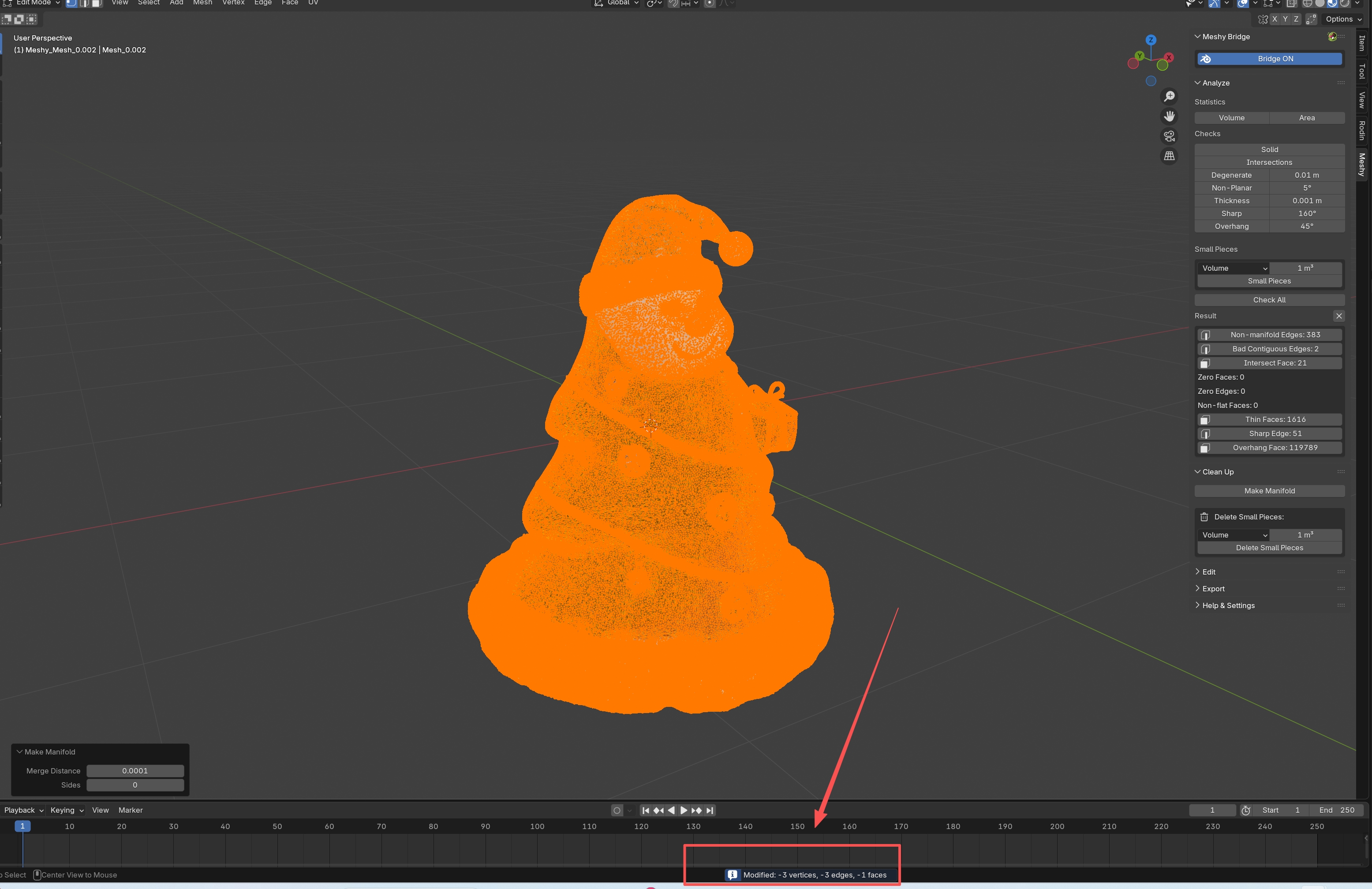
- The tool will process your model and display a report showing what was modified
Results
After running Make Manifold, you'll see a report showing:
- How many vertices were added or removed
- How many edges were added or removed
- How many faces were added or removed
This helps you understand what changes were made to your model.
Make Manifold may modify your model's geometry. It's recommended to:
- Save your work before running it
- Check the results visually
- Run Analyze checks again after cleaning to verify the fixes
Delete Small Pieces
The Delete Small Pieces tool removes small disconnected fragments from your model. This is particularly useful for cleaning up:
- Photogrammetry scans with scattered debris
- Fluid simulation meshes with droplets
- Models with unwanted fragments
Detection Modes
You can choose how to measure piece size:
-
Volume: Detects by bounding box volume (units: cm³)
- Best for removing small solid fragments
- Default threshold: 1.0 cm³
-
Area: Detects by surface area (units: cm²)
- Best for removing thin flakes or sheets
- Useful for surface-based cleanup
-
Diagonal: Detects by bounding box diagonal length (units: cm)
- Best for removing fragments of any shape
- Good general-purpose option
How to Use
- Select your model
- In the Clean Up panel, find the "Delete Small Pieces" section
- Choose your detection mode (Volume, Area, or Diagonal)
- Set the size threshold (default: 1.0)
- Click Delete Small Pieces
Tips
- Preview First: Use the Analyze panel's "Small Pieces" check to preview what will be deleted before actually deleting
- Start Conservative: Begin with a smaller threshold and increase if needed
- Check Results: After deletion, visually inspect your model to ensure important parts weren't removed
Before deleting small pieces:
- Run "Small Pieces" check in the Analyze panel to see what will be detected
- Adjust the threshold if needed
- Then use Delete Small Pieces to remove them
Cleanup Workflow
For best results when cleaning models, follow this workflow:
Step 1: Analyze
- Select your model
- Open the Analyze panel
- Click Check All to identify all issues
- Review the results to understand what needs fixing
Step 2: Clean Up
- Switch to the Clean Up panel
- Click Make Manifold to fix basic geometry issues
- If you have small fragments, use Delete Small Pieces to remove them
Step 3: Verify
- Return to the Analyze panel
- Run Check All again
- Verify that issues have been resolved
- Manually fix any remaining issues if needed
Step 4: Export
Once all checks pass, your model is ready to export using the Export panel.
For 3D printing, a model must be:
- Manifold (watertight)
- Free of self-intersections
- Properly scaled
- Have adequate wall thickness
The Clean Up tools help ensure your model meets these requirements. Always verify with Analyze checks before printing.