Errors
Find out why a request or a task failed, and what to do next. A request can fail right away with an HTTP error, and a task can fail later with a task_error.
Request errors
Meshy returns these errors right away, when it rejects a request. To find out what went wrong, check the HTTP status code and the message field.
Response format
The error response has a message field that describes what went wrong:
- Name
- message
- Type
- string
- Description
A short description of the error.
Status codes
- Name
2xx- Description
Success.
- Name
200 - OK- Description
The request worked.
- Name
202 - Accepted- Description
Meshy accepted the request, and the processing hasn't finished yet. For example, a request that creates a task returns
202.
- Name
4xx- Description
Something is wrong with the request or your account. Each status says what to do.
- Name
400 - Bad Request- Description
The request isn't valid, often because a required parameter is missing or a parameter is malformed.
- Name
401 - Unauthorized- Description
The API key is missing, isn't valid, or can't access this endpoint. See Authentication.
- Name
402 - Payment Required- Description
The API key's account doesn't have enough credits for the request. On the Free plan, most requests that create a task also return
402.
- Name
403 - Forbidden- Description
You aren't allowed to make this request, for example for one of these reasons:
- The request came from an address outside the API key's IP allowlist.
- Your organization's IP filtering blocked a task's files when you read it.
- The endpoint isn't available on your plan.
- Content moderation blocked the input. Some endpoints return
400for this instead; each endpoint page lists its codes. - The API key belongs to a team member who is no longer active on the team.
- The account is banned.
- Name
404 - Not Found- Description
The resource doesn't exist. For example, getting a task with an ID that doesn't exist returns
404.
- Name
409 - Conflict- Description
The resource exists, but its state doesn't allow the operation. For example, deleting an
IN_PROGRESStask returns409, because Meshy can't refund a task that a worker has started. The task keeps running. Wait for a final status (SUCCEEDED,FAILED, orCANCELED), then delete the task.
- Name
422 - Unprocessable Entity- Description
The request is valid, but Meshy can't process its input. For example, Rigging returns
422when it can't find a humanoid body in the model.
- Name
429 - Too Many Requests- Description
You sent too many requests, or too many of your tasks are queued or running. When the response has a
Retry-Afterheader, wait that many seconds, then retry. See Rate limits.
- Name
5xx- Description
Something went wrong on Meshy's side. Retry with backoff. If the error continues, check the status page and contact us on Discord.
Example: 400 Bad Request
{
  "message": "Invalid model file extension: .3dm"
}
Task errors
A task that Meshy created can still fail while it runs. Its status becomes FAILED, Meshy refunds its credits, and task_error explains why.
A failed task's task_error has these fields:
- Name
- type
- Type
- string
- Description
The error category. It's always present on a failed task. Branch on it to decide whether to retry. See Error types.
- Name
- message
- Type
- string
- Description
A human-readable description of the error. It's always present on a failed task.
- Name
- code
- Type
- string
- Optional
- Description
A specific, documented problem you can act on. Present when Meshy has more details. See Error codes. Meshy may add codes, so handle a code you don't recognize by its
type.
- Name
- doc_url
- Type
- string
- Optional
- Description
A link to the code's entry on this page, which says what to do. Present when
codeis present.
Error with details
{
  "id": "018a210d-8ba4-705c-b111-1f1776f7f578",
  "status": "FAILED",
  "task_error": {
    "type": "invalid_input",
    "code": "image_too_complex",
    "message": "The uploaded image is too complex for 3D generation.",
    "doc_url": "https://docs.meshy.ai/en/api/errors#image-too-complex"
  }
}
Error without details
{
  "id": "018a210d-8ba4-705c-b111-1f1776f7f578",
  "status": "FAILED",
  "task_error": {
    "type": "server_error",
    "message": "An internal error occurred. Please retry."
  }
}
Error types
type is the broad category of the failure. Use it to decide what to do next.
- Name
invalid_input- Description
Something is wrong with the input you sent. Read
codeandmessage, fix the input, and create a new task.
- Name
timeout- Description
The task ran past a server-side time limit, for processing or for waiting in the queue, and failed. Meshy refunds its credits. This is often temporary. Create the task again, and if it keeps failing, try a simpler input.
- Name
service_unavailable- Description
The service was temporarily unavailable. Wait a moment, then create the task again.
- Name
server_error- Description
Something went wrong on Meshy's side while the task ran. Create the task again. If it keeps failing, contact support with the task ID.
Error codes
When code is present, it names one of the following problems.
image_too_complex
The input image or prompt describes a subject that is too geometrically complex for 3D generation.
For example:
- Dense piles of small objects, such as a crate full of fruit or a stack of books
- Intricate repeating patterns, such as lattice structures, scaffolding, or wire meshes
- Complex buildings, such as multi-story buildings with many windows and balconies
- Several distinct objects in one image, instead of a single subject
These inputs are likely too complex:
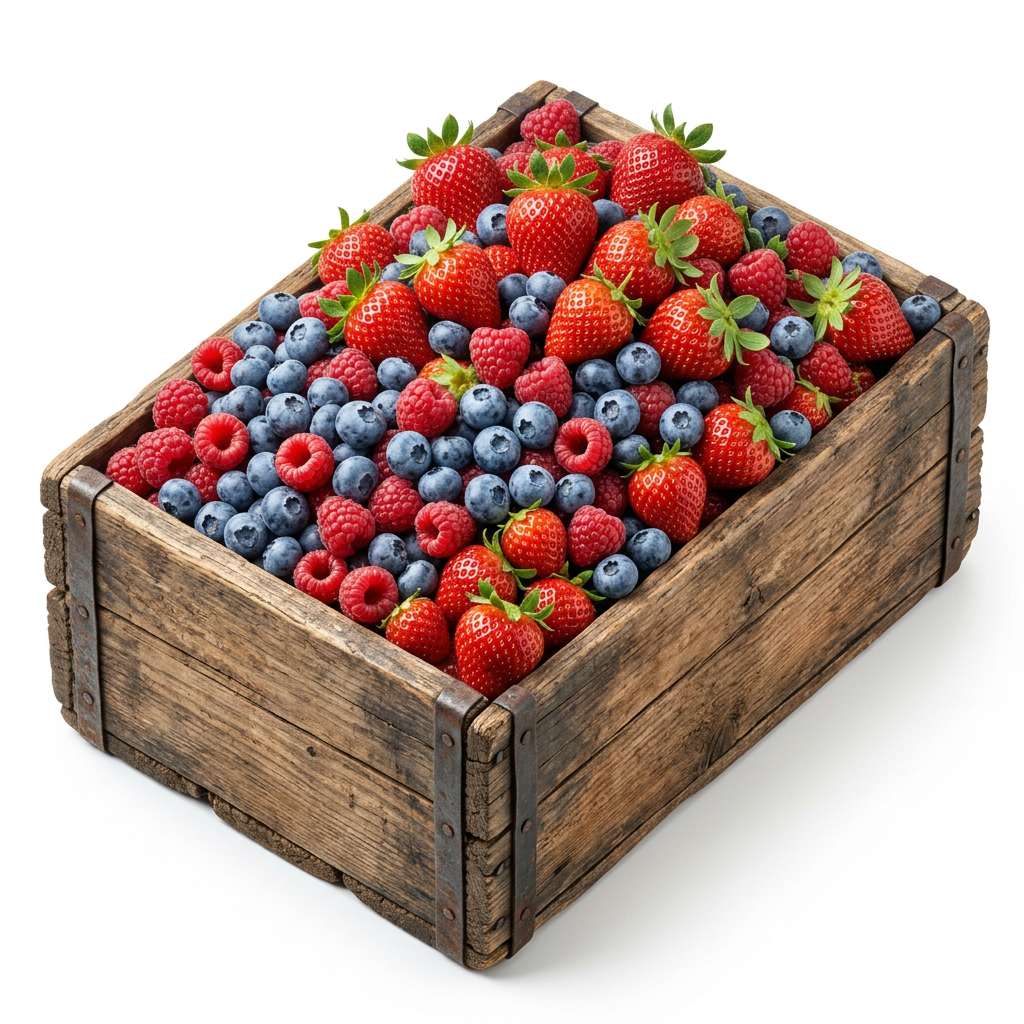
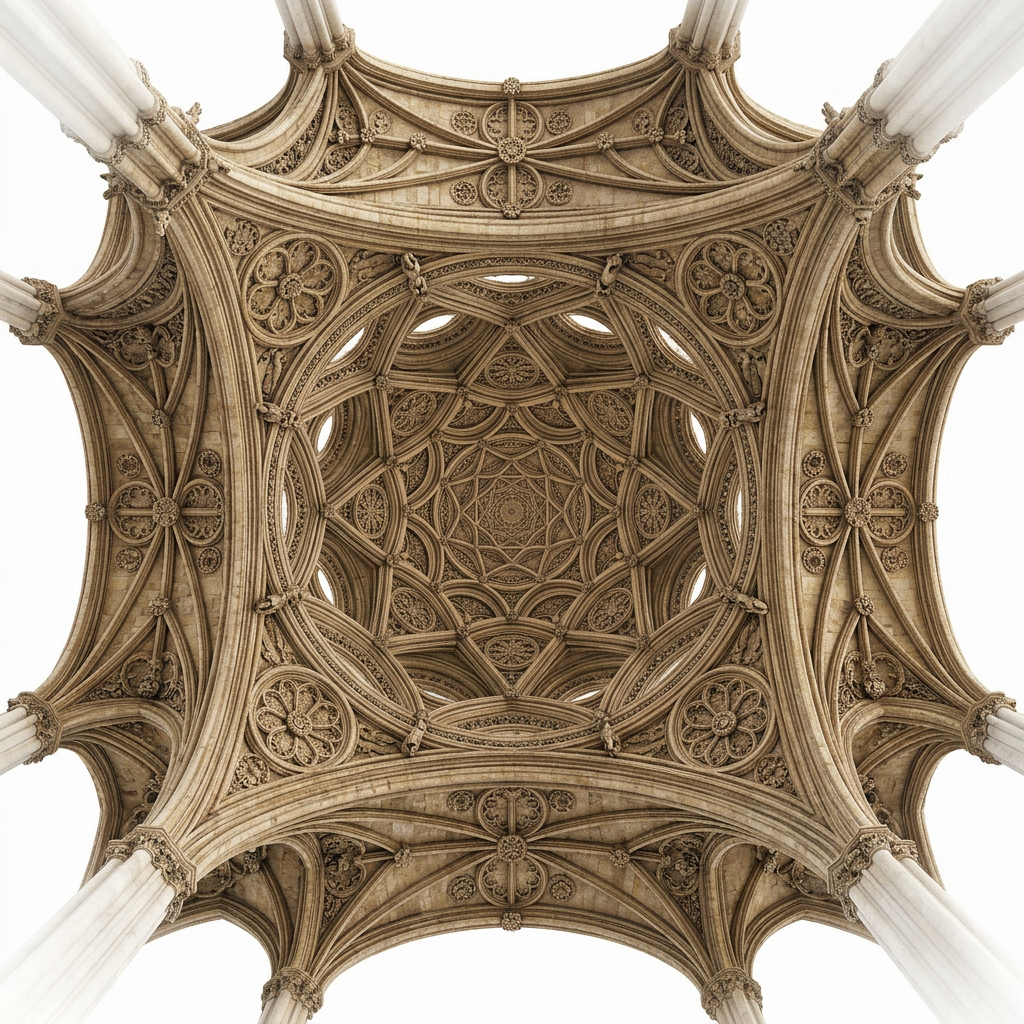
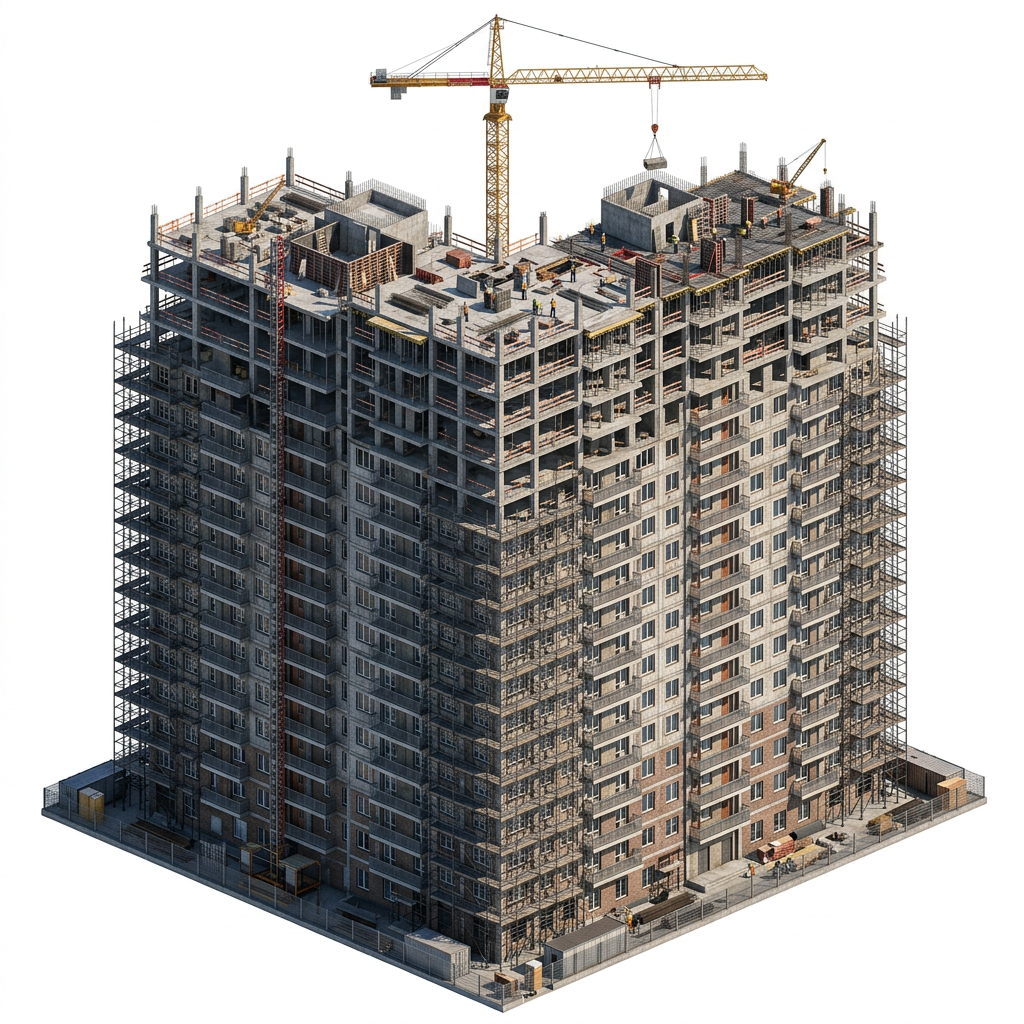
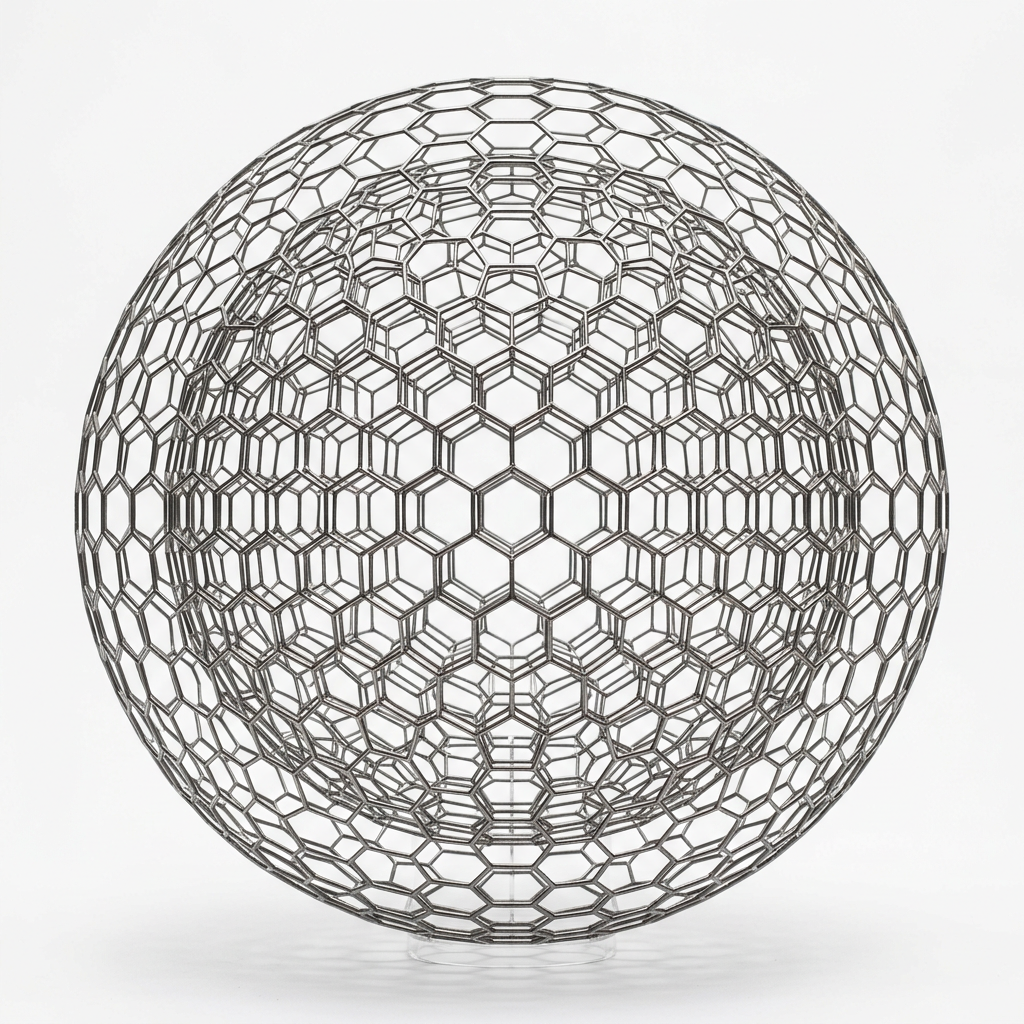
To fix it, try one or more of the following:
- Use one object per image. Meshy works best with one clear subject, so don't put several separate objects in the same image or prompt.
- Simplify your subject. For example, use a simple vase instead of a vase filled with dozens of flowers.
- Avoid scenes. Whole buildings, city blocks, furnished rooms, and landscapes are likely to be too much. Focus on a single object.
- Avoid dense repeating structures. Scaffolding, wire meshes, lattices, and piles of small items are common triggers.
model_missing_uv
You sent a model for texturing with enable_original_uv set to true, but the model has no UV coordinates. UV coordinates define how a 2D texture wraps onto the 3D surface.
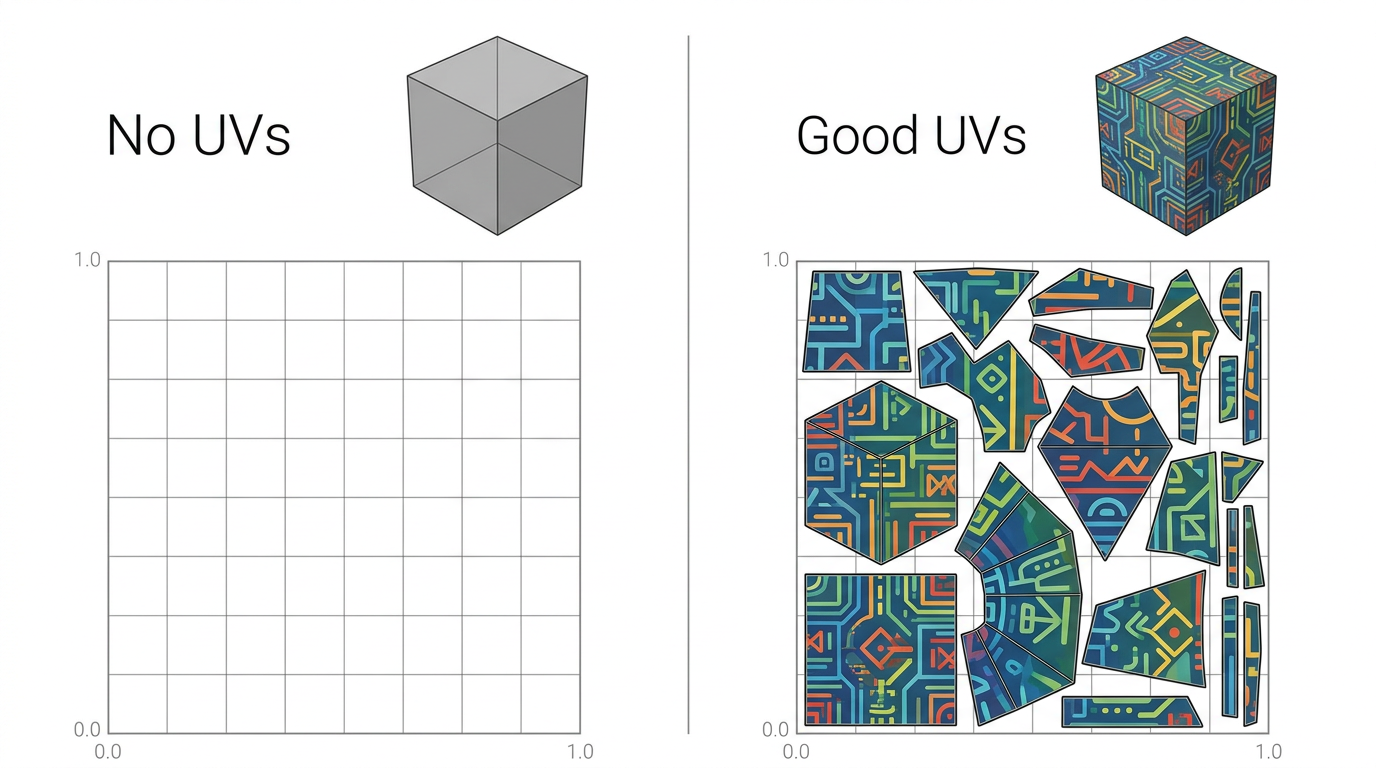
To fix it, do one of the following:
- To keep your model's own UV layout, for example for custom seam placement, add UVs to the model in your 3D software. Check them in its UV editor, then upload the model again. STL files can't store UVs, so use GLB, FBX, or OBJ.
- If you don't need your own layout, or you aren't sure, leave out
enable_original_uvor set it tofalse. Meshy then creates a UV layout for the model. The new UVs cover the model well, but you can't control where the texture seams go.
model_insufficient_uv
The model has UV coordinates, but they cover too little of the UV space to texture well. This often happens with models whose exporter wrote placeholder or collapsed UVs without a proper unwrap.
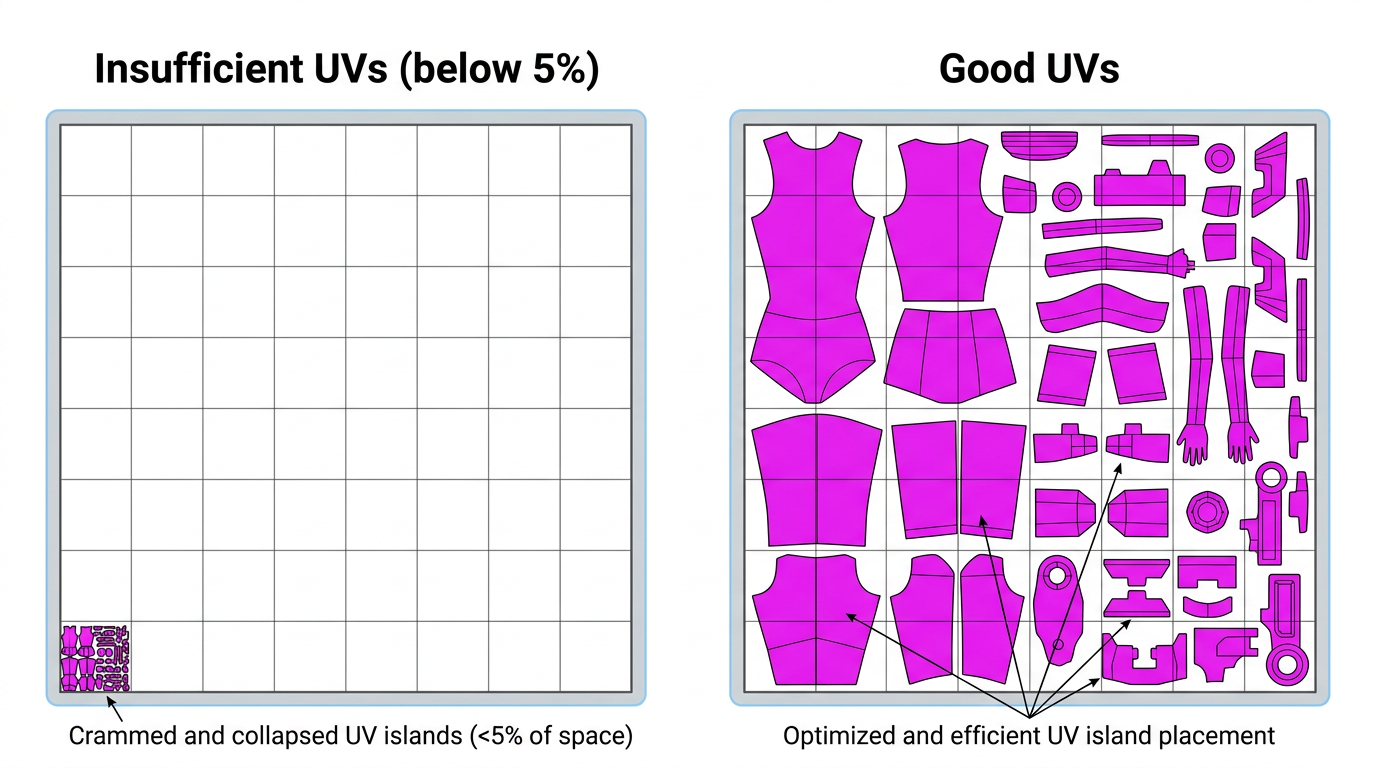
To fix it, do one of the following:
- To keep your own UV layout, unwrap the model's UVs again in your 3D software. Spread the islands across the UV space instead of a small corner of it.
- If you don't need your own layout, leave out
enable_original_uvor set it tofalse. Meshy then creates a new UV layout. You lose your seam placement, but the new UVs cover enough space to texture.
model_missing_texture
A Multi-Color Print task's input model has no color that Meshy can split into print colors. Meshy builds a multi-color 3MF from the model's colors, so a plain white mesh has nothing to work with. For example, a Text to 3D or Image to 3D preview that was never textured has no color. Neither does the output of Repair Printability, or an Auto Split task that didn't keep the texture.
What counts as color depends on the style you requested:
realisticsamples the base color texture through the model's UVs. It needs a single base color texture, and UVs on every mesh part.cartoonflattens colors per face. It accepts a base color texture on any part, or per-vertex colors (COLOR_0).
Meshy rejects a model with neither a base color texture nor vertex colors for both styles, instead of letting cartoon turn it into a single-color print.
Meshy refuses most of these requests before it creates the task, with a 400 and the same explanation. You usually get this code only when Meshy can't check the input up front. For example, Meshy checks an .fbx upload only after the task converts it.
To fix it, use the option that fits your model:
- Texture the model first. Run Retexture on it, or generate it with a Text to 3D refine task or an Image to 3D task with
should_texture: true. Then send that task asinput_task_id. - For a vertex-colored model, such as a photogrammetry scan or a hand-painted mesh, use
style: "cartoon", which readsCOLOR_0. - For a partly textured or multi-texture model with
realistic, give every mesh part UVs and the same single base color texture. To do that, texture the remaining parts, or merge the textures into one atlas. You can also switch tostyle: "cartoon".
textured_split_refused
An Auto Split task with keep_texture: true can't keep the input model's texture on the parts. For example, the model has no UVs, or its texture has no room for the new faces the cuts create. Meshy refunds the credits.
To fix it, send the request again without keep_texture, or with keep_texture: false. The parts then come back with a flat color each.
invalid_input
The input failed a check, and no more specific code applies. message gives the reason.
For example:
- An empty or corrupted model file
- An unsupported variant of a file format, such as an ASCII FBX file or a meshopt-compressed GLB file
- An uploaded model with no valid 3D objects, for example a file with only armatures, cameras, or lights
- Content that doesn't pass safety filters
To fix it, read message for the specific problem. Check that your input files and parameters meet the endpoint's requirements.
moderation_blocked
Safety filters rejected your prompt or reference images. The filters check the text and the images together.
To fix it, do one or both of the following:
- Rephrase the prompt to remove suggestive or sensitive descriptions.
- Change reference images that show content the filters might block.
moderation_unavailable
Type: server_error. Content moderation was temporarily unavailable, so Meshy failed the task instead of skipping the check. Nothing is wrong with your content.
To fix it, create the task again.
timeout
The task ran past a server-side time limit, for processing or for waiting in the queue, so Meshy failed it and refunded its credits. High load, or an input too complex to finish in time, can cause it.
This is different from a timeout in your own code. If your client stopped waiting, the task is still running. See How long to wait.
To fix it, follow these steps:
- Create the task again. Timeouts are often temporary, and a new task might succeed.
- If it keeps failing, simplify your input, for example by reducing the detail in your image or prompt. For inputs that are harder to process, see
image_too_complex.
queue_timeout
Type: timeout. The task waited in the queue too long without starting, so Meshy failed it and returned any credits charged for it. Your input didn't cause this error.
To fix it, create the task again.
format_conversion_failed
Meshy generated the model, but converting it to a format you requested failed.
To fix it, follow these steps:
- Create the task again.
- If one format keeps failing, request a different format that suits your needs.
Best practices
- Retry failed tasks. For a failed task with
timeout,service_unavailable, orserver_error, create a new task with exponential backoff. - Don't create a new task when your own request times out. The first task might still be running, so check whether it exists before you create another. See How long to wait.
- Log task IDs. Include the ID when you contact support.
- Check inputs before you send them. Make sure images and models meet the endpoint's format requirements.
- Call the API from your server. Code that runs in a browser exposes your API key to anyone who opens the page.