Creality Print
Learn how to use Meshy to send 3D models directly to Creality Print for 3D printing.
Meshy now supports Creality Print bridging directly from the workspace. Pro members and above can send models to Creality Print following the steps below.
For Mac users: Please launch Creality Print before clicking send. Otherwise, the imported model may be lost due to a refresh issue. We are currently working with Creality to resolve this issue.
Overview
Meshy for Creality Print is a seamless bridge integration that allows you to import MeshyAI-generated models directly into Creality Print. With this feature, you can effortlessly load and prepare 3D assets for printing, significantly enhancing your workflow efficiency.
Sending Models to Creality Print
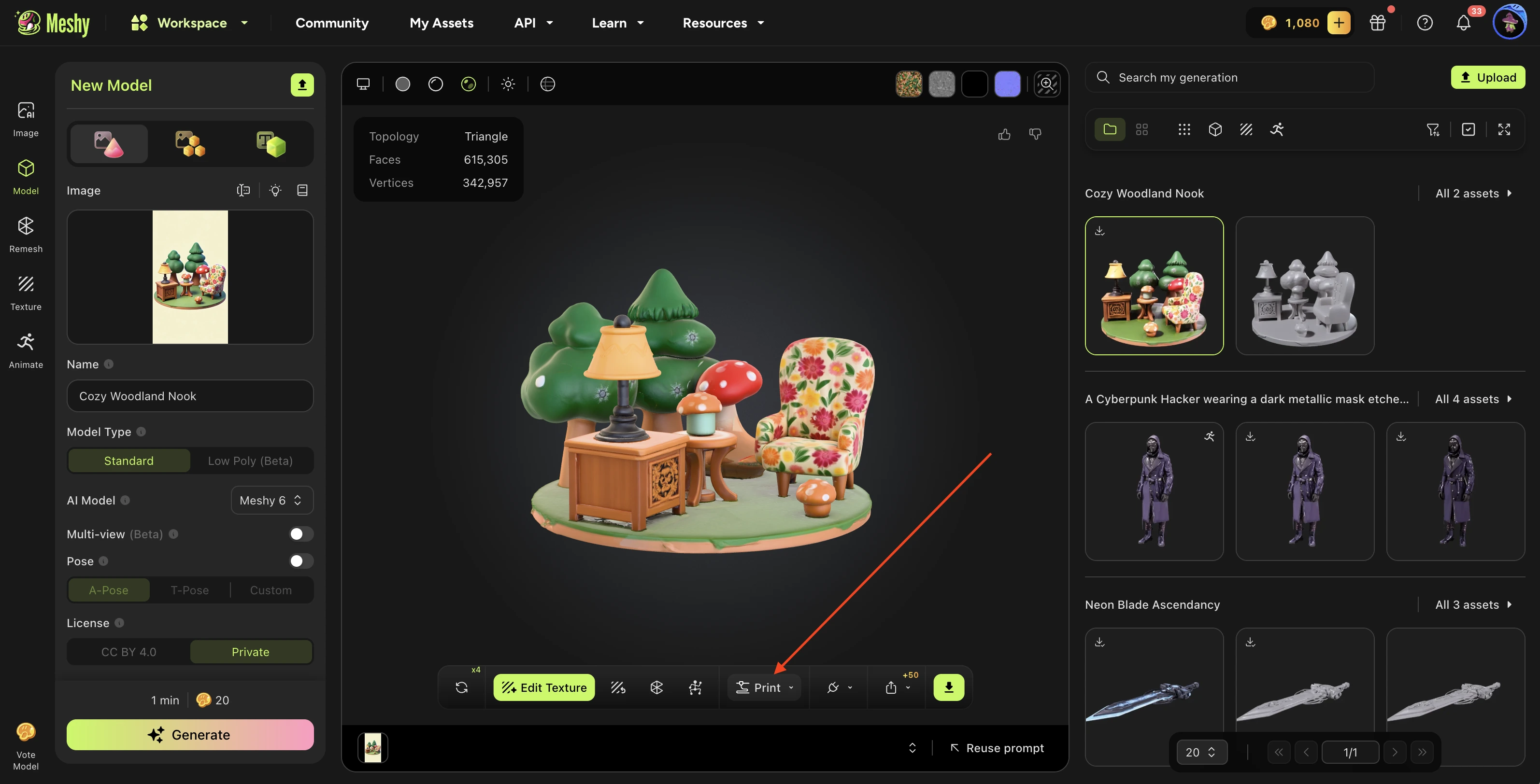
Navigate to the model you want in your MeshyAI workspace, click the Print menu, and select Send to Creality Print.

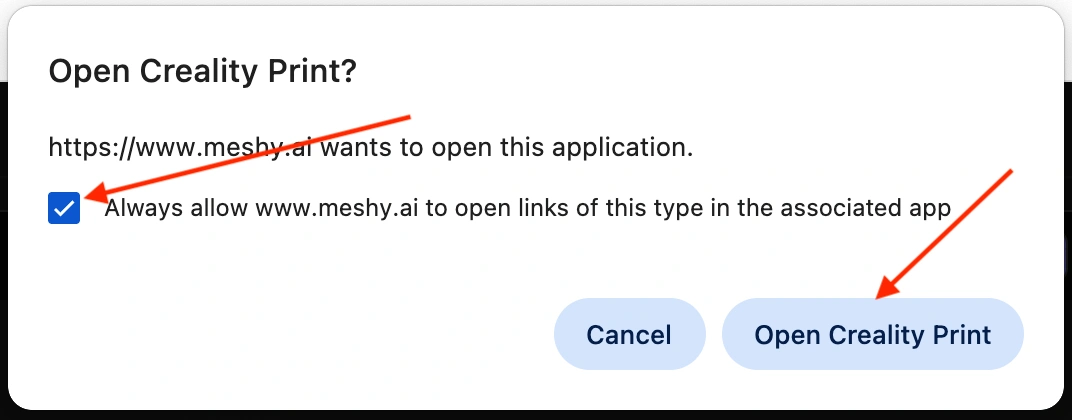
After a short loading period, a prompt window will pop up asking you to check Always allow www.meshy.ai to open links of this type in the associated app, and then click the Open Creality Print button.
Then the Creality Print software will be automatically opened.
After opening, press OK in the pop-up window.
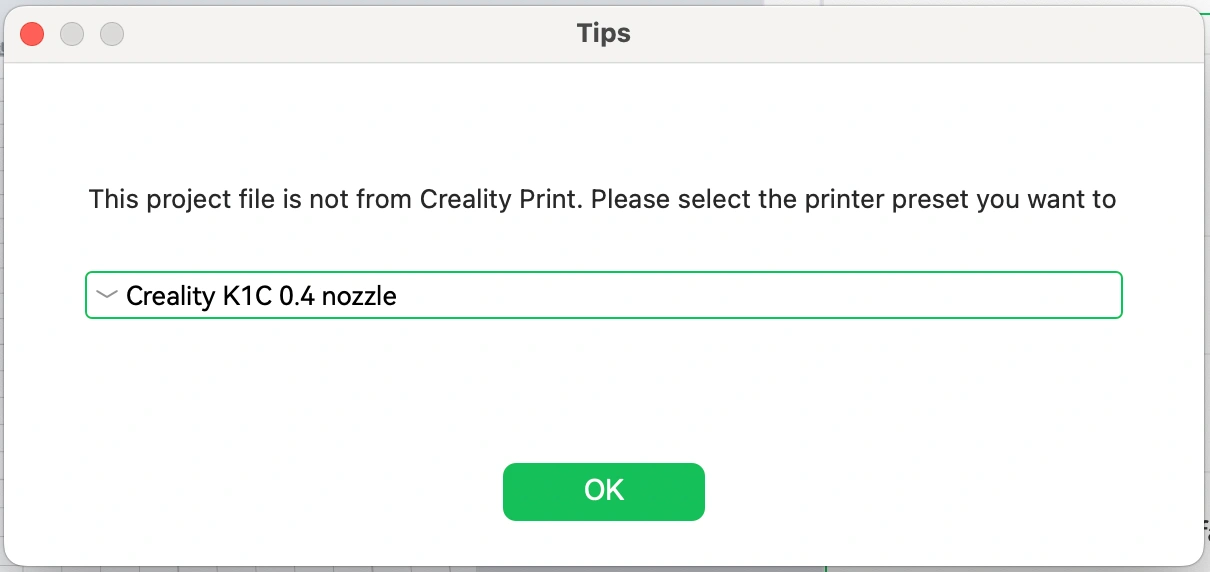
Then, the model will be automatically downloaded and imported directly into your Creality Print.
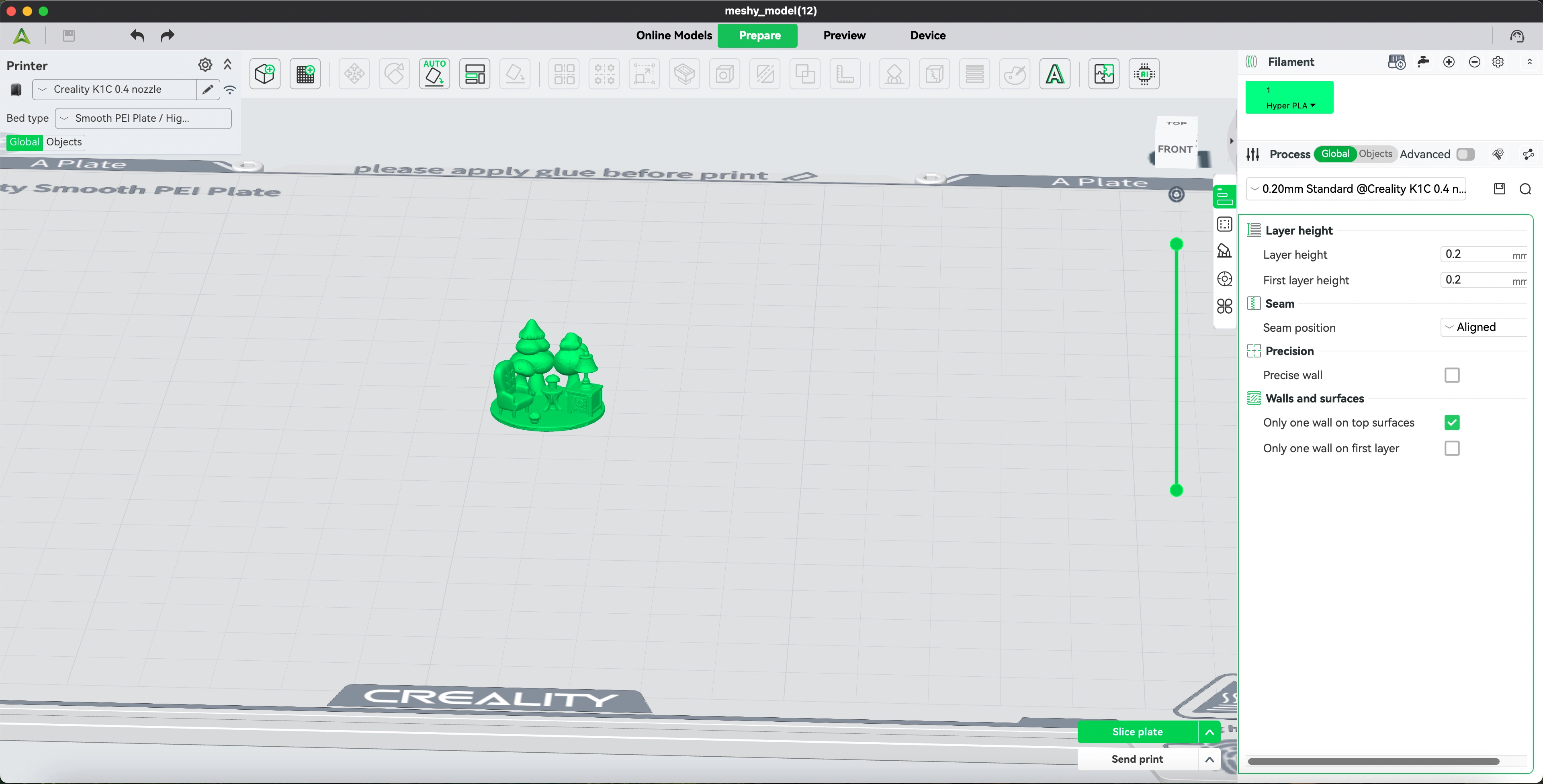
Any 3D model you generate in your workspace—regardless of the method used—can be effortlessly sent to Creality Print via the Print menu.

Likewise, models published by other users in the MeshyAI community are fully supported and can also be seamlessly sent to Creality Print.