Bridge to 3ds Max
Learn how to quickly send assets from the Meshy web application directly to 3ds Max using our bridge feature.
Meshy now supports 3ds Max bridging directly from the workspace. Pro members and above can send models to 3ds Max following the steps below.
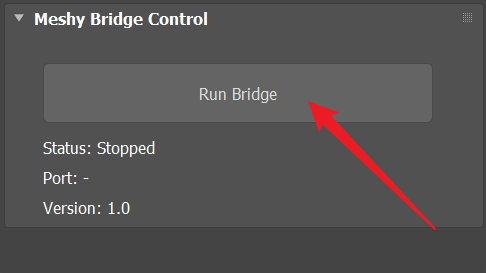
Run Bridge in Meshy-3dsMax Plugin
Click Run Bridge to initialize and start the bridge connection.
Sending Models to 3ds Max
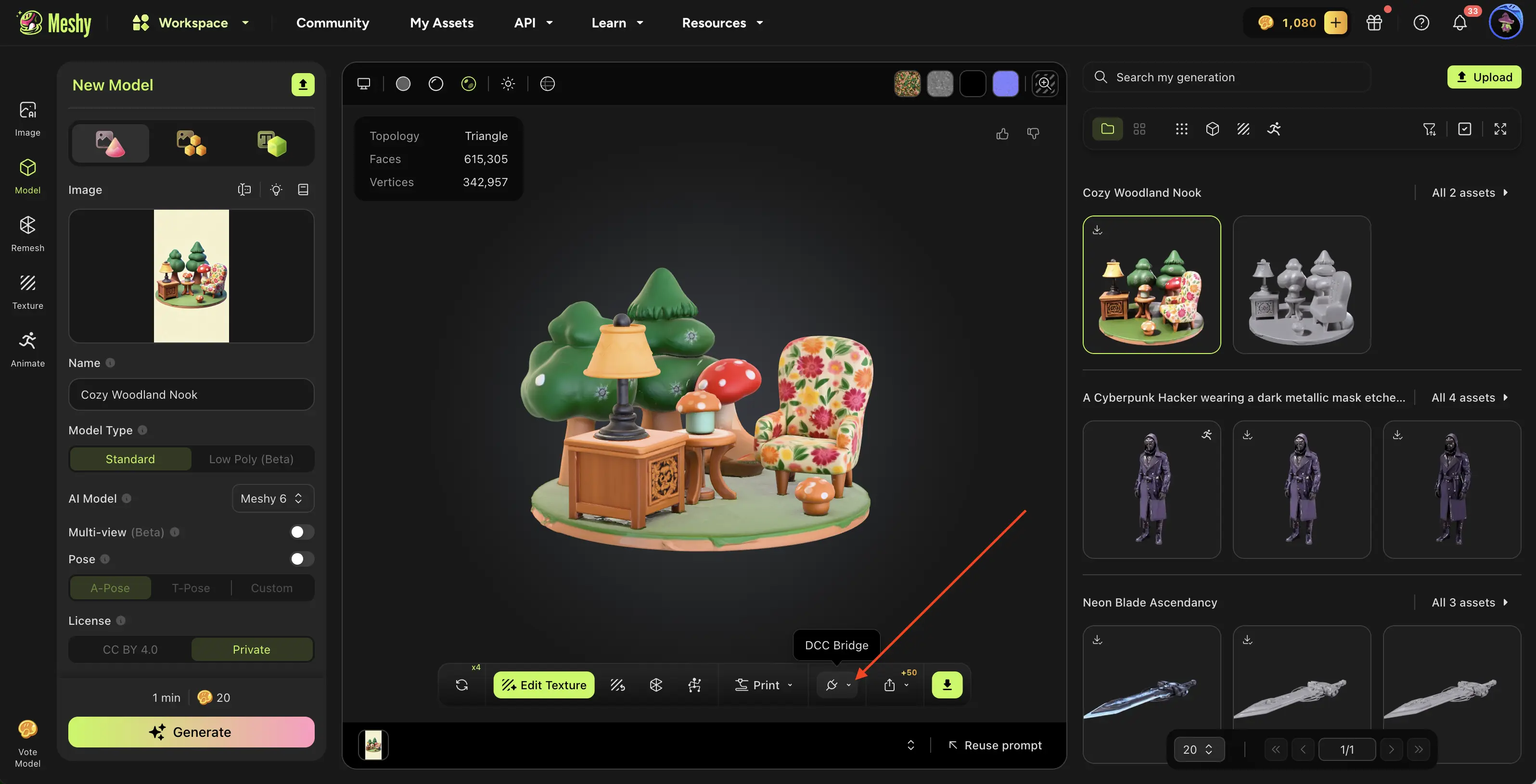
Navigate to the model you want in your MeshyAI workspace, click the DCC Bridge menu, and select Send to 3ds Max.
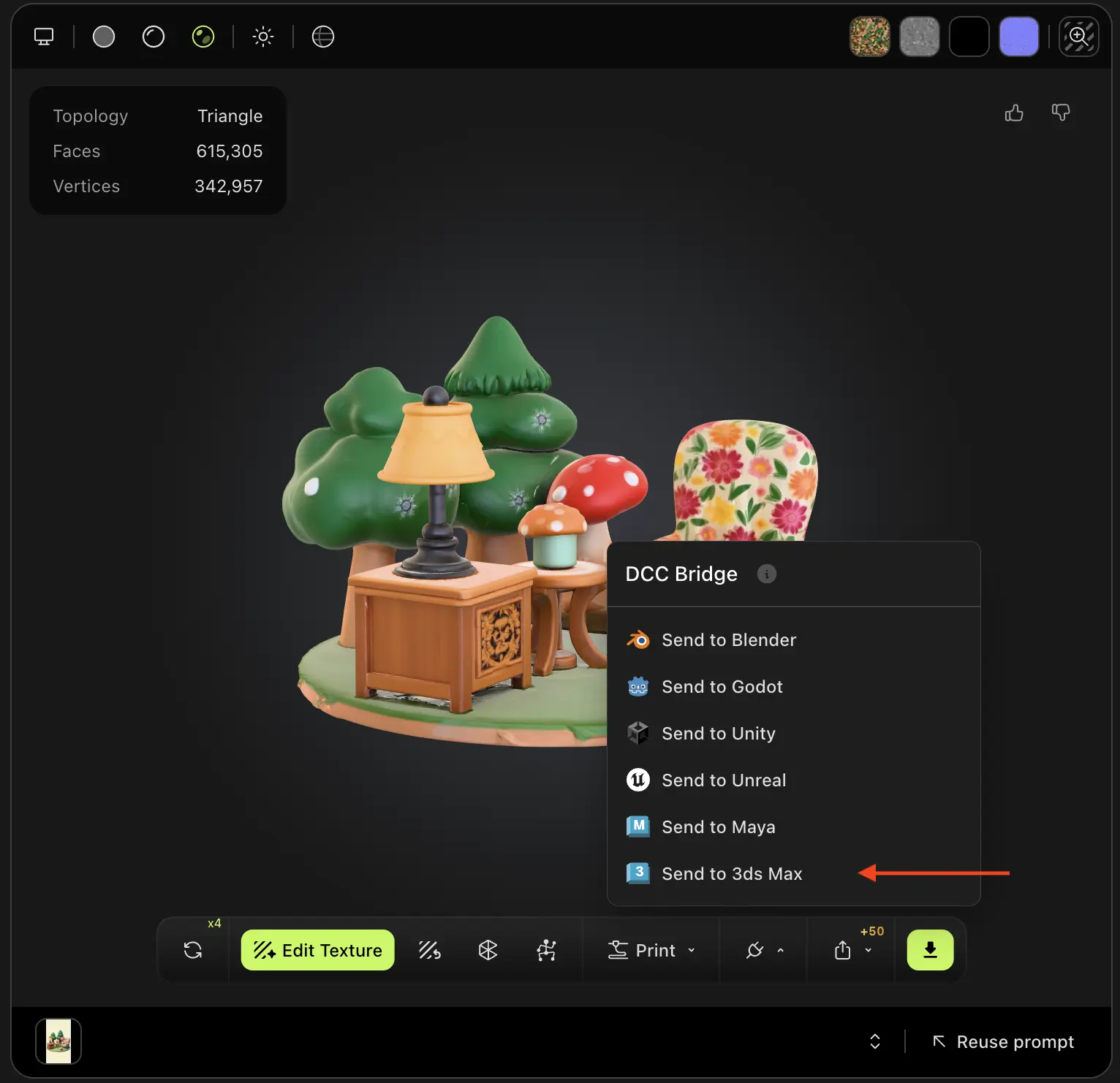
The model will be automatically downloaded and imported directly into your 3ds Max scene.
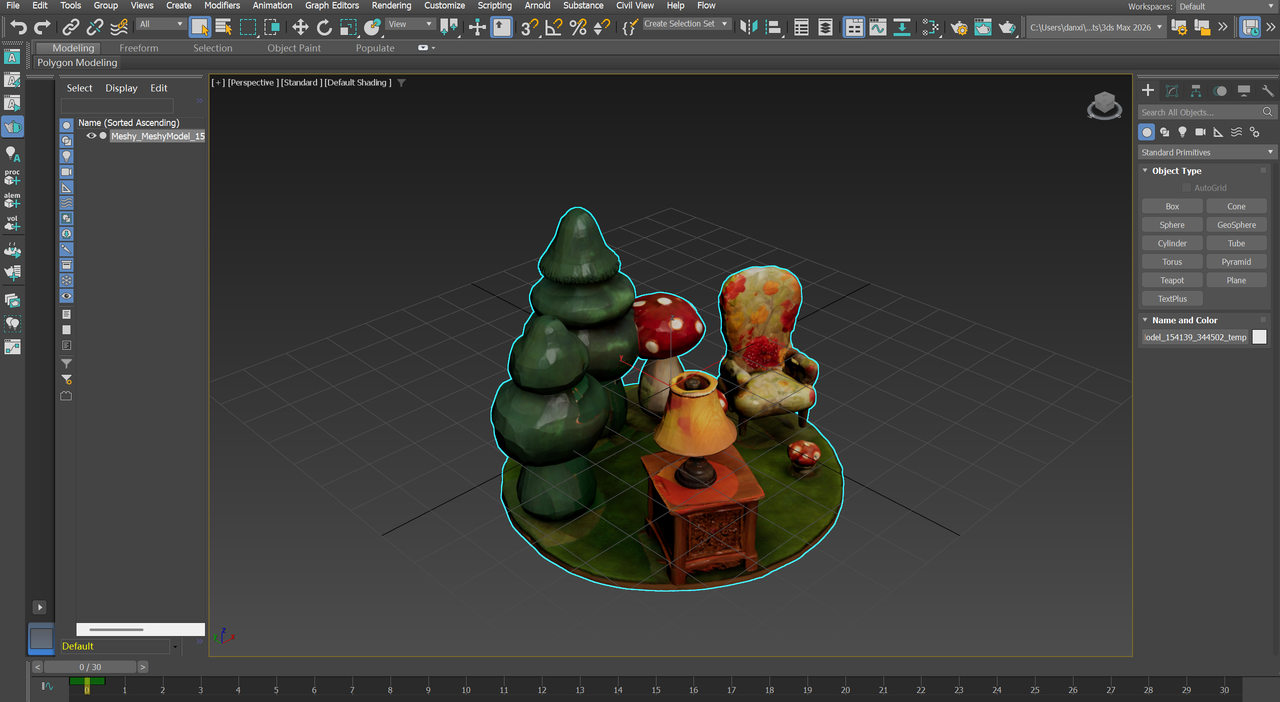
Any 3D model you generate in your workspace—regardless of the method used—can be effortlessly imported into 3ds Max via the DCC Bridge.
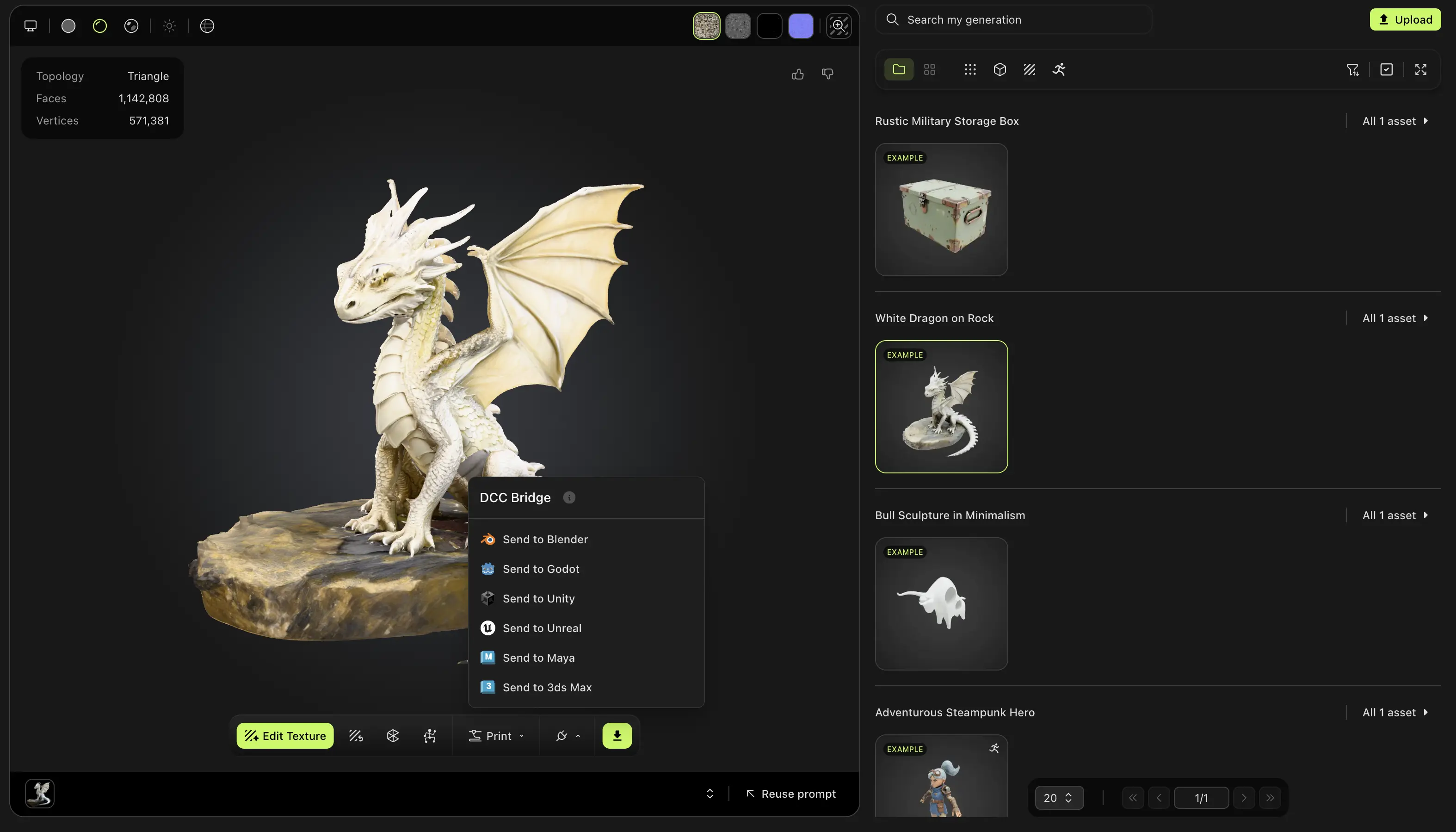
Likewise, models published by other users in the MeshyAI community are fully supported and can also be seamlessly imported into 3ds Max using the DCC Bridge integration.