Authentication
Create a Meshy account and an API key, then send the key with every request.
API keys
Create a Meshy account
You need a Meshy account to create and manage API keys. A request without an API key returns 401 Unauthorized.
To create an account, sign up on the Meshy website.
Create an API key
After you create an account, you can create API keys on the API Keys page of the Developer Platform.
You can create several API keys for different purposes, for example one for your iOS app and another for your web app. Meshy tracks the usage of each key separately, and you can revoke a key at any time.
You can also set a monthly credit limit on any key. The limit caps what the key can spend, whatever your account's overall usage. For example, use it for a key that you give to a contractor or use in one environment.
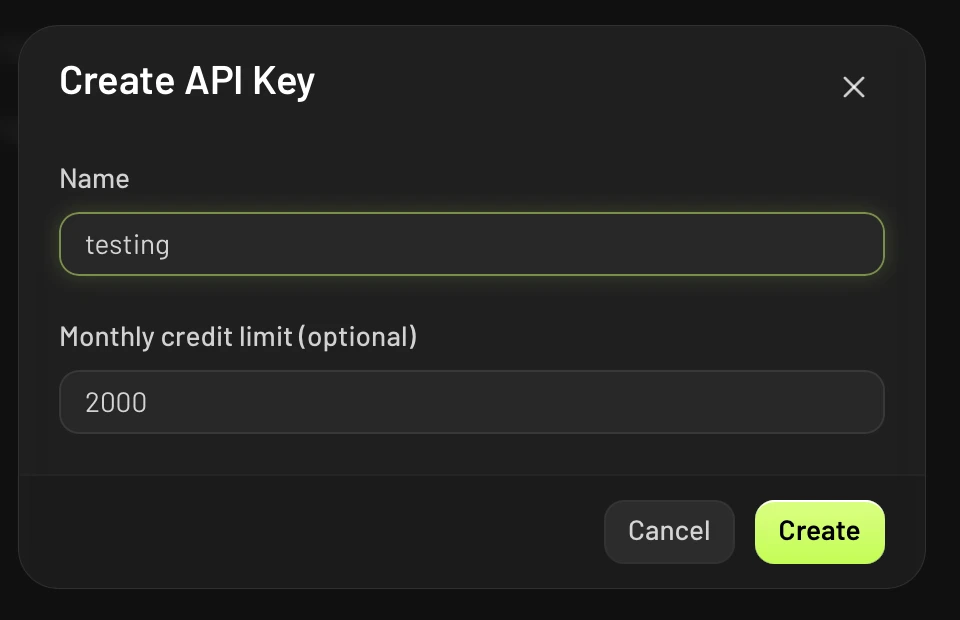
To create an API key, follow these steps:
- On the API Keys page, click Create API Key.
- In Name, enter a name for the key.
- Optional: In Monthly credit limit (optional), enter the most credits the key can spend each month.
- Click Create.
- Copy the key, and store it somewhere safe. You can't view the key again after you close the dialog.
Use an API key
Send the API key in the Authorization header of every request, as a Bearer token:
{
  "Authorization": "Bearer msy_sOmEbOgUsApIkEyFoReXaMpLe1234567890"
}
The Bearer prefix in the header value is required. For more information about bearer tokens, see RFC 6750.
Restrict a key to IP addresses
An IP allowlist limits an API key to the addresses your requests come from, such as your servers' public egress addresses. Meshy then refuses the key from any other address, so a copied key is much less useful. A key without an allowlist works from any address.
For a team's keys, only team admins can change the allowlist. CLI keys don't have one.
To set an allowlist, follow these steps:
- On the API Keys page, open the key's menu and click Manage IP allowlist.
- Add each address or range. Optional: give each one a name, for example
office NAT. - Optional: click Check impact to see how many of the key's requests in the last 7 days the list would have blocked.
- Save the list.
Each entry is one IPv4 or IPv6 address, such as 203.0.113.5, or a CIDR block, such as 203.0.113.0/24. The list follows these rules:
- A key can have up to 50 entries, and a name can be up to 60 characters.
- An entry must be a public address. Meshy refuses private, loopback, and link-local addresses, such as
10.0.0.0/8or127.0.0.1, because no request reaches the API from them. Use the public address that your traffic leaves from. - An entry can't allow every address, such as
0.0.0.0/0. To accept any address, remove the allowlist. - Meshy saves a CIDR block as its network address. For example,
203.0.113.5/24is saved as203.0.113.0/24, which is the range Meshy enforces.
The dialog also lists the addresses that used the key in the last 7 days, so you can add them directly. For a busy key, Meshy samples the addresses, so the list may not show every one.
Changes apply on the next request, within a minute at most. After you remove an allowlist, any address can use the key again within a minute.
A request from an address outside the allowlist returns 403 Forbidden with the error code ip_not_authorized. The error message names the refused address, so you can add it if it's yours. A refused request doesn't use credits or count toward your rate limits.
Security
Follow these guidelines to keep your data and requests safe, along with your team's own security practices.
Transport Layer Security
Meshy encrypts your data at rest, and the Meshy API uses TLS to encrypt data in transit. All requests to and from the API go over HTTPS, and a request over HTTP gets 301 Moved Permanently.
Avoid HTTP when you can. If you must send a request over HTTP, tell your HTTP client to follow the redirect to HTTPS. The following examples show how:
Follow HTTP to HTTPS redirections
# use `-L` to follow HTTP to HTTPS redirections
curl -L https://api.meshy.ai/openapi/v1/balance \
  -H "Authorization: Bearer ${YOUR_API_KEY}"
Redirects work only for GET requests. HTTP clients resend a redirected POST as a GET without its body, so always call https:// directly to create tasks.
API key safety
After you create an API key, the Developer Platform doesn't show it again. Store it somewhere safe, because anyone who has the key can call the Meshy API as you. Meshy team members can't view or recover a revoked key for you either.
If you think someone else has your key, revoke it on the API Keys page. A revoked key no longer works.
An IP allowlist makes a leaked key much less useful, but it doesn't replace revoking the key. If a key leaks, revoke it and create a new one.
Security disclosure
If you find a security issue in the Meshy API, contact Meshy support. Meshy appreciates responsible disclosure and makes every effort to acknowledge your contribution.