Snapmaker Orca
Send a model from the Meshy web app straight into Snapmaker Orca, ready to slice for your Snapmaker printer.
Before you begin
-
You need a Pro plan or higher. On the Free and Starter plans, clicking Snapmaker opens the upgrade options.
-
Install Snapmaker Orca, Snapmaker's official version of OrcaSlicer, on the computer where you use the Meshy web app. The web app opens Snapmaker Orca through your browser, so you don't need a plugin.
Send a model
To send a model to Snapmaker Orca, follow these steps:
-
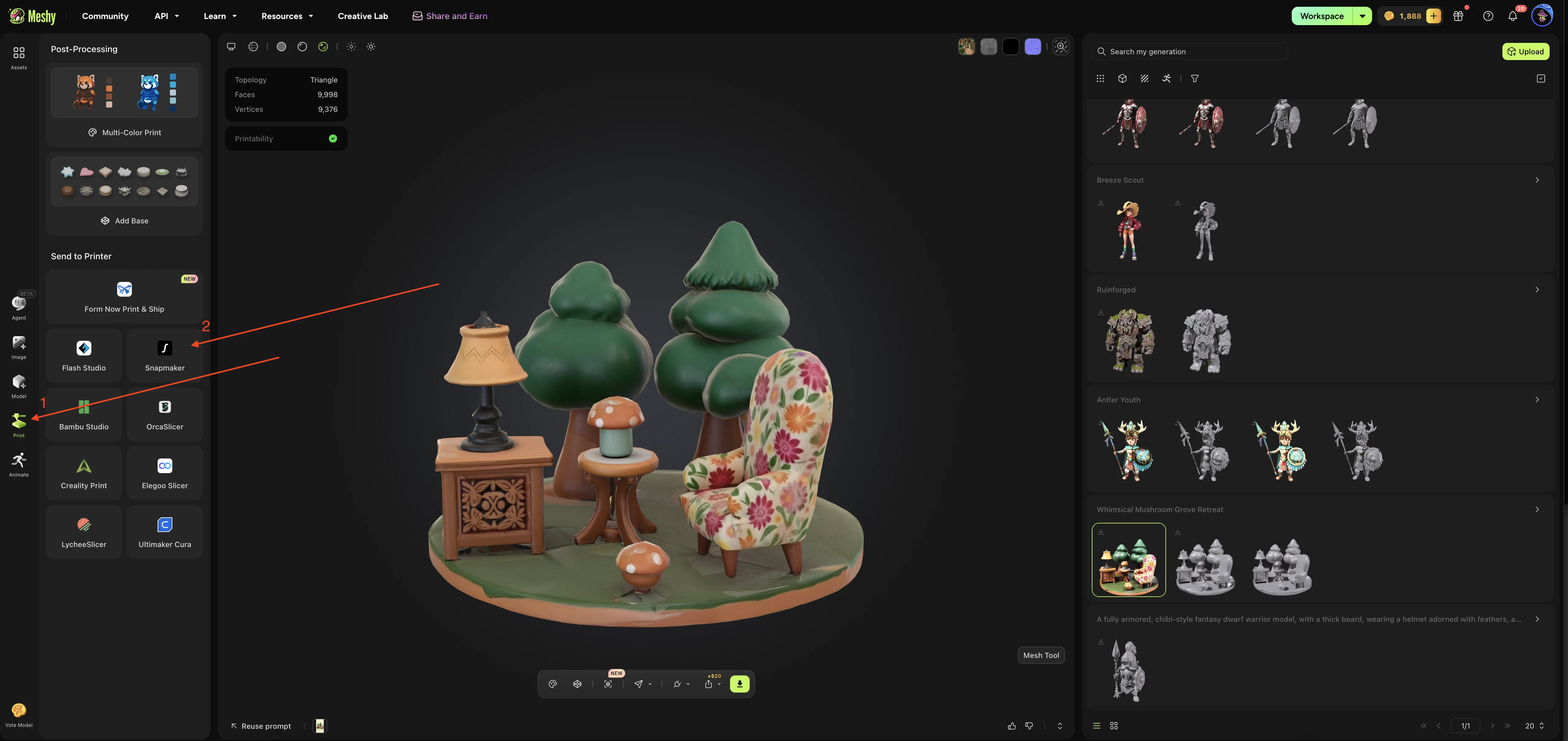
In the left sidebar of the Meshy web app, click Print. If the panel asks you to select a model, select it in the list of your generations.
-
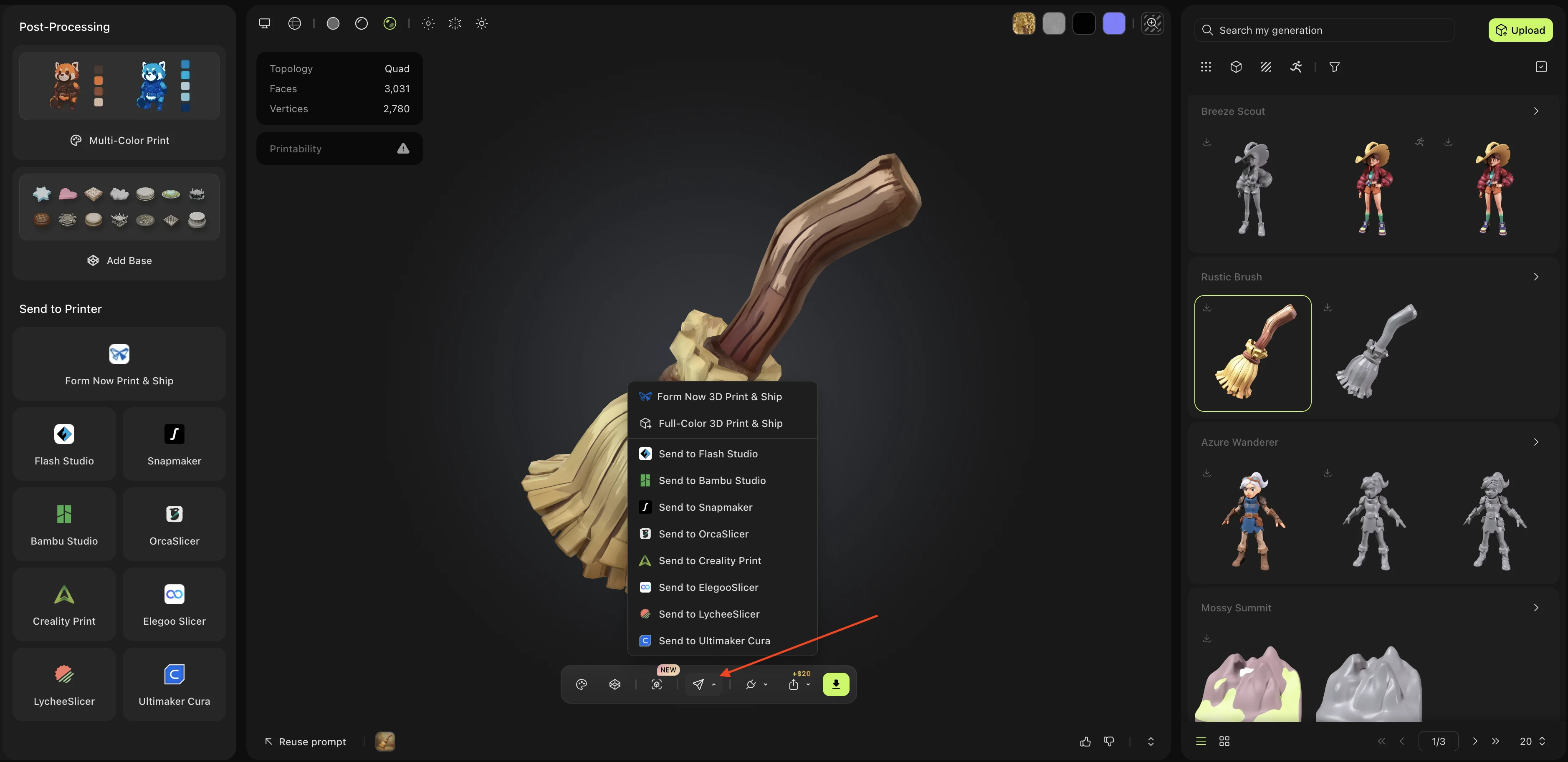
In the Print panel, under Send to Printer, click Snapmaker.
-
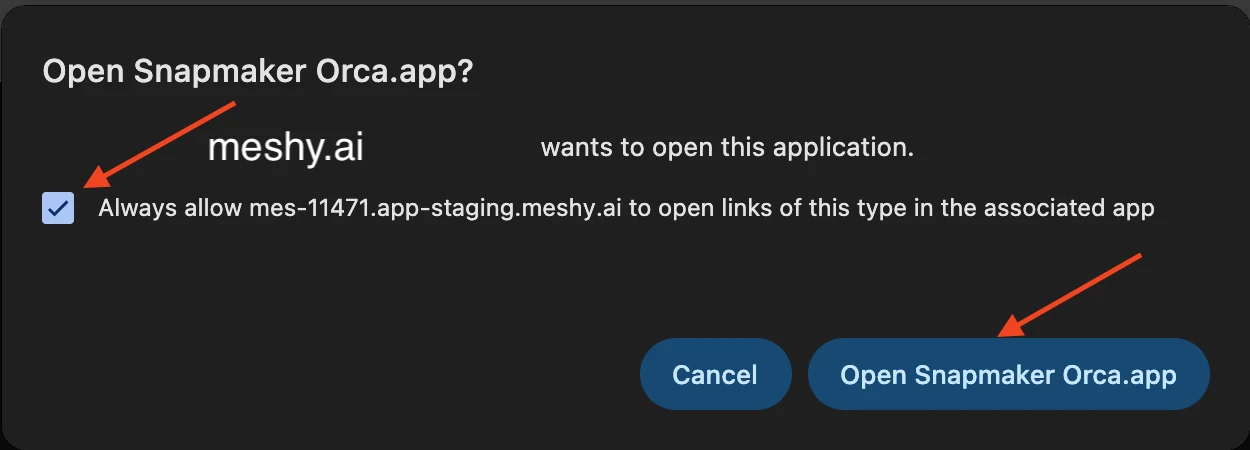
In the browser prompt, select Always allow www.meshy.ai to open links of this type in the associated app so the browser doesn't ask again, and then click Open Snapmaker Orca.app.
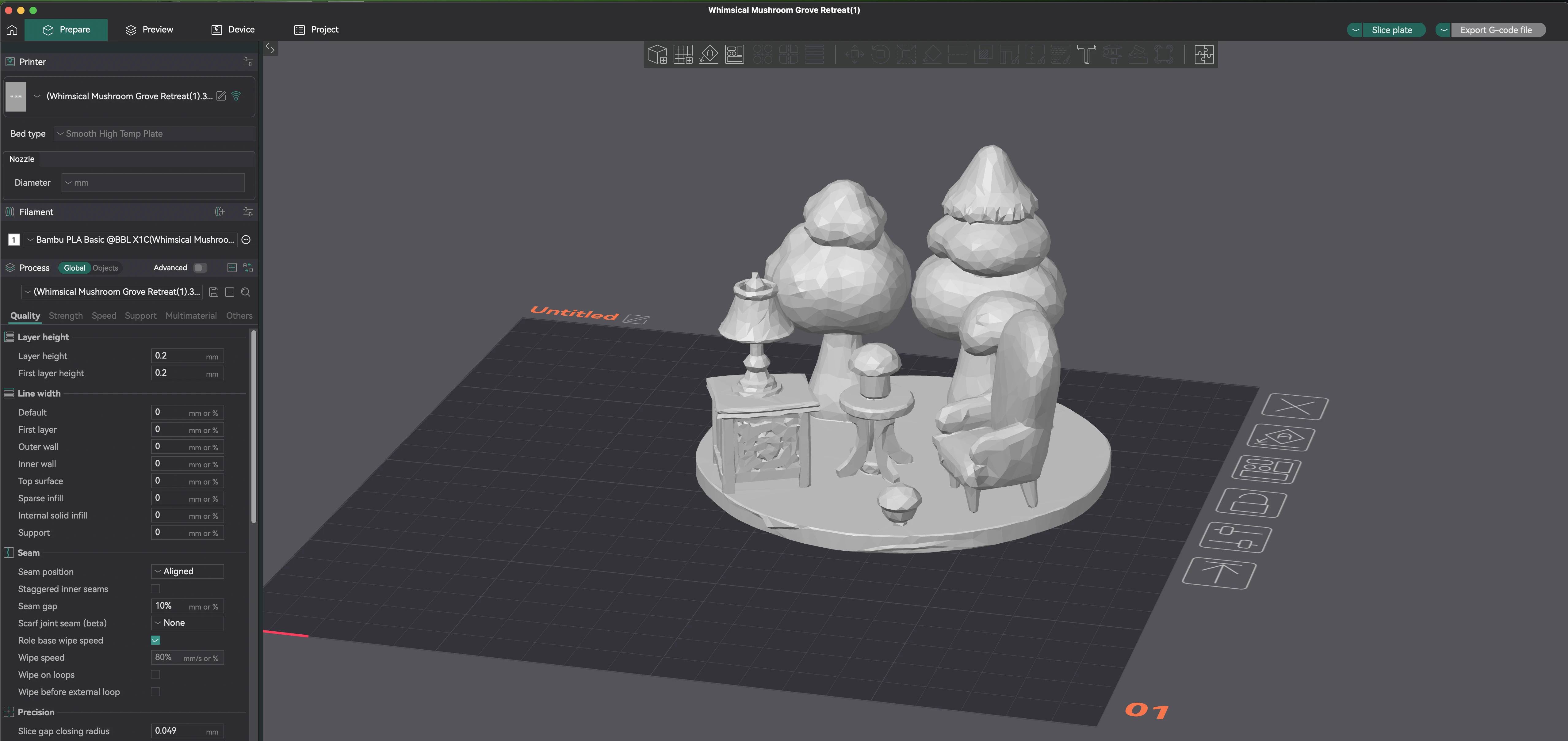
Meshy sends the model as a 3MF file, and Snapmaker Orca adds it to the build plate, ready to slice.
More ways to send
You can send models from your generations, whichever tool made it, and models that other users shared in Community. For example, you can also send from these places:
-
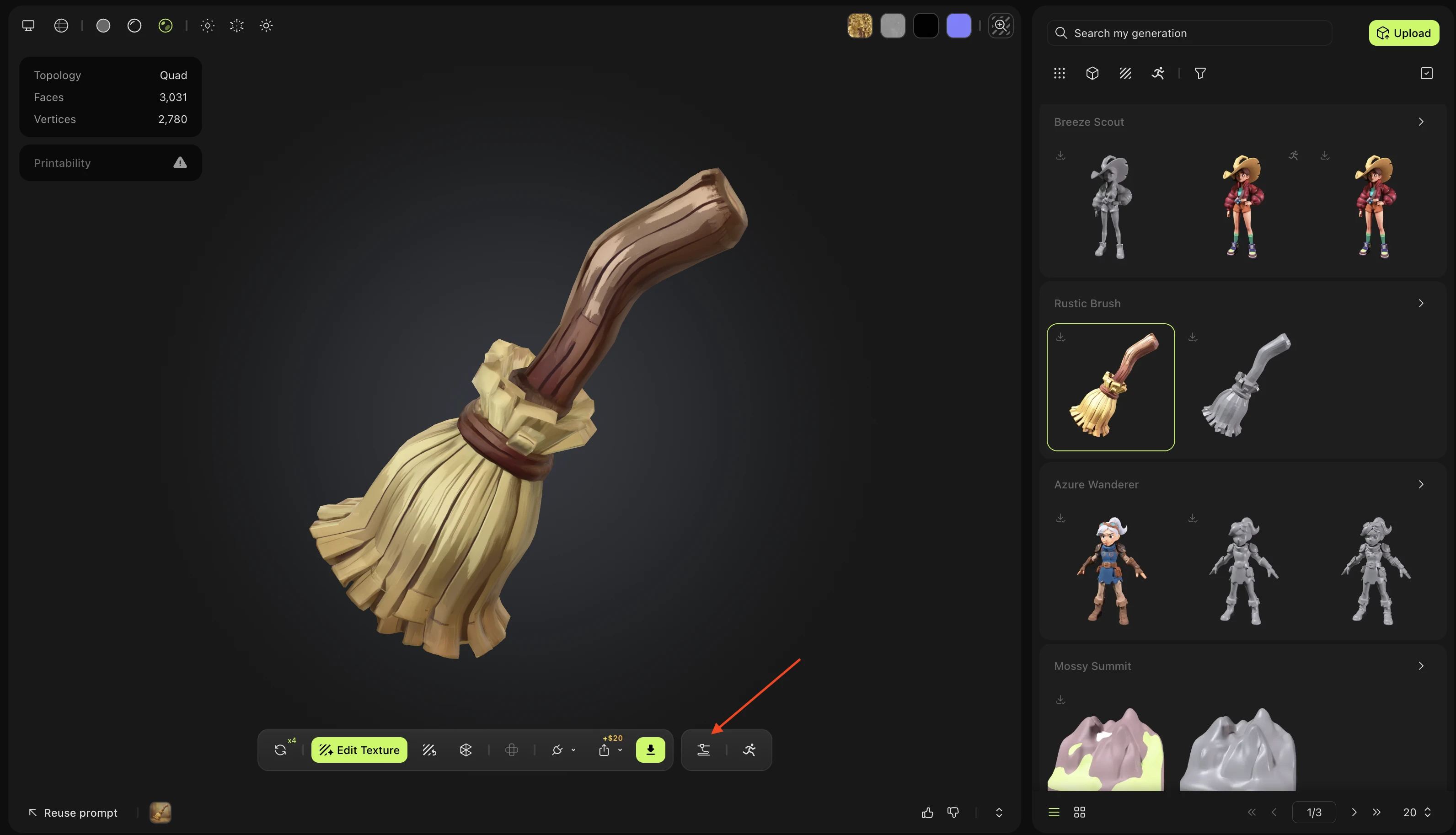
In the Model panel, click Print (the 3D printer icon) in the viewer toolbar. The Print panel opens, and you can continue from step 2.
-
With the Print panel open, click Send to Printer (the paper plane icon) in the viewer toolbar, and then click Send to Snapmaker.
-
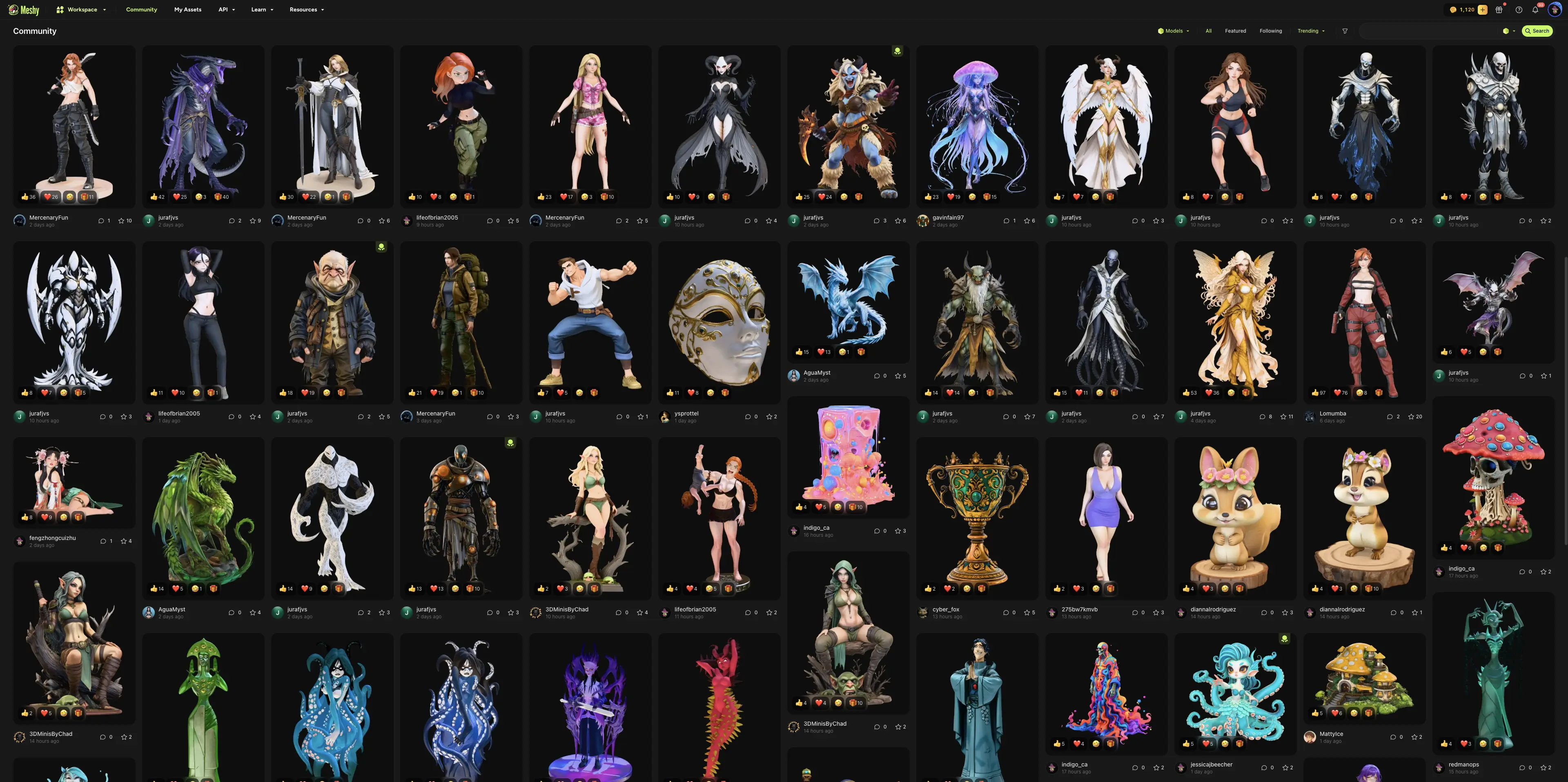
In Community, open a model that another user shared, click Print (the 3D printer icon), and then click Send to Snapmaker.
Next steps
-
To check and repair a model before you print it, see 3D printing workflow.
-
To send models to other slicers, see 3D printing platforms.